Generate your first 30 unit tests using Early’s VSCode Extension
This document will enable you to generate your first 30 unit tests in less than a minute using Early's VSCode extension via a sample earlyai-todo-app pre-configured TypeScript/Jest project.
earlyai-todo-app project setup:
- Make sure you have VSCode Version 1.88 or later installed
- Clone Early's earlyai-todo-app
- Run the following command on the VSCode terminal:
npm install
The sample todo-app Setup is completed
Install Early AI VSCode Extension via MSFT Marketplace:
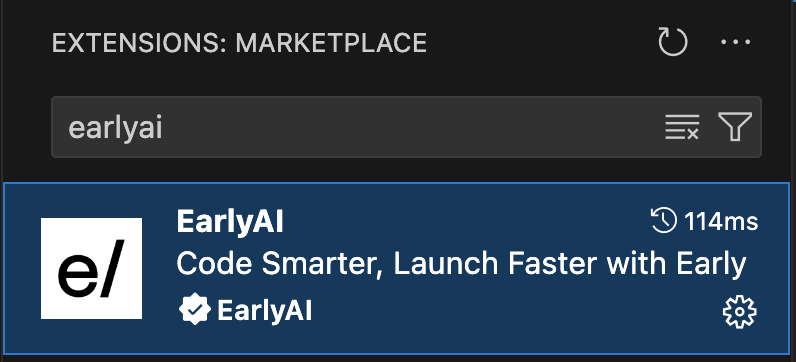
- Search for the EarlyAI extension on VSCode marketplace and install it
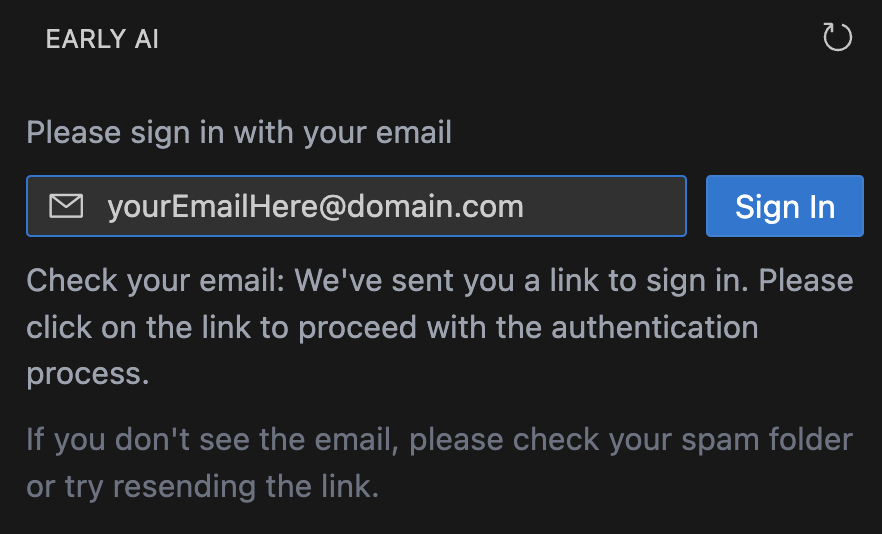
- Open the extension and log in using your email address for verification
-
More information about the EarlyAI extension can be found on Microsoft Marketplace
-
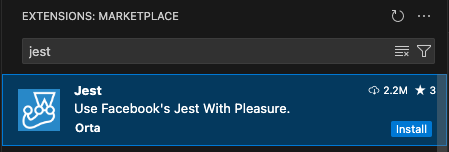
We highly recommend that you also install the Jest extension, which supports full jest features in vscode environment to make testing more intuitive
- Click on Early's Extension icon on the left bar
- Make sure your project has node_modules, jest.config, and jest setup correctly
- View the files and method tree on the project tree
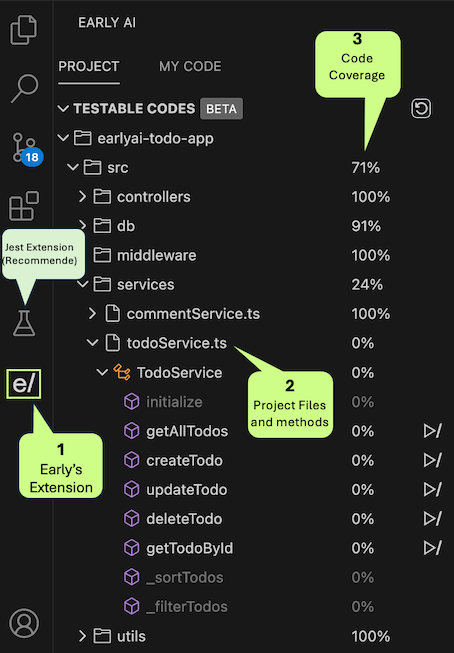
Navigate through the extension views
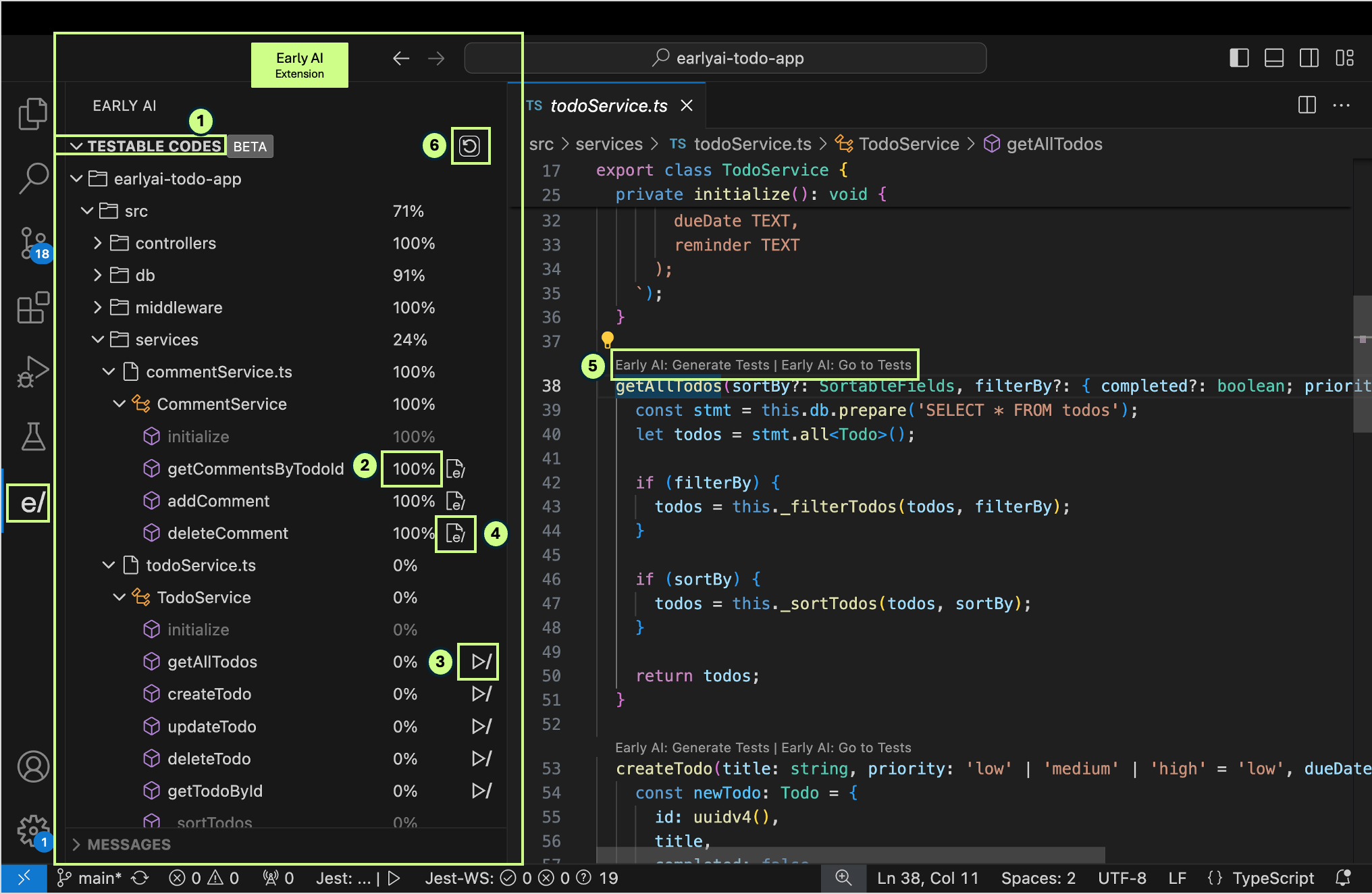
1.  A tree of all the testable methods /functions in the project
2. 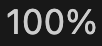 The percentage next to each method/function shows the code coverage of that method/function
3.  "Play" (generate tests) button next to public method names
4.  "Go-to tests" go to the unit tests file that was generated
5.  code lens above public method/function names
6.  "Refresh" coverage button. note: Coverage refreshes automatically after test generations
Generating unit tests for methods/functions
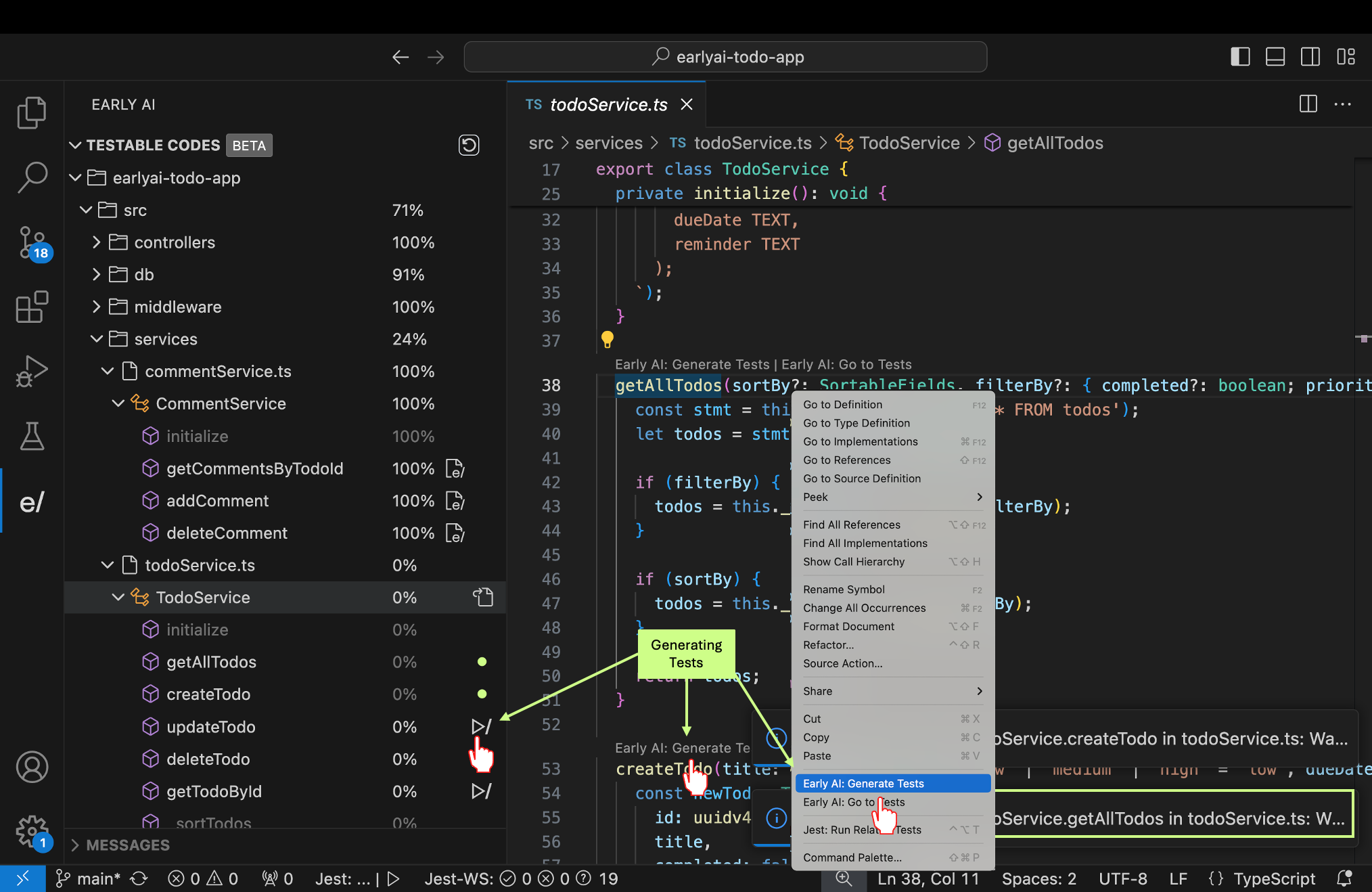
There are three ways to generate unit tests
1. Play button via the code explorer, next to the public method/function name.
2.  "Early AI: Generate tests" Code lens above each public method/function name on the code editor.
3. 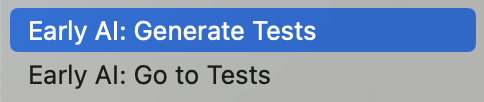 Context menu: right click within a method name or scope
Once you generate a test a VSCode notification bar will pop up on the bottom right corner until the generation is completed. Test generation can take between 15 to 30 seconds depending on the complexity of the code base and API response time.
Now you are ready to view the tests generated and respective coverage
- After generating the tests the coverage would refresh automatically
- Review the tests and respective coverage on Early's Extension
EarlyAI generates complex tests that includes mocks, logic, happy path and edge cases. We also generate “Green” and “Red” unit tests.
- Green are healthy passing unit tests
- Red could be good tests that are revealing a bug or erroneous unit tests (bear with us as we improve the product).
You can go-to the generated tests and view them in 3 ways.
1. "Go-to tests" go to tests button next to the method name
2.  "Early AI: go to tests" Code lens above each public method/function name on the code editor.
3. 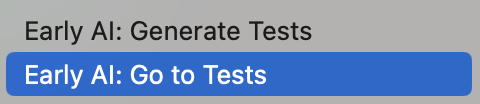 context menu: right click within a method name or scope
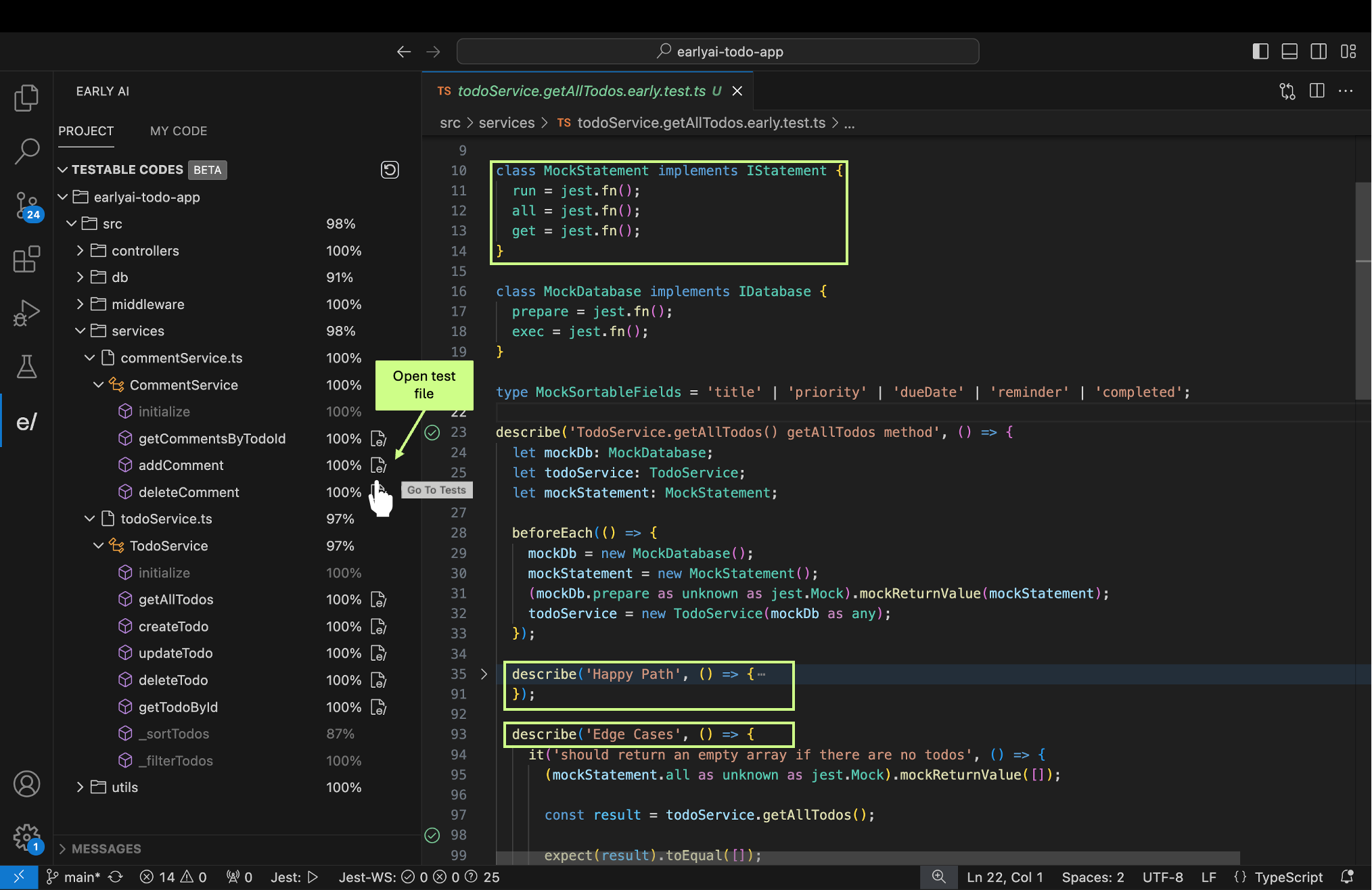
Run your tests via your preferred jest runner (command line or Jest extension) to view and troubleshoot the various tests.
- While we are striving to 100% coverage (all test generations succeeded) sometimes our model likes to think outside the box, a bit too far outside... we will still show you the results, they could be impressive.
- For more information check our Github issues or the changelog on VSCode Marketplace
Follow the setup and configuration document to setup your own projects and start generating meaningful unit tests for your code.