


Seamlessly bridge your code editor with web AI chats, no API keys needed! Refactor, debug, and generate code with a fluid, integrated workflow right inside Visual Studio. This extension is meant for those who want full control of the coding process, rather than vibe coding with agentic code editors, and don't want to mess with API keys, token costs, and limits.
Tired of the endless cycle of Ctrl+C, Alt+Tab, Ctrl+V? Manually copying code between your editor and a browser tab is slow, error-prone, and breaks your focus. You get:
- ❌ Disjointed context switching that kills productivity.
- ❌ Manually finding and replacing code blocks from the AI's response.
- ❌ No easy way to compare the AI's suggestion with your original code.
- ❌ Forgetting to back up your work before making significant AI-suggested changes.
Integrated AI brings the power of web AI chats directly into your IDE, creating a frictionless development experience.
- ✅ Stay in the Zone: A dedicated, dockable web window with multiple AI chat sites to choose from.
- ✅ One-Click Context: Send selected code, the current function, or the entire file to the AI in a single click with built-in context.
- ✅ Intelligent Code Merging: Review AI suggestions in a familiar diff view before applying them.
- ✅ Automatic Safety Net: Your solution is automatically backed up when you accept changes, so you can experiment with confidence.
You can use this extension with your favorite AI chat, for free or with a subscription that you already have, along with all the features you're already used to such as projects and memory. With Integrated AI, you don't have to give up control and your creative vision to vibe coding, and you also don't have to deal with the old way of copying and pasting code blocks.
- Google AI Studio
- Grok
- Claude
- ChatGPT
- Gemini
- Deepseek

- Integrated AI Chat Window: Open an AI chat web interface in a dockable Visual Studio tool window.
- 🎯 Smart VS-to-AI Transfer: Use the right-click
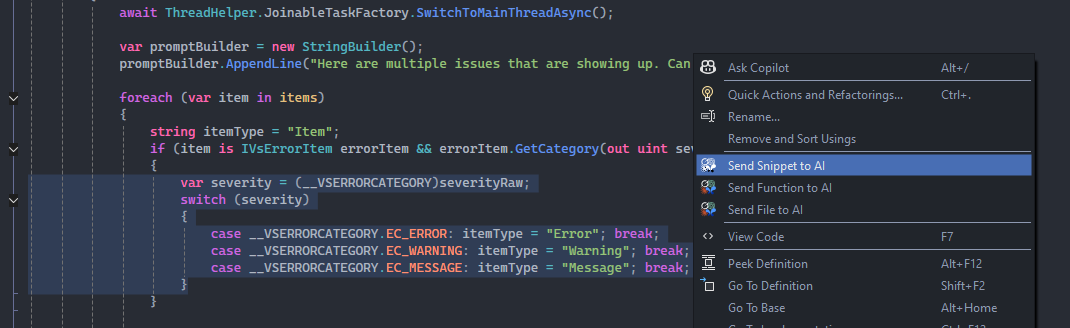
Send to AImenu commands to instantly send code to the prompt text area (you can also set up keyboard shortcuts). Choose from these commands:- Snippet: Send only the code you've highlighted.
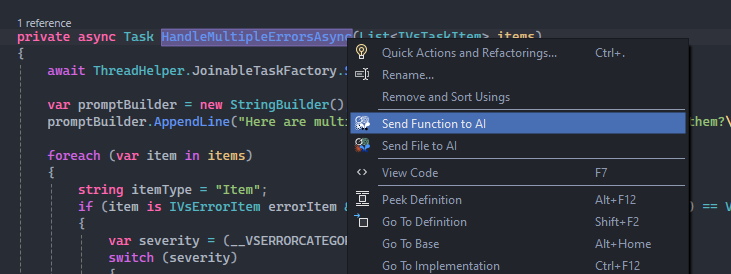
- Function: Right-click a function name to send the whole function.
- File: Send the complete content of the active document.
- Multiple Files: Select and send several files at once from your solution.
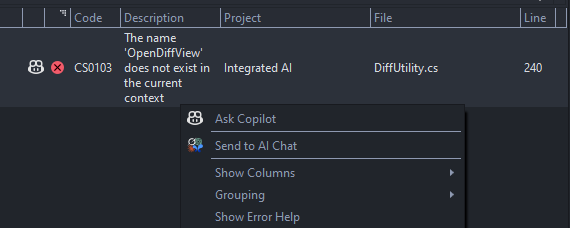
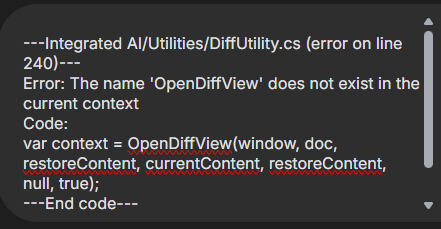
⚠️ Error to AI: From the error list, right click after selecting errors/warnings and clickSend to AI chat. It will send the error description(s) and the line with code that has the error.- ✨ Intelligent AI-to-VS Diffing: Move code from the AI back to your editor with the
Replace with AI codemenu commands. You have full control of what gets replaced, with options similar to the Send to AI commands. The extension can also intelligently analyze the AI's response to find the corresponding function or snippet in your file (turn on Auto Code Replace in the options). It then presents a rich diff view, allowing you to review changes line-by-line and accept, decline, or manually choose a different replacement. - 🔒 Automatic Backups: Never lose work. When you accept a diff, the extension automatically creates a zip backup of your entire solution, giving you a restore point. There is also a manual backup button.
- Note: All files such as backups, saved chat URLs, and restore info is saved locally on your PC.
- Open Visual Studio 2022.
- Navigate to
Extensions>Manage Extensions. - In the
Browsetab, search for "Integrated AI". - Click Install and follow the instructions.
- Restart Visual Studio.
- Open the Chat Window: In the Visual Studio top bar, go to
Tools>Integrated AI>Open AI Chat Windowto open the chat tool window which can be docked or moved. Select your desired chat site from the dropdown within the chat window (default is Google AI Studio). - Chat with the AI: Your code will appear in the prompt along with your message. Write your request (e.g., "Refactor this to be more efficient" or "Add exception handling").
- Send Code: Open a code file. Then right-click within the editor and select a
Send to AIcommand. You can send multiple code blocks or even multiple files, since each send command is added in its own code block to the AI prompt. - Review the Diff: Once the AI provides a response, highlight or copy the text in the chat window. Then right-click and select a
Replace with AI codecommand. A diff view will appear, showing the proposed changes. You can also just use the artifact "copy" buttons on the response code blocks for more automated diffing (see "Configuration" for more info). - Accept or Decline: If you like the changes, click "Accept" in the diff view. A backup of your solution will be created automatically by default, and the document will be saved with the new changes.
"VS to AI" Transfers
Code is sent from VS to the AI chat with the Send to AI commands from the document right-click menu. The available commands show depending on what is right-clicked:
- File to AI: anywhere in the document
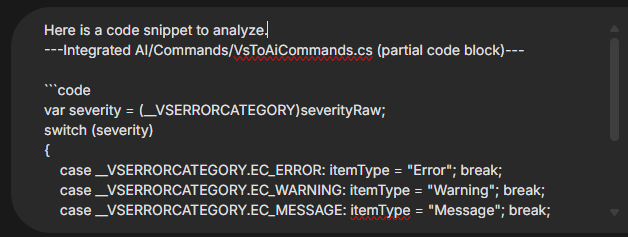
- Snippet to AI: on highlighted text
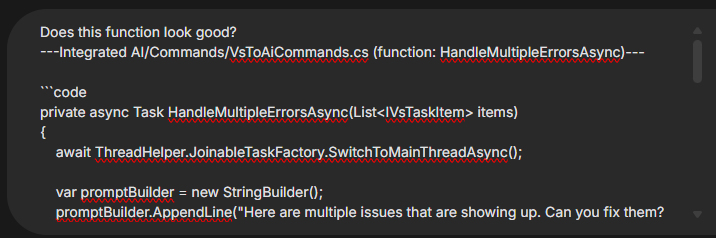
- Function to AI: on a function name, where the function definition is within that same document
If
Smart Commandsis on in the options, the send mode will be chosen based on what is right-clicked.
Code blocks get a context header so the AI knows useful info such as filepath and type. Sites that allow markdown in prompts, such as AI Studio or Grok, have collapsible code blocks and syntax highlighting using ```code tags.
Note: The function commands only work with files that are native to Visual Studio, such as C#, VB, C++, and F#. Files such as XAML and Javascript will still work > with snippets and full file transfers.
Tip: To use keyboard shortcuts for any command, go to
Tools>Options>Environment/Keyboardand search for the command to add a key combination. Set the scope toText Editorto avoid conflicts with existing shortcuts.
You can send errors or warnings from the VS error list by right-clicking on one or multiple errors and selecting "Send to AI chat". It will paste the error description, line number, and contents of the line into the prompt if it's just one error, and also navigate to that error in your code, even if a file is closed. Multiple errors/warnings selected will send just the descriptions, all in one click. To select multiple errors/warnings use ctrl+click or shift+click before right clicking on one of them.
Intelligent "AI to VS" Diffing
The "Replace with AI Code" commands are used to send highlighted or copied code from the AI chat to your editor. First it will check for highlighted text within the chat window, and if nothing is highlighted it will use whatever is in the clipboard. The code is merged into your existing file automatically, showing a diff view before applying changes.
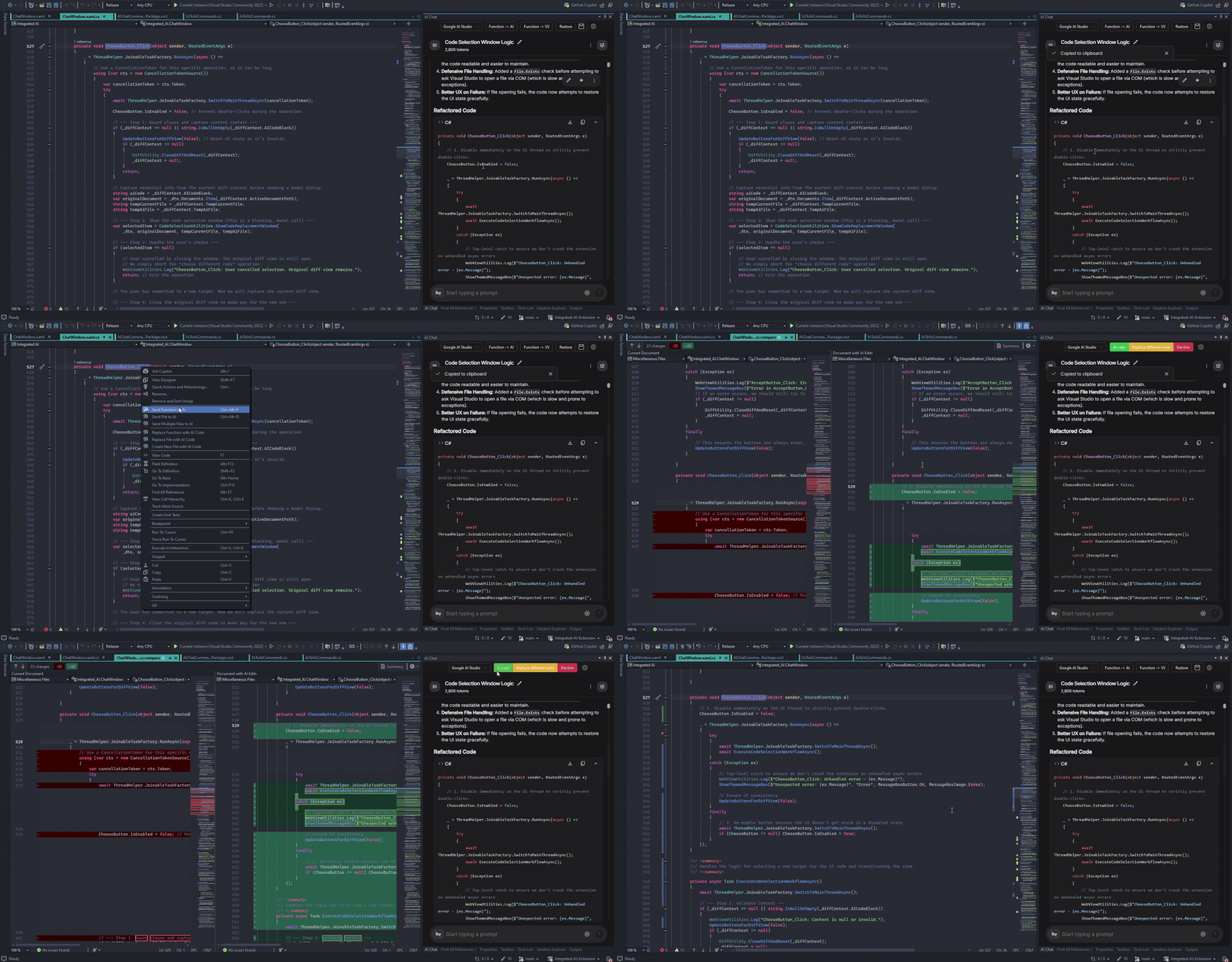
If "Auto Code Replace" in the options is turned on, you don't even need to use menu commands! This only works with the artifact copy buttons. It works best with C# and VB code, and can also work with diff AI responses in the format <<<< Old code ==== New code >>>> (a diff response isn't required but recommended for an accurate code replace. Some chat sites, such as AI Studio, sometimes respond like this on their own). For other file types, such as XAML, it will fallback to a full file replace or, if there is text selected in the code editor, a snippet replace.
Tip: Clicking the copy buttons will also prioritize highlighted text and use that rather than the full code block. This is mostly useful for Auto Code Replace if you don't want to use the full code block.
For the "Replace Function with AI Code" command, auto matching attempts to find the function to replace by name. An unmatched name or new function will be inserted at the cursor position.
If a different code block to replace is needed, you can use the "Replace Different Code" button.
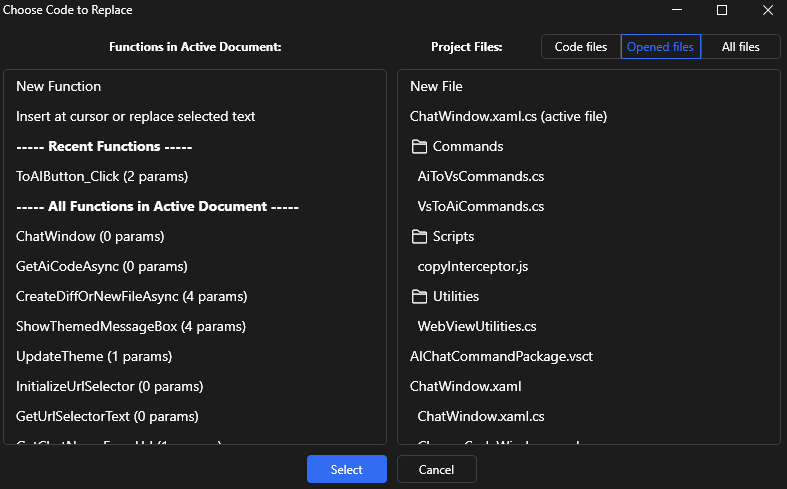
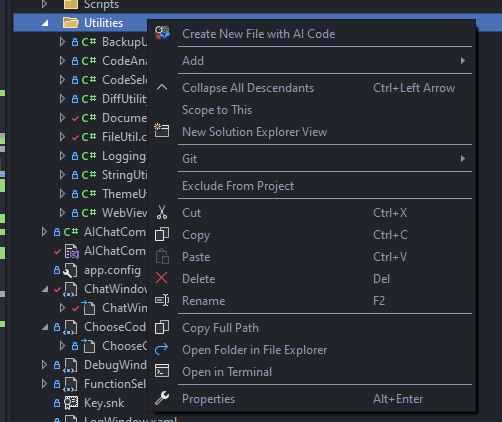
There is also a Create New File command in right-click menus under files and folders in the solution explorer that will let you choose the new file name and select or copy AI code to be used for the new file.
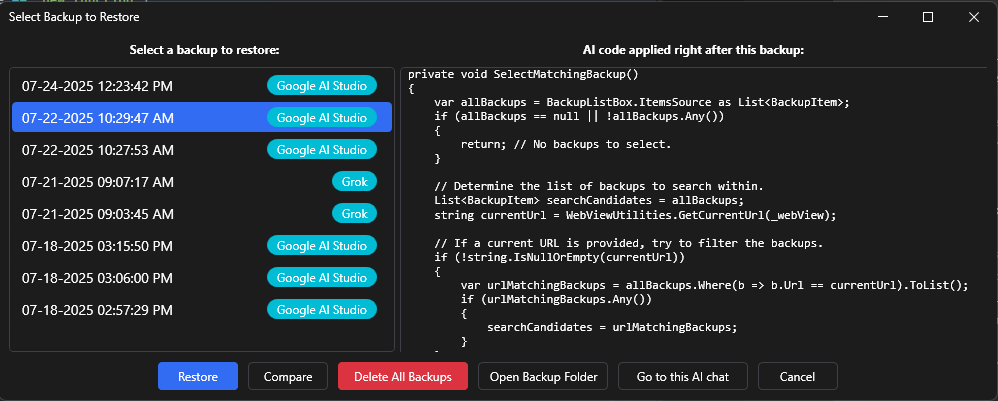
Automatic Backups and Restore Window
After accepting a diff, a backup is created of the previous solution state (this can be disabled in the options). The AI code that was used for that diff and the chat page is also saved to allow for easy searching later. There is also a manual save button so your solution can be backed up at any time.
For restores a separate window opens with different options. There is a list of restores showing the AI code that was accepted right after that restore point. If you highlight or copy some AI code in the chat window, the restore window will open to that restore point if it exists. You can also use "Go To Chat" to navigate there. Compare will show multiple diff views with each changed file, and you can restore that backup or close the diff views from there.
Note: After a restore it's best to clean > rebuild for the solution.

You can configure the extension's behavior by clicking the gear icon at the top right of the chat window.
- Theme: Set all windows to light or dark mode.
- Auto Code Replace: Toggle automatic code analysis for artifact
Copy Codebutton clicks during code replacement/diff view creation. - Create Restore on Accept: Toggle creation of restore point every time a diff is accepted.
- Auto Delete Old Backup Files: If enabled, this will only keep the most recent 50 backups.
- Reset URLs: URLs to chat pages are saved to make switching chats easy. The last-used URL is also saved when closing VS. This button can be used in case a chat page is incorrect.
- Smart Commands: When enabled, this simplifies the right-click context menu to just two commands:
Send to AIandReplace with AI Code. The extension will intelligently determine whether to act on a snippet, function, or the entire file based on your current selection or cursor position. - Show Log Window: Used for error reporting and debugging.
- The AI window is blank or shows an incorrect page?
- Try refreshing the window with Ctrl-R (or right-click the window and select "Refresh") or choosing a different chat page. You can also use the "Reset URLs" button in the options.
- Navigation timeout?
- This is a known issue that happens sometimes if your internet is slow. Switching chat sites and going back to one can help it connect.
- AI chat page logged me out?
- This is an automatic security feature of some chat pages which happens in a normal browser as well, the only fix is to just log back in.
- The "Auto Code Replace" didn't find the right code for replacement?
- The diff logic works best when the AI provides a complete function, file, or a clearly defined snippet. If the AI's response is heavily modified or partial, the logic may struggle. Try asking the AI to provide the complete function, file, or snippet in its response.
For any other issues, please report them on the GitHub page.
This is a tool for developers, by a developer. Your feedback is invaluable!
- ⭐ Review us on the Visual Studio Marketplace.
- 🐞 Report a bug or request a feature by opening an Issue on GitHub.
- 🛠️ Contribute to the project via Pull Requests.
- 1.3.8 Update AI Studio URL, improve
Create New FileUX - 1.3.7 Add
Create New Filecommand to solution explorer when right-clicking a folder/file - 1.3.6 Add backup auto-delete option, remove delete restore button (since this can be done with
Open Backup Folder), remove new file creation from choose code window - 1.3.5 Add diff block detection during auto code replace, fix AI Studio text inject and remove old placeholder buttons
- 1.3.4 Fix xaml not injecting into AI chat sometimes, fix extra newline under snippet replacements, fix new file creation failing when a xaml file is active
- 1.3.3 Fix navigation issues with message boxes causing crashes and increase timeout for slow internet connections
- 1.3.2 Add more compact command layout with smart commands, fix selected text in code editor not having priority during auto code replace, move "Send Multiple Files to AI" and "Create New File with AI Code" commands to the Tools menu
- 1.3.1 Fix Grok and Chatgpt text injecting without line breaks, add markdown injection and better syntax highlighting to more site prompts, fix Deepseek text not injecting
- 1.3.0 Add new "Replace with AI code" menu commands, remove "-> VS" splitbutton and new function option (since this can be done with a snippet insert).
- 1.2.3 Fix duplicate files showing in file list, add file filtering options, improve auto-diff code analysis
- 1.2.2 Add "Multiple Files to AI" command, improve file list in file selection window, re-fix indent issues with code sent to AI
- 1.2.1 Fixes: Readd file to AI existing file check, fix commands not showing for xaml files, improve backup deleting, remove "auto function match" toggle
- 1.2.0 Add "Send To AI" context menu commands and remove the "-> AI" splitbutton.
- 1.1.6 Add multiple error selection for Error to AI, add ability to delete selected backups, cleanup StringUtil, fix extra newline when using To VS commands
- 1.1.5 Small compatibility and Grok fixes
- 1.1.4 Small fixes: Fix Function to VS issues, fix use restore button, fix indent issues with Snippet to AI
- 1.1.3 Add Deepseek, small fixes for web navigation, compare views, theme switching, restore message box conflict, new file creation, and indent issues
- 1.1.2 Add markdown code block insertion for sites that support it, optimize new file creation, add status messages for longer operations like file comparing
- 1.1.1 Fix error "cancellation token disposed" when clicking
Replace Different Codebutton. - 1.1.0 Add gemini.google.com to the included chat sites, add "Error to AI" command when right-clicking an error or warning in the VS error list, change new file creation to be on background thread, prevent diff view showing when "new file" is cancelled.
- 1.0.2 Fix theme not setting correctly sometimes on the main chat page, fix URL saving, add
Reset URLsbutton - 1.0.1 Fix README links
- 1.0.0 Initial release
This project is licensed under the GNU General Public License v3.0. This means it is free and open source, and any modifications or distributions must also be licensed under the same terms.
See the LICENSE file for the full license text.