Installation link (Student edition): https://www.aldec.com/en/products/fpga_simulation/active_hdl_student
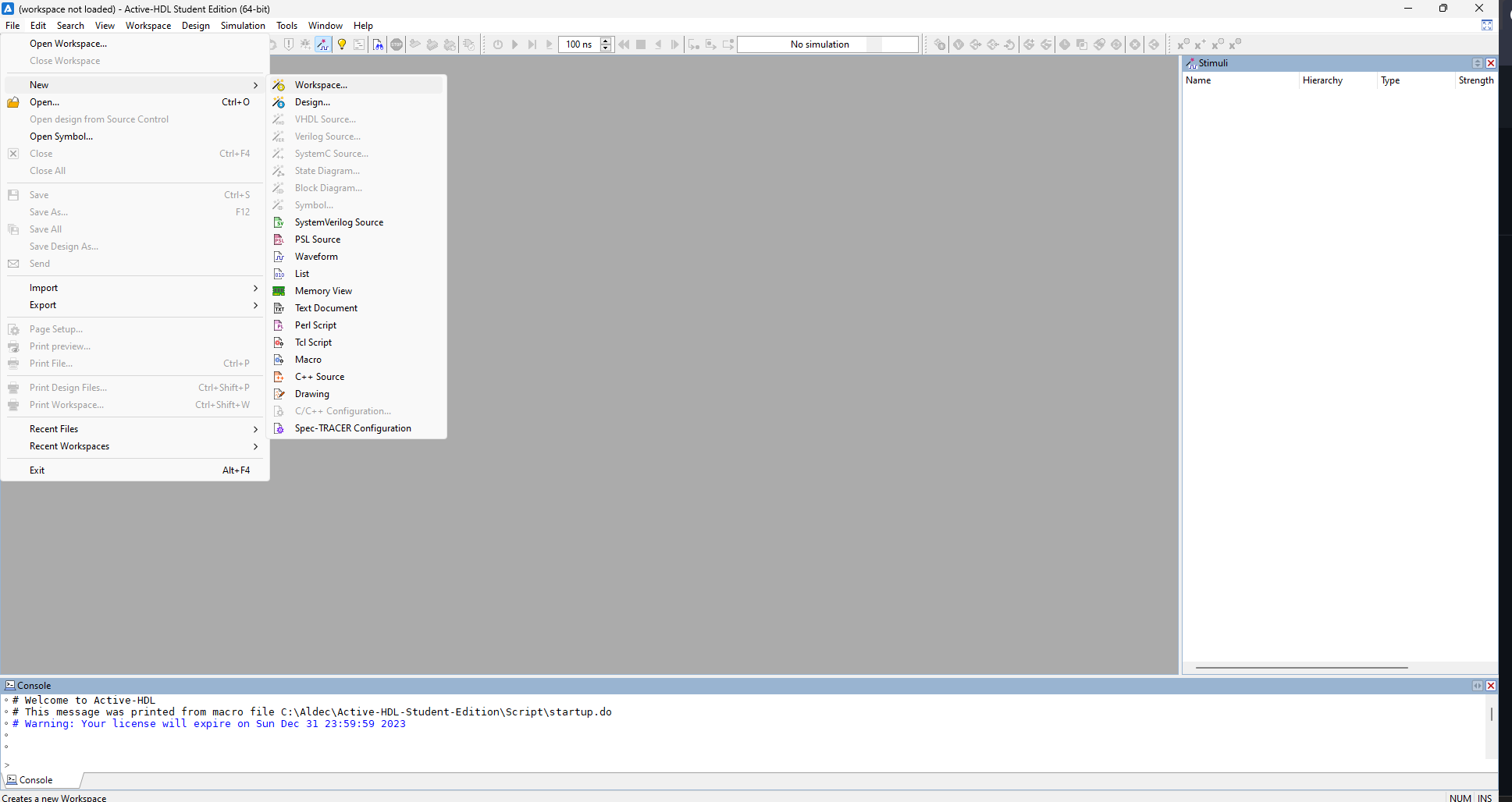
Create a New Workspace
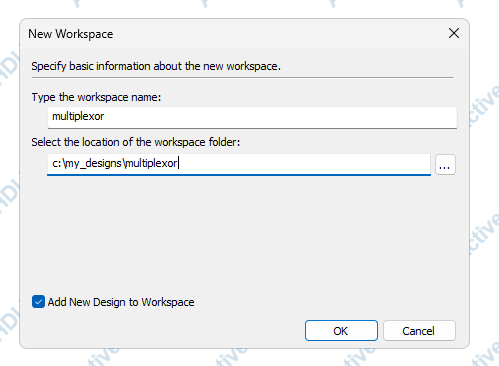
Type the name of the Workspace. I recommend you copy and paste the name into de workspace folder box to create a folder with the workspace's name.
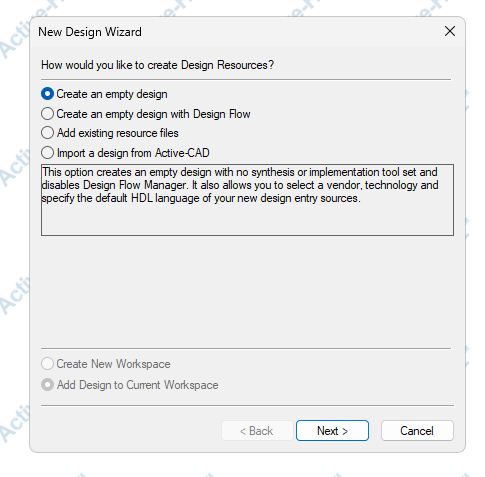
Create an empty design
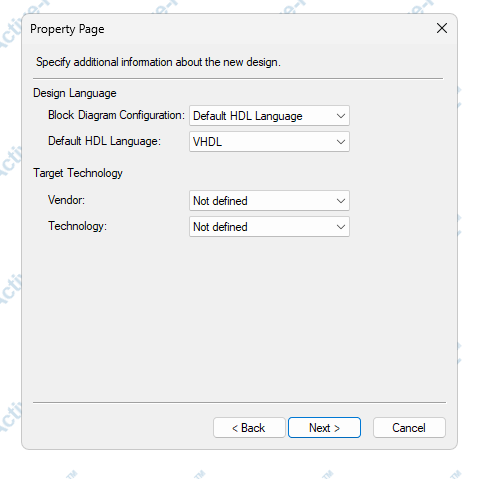
Select the lenguage. In this case we use VHDL
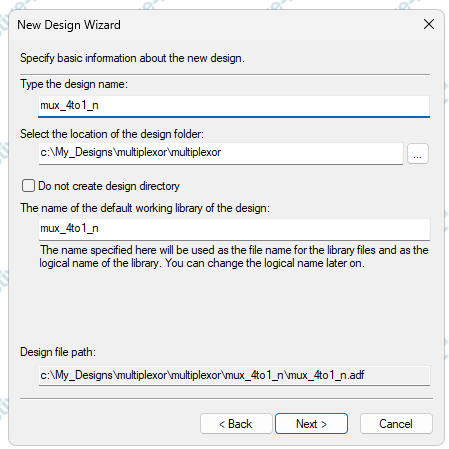
Type the name of the design
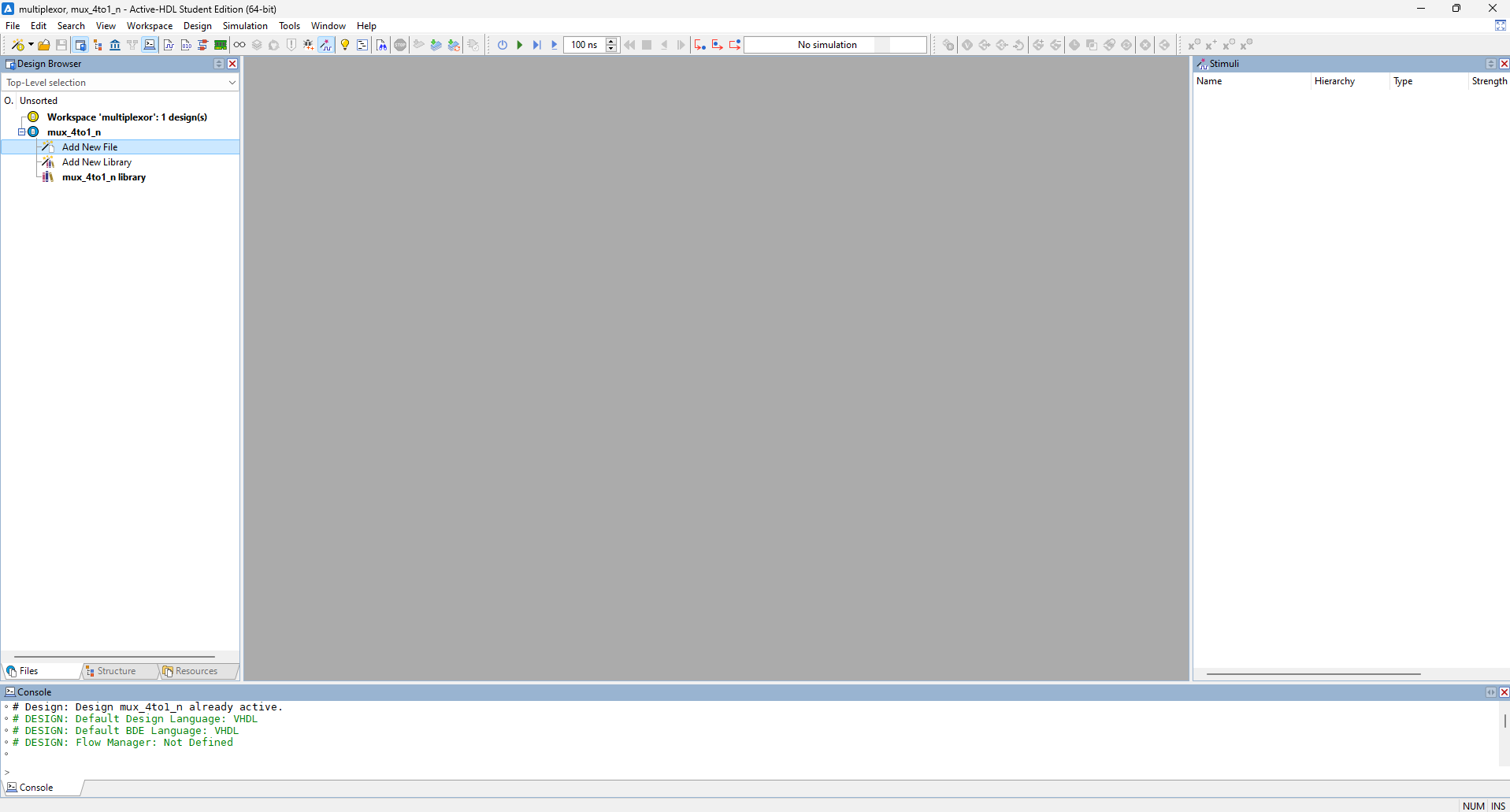
Add a new file
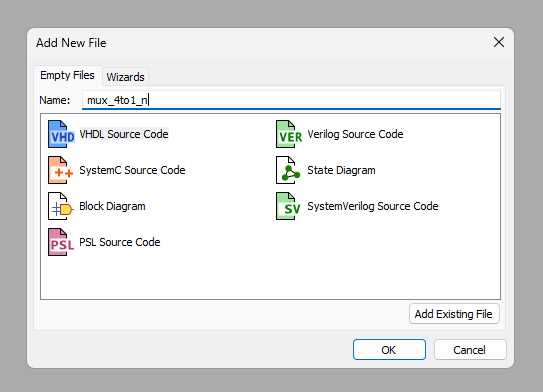
Select the lenguage source code and type the name of the file
Type the code

Compile
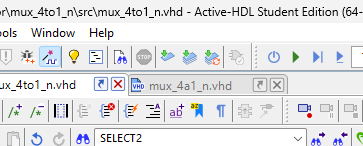

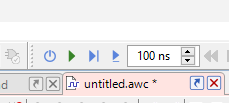
For simulate create a new waveform and initialize simulation (F6)
Drag the structure named the same as the file into de white space
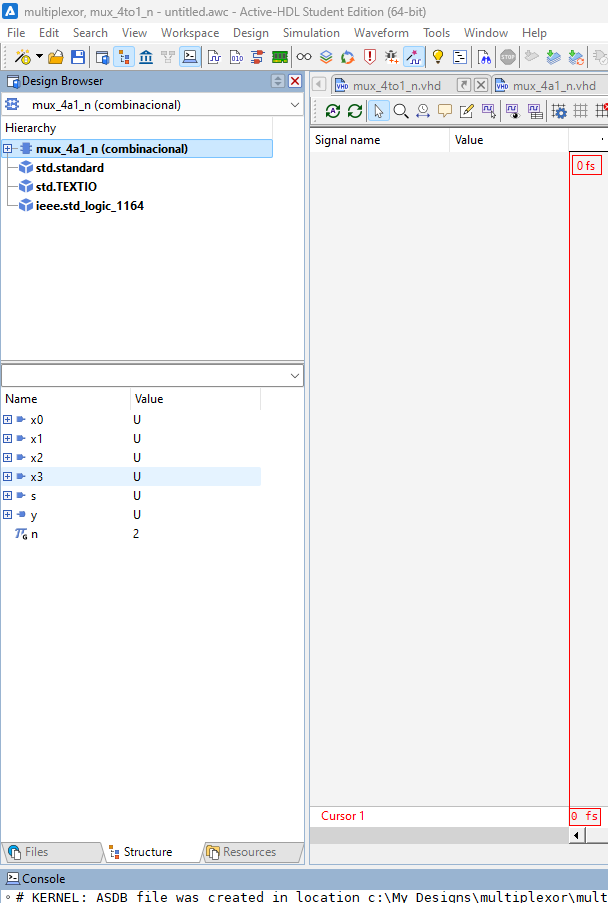
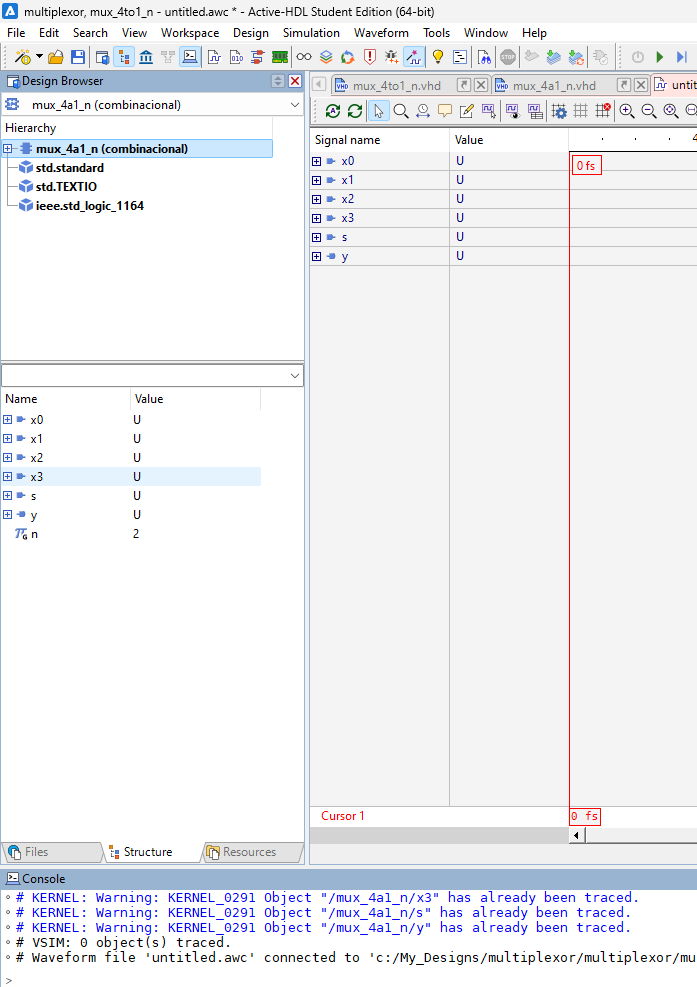
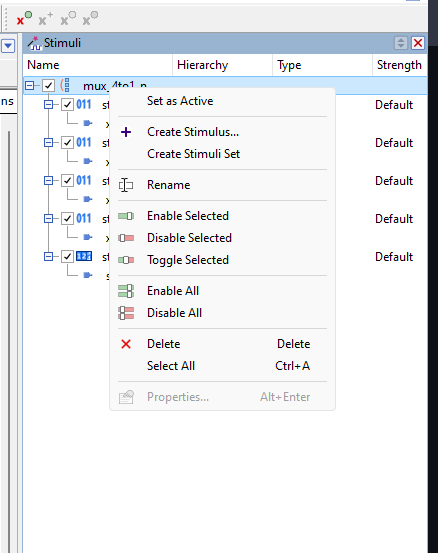
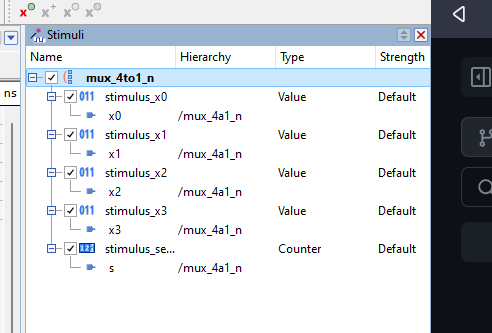
Now you can see all the signals. Create a stimuli set
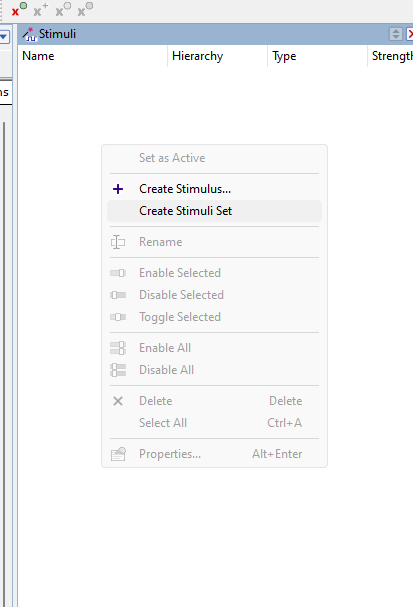
Create a stimulus
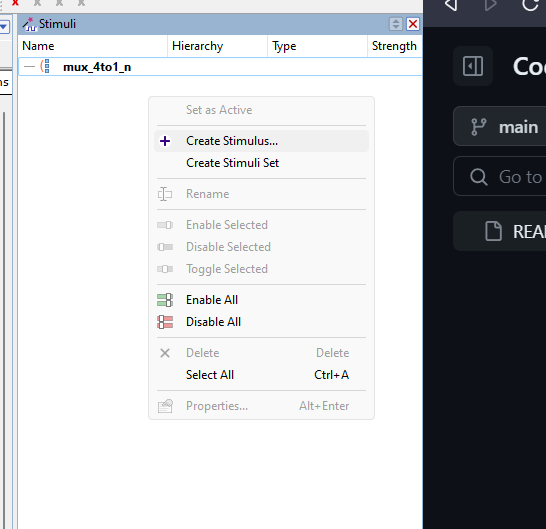
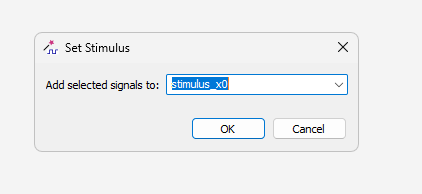
name the stimulus and select its format
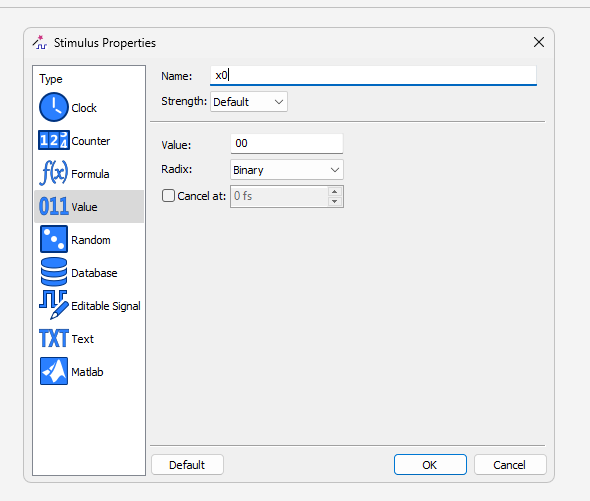
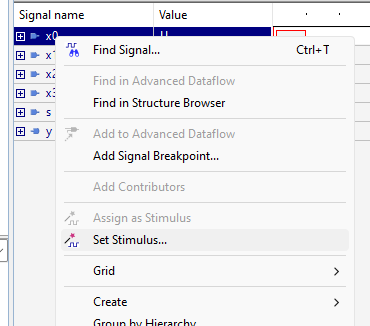
Select the signal ans set a stimulus
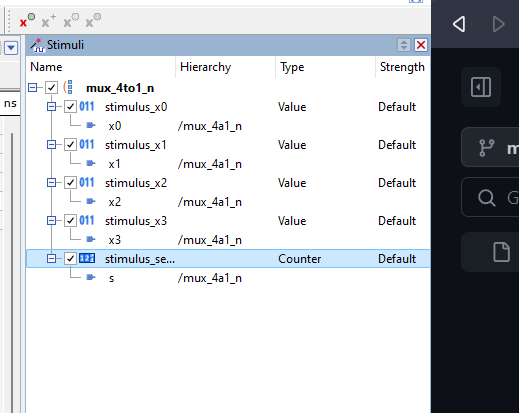
Select the time of the simulation and run (Alt + F5)
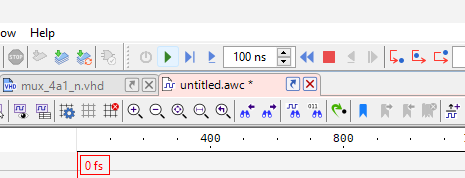
Always active the stimulus set
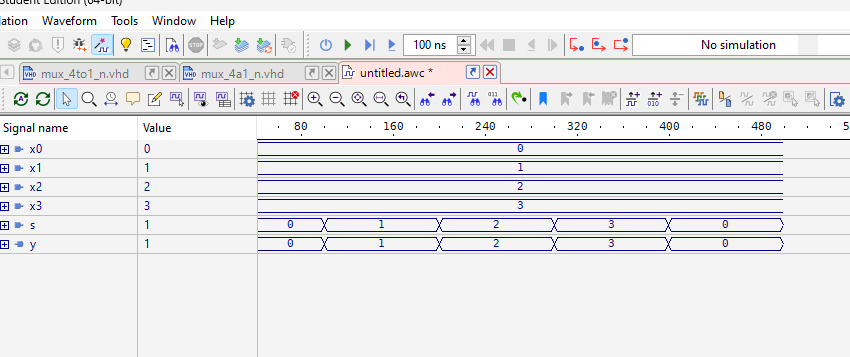
Now you can see the reaction of the ouput signals, for this case the signal y