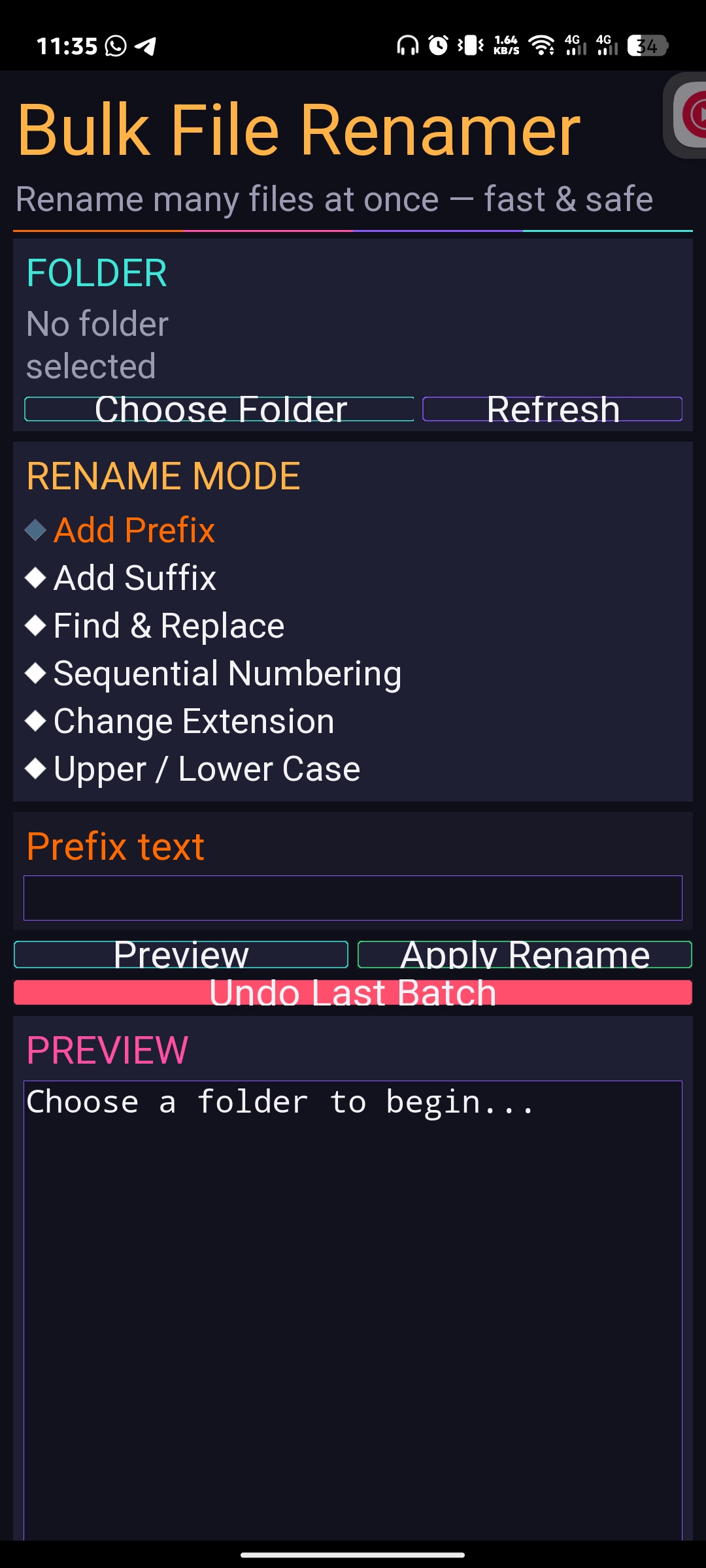
A colorful, dark-themed desktop tool for renaming many files at once. Built with Python and Tkinter, designed to run smoothly on Pydroid 3 (Android) as well as desktop Python.



- 📁 Pick a folder and list all files instantly
- ✏️ Six rename modes:
- Add Prefix
- Add Suffix
- Find & Replace
- Sequential Numbering
- Change Extension
- Uppercase / Lowercase / Title Case
- 👀 Live preview before applying any changes
- ↩️ Undo the last rename batch
- 🎨 Dark UI with gradient-accent styling
- 📱 Scrollable layout, works well on small screens (Pydroid 3)
- Python 3.x
- Tkinter (usually included with Python; on Pydroid 3, install the Tkinter plugin from the app)
No external pip packages are required — this app only uses the Python standard library.
Step 1 — Check Python is installed
python3 --versionStep 2 — Clone this repository
git clone https://github.com/M41NUL/bulk-file-renamer.gitStep 3 — Move into the project folder
cd bulk-file-renamerStep 4 — Run the app
python3 bulk_file_renamer.pyStep 1 — Install Pydroid 3

Step 2 — Install the Tkinter plugin Open Pydroid 3 → ☰ Menu → Plugins → search "Tkinter" → Install
Step 3 — Get the script onto your phone
Download or copy bulk_file_renamer.py to your device (via Telegram, USB, file manager, or git clone inside Pydroid's terminal).
Step 4 — Open the file
In Pydroid 3, tap File → Open → select bulk_file_renamer.py
Step 5 — Run it Tap the ▶ Run button at the bottom of the screen
- Launch the app — the main window opens with a dark, gradient-accented UI.
- Choose a folder — tap "Choose Folder" and select the directory containing the files you want to rename.
- Pick a rename mode from the list:
Mode What it does Add Prefix Adds text to the beginning of every filename Add Suffix Adds text before the file extension Find & Replace Replaces a substring in filenames Sequential Numbering Renames files as basename_01,basename_02, etc.Change Extension Changes the file extension for all files Upper/Lower/Title Case Converts filenames to the chosen case - Fill in the options for the selected mode (e.g. prefix text, find/replace values, starting number).
- Check the live preview — it updates automatically and shows
old_name → new_namefor every file. - Tap "Apply Rename" — confirm the action, and the files will be renamed in place.
- If something goes wrong, tap "Undo Last Batch" to restore the previous filenames.
⚠️ Note: Renaming is applied directly to files on disk. Always double-check the preview before applying, and consider backing up important files first.
bulk-file-renamer/
├── bulk_file_renamer.py   # Main application file
└── README.md              # This file
|
Md. Mainul Islam
Brand:
|


© 2026 CODEX-M41NUL. All Rights Reserved.
This project is shared for personal and educational use. Please credit the original author if you reuse or modify this code.