
Gems Theme is a VSCode theme that is based on Material Theme with theming inspiration from Nord and Plastic Theme designed to be easy on the eye and easy to use.



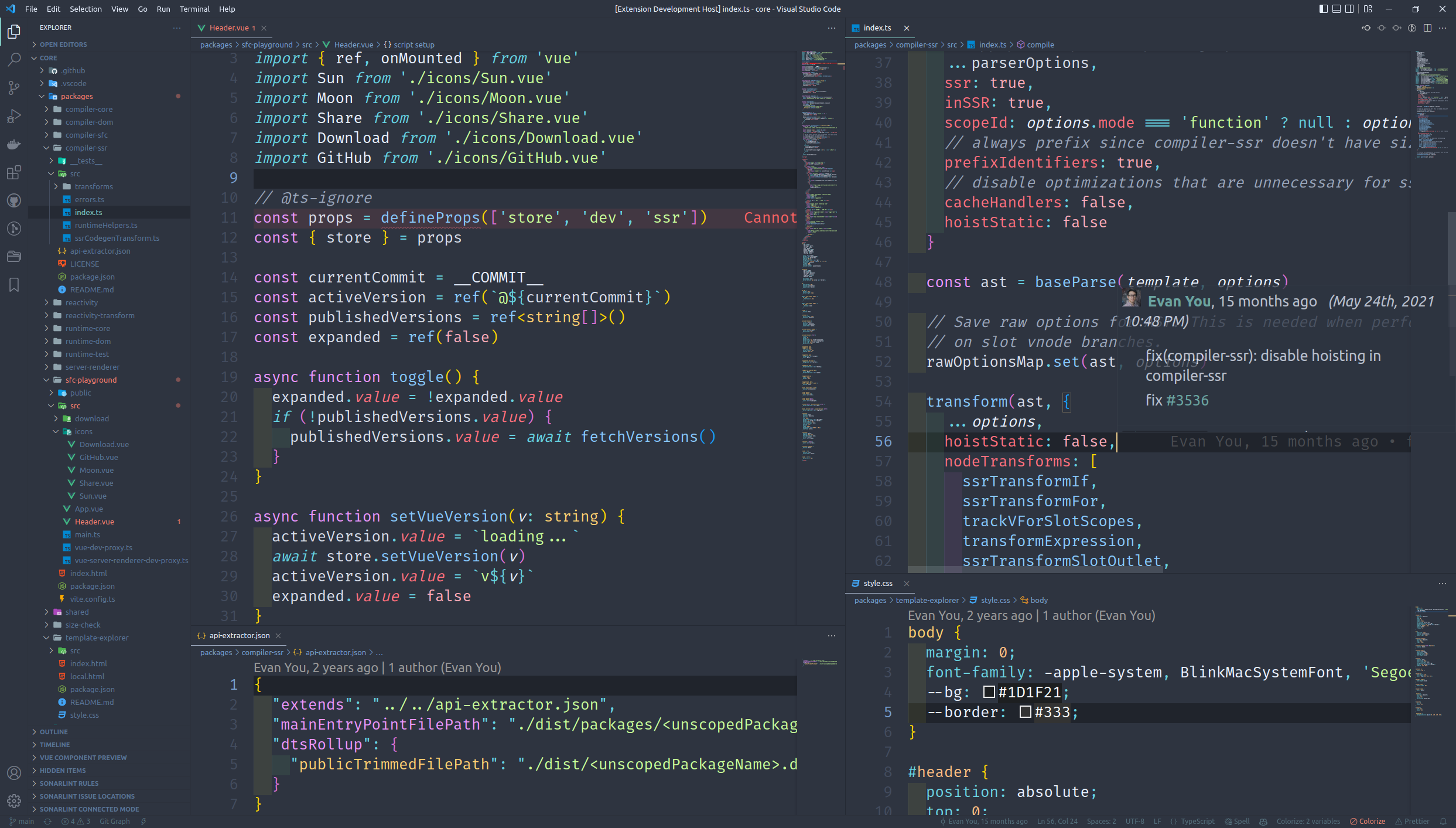
-
With Quick Open :
ext install Mikaleb.gems-theme -
Or : Open Extensions sidebar panel in VS Code (
View → Extensions) -
Search for
Gems Theme- find the one by Mikaleb -
Click Install to install it
-
Code > Preferences > Color Theme > Gems
-
Recommended font : Fira Code
If you run into a bug or miss a feature, please open an issue in this repository.
yarn
yarn build
By pressing F5 in VSCode you should be able to have a new window with the theme. If not, create the file .vscode/launch.json with this :
{
  "version": "0.2.0",
  "configurations": [
    {
      "name": "Extension",
      "type": "extensionHost",
      "request": "launch",
      "runtimeExecutable": "${execPath}",
      "args": ["--extensionDevelopmentPath=${workspaceFolder}"]
    },
    {
      "name": "Extension Tests",
      "type": "extensionHost",
      "request": "launch",
      "runtimeExecutable": "${execPath}",
      "args": [
        "--extensionDevelopmentPath=${workspaceFolder}",
        "--extensionTestsPath=${workspaceFolder}/test"
      ]
    }
  ]
}-
Clone the repository:
git clone https://github.com/Mikaleb/Gems-Theme.git cd Gems-Theme -
Install dependencies:
yarn
-
Build the theme:
yarn build
-
Launch the extension in development mode:
- Press
F5to open a new VSCode window with the development version of the theme - Make your changes to the theme files
- The theme will automatically rebuild when you save changes
- Use
Reload Windowcommand in the development VSCode window to see your changes
- Press
-
Ensure all your changes are committed and the version is updated in
package.json -
Build the production version:
yarn build
-
Create the VSIX package:
vsce package
This will create a
.vsixfile in the root directory with the formatgems-theme-{version}.vsix -
To test the VSIX package locally:
- Open a new instance of Visual Studio Code.
- In the new instance, go to the Extensions view by clicking on the square icon on the left sidebar or by using the shortcut
Ctrl+Shift+X(Windows/Linux) orCmd+Shift+X(Mac). - Click on the "..." menu and select "Install from VSIX...".
- Navigate to the directory where the
.vsixfile is located and select it. - The theme should now be installed in the new instance of Visual Studio Code.
- You can verify that the theme works as expected by checking if the colors and styles match the preview in the Visual Studio Code Marketplace.
-
To publish to the VS Code Marketplace:
vsce publish
Note: You'll need a valid Personal Access Token with the
marketplace.managescope. -
After publishing, create a new GitHub release:
- Tag the release with the version number (e.g.,
v1.0.0) - Attach the
.vsixfile to the release - Add release notes with the list of changes
- Tag the release with the version number (e.g.,
- white: #ffffff,
- black: #000000,
- red: #FF707E,
- orange: #FFBE82,
- yellow: #FFD072,
- green: #C9FF9A,
- cyan: #66D3E2,
- blue: #88C9FF,
- paleblue: #6BD2E0,
- purple: #EC97FF,
- brown: #F5B791,
- pink: #FFACBA,
- violet: #FFA3F3,
- lightgray: #d8dee9,
See the LICENSE file for licensing information as it pertains to files in this repository.