

Hangfire.Community.Dashboard.Forms lets you define dynamic jobs that adapt to any scenario, write it once, and it just works. By leveraging the UI’s dynamic representation of C# constructs (classes, interfaces, lists, and nested objects), the dashboard achieves true polymorphism: forms are auto-generated to match your job signatures, no front-end code required.
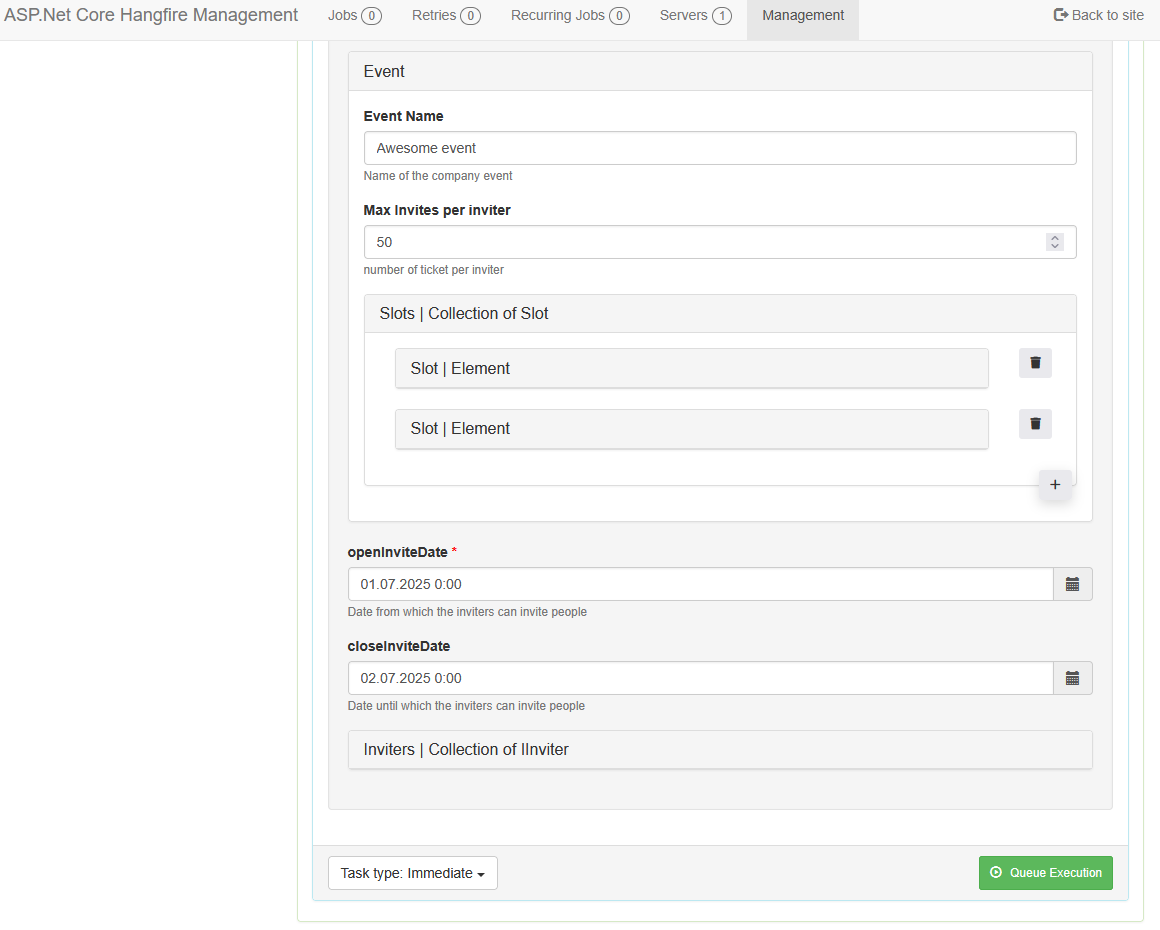
Effortlessly create, edit, and manage Hangfire jobs with powerful, flexible input forms that reflect your .NET models, enabling highly dynamic job management for any use case.
-
Automatic Page & Menu Generation: Easily create management pages by adding attributes to your job classes.
-
Automatic Input Fields: Attributes on your properties generate input fields automatically, supporting bool, int, text, DateTime, Enum, classes, interfaces, and lists.
-
Built-in Support for IJobCancellationToken and PerformContext: These are managed automatically and set to null when creating jobs.
-
Fire-and-Forget Jobs: Instantly trigger any job directly from the dashboard.
-
Cron Scheduling: Set up cron jobs for any job using a user-friendly UI.
-
Delayed Execution: Schedule jobs for future execution with preset intervals (5, 10, 15, 30, 60 minutes) or a custom TimeSpan.
-
Extensible: Easily add custom pages and extend the framework to fit your needs.
-
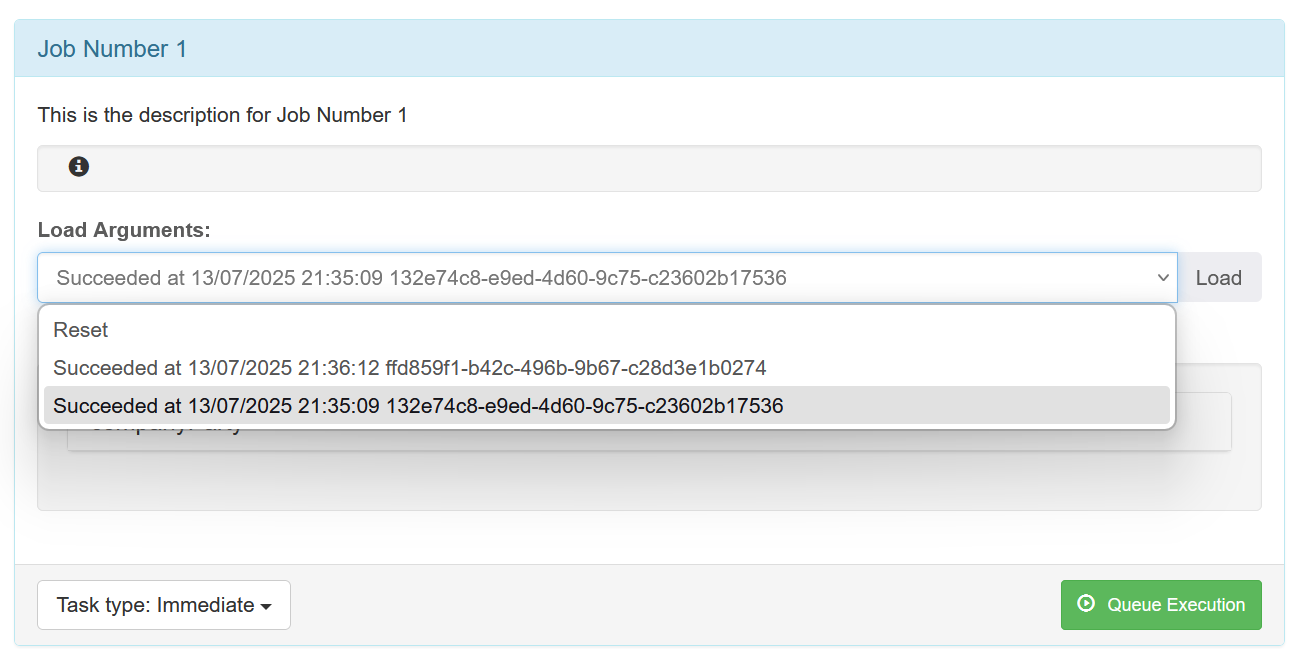
Load Previous Job Arguments: Each job has a dropdown menu to select a previous job run by ID. You can load its parameters into the form, use them as templates, edit failed jobs, or rerun successful jobs in different environments.
-
Job Expiration Attribute: Use
[ExpirationTime]to control how long succeeded jobs are kept (failed jobs do not expire):
This project is a fork of Hangfire.Dashboard.Management.v2 by lcourson with several major improvements:
Hangfire.Community.Dashboard.Forms removes the previous limitation of only supporting simple types (string, int, bool, DateTime, Enum) as job parameters. You can now pass:
-
Custom Classes:
Classes are displayed in a collapsible panel. Only public properties with both getter and setter, and decorated with the[DisplayData]attribute, are shown. (Properties with circular references are excluded.)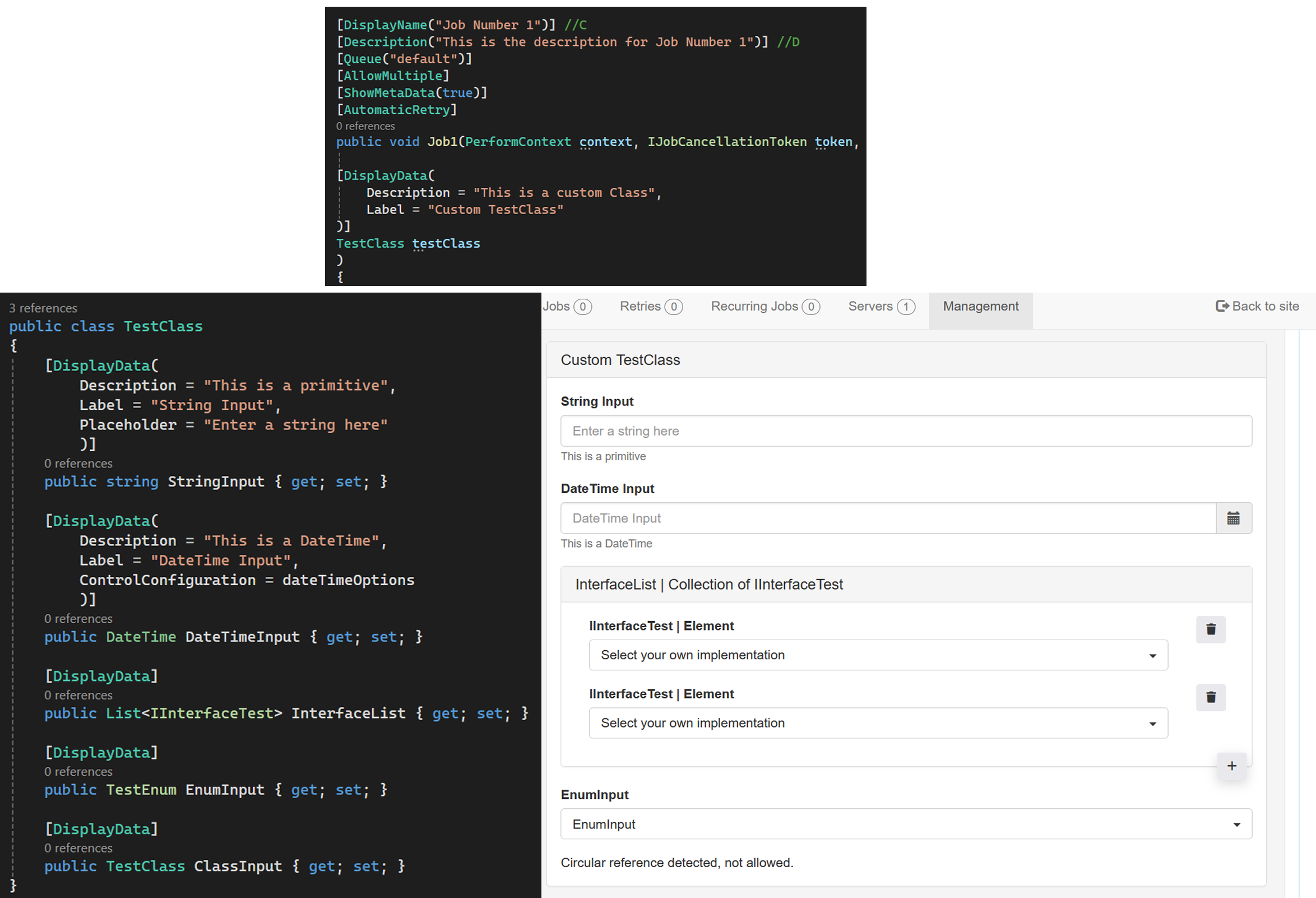
-
Lists:
Lists are shown as collapsible panels with a “plus” button to add new elements. Each item can be removed with a “trash” button. Nested lists (e.g.,List<List<T>>) are supported for matrix-like data. (Currently, reordering elements is not available.)

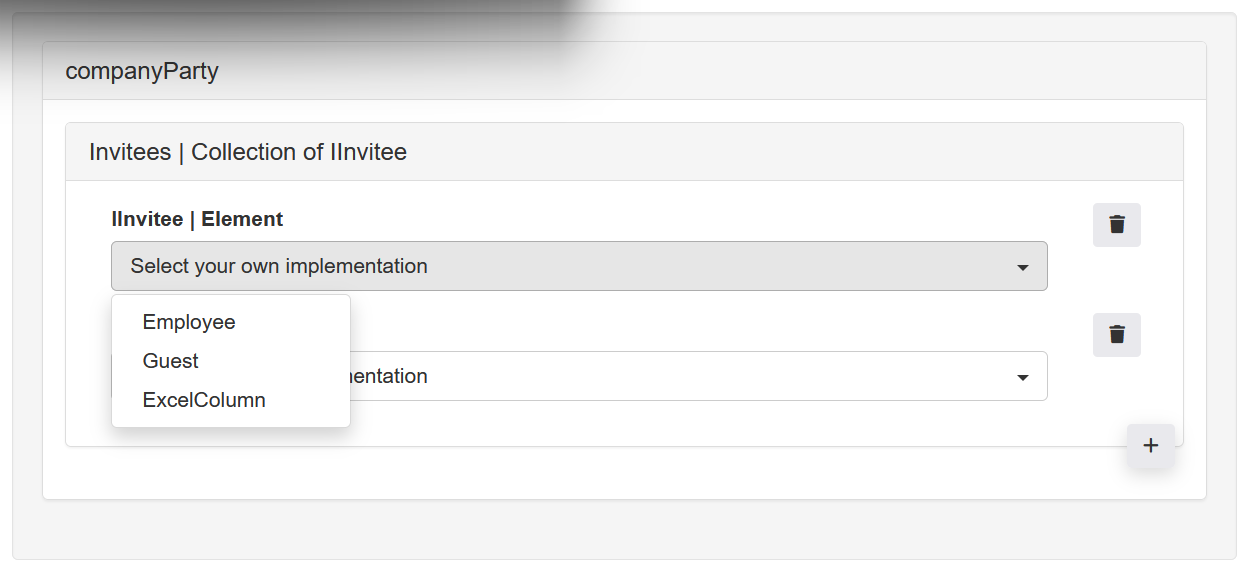
- Interfaces:
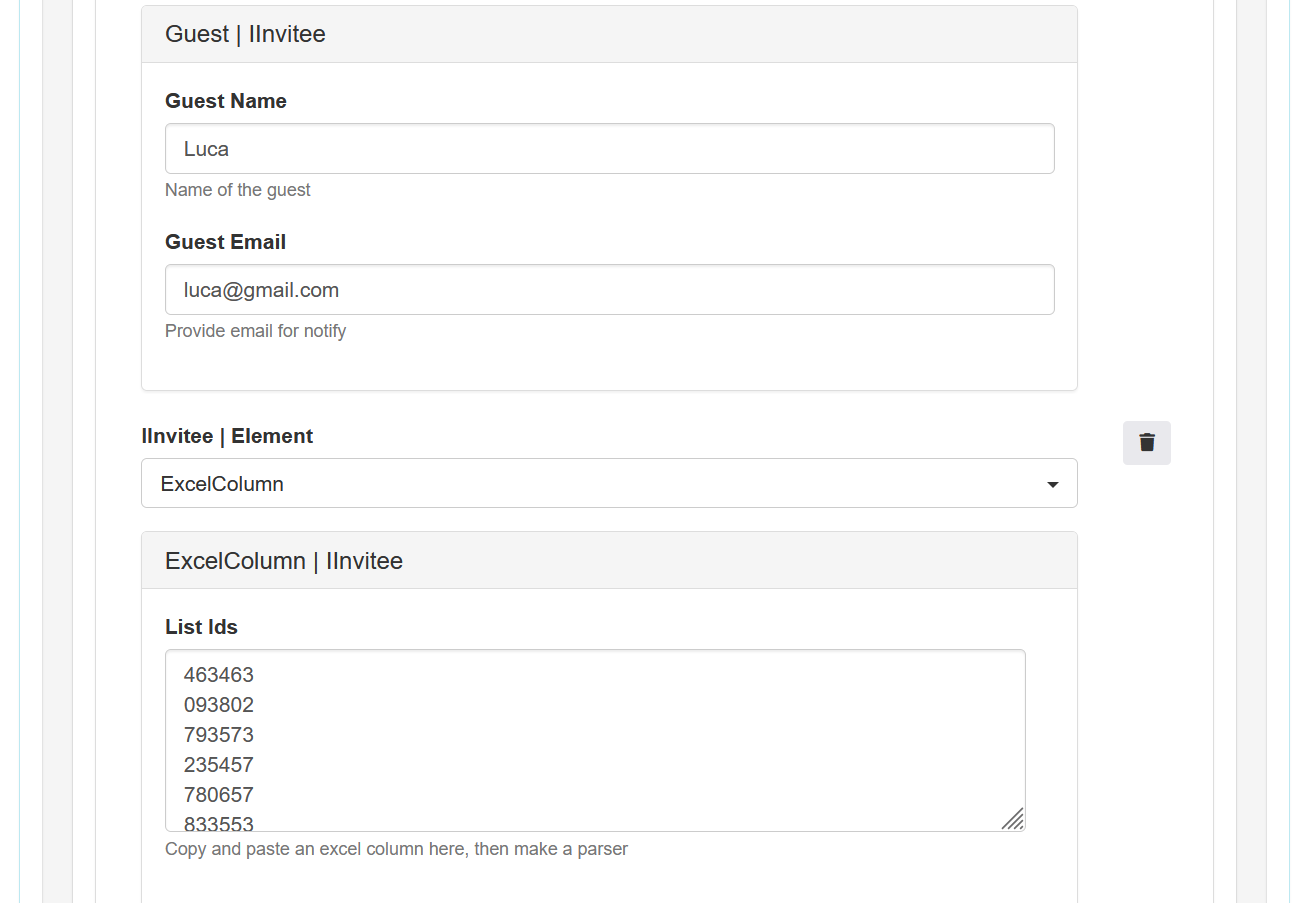
Interfaces appear as dropdowns allowing users to select from available concrete implementations (implementations must be registered in the assembly used withHangfire.UseManagementPage). This enables polymorphic job parameters and flexible form structures.
Each job has a dropdown menu to select a previous job run (Succeeded, Failed, Scheduled, Enqueued) by ID. You can load its parameters into the form, use them as templates, edit failed jobs, or rerun successful jobs in different environments.
Use [ExpirationTime] to control how long succeeded jobs are kept (failed jobs do not expire):
[ExpirationTime(days: 7, hours: 20, minutes: 30, seconds: 35)]- Apply to a job method for that job only, or to a class to affect all jobs in the class.
- If both are set, the method-level attribute takes priority.
No migration steps are required.
Simply update your namespaces from Hangfire.Dashboard.Management.v2.* to Hangfire.Community.Dashboard.Forms.*.
⚠️ Attention:
The namespaceHangfire.Dashboard.*does not change toHangfire.Community.Dashboard.*.
using Hangfire;
using Hangfire.Community.Dashboard.Forms;
using Hangfire.Community.Dashboard.Forms.Support;
...
namespace Application
{
	public class Startup
	{
		private IEnumerable<IDisposable> GetHangfireServers()
		{
			GlobalConfiguration.Configuration
				/* Specify your storage */
				/* Here we are using Hangfire.MemoryStorage */
				.UseMemoryStorage()

				/* Add the Management page specifying the assembly or assemblies that contain your IJob classes */
				/* Here we are using the website's assembly */
				.UseManagementPages(typeof(Startup).Assembly);

			/* Return your Hangfire Server */
			var options = new BackgroundJobServerOptions();
			var queues = new List<string>();
			queues.Add("default");

			/*
				See note about JobsHelper.GetAllQueues()
				under the 'Defining Jobs' section below
			*/
			queues.AddRange(JobsHelper.GetAllQueues());

			options.Queues = queues.Distinct().ToArray();
			yield return new BackgroundJobServer(options);
		}

		public void Configuration(IAppBuilder app)
		{
			/* Configure Hangfire ASP.Net */
			app.UseHangfireAspNet(GetHangfireServers);

			/* Configure that Hangfire Dashboard */
			app.UseHangfireDashboard("/hangfire", new DashboardOptions()
			{
				DisplayStorageConnectionString = false,
				DashboardTitle = "ASP.Net Hangfire Management",
				StatsPollingInterval = 5000
			});
		}
	}
}using Hangfire;
using Hangfire.Community.Dashboard.Forms;
using Hangfire.Community.Dashboard.Forms.Support;
...
namespace Application
{
public class Startup
{
public Startup(IConfiguration configuration)
{
Configuration = configuration;
}
public IConfiguration Configuration { get; }
public void ConfigureServices(IServiceCollection services)
{
services.AddHangfire((configuration) =>
{
configuration
/* Specify your storage */
/* Here we are using Hangfire.MemoryStorage */
.UseMemoryStorage()
/* Add the Management page specifying the assembly or assemblies that contain your IJob classes */
/* Here we are using the website's assembly */
.UseManagementPages(typeof(Startup).Assembly);
});
/* Add your Hangfire Server */
services.AddHangfireServer((options) =>
{
var queues = new List<string>();
queues.Add("default");
/*
See note about JobsHelper.GetAllQueues()
under the 'Defining Jobs' section below
*/
queues.AddRange(JobsHelper.GetAllQueues());
options.Queues = queues.Distinct().ToArray();
});
/* Other code */
//...
}
public void Configure(IApplicationBuilder app, IWebHostEnvironment env)
{
/* Other code */
//...
/* Configure that Hangfire Dashboard */
app.UseHangfireDashboard("/hangfire", new DashboardOptions()
{
DisplayStorageConnectionString = false,
DashboardTitle = "ASP.Net Core Hangfire Management",
StatsPollingInterval = 5000
});
}
}
}Menu items are created based on your "Job" class's ManagementPage attribute.
A "Job" class is defined by any class that implements the IJob interface.
In its simplest form, the following is a valid Job class implementation.
[ManagementPage(MenuName = "Simple Implementation", Title = nameof(Simple))]
public class Simple : IJob
{
	public void Job0(PerformContext context, IJobCancellationToken token)
	{
	}
}
Which generates like this...
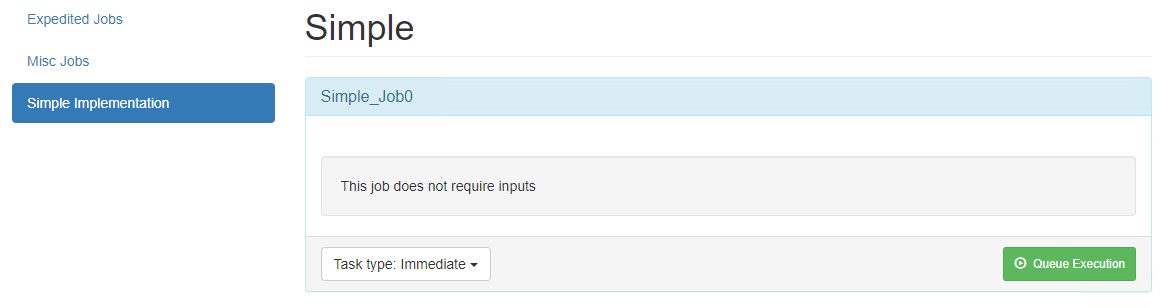
From this example, you can see that there is a job displayed for the function in the class.
Each function within the class will create a new panel on the UI.
The function may be decorated with the DisplayName and/or Description attributes.
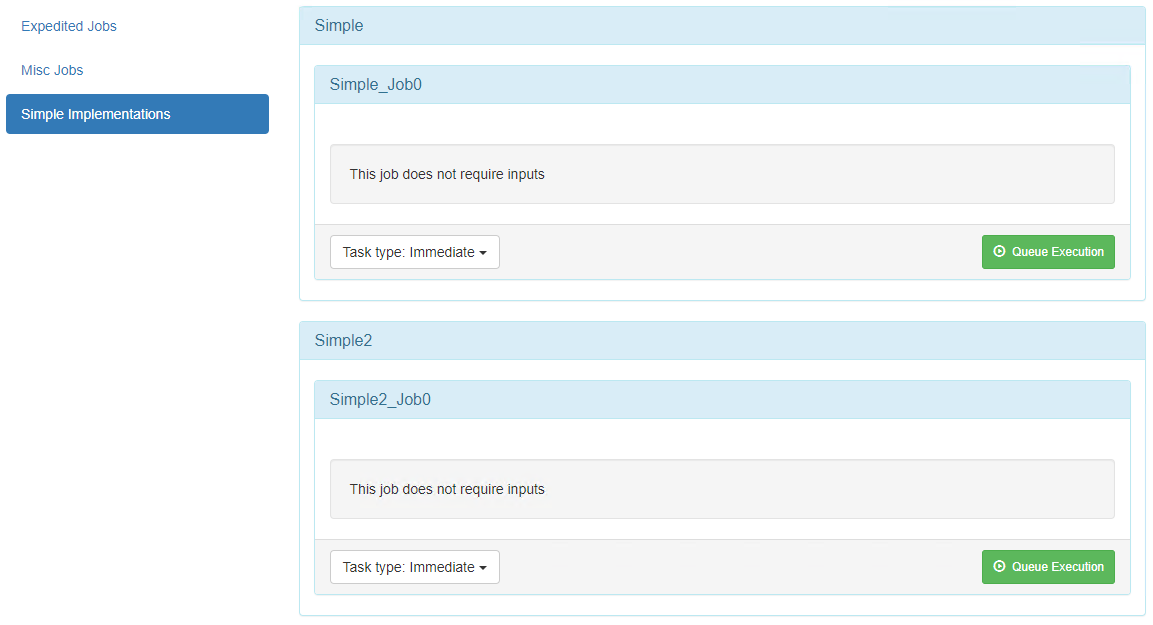
NOTE: You can maintain different classes under the same
MenuName. This will allow you to have multiple classes with different titles all contained under the same menu.Example...
[ManagementPage(MenuName = "Simple Implementations", Title = nameof(Simple))]
public class Simple : IJob
{
   public void Job0(PerformContext context, IJobCancellationToken token)
   {
   }
}

[ManagementPage(MenuName = "Simple Implementations", Title = nameof(Simple2))]
public class Simple2 : IJob
{
   public void Job0(PerformContext context, IJobCancellationToken token)
   {
   }
}
Generates the following
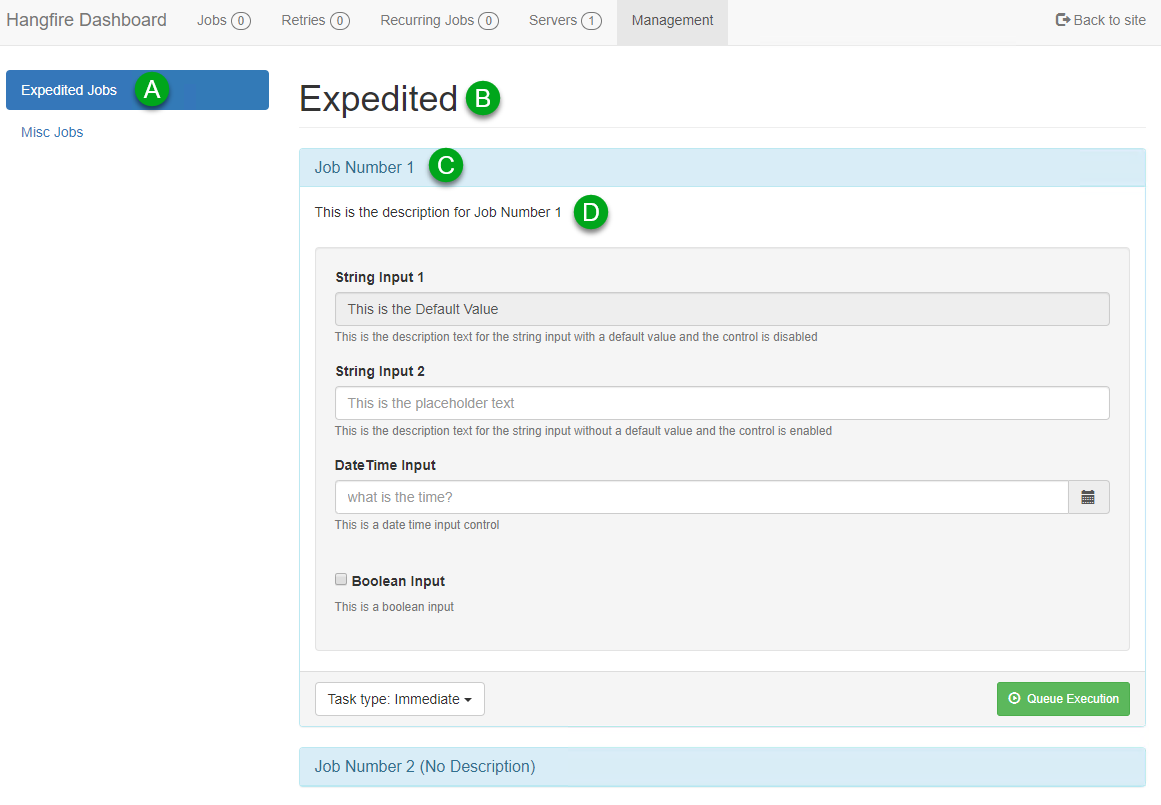
In the following example, we have created a new "Job" class called Expedited and added a method to it with the name Job1.
We added the mandatory ManagementPage attribute and set the MenuName (A) and Title (B).
NOTE: Unlike some other implementations, the queue for the job is not determined by the
ManagementPageattribute. The queue can be defined on each method independently by using theHangfire.Queueattribute. If this attribute is not specified, the job will run in the "DEFAULT" queue.To help make it easier to find the queues that are used in your code, I have created a static helper method named
JobsHelper.GetAllQueues().
To customize the Job1 method's name we add the DisplayName attribute (C) to the method with the desired name.
We also added a description (D) to explain what this job does and some parameters for the job.
[ManagementPage(MenuName = "Expedited Jobs", Title = nameof(Expedited))]
/*              A                            B                        */
public class Expedited : IJob
{
	[DisplayName("Job Number 1")] //C
	[Description("This is the description for Job Number 1")] //D
	[Queue("NOW")]
	public void Job1(PerformContext context, IJobCancellationToken token,
		[DisplayData(
			Label = "String Input 1",
			Description = "This is the description text for the string input with a default value and the control is disabled",
			DefaultValue = "This is the Default Value",
			IsDisabled = true
		)]
		string strInput1,

		[DisplayData(
			Placeholder = "This is the placeholder text",
			Description = "This is the description text for the string input without a default value and the control is enabled"
		)]
		string strInput2,

		[DisplayData(
			Label = "DateTime Input",
			Placeholder = "What is the date and time?",
			DefaultValue = "1/20/2020 1:02 AM",
			Description = "This is a date time input control"
		)]
		DateTime dtInput,

		[DisplayData(
			Label = "Boolean Input",
			DefaultValue = true,
			Description = "This is a boolean input"
		)]
		bool blInput,

		[DisplayData(
			Label = "Select Input",
			DefaultValue = TestEnum.Test5,
			Description = "Based on an enum object"
		)]
		TestEnum enumTest,

		[DisplayData(
			Label = "Interface Input",
			Description = "Choose yout own concrete implementation",
		)]
		IInterfaceTest interfaceInput,

		[DisplayData(
			Label = "Class Input",
			Description = "This is an interface"
		)]
		TestClass classInput
	)
	{
		//Do awesome things here
	}

	public enum TestEnum
	{
		Test1,
		Test2,
		Test3,
		Test4 = 44,
		Test5
	}
}
Each input property, other than IJobCancellationToken and PerformContext, may be decorated with the DisplayData attribute.
This defines the input's label, placeholder text, and description for better readability.
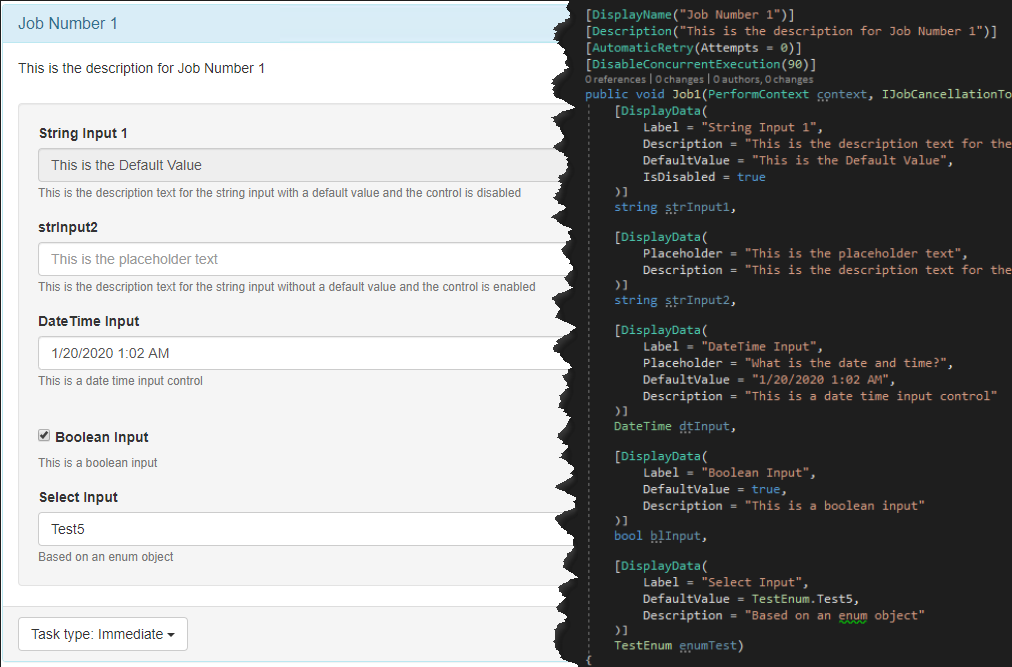
See the DisplayDataAttribute.cs for more information on these attributes.
I have included two web applications, ASP.Net and ASP.Net Core, that give you an example of how to configure and create Menu Items as well as Jobs. These can be found in the examples folder.
As with the other projects this one is based on, I have not done extensive testing. Things might not work as expected and could just not work. There has only been manual testing so far. If attributes are missing I'm not sure what will happen.
- lcourson - For building the base this project started from.
- brodrigz - For interface representation design and improvements.
- pjrharley's - For inspiring lcourson’s project.
- mccj - The original Dashboard Management creator.
Contributions are welcome! Please open an issue or pull request for new features, bug fixes, or suggestions.
Forked from Hangfire Dashboard Management v2. Enhanced and maintained as Hangfire.Community.Dashboard.Forms by Muccarini.
Copyright (c) 2025
Permission is hereby granted, free of charge, to any person obtaining a copy of this software and associated documentation files (the "Software"), to deal in the Software without restriction, including without limitation the rights to use, copy, modify, merge, publish, distribute, sub-license, and/or sell copies of the Software, and to permit persons to whom the Software is furnished to do so, subject to the following conditions:
The above copyright notice and this permission notice shall be included in all copies or substantial portions of the Software.
THE SOFTWARE IS PROVIDED "AS IS", WITHOUT WARRANTY OF ANY KIND, EXPRESS OR IMPLIED, INCLUDING BUT NOT LIMITED TO THE WARRANTIES OF MERCHANTABILITY, FITNESS FOR A PARTICULAR PURPOSE AND NONINFRINGEMENT. IN NO EVENT SHALL THE AUTHORS OR COPYRIGHT HOLDERS BE LIABLE FOR ANY CLAIM, DAMAGES OR OTHER LIABILITY, WHETHER IN AN ACTION OF CONTRACT, TORT OR OTHERWISE, ARISING FROM, OUT OF OR IN CONNECTION WITH THE SOFTWARE OR THE USE OR OTHER DEALINGS IN THE SOFTWARE.