by Nikhil Raj A
If you’re looking for a simple, scalable, and cost-effective way to publish a website online, Amazon S3 (Simple Storage Service) is an excellent choice. Whether it’s a personal portfolio, a resume site, project documentation, or even a landing page, S3 lets you host static websites without needing a server or complex backend setup.
In this guide, I’ll walk you through the process of hosting a static website on Amazon S3. We’ll cover everything from setting up your bucket and uploading your files to configuring permissions and enabling public access. By the end, your site will be live and accessible to anyone on the internet — all with minimal setup and zero server maintenance.
Amazon S3 (Simple Storage Service) is a highly scalable, durable, and secure object storage service offered by AWS. It’s commonly used for storing files such as images, videos, backups, and documents. But beyond just storage, S3 can also be used to host static websites, making it a serverless and cost-effective solution for simple web applications.
Static website hosting on S3 allows you to host HTML, CSS, JavaScript, and other static assets directly from an S3 bucket — without any need for a traditional web server. Once configured, your bucket can serve web pages to users over the internet, complete with support for an index document (like index.html) and error pages.
These are following things that are required for static web hosting :
- AWS Account
- HTML / CSS code or code of a web page
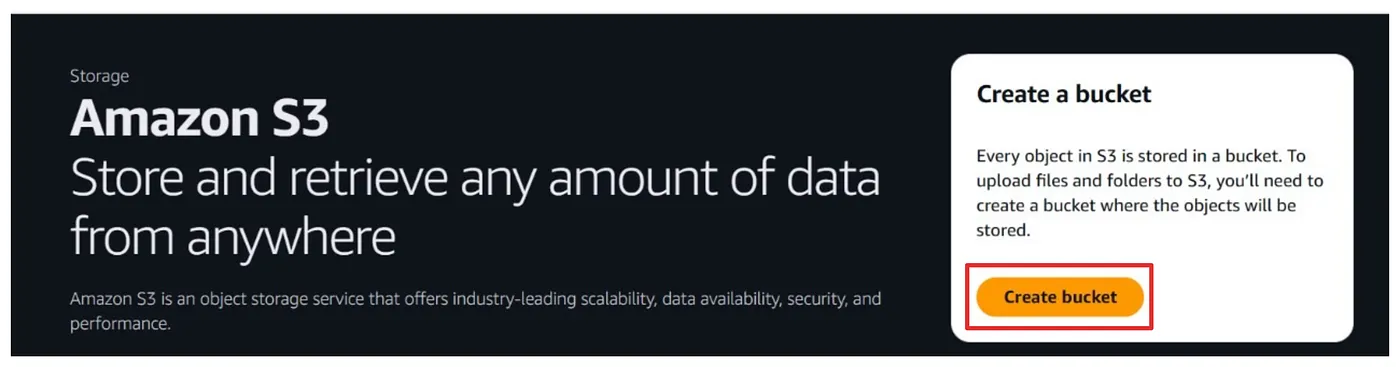
- Click on Create bucket to create a new bucket
- Select the bucket type as General Purpose bucket and also provide the name for the bucket
- Enable Bucket versioning and enable bucket key , then click on create bucket

- Go to the bucket that you have created and upload the files either by dragging the files or uploading it manually .
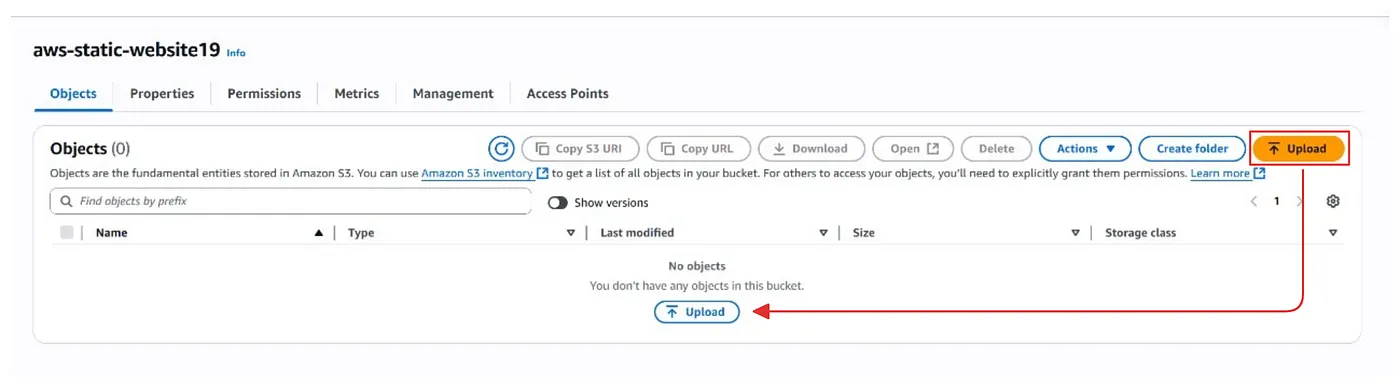
- After uploading the Html and CSS files , click on upload then the files will be uploaded into the S3 — bucket
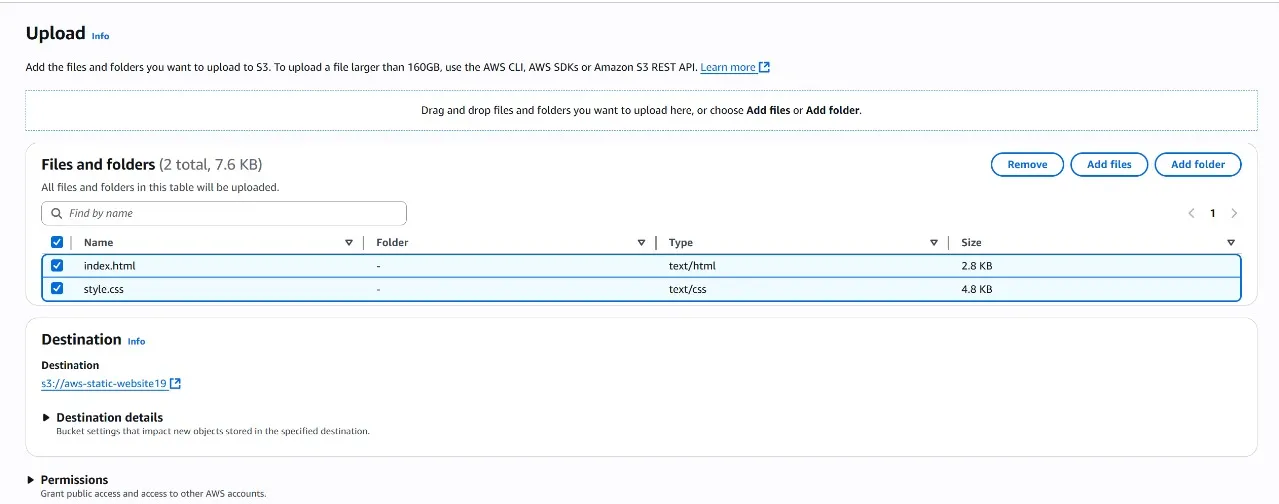
- Then go to permissions and provide the Bucket — policy for accesing the content inside the S3 bucket . But before that lets understand why we need to provide the bucket — policy and it supports JSON format .
A bucket policy in Amazon S3 is a powerful way to control access to your S3 bucket and its contents. It is written in JSON and defines permissions for users, roles, or even the public, specifying who can access what resources and under what conditions.
{
  "Version": "2012-10-17",
  "Statement": [    {
      "Sid": "PublicReadGetObject",
      "Effect": "Allow",
      "Principal": "*",
      "Action": "s3:GetObject",
      "Resource": "arn:aws:s3:::aws-static-website19/*"
    }
  ]
}
- Under properties of the S3 bucket , you can see Static Website Hosting at the end , Click on Edit to enable static web hosting .

- Enable Static Web Hosting and also provide the index document as index.html so that it can recognize or take the html file. Then After enabling the static web hosting you will recieve a Bucket endpoint URL which is used for accessing the content present inside the s3 bucket.
When you enable Static Website Hosting on an Amazon S3 bucket, AWS generates a special URL called the S3 website endpoint. This is the public URL where your static website becomes accessible.
And it looks like this for example :
http://<bucket-name>.s3-website-<aws-region>.amazonaws.com
- This is the Bucket Website endpoint URL generated after enabling the static website hosting .

When you copy the URL and paste into any browser , you can see the website been hosted without any server required
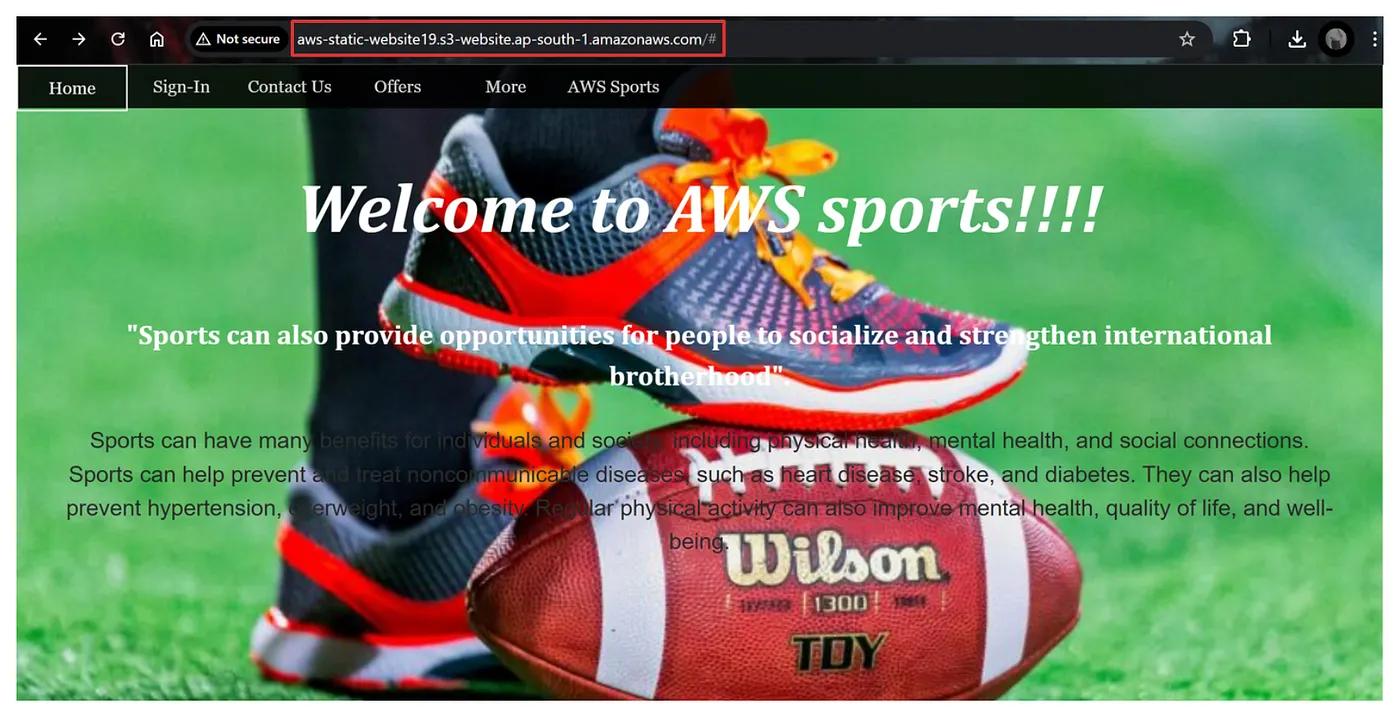
Hosting a static website with Amazon S3 is a quick and easy way to put your website on the internet. You don’t need any servers or complicated setups. Just upload your HTML and CSS files, change a few settings, and your site is ready for everyone to see.
This method works great for simple sites like portfolios, small business pages, or project demos. It’s affordable (often free) and can grow with your needs. Plus, if you want, you can connect your own website name and make your site more secure using other AWS tools.