Your favorite office tools — now right inside Telegram.
The ONLYOFFICE bot for Telegram lets you create, open, edit, and convert office files — all from your Telegram chat.
No separate app, no file juggling — just send or create a document, tap the link, edit it in ONLYOFFICE Docs, and the bot brings the final version right back to you.
Everything runs in your browser (or Telegram's in-app browser), powered by ONLYOFFICE Docs behind the scenes.
Using the bot feels natural if you're already familiar with Telegram. Here's the step-by-step walkthrough:
- Start a chat with the bot → Click here and hit START to activate the bot.

- Choose an action from the menu:

- 📝 Create — Start a new file (choose Document, Spreadsheet, or Presentation).
- 📂 Open — Upload an existing file to edit it online.
- 🔄 Convert — Upload a file and choose the format to convert into.
Note: By default, the bot uses the language of the Telegram user profile. If such a language is not available in the bot translations, English is used. You can switch to your preferred language by entering the /lang command.

- Edit your file

- When you create a new file, the bot sends you a link that opens the document in ONLYOFFICE Docs.
- You can type, format, collaborate, and save — all in real-time.
- Read and edit PDFs
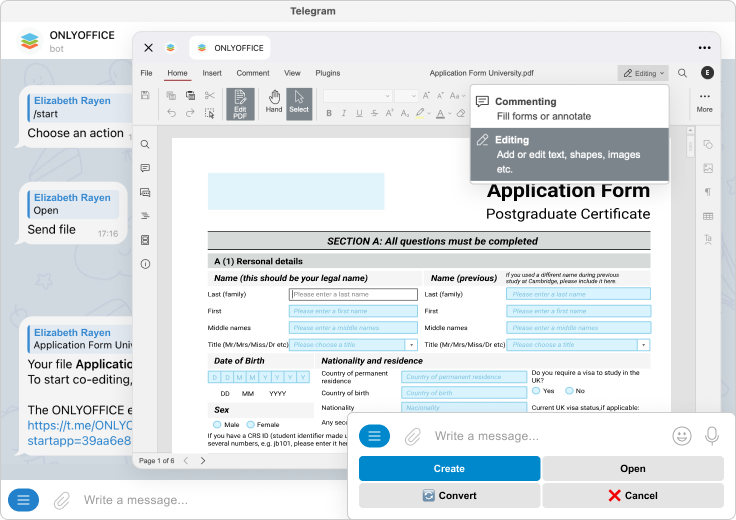
- Get the final file back When you finish editing and close the editor, the bot automatically sends the updated file back into the Telegram chat.
Note The editing link will deactivate once the modified file is sent. To reopen the file, simply reply to the message containing the file with any text.
That's it — no downloads, no chaos. Everything inside Telegram.
When you share a file link with others:
- Each person gets real-time access to edit, comment, and chat inside the document.
- The collaboration link stays active for 24 hours.
- Every time someone opens it, the 24-hour timer resets.
- If the link has expired, an error message will appear.
If changes were made, the bot automatically collects the final version and drops it into the same chat. Everyone gets the updated file simultaneously.
If no one modifies the document, the bot simply ends the session quietly.
🔐 Caution: Since links act as access tokens, forward them only to the people you trust.

Group behavior is different from one-on-one chats — and those differences matter. Read this to know exactly what will work (and what won't).
Use the direct commands — the bot will generate the file for you automatically.
/document— creates a new document/spreadsheet— creates a new spreadsheet/presentation— creates a new presentation
Filename behavior: you do not type in a name. The bot names files using this pattern:
New [format] YYYY-MM-DD HH:MM UTCThis keeps names unique and avoids collision/confusion in busy chats.
The bot's capabilities in a group depend heavily on whether it has admin privileges:
Without admin rights
- The bot cannot read all messages.
- To interact with it you must reply directly to the bot (i.e., mention it or use commands in reply).
- The bot cannot access forwarded files from other users (except messages it itself posted).
- If you try to forward a file to the group, the bot will usually not see it.
With admin rights
- The bot sees all messages in the group (subject to Telegram's policy/permissions).
- You can forward files without replying directly, and the bot will process them.
- Admin rights reduce friction — but only grant them to trusted bots/instances.
Tip: If you want group-wide, seamless behavior (everyone uploading/forwarding files and the bot picking them up), give the bot admin access. If that's not possible, instruct users to reply-to-bot for file actions.
If an edit link has expired or you need a fresh link for a file posted in the chat:
-
Reply to the message that contains the bot's original file message (the one with the link).
-
Tag the bot in your reply and request a new link.
The bot will not automatically respond to files simply posted into the chat. To open a file in a group:
-
Use the
/opencommand and reply to the bot with the file in your response message. -
If the bot has admin access, you can simply forward the file and then use
/open— otherwise, always reply directly so the bot can see which file you mean.
Important: If multiple files are sent together, the bot will only generate an editor link for the first file in that message (same behavior as one-on-one chats).
Note File conversion is not available in group chat mode. Use one-on-one with the bot for conversion tasks.
You can edit any file already stored on your device — no desktop apps needed. There are two ways to do it:
Option 1: Quick send
- Simply forward or upload a document directly to the bot.
- It recognizes the file type and replies with an edit link within seconds.
Option 2: Menu flow
- Use
/start→ tap Open → upload your file manually.
A few small but important details:
- If you send multiple files at once, the bot will generate a link for the first file only.
- Once uploaded, the file is available in your browser editor until the session ends or the link expires.
Want to convert your files between formats (say .docx → .pdf)? The bot's got you covered.
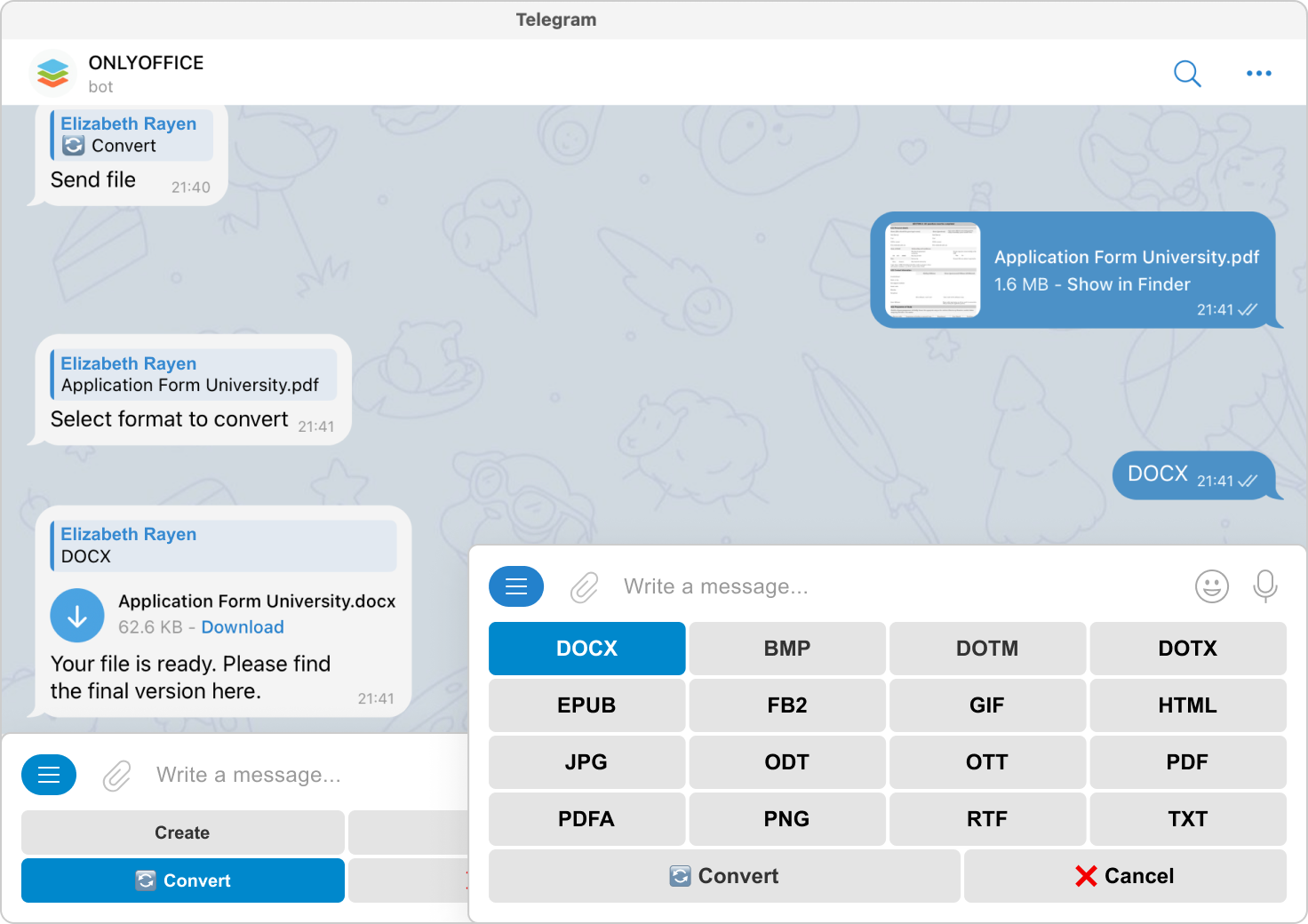
- Type
/startor tap Convert. - Upload your file.
- Pick the output format from the options list.
- Wait a few seconds — the bot returns the converted file right in your chat.
The bot supports an extensive range of formats for editing, viewing, and conversion.
- WORD: DOCM, DOCX, DOTM, DOTX
- CELL: XLSM, XLSX, XLTM, XLTX
- SLIDE: POTM, POTX, PPSM, PPSX, PPTM, PPTX
- PDF: PDF
- WORD: DOC, DOT, EPUB, FB2, FODT, HTM, HTML, MHT, MHTML, ODT, OTT, RTF, STW, SXW, TXT, WPS, WPT, XML
- CELL: CSV, ET, ETT, FODS, ODS, OTS, SXC, XLS, XLSB, XLT
- SLIDE: DPS, DPT, FODP, ODP, OTP, POT, PPS, PPT, SXI
- PDF: DJVU, DOCXF, OFORM, OXPS, XPS
- WORD: DOC, DOCM, DOCX, DOT, DOTM, DOTX, EPUB, FB2, FODT, HTM, HTML, MHT, MHTML, ODT, OTT, RTF, STW, SXW, TXT, WPS, WPT, XML
- CELL: CSV, ET, ETT, FODS, ODS, OTS, SXC, XLS, XLSB, XLSM, XLSX, XLT, XLTM, XLTX
- SLIDE: DPS, DPT, FODP, ODP, OTP, POT, POTM, POTX, PPS, PPSM, PPSX, PPT, PPTM, PPTX, SXI
- PDF: DJVU, DOCXF, OFORM, OXPS, PDF, XPS
-
Shared editing links are unique and expire after 24 hours of inactivity.
-
Every link click renews its lifetime by another 24 hours.
-
Once the editing session ends, the bot fetches the updated file and delivers it to the chat — then the link expires naturally.
This means your work always stays under your control, and sessions are self-expiring by design.
- 🤔 Got stuck? To get some hints for working with the bot, use the
/helpcommand. - 🐞 Found a bug? Please report it by creating an issue.
- ❓ Have a question? Ask our community and developers on the ONLYOFFICE Forum.
- 💡 Want to suggest a feature? Share your ideas on our feedback platform.
- 👨💻 Need help for developers? Check our API documentation.
Made with ❤️ by the ONLYOFFICE Team