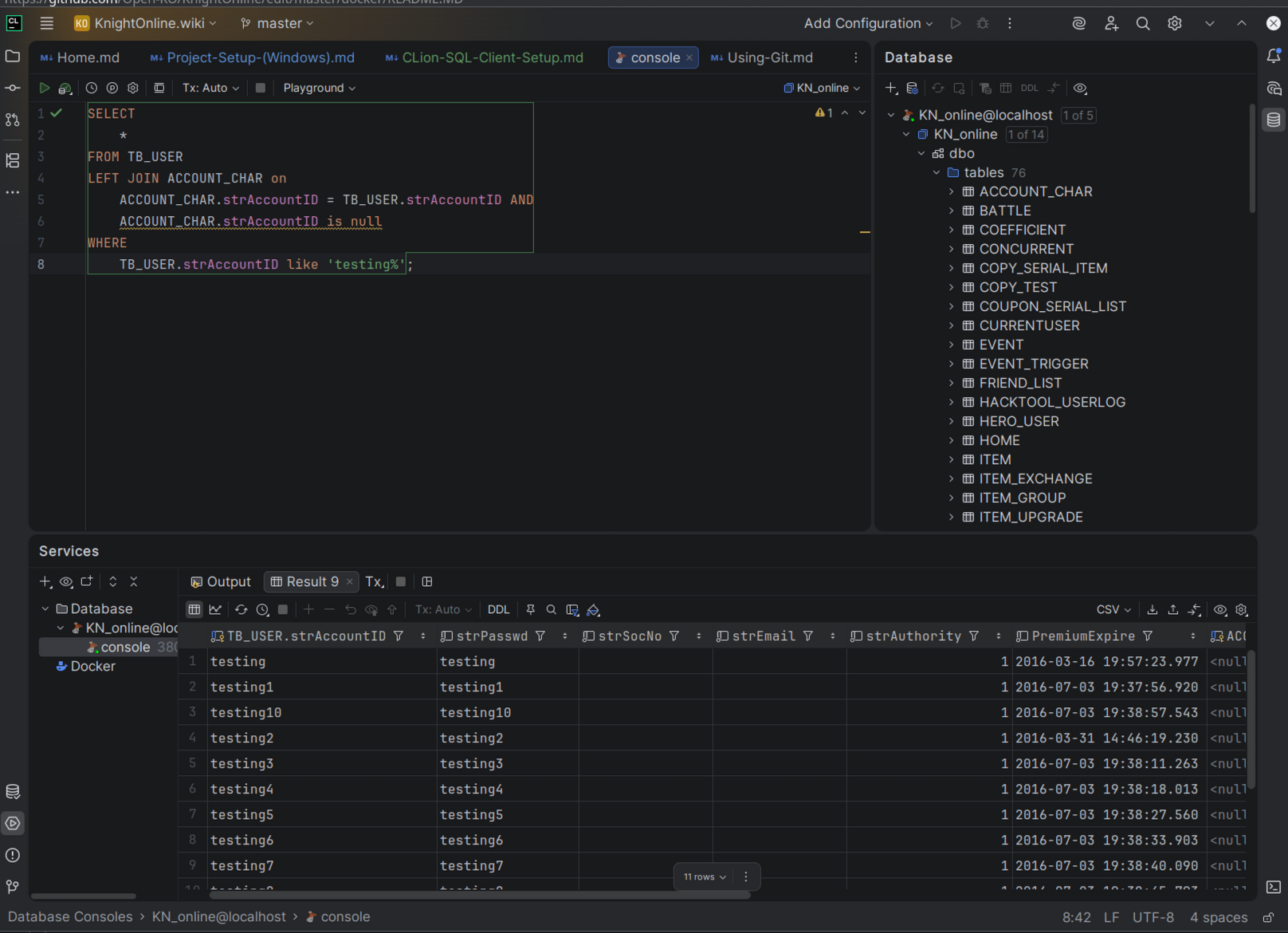
CLion SQL Client Setup
To connect CLion to your database:
- In the top-right corner of your IDE, click the Database icon to expand the Database pane.

- Click the New (+) icon and select
Data Source>Microsoft SQL Server>Microsoft SQL Server.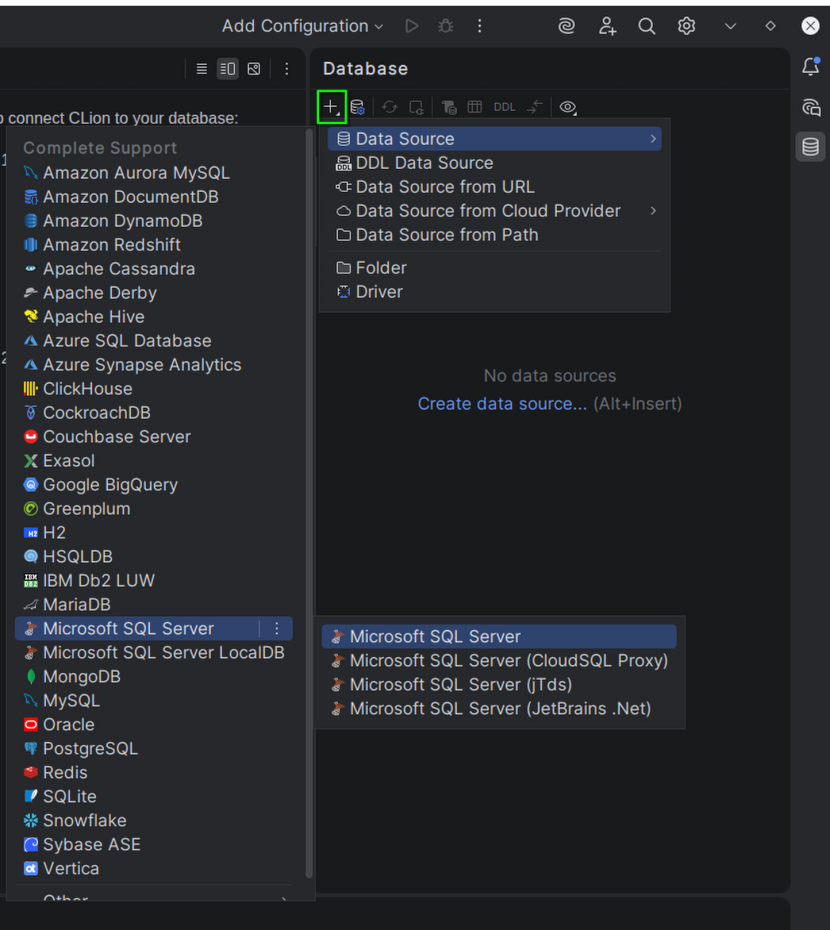
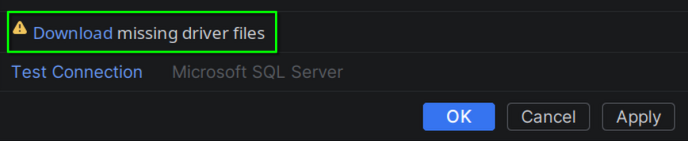
- At the bottom of the Data Sources panel, check to see if you need to download the JDBC driver. Download it if required.
- Fill out your connection details and use the Test Connection button to troubleshoot. Click OK to save the data source.
| Property | Default | Note |
|---|---|---|
| Host | localhost | - |
| Port | 1433 | If you did a manual database installation, you may need to configure SQL Server to expose this port. |
| Instance | empty | If you did a manual database installation, the instance name will likely be SQLEXPRESS
|
| User | knight | - |
| Password | knight | - |
| Database | KN_online | - |
| URL | automatic | The IDE will automatically populate this for you |
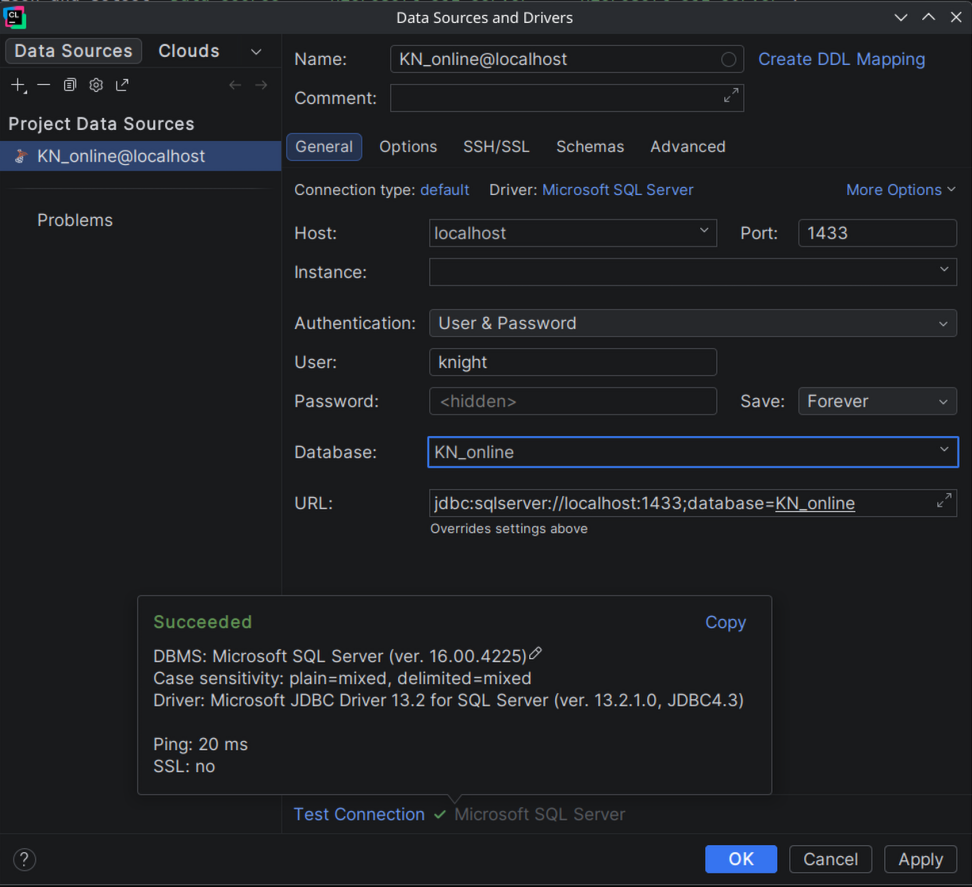
|
- Expand your connection in the database panel. If you see a message "No schemas selected", click the three dots (...) next to it and select
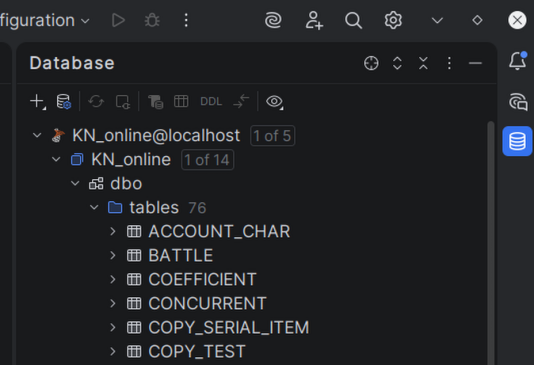
KN_online>dbo. This will allow the IDE to load the database schema.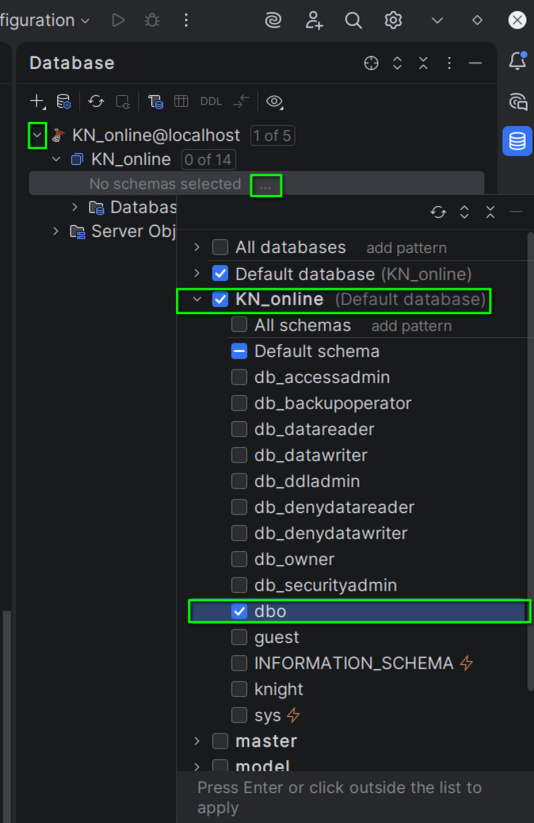
- In the database panel, click the Jump to Query Console button, and select Default Query Console.
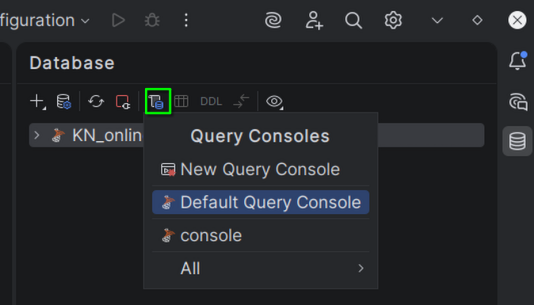
- You can write an execute queries from this Console.