


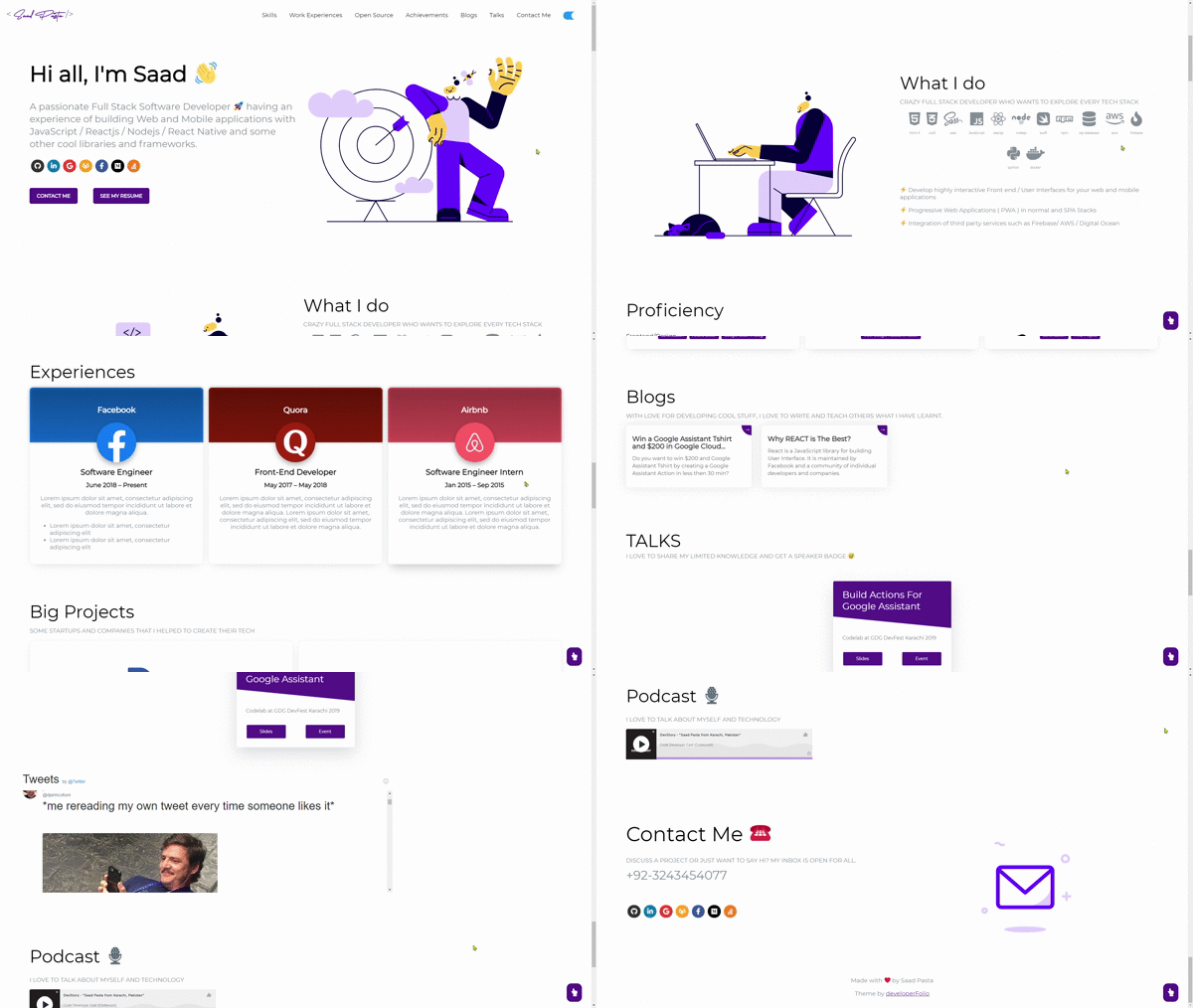
Just change src/portfolio.js to get your personal portfolio. Customize portfolio theme by using your own color scheme globally in the src/_globalColor.scss file. We encourage you to personalize this portfolio as much as possible to stand out from others!
If you'd like to contribute and make this much better for other users, have a look at Issues.
Created something awesome for your fork of the portfolio and want to share it? Feel free to open a pull request.
- Sections
- Getting Started
- How to Use
- Linking portfolio to GitHub
- Linking blogs section to Medium
- Change and Customize
- Deployment
- FAQ
- Technologies Used
- Illustrations
- For the Future
- Contributors
✔️ Summary and About me
✔️ Skills
✔️ Education
✔️ Work Experience
✔️ Open Source Projects Connected with GitHub
✔️ Big Projects
✔️ Achievements And Certifications 🏆
✔️ Blogs
✔️ Talks
✔️ Podcast
✔️ Contact me
✔️ Twitter Timeline
✔️ GitHub Profile
To view Saadpasta's original live example, click here.
These instructions will get you a copy of the project up and running on your local machine for development and testing purposes.
You'll need Git and Node.js (which comes with npm) installed on your computer. Or use Docker.
node@v10.16.0 or higher
npm@6.9.0 or higher
git@2.17.1 or higher
1) BUILD IMAGE : docker build -t developerfolio:latest .
2) RUN IMAGE: docker run -t -p 3000:3000 developerfolio:latest
First, hit the 'Fork' button in github in the top right (next to Star and Watch). Then create your own fork of this repository. Once that is done, view your fork and hit the green Code button. Copy the link and follow the instructions below.
From your command line, clone and run developerFolio:
# Clone this repository
git clone https://github.com/YOUR_FORK_HERE

# Go into the repository
cd developerFolio

# Setup default environment variables

# For Linux
cp env.example .env
# For Windows
copy env.example .env

# Install dependencies
npm install

# Start a local dev server
npm startGenerate a classic GitHub personal access token following these instructions (make sure you don't select any scope just generate a simple token).
- Create a file called .env in the root directory of your project (if not done already in section: How To Use)
Note: Configuring environment variables before deploying your portfolio is highly recommended as some components depend on API data.
- DeveloperFolio
  - node_modules
  - public
  - src
  - .env         <-- copy the base file and rename .env
  - env.example  <-- this is the base file
  - .gitignore
  - package-lock.json
- package.json- Inside the .env file, add key
REACT_APP_GITHUB_TOKENand assign your GitHub token like this, also add your username asGITHUB_USERNAME
// .env
REACT_APP_GITHUB_TOKEN = "YOUR GITHUB TOKEN HERE"
GITHUB_USERNAME = "YOUR GITHUB USERNAME"
USE_GITHUB_DATA = "true"
Set showGithubProfile to true or false to show Contact Profile using GitHub, defaults to false.
Warning: Treat your tokens like passwords and keep them secret. When working with the API, use tokens as environment variables instead of hardcoding them into your programs.
Note: Open Source Projects section only show pinned items of your GitHub. If you are seeing something as shown below, follow these instructions.

If the above solution still doesn't work, visit the wiki page.
Optionally, you can link the blogs section to your medium user account:
- Inside the .env file, add key
MEDIUM_USERNAMEand assign your Medium username
// .env
MEDIUM_USERNAME = "YOUR MEDIUM USERNAME"- For Github Action, change the environment variable
MEDIUM_USERNAMEin.github/workflows/deploy.yml
Set displayMediumBlogs to true or false in portofolio.js to display fetched Medium blogs, defaults to true.
Personalize page content in /src/portfolio.js & modify it as per your need. You will also need to modify index.html to change the title and metadata to provide accurate SEO for your personal portfolio. This is where you will change the TITLE of the site and the ICON of the site.
/* Change this file to get your Personal Porfolio */

const greeting = {
  /* Your Summary And Greeting Section */
  title: "Hi all I'm Saad",
  subTitle: emoji("A passionate Full Stack Software Developer 🚀"),
  resumeLink: "https://drive.google.com/file/d/1ofFdKF_mqscH8WvXkSObnVvC9kK7Ldlu/view?usp=sharing"
};

const socialMediaLinks = {
  /* Your Social Media Link */
  github: "https://github.com/saadpasta",
  linkedin: "https://www.linkedin.com/in/saadpasta/",
  gmail: "saadpasta70@gmail.com",
  gitlab: "https://gitlab.com/saadpasta",
  facebook: "https://www.facebook.com/saad.pasta7"
};


const skillsSection = { .... }

const techStack = { .... }

const workExperience = { .... }

const openSource = { .... }

const bigProjects = { .... }

const achievementSection = { .... }

const blogSection = { .... }

const contactInfo = { .... }

const twitterDetails = { ... }To upload your own resume, simply upload a pdf to src/containers/greeting/resume and rename the pdf to resume.pdf.
For adding emoji 😃 into the texts in Portfolio.js, use the emoji() function and pass the text you need as an argument. This would help in keeping emojis compatible across different browsers and platforms.
Lottie animations are the cool ones like the one on the splash loading screen and sprinkled throughout the site. Changing these will help make your portfolio stand out. You can choose a Lottie and download it in json format from sites like this. You will need to make a LottieFiles account. Download a Lottie as LottieJSON. In src/assets/lottie, replace the Lottie json file you want to alter with the new LottieJSON and keep the same file name. If you want to change the Lottie options, go to src/components/displayLottie/DisplayLottie.js and change the defaultOptions object, you can refer lottie-react docs for more info on the defaultOptions object.
Insert your Twitter username in portfolio.js to show your recent activity on your page.
const twitterDetails = {
  userName: "Your Twitter Username"
};
Note: Don't use @ symbol when adding username.
When you are done with the setup, you should host your website online. We highly recommend to read through the Deploying on GitHub Pages docs for React.
First you should commit your changes before going any further. Then enable GitHub Actions for the repository you use. (Go to Actions tab) Then go read the docs below so you understand what's happening.
(The Profile and the Repository information from GitHub is only created at the time of deploy and the site needs to be redeployed if those information needs to be updated. So, a configurable CRON Job is setup which deploys your site every week, so that once you update your profile on GitHub it is shown on your portfolio. You can also trigger it manually using workflow_dispatch event, see this guide on how to do that.)
- When you turn on Actions, we highly recommend to read through the GitHub Actions Configuring a workflow docs. You may disable the format-checker Action if it's causing issues by going to actions and clicking the three dots and then disable.
This section guides you to deploy your portfolio on GitHub pages.
-
Navigate to
package.jsonand enter your domain name instead ofhttps://developerfolio.js.org/inhomepagevariable. For example, if you want your site to behttps://<your-username>.github.io/developerFolio, add the same to the homepage section ofpackage.json. -
In short you can also add
/devloperFoliotopackage.jsonas both are exactly same. Upon doing so, you tellcreate-react-appto add the path assets accordingly. -
Optionally, configure the domain. This will require you to go buy a domain name from a registrar. You can configure a custom domain with GitHub Pages by adding a
CNAMEfile to thepublic/folder. -
Follow through the guide to setup GitHub pages from the official CRA docs here. Make sure you are deploying to gh-pages in the scripts section of package.json. You also may have to use 'master' instead of 'main'.
You could also host directly with Netlify by linking your own repository.

For more information, read hosting on Netlify.
Add questions that arise here.
If you can help us with these. Please don't hesitate to open a pull request.
-
Connect with LinkedIn to get Summary, Skills, Education and Experience
-
Move to Gatsby
-
Add More Sections
 Saad Pasta |
 Kartik Choudhary |
 Naveen M K |
 Muhammad Hasham |
Thanks goes to these wonderful people (emoji key):


