
AI Chatbot Platform — Build intelligent assistants powered by your own documents






Features • Demo • Quick Start • User Guide • Ollama Setup • Tech Stack
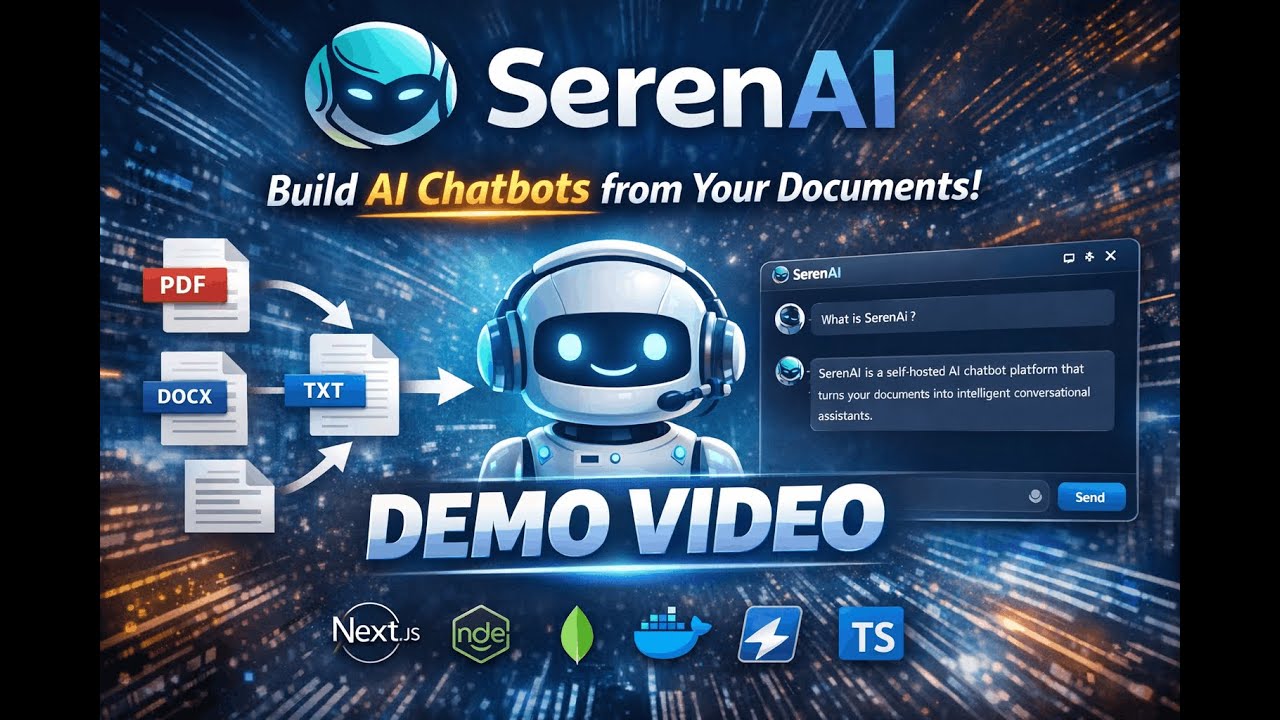
SerenAI is a self-hosted AI chatbot platform that turns your documents into intelligent conversational assistants. Upload PDFs, Word docs, or text files—and instantly create chatbots that can answer questions about your content using RAG (Retrieval-Augmented Generation).
What you can do:
🤖 Build AI Chatbots — Create unlimited chatbots, each with its own knowledge base, personality, and appearance. Customize everything from the system prompt to 30+ chatbot-specific theme colors and layout options.
📄 Document-Powered AI — Upload documents (PDF, DOCX, TXT) that get automatically chunked and indexed. Your chatbot searches this knowledge base to give accurate, context-aware answers.
🔧 Bring Your Own LLM — Use OpenAI's GPT models with your API key, or self-host with Ollama for complete privacy and zero API costs. Configure per-chatbot temperature and token limits.
🌐 Share Anywhere — Keep chatbots private, share with specific users, or make them public. Embed on any website or share via direct links—no login required for public bots.
🛡️ Enterprise Security — Role-based access control with 50 granular permissions. JWT authentication with refresh tokens, rate limiting, and secure password hashing.
📊 Admin Dashboard — Monitor platform usage, manage users and roles, track AI token consumption, and handle support tickets—all from a centralized admin panel.
Perfect for: Customer support, internal knowledge bases, documentation assistants, FAQ bots, and any use case where you need AI that knows your content.
Get SerenAI running in minutes with our automated setup script.
- Docker & Docker Compose installed
.envfiles configured (see below)
Copy the example files and configure:
cp node-backend/.env.example node-backend/.env
cp frontend/.env.example frontend/.env
📁 Backend Environment (node-backend/.env)
# Authentication
# Generate secure random secrets using: openssl rand -base64 32
JWT_ACCESS_TOKEN_SECRET=your-super-secret-jwt-access-key-here-change-in-production
JWT_REFRESH_TOKEN_SECRET=your-super-secret-jwt-refresh-key-here-change-in-production
JWT_ACCESS_TOKEN_EXPIRES_IN=1h
JWT_REFRESH_TOKEN_EXPIRES_IN=7d
BCRYPT_SALT_ROUNDS=12

# OAuth / SSO Configuration
# Google OAuth - Get from: https://console.cloud.google.com/
# IF NOT PROVIDED - GOOGLE SIGN IN ROUTES will not work
GOOGLE_CLIENT_ID=your_google_client_id.apps.googleusercontent.com

# API Configuration
API_VERSION=v1

# Rate Limiting (optional)
# Maximum number of requests allowed in the time window
RATE_LIMIT_MAX_REQUESTS=100
# Time window in milliseconds (900000 = 15 minutes)
RATE_LIMIT_WINDOW_MS=900000

# Embedding Configuration
# Set to true to use local HuggingFace embeddings, false to use OpenAI embeddings
USE_LOCAL_EMBEDDING=true

# Local Embedding Model (only used if USE_LOCAL_EMBEDDING=true)
# Keep this if u have better CPU (atleast i5 10th Gen) CPU, else choose lighter version from hugging face
EMBEDDING_LOCAL_MODEL=BAAI/bge-base-en

# OpenAI Configuration (only used if USE_LOCAL_EMBEDDING=false)
# Get your API key from: https://platform.openai.com/api-keys
OPENAI_API_KEY=your_openai_api_key_here
📁 Frontend Environment (frontend/.env)
# Google SSO Configuration
# Get this from: https://console.cloud.google.com/
# Must be the same as backend GOOGLE_CLIENT_ID
# IF NOT PROVIDED - GOOGLE SIGN IN WILL BE HIDDEN
NEXT_PUBLIC_GOOGLE_CLIENT_ID=your_google_client_id.apps.googleusercontent.com
Tip
Quick setup: For local development without Google SSO, you only need to set the JWT secrets. Everything else has sensible defaults.
# 🔧 Production Mode (Docker containers)
./start.sh

# 💻 Development Mode (Hot-reload)
./start.sh --dev

# 🧹 Fresh Start (Clears database)
./start.sh --fresh

# 🔄 Fresh Development Start
./start.sh --fresh --dev

# 📋 View Logs (Live tail or pull from container)
./logs.sh| Service | URL |
|---|---|
| 🌐 Web App | http://localhost:3000 |
| 🔌 API | http://localhost:5000 |
| 📖 API Docs | http://localhost:5000/api-docs |
- Open http://localhost:3000 in your browser
- Click "Get Started" to create an account
- Fill in your email, password, first name, and last name
- Click "Create account"
Important
After registering, run this command to get full admin access:
docker compose exec backend npm run make-admin your@email.comReplace your@email.com with the email you registered with.
Refresh the page after running the command.
Step 1: Access the Platform
- Open http://localhost:3000
- You'll see the Landing Page with navigation: Features, About, Contact, Login, Get Started
Step 2: Create an Account
- Click "Get Started" button in the header (or "Login" → "Create an account")
- Fill the registration form:
- First Name & Last Name
- Email — Your email address
- Password — Minimum 8 characters with uppercase, lowercase, and number
- Confirm Password
- Click "Create account"
- Alternatively, click "Sign up with Google" for Google SSO
Step 3: Login
- Click "Login" in the header
- Enter your email and password
- Click "Sign in"
- You'll be redirected to the Dashboard (
/dashboard)
Create and manage your knowledge base — the documents your chatbots will use to answer questions.
📍 Location: Sidebar → Documents (or go to /documents)
- Click "Add Document" button (top right)
- Upload a File: Drag & drop or click to select (PDF, TXT, DOCX supported)
- Fill in the form:
- Name — Document title (auto-filled from filename)
- Description — Brief summary of the document content
- Labels — Add tags like "FAQ", "Support", "Product" (type and press Enter)
- Visibility:
- 🔒 Private — Only you can use this document
- 🌐 Public — Source excerpts visible to chatbot users
- Preview the Chunks (how the document is split for AI)
- Click "Create Document"
| Action | How To |
|---|---|
| View | Click any document card to see details and chunks |
| Edit | Click ⋮ menu → Edit (or click card → Edit button) |
| Delete | Click ⋮ menu → Delete → Confirm |
| Search | Use the search bar to filter by name |
| Filter by Label | Click "Filter by Label..." dropdown |
| Toggle View | Use Grid/Table toggle (top right) |
Features at a Glance:
- 🏷️ Labels for organization and filtering
- 📊 Status tracking: Pending, Indexed, Failed
- 📈 Chunk count displayed per document
- 🔍 Full-text search across all documents
Configure AI models before creating chatbots — you need at least one LLM config.
📍 Location: Sidebar → LLM Configs (or go to /llmconfigs)
- Click "Add Configuration" button
- Fill in the form:
- Model Name — e.g.,
gpt-4,gpt-3.5-turbo,llama2 - Provider: Choose one:
- OPENAI — Cloud-based, requires API key
- OLLAMA — Self-hosted, requires base URL
- API Key (OpenAI only) — Your OpenAI API key
- Base URL (Ollama only) — e.g.,
http://localhost:11434
- Model Name — e.g.,
- Click "Create"
| Action | How To |
|---|---|
| Edit | Click config card → Edit form appears |
| Delete | Click ⋮ menu → Delete → Confirm |
| Search | Use search bar to find by model name |
Provider Comparison:
| Provider | Pros | Cons |
|---|---|---|
| OpenAI | Best quality, no setup | Costs money, external API |
| Ollama | Free, private, self-hosted | Requires GPU, slower |
Create AI chatbots with full customization over behavior and appearance.
📍 Location: Sidebar → Chatbots (or go to /chatbots)
-
Click "Create Chatbot" button
-
Basic Settings Tab:
- Name — Your chatbot's display name
- Visibility:
- 🔒 Private — Only you can access
- 👥 Shared — Share with specific users
- 🌐 Public — Anyone can chat (no login required)
- Documents — Click "Select Documents" to choose knowledge base
- LLM Configuration — Select from your created configs
- System Prompt — Define AI personality and instructions
- View Source Documents — Toggle to show/hide source citations
- Temperature — Slider 0-2 (0 = precise, 2 = creative)
- Max Tokens — Limit response length
-
Appearance Tab:
- Logo — Upload custom chatbot avatar
- Theme Presets — Choose from pre-made themes
- Color Customization (Light & Dark modes):
Category Customizable Colors Background Main background, header, footer Chat Bubbles AI bubble, user bubble, text colors, borders Input Text field background, text color, placeholder Buttons Send button, icon colors Accents Success, loading, timestamps Welcome Welcome text, suggested prompts - Layout Options:
- Message bubble radius (0-50px)
- Input field radius
- Logo size and border
- Shadow intensity: None, Small, Medium, Large
- Loading animation: Dot, Wave, Circle
- Header separator toggle
-
Live Preview — See changes in real-time on the right panel
-
Click "Create Chatbot"
| Action | How To |
|---|---|
| Chat | Click 💬 button or ⋮ menu → Chat |
| View | Click chatbot card to see details |
| Edit | Click ⋮ menu → Edit |
| Share | Click ⋮ menu → Share (for Shared visibility) |
| Copy Public Link | Click ⋮ menu → Copy Public Link (for Public visibility) |
| Delete | Click ⋮ menu → Delete → Confirm |
| Visibility | How to Share |
|---|---|
| Private | Not shareable |
| Shared | ⋮ menu → Share → Enter user email → Add |
| Public | Copy link: http://localhost:3000/public-chat/{botId} |
Public chatbots can be:
- Shared on social media
- Embedded in websites via iframe
- Accessed without login
Interact with your chatbots and manage conversation history.
📍 Location: Sidebar → Chats (or go to /chats)
Option 1: From Chatbots Page
- Go to Chatbots (
/chatbots) - Click the 💬 chat icon on any chatbot card
- A new conversation opens automatically
Option 2: From Chats Page
- Go to Chats (
/chats) - Click "+ New Chat" button
- You'll be redirected to select a chatbot
- Type your message in the input field at the bottom
- Press Enter or click the Send button
- View AI responses with streaming (real-time typing effect)
- If enabled, click "View Sources" to see which document chunks were used
| Action | How To |
|---|---|
| Resume | Click any conversation card |
| Rename | Click ⋮ menu → Rename → Enter title → Save |
| Delete | Click ⋮ menu → Delete → Confirm |
| Search | Use search bar to find conversations |
- Create a Public chatbot
- Copy the public link:
http://localhost:3000/public-chat/{botId} - Share anywhere — anyone can chat without an account
- Each session gets a unique
session_idfor conversation history
📍 Location: Sidebar → Admin → Roles (or go to /admin/roles)
⚠️ Admin access required — Runnpm run make-admin your@email.com
| Role | Permissions | Can Delete? |
|---|---|---|
| Admin | 26 permissions (platform-wide access) | ❌ Protected |
| User | 24 permissions (own resources only) | ❌ Protected |
📋 Admin Role Permissions (26)
| # | Permission | Description |
|---|---|---|
| 1 | create:user:all |
Create new users |
| 2 | read:user:all |
View all users |
| 3 | update:user:all |
Update any user |
| 4 | delete:user:all |
Delete any user |
| 5 | read:dashboard:all |
View admin dashboard stats |
| 6 | create:role:all |
Create roles |
| 7 | read:role:all |
View roles |
| 8 | update:role:all |
Update roles |
| 9 | delete:role:all |
Delete roles |
| 10 | create:plan:all |
Create plans |
| 11 | read:plan:all |
View all plans |
| 12 | update:plan:all |
Update plans |
| 13 | delete:plan:all |
Delete plans |
| 14 | create:subscription:all |
Create subscriptions |
| 15 | read:subscription:all |
View all subscriptions |
| 16 | delete:subscription:all |
Cancel any subscription |
| 17 | read:admin_stats:all |
View global admin stats |
| 18 | read:contact_us:all |
View all contact submissions |
| 19 | update:contact_us:all |
Update contact submission status |
| 20 | read:help:all |
View all help tickets |
| 21 | update:help:all |
Reply/Update help tickets |
| 22 | read:chatbot:all |
View all chatbots |
| 23 | update:chatbot:all |
Update any chatbot |
| 24 | delete:chatbot:all |
Delete any chatbot |
| 25 | read:document:all |
View all documents |
| 26 | delete:document:all |
Delete any document |
Note: Admin users also have the User role assigned by default. A user can have multiple roles, and an admin can remove roles from any user.
📋 User Role Permissions (24)
| # | Permission | Description |
|---|---|---|
| 1 | read:profile:self |
View own profile |
| 2 | update:profile:self |
Update own profile |
| 3 | read:dashboard:self |
View user dashboard stats |
| 4 | create:chatbot:self |
Create chatbots |
| 5 | read:chatbot:self |
View own chatbots |
| 6 | update:chatbot:self |
Update own chatbots |
| 7 | delete:chatbot:self |
Delete own chatbots |
| 8 | create:document:self |
Create documents |
| 9 | read:document:self |
View own documents |
| 10 | update:document:self |
Update own documents |
| 11 | delete:document:self |
Delete own documents |
| 12 | create:chat:self |
Start new chat |
| 13 | read:chat:self |
Read own chats |
| 14 | update:chat:self |
Send message |
| 15 | delete:chat:self |
Delete own chat |
| 16 | create:help:self |
Create help ticket |
| 17 | read:help:self |
View own help tickets |
| 18 | update:help:self |
User reply to own help ticket |
| 19 | read:subscription:self |
View own subscription |
| 20 | delete:subscription:self |
Cancel own subscription |
| 21 | create:llm_config:self |
Create LLM configurations |
| 22 | read:llm_config:self |
View own LLM configurations |
| 23 | update:llm_config:self |
Update own LLM configurations |
| 24 | delete:llm_config:self |
Delete own LLM configurations |
- Click "Create Role" button
- Fill the form:
- Name — Role identifier (e.g., "content-moderator")
- Description — What this role does
- Permissions — Select from 50 available permissions
- Click "Create"
Permissions follow the format: action:resource:scope
| Action | Resources | Scopes |
|---|---|---|
create, read, update, delete |
user, role, chatbot, document, llm_config, chat, dashboard, help, contact_us, admin_stats, plan, subscription, profile |
self (own), all (platform-wide) |
Example Permissions:
read:chatbot:self— View own chatbotsread:user:all— View all users (admin)delete:document:all— Delete any document (admin)
📍 Location: Sidebar → Admin → Users (or go to /admin/users)
- Find the user in the list
- Click ⋮ menu → Change Role
- Select roles to assign
- Click "Save"
- Go to Admin → Roles
- Click the "user" role
- Add or remove permissions
- Click "Update"
All new registrations automatically get the "User" role with your configured permissions.
📍 Location: Sidebar → Dashboard or Admin → Admin Dashboard
Available to all logged-in users:
- 📊 Total Documents — Number of documents created
- 🤖 Active Chatbots — Number of chatbots
- 💬 Conversations — Total chat conversations
- Quick action cards to navigate the platform
Available to users with admin permissions:
- 👥 Total Users — Platform user count
- 🤖 Total Chatbots — All chatbots on platform
- 💬 Total Conversations — Platform-wide conversations
- 🔐 Total Roles — Number of roles configured
📍 Location: Admin Dashboard → AI Usage Stats
Track token consumption and costs:
| Event Type | Description |
|---|---|
CREATE_DOCUMENT_INDEX |
Tokens used when indexing document chunks |
QUERY_DOCUMENT |
Tokens for semantic search queries |
LLM_INPUT |
Prompt tokens sent to AI model |
LLM_OUTPUT |
Response tokens generated by AI |
Features:
- Filter by date range
- View usage per user
- Track costs per LLM config
- Export data for reporting
After deployment, the first user needs admin access:
# 1. Register an account via the web UI (http://localhost:3000/auth/register)

# 2. Promote your account to admin
docker compose exec backend npm run make-admin your@email.com

# 3. Refresh your browser — you now have admin access!
What can admins do?
- ✏️ Edit the default "User" role permissions
- 🛠️ Create custom roles (e.g., "Support Agent", "Content Manager")
- 👥 Manage all users and assign roles
- 📊 View platform-wide statistics and AI usage
- 🗑️ Delete any resource on the platform
Use Ollama for free, private, self-hosted AI — no API costs!
| Feature | OpenAI | Ollama |
|---|---|---|
| 💰 Cost | Pay per token | Free |
| 🔒 Privacy | Data sent to cloud | 100% local |
| 🌐 Internet | Required | Not required |
| ⚡ Speed | Fast | Depends on GPU |
🐧 Linux (Ubuntu/Debian)
# Install Ollama
curl -fsSL https://ollama.com/install.sh | sh

# Start Ollama service
sudo systemctl enable ollama
sudo systemctl start ollama

# Pull a model (example: llama2)
ollama pull llama2

# Verify installation
ollama list
🍎 macOS
# Install via Homebrew
brew install ollama

# Start server with Docker access
OLLAMA_HOST=0.0.0.0:11434 ollama serve

# In a new terminal, pull a model
ollama pull llama2
🪟 Windows (PowerShell)
# Set host for Docker access
setx OLLAMA_HOST 0.0.0.0:11434

# Restart terminal, then pull model
ollama pull llama2
ollama list127.0.0.1. To use it with Docker containers, you must expose it on 0.0.0.0:
# Edit Ollama service
sudo systemctl edit ollama
Add these lines:
[Service]
Environment="OLLAMA_HOST=0.0.0.0:11434"
Then restart:
sudo systemctl daemon-reload
sudo systemctl restart ollamaStart Ollama with the host environment variable:
OLLAMA_HOST=0.0.0.0:11434 ollama serve# From host
curl http://localhost:11434/api/tags
# From Docker container
docker run --rm --network=host alpine sh -c "apk add curl && curl http://localhost:11434/api/tags"- Go to LLM Configs → + Add Configuration
- Fill in:
- Model Name:
llama2(or any model you pulled) - Provider:
OLLAMA - Base URL:
http://host.docker.internal:11434(Docker) orhttp://localhost:11434(dev mode)
- Model Name:
- Click Create
- Use this config when creating chatbots
| Model | Size | Use Case |
|---|---|---|
llama2 |
7B | General purpose |
llama2:13b |
13B | Better quality |
mistral |
7B | Fast, efficient |
codellama |
7B | Code generation |
gemma:2b |
2B | Lightweight |
- ❌ Never run
sudo ollama serve - ✅ Always use
OLLAMA_HOST=0.0.0.0:11434for Docker access - ✅ Pull models as the same user running Ollama
- ✅ Only one Ollama server should run at a time
 LangChain AI Orchestration |
 Qdrant Vector Database |
 Docker Containerization |
 Node.js Backend Runtime |
 Next.js Frontend Framework |
 OpenAI LLM Provider |
 Ollama Self-hosted LLM |
 HuggingFace Local Embeddings |
Additional Technologies:
- 🗄️ MongoDB — Document database with replica set support
- 🔒 JWT — Secure authentication with access & refresh tokens
- 📝 Zod — Runtime type validation
- 🎨 Tailwind CSS — Modern styling
- 📊 Recharts — Data visualization
We welcome contributions! Here's how you can help:
- Fork the repository
- Clone your fork
- Set up development environment:
./start.sh --dev
- Make your changes
- Submit a pull request
For detailed technical documentation, see:
- Backend: docs/backend/content.md
- API reference, database schema, RAG system, authentication
- Frontend: docs/frontend/content.md
- Components, pages, state management, API integration
Important: With every PR, please update the relevant documentation in
/docsto keep everything in sync.
- Follow existing code style and patterns
- Add tests for new features
- Update documentation as needed
- Keep commits atomic and well-described
See docs/deployment.md for complete deployment instructions.
MIT License — see LICENSE for details.
Saurav Kumar Srivastava


Built with ❤️ for the AI community
Last Updated: 11 January 2026 Documentation Version: 1.0.0