Custom Logs To declare a custom log, you can use the following in your header file:
DECLARE_LOG_CATEGORY_EXTERN(LogInventory, Log, All)
Then you need to define it inside the corresponding .cpp file:
DEFINE_LOG_CATEGORY(LogInventory);
You can now use it like this:
UE_LOG(LogInventory, Warning, TEXT("Hello World"))
Header File Protection
#pragma once
This expression can be used in Header files, to make sure they won't get imported twice. Simple as that.
Delegates Delegates are an incredibly useful way to make event-driven code. Conceptually they are relatively straightforward; allow functions to subscribe to a “delegate”, and when the delegate is called, all those function are called too! Kind of like a mailing list. Hopefully that make sense, because the implementation in Unreal can get a little tricky.
TObjectPtr This is an alternative way of declaring pointers in Unreal Engine's C++. It's very similar to raw pointers; however, it solves several issues such as lazy loading and can optimize loading times and performance.
TObjectPtr<UInputMappingContext> DefaultMC;
TWeakObjectPtr TWeakObjectPtr is similar to TObjectPtr, the main difference is that it doesn't affect the Garbage Collector, what this means is that the actor won't be kept alive if it's not used.
TWeakObjectPtr<AActor> ThisActor;
TWeakObjectPtr<AActor> LastActor;
TSubclassOf
TSubclassOf allows you to restrict the types that can be assigned to a class property at runtime or compile time. For instance, suppose you have a pickup class in your game and you want to create a blueprintable pickup spawner for it. If you were to define your pickup spawner this way:
UPROPERTY( Category=Pickup, EditAnywhere, BlueprintReadWrite )
UClass* PickupType;
This would allow you to assign a pickup type to spawn, but it would also let you assign any UObject. To avoid that, you use TSubclassOf, like so:
UPROPERTY( Category=Pickup, EditAnywhere, BlueprintReadWrite )
TSubclassOf<AGamePickup> PickupType;
That way, if you try to assign a non-GamePickup class in native code, the compiler will complain. When editing blueprint defaults or instances, the dropdown menu will only contain subtypes of GamePickup. It's a great tool and you should probably be using it whenever you're dealing with class variables.
Player Controller Setup
The player controller works with Input Mapping Context and Input Actions. Starting from Unreal Engine 5.0, the old input system was replaced by the Enhanced Input System. While it can be somewhat complicated, it's incredibly powerful once you get the hang of it. It's a broad topic, so if you're interested in learning more, I recommend reading the official Unreal Engine documentation or watching relevant tutorial videos.
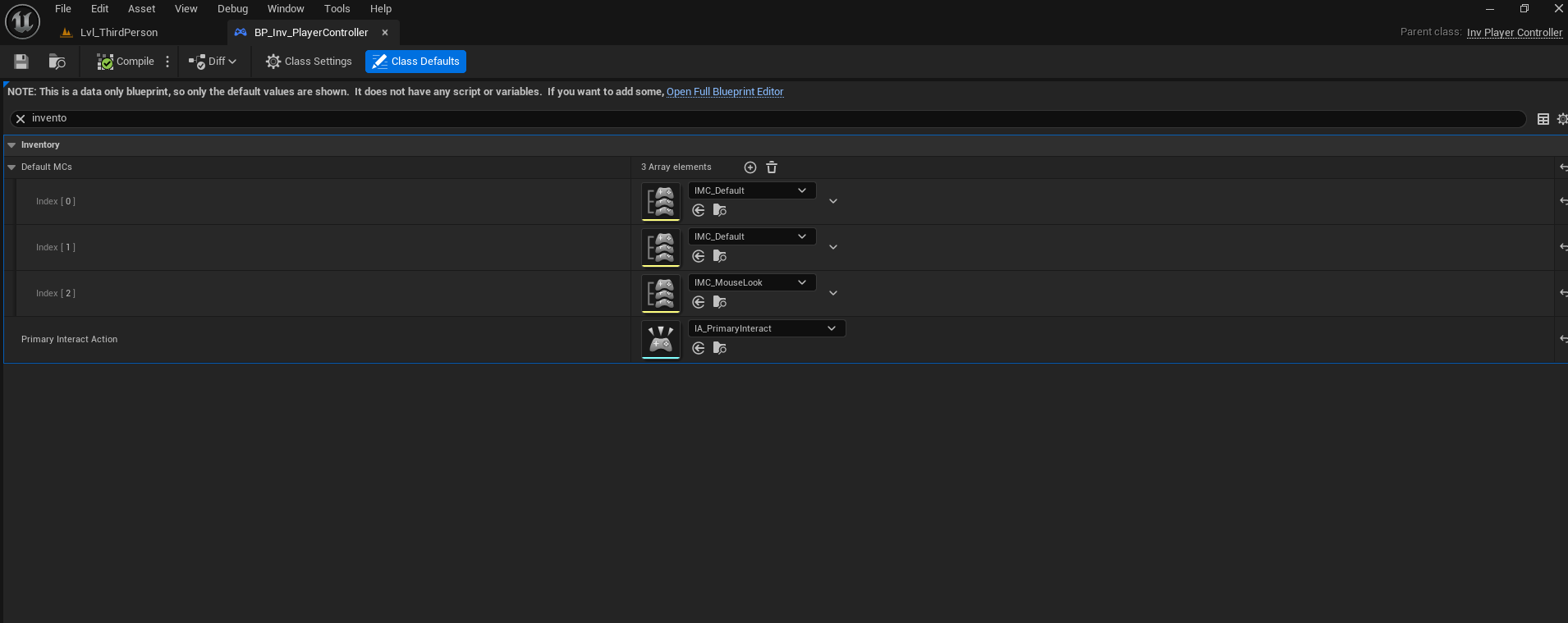
In short, you need to declare at least two variables in the header file: one of type UInputMappingContext and another of type UInputAction. Make sure to mark both variables with UPROPERTY.
UPROPERTY(EditDefaultsOnly, Category = "Inventory")
TObjectPtr<UInputMappingContext> DefaultMC;

UPROPERTY(EditDefaultsOnly, Category = "Inventory")
TObjectPtr<UInputAction> PrimaryInteractAction;
Enhanced Input System Implementation
Next, in the .cpp file, you need to get the Enhanced Input Local Player Subsystem. I know the name isn't ideal, but this is the standard approach. While copy-pasting doesn't teach much, sometimes it's necessary.
UEnhancedInputLocalPlayerSubsystem* Subsystem = ULocalPlayer::GetSubsystem<UEnhancedInputLocalPlayerSubsystem>(GetLocalPlayer());
We then need to check if the subsystem is valid. Important: make sure it's valid, not just not null.
UEnhancedInputLocalPlayerSubsystem* Subsystem = ULocalPlayer::GetSubsystem<UEnhancedInputLocalPlayerSubsystem>(GetLocalPlayer());

if (IsValid(Subsystem))
{
    for (UInputMappingContext* CurrentContext : DefaultMCs)
    {
       Subsystem->AddMappingContext(CurrentContext, 0);
    }
}
Input Component Binding Now we need to declare a function to bind to each Input Action. To do this, first override the following Unreal Engine function in the header file:
virtual void SetupInputComponent() override;
Then define it in the .cpp file like this:
void AInv_PlayerController::SetupInputComponent()
{
    Super::SetupInputComponent();

    UEnhancedInputComponent* EnhancedInputComponent = Cast<UEnhancedInputComponent>(InputComponent);

    EnhancedInputComponent->BindAction(PrimaryInteractAction, ETriggerEvent::Started, this, &AInv_PlayerController::PrimaryInteract);
}
What we're doing here is casting the InputComponent, which is included via:
#include "EnhancedInputComponent.h"
into an EnhancedInputComponent. Then, using the EnhancedInputComponent variable, we bind the action we declared. You may notice that a function is missing—this is because you need to declare one in your header like this:
void PrimaryInteract();
And define it in the .cpp file:
void AInv_PlayerController::PrimaryInteract()
{
    UE_LOG(LogTemp, Log, TEXT("Primary Interact"))
}
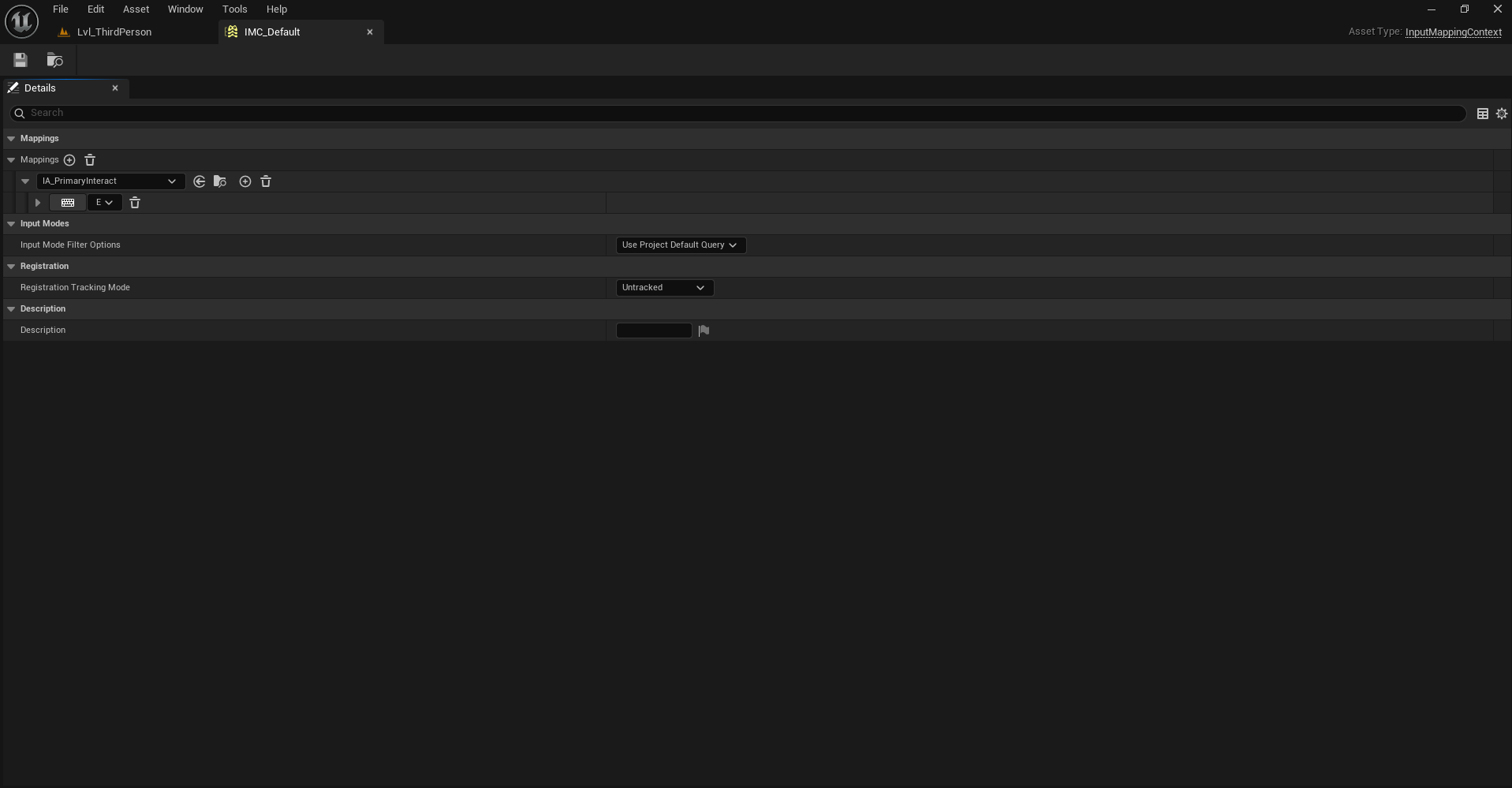
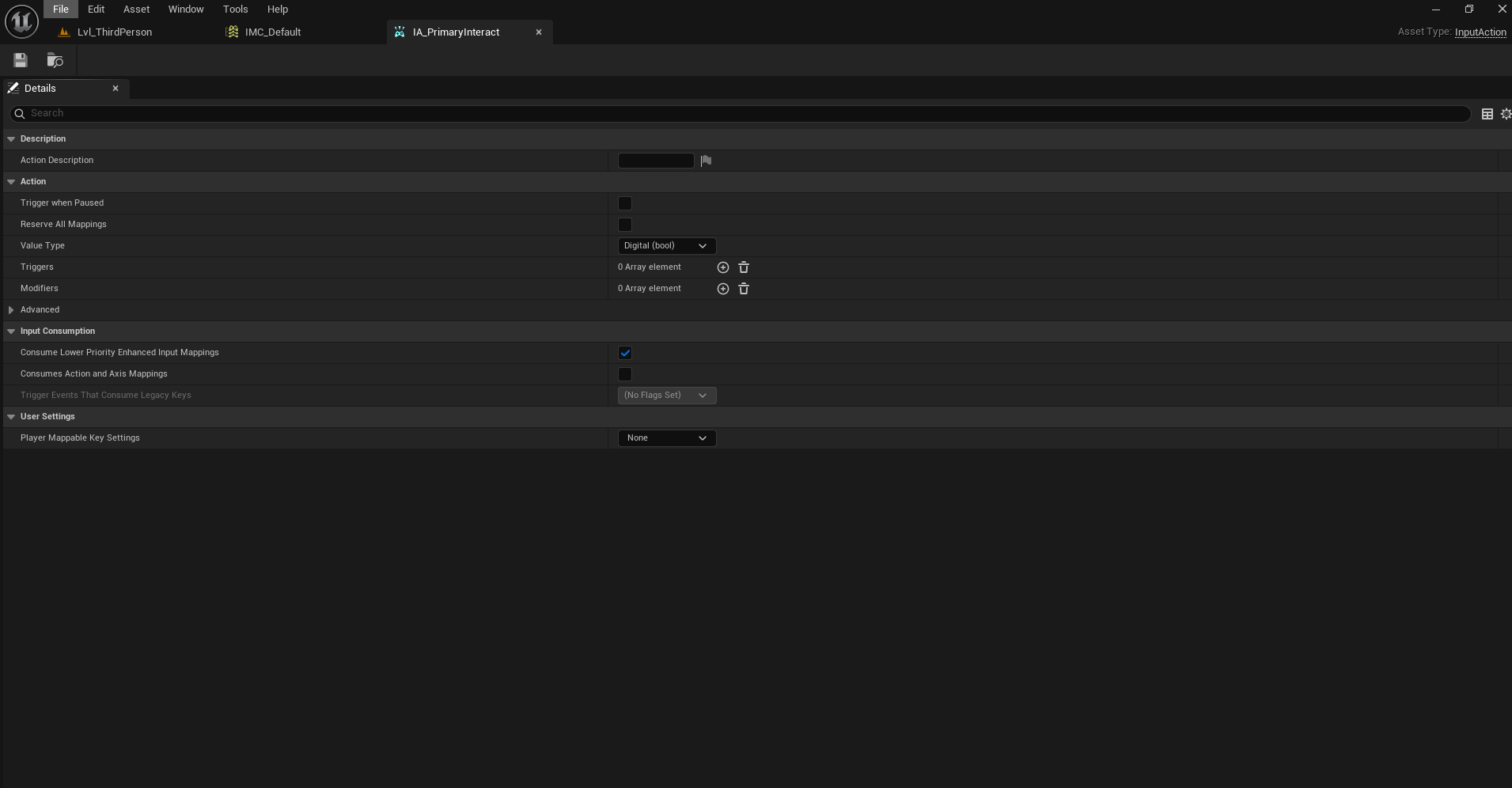
Congratulations! You've now set up your first input component in C++. Next, you should explore the different types of triggers. For that, I highly recommend watching tutorial videos on the Enhanced Input System. Don't forget: you still need to create the Input Mapping Context and Input Actions inside the Unreal Editor and assign them appropriately.
Widget Creation and Management To declare and use Widgets in C++ and assign them to the viewport, we first need to create a UserWidget class. You don't need to put anything in there for now. Then we need to move to our player controller class. Let's start with the header file. To declare a Widget, we need two things:
-
A Subclass of the WidgetClass, which is necessary to create and initialize it
-
A Pointer to store the HUDWidget once we actually create it UPROPERTY(EditDefaultsOnly, Category = "Inventory") TSubclassOf<UInv_HUDWidget> HUDWidgetClass;
UPROPERTY() TObjectPtr<UInv_HUDWidget> HUDWidget;
We then need a function to initialize the widget: Header:
void CreateHUDWidget();
CPP:
void AInv_PlayerController::CreateHUDWidget()
{
    // If the controller isn't a player (for example, it could be the server), we don't want to create the HUD.
    if (!IsLocalController()) return;

    HUDWidget = CreateWidget<UInv_HUDWidget>(this, HUDWidgetClass);

    if (IsValid(HUDWidget))
    {
       // Adding it to the player screen, the viewport.
       HUDWidget->AddToViewport();
    }
}
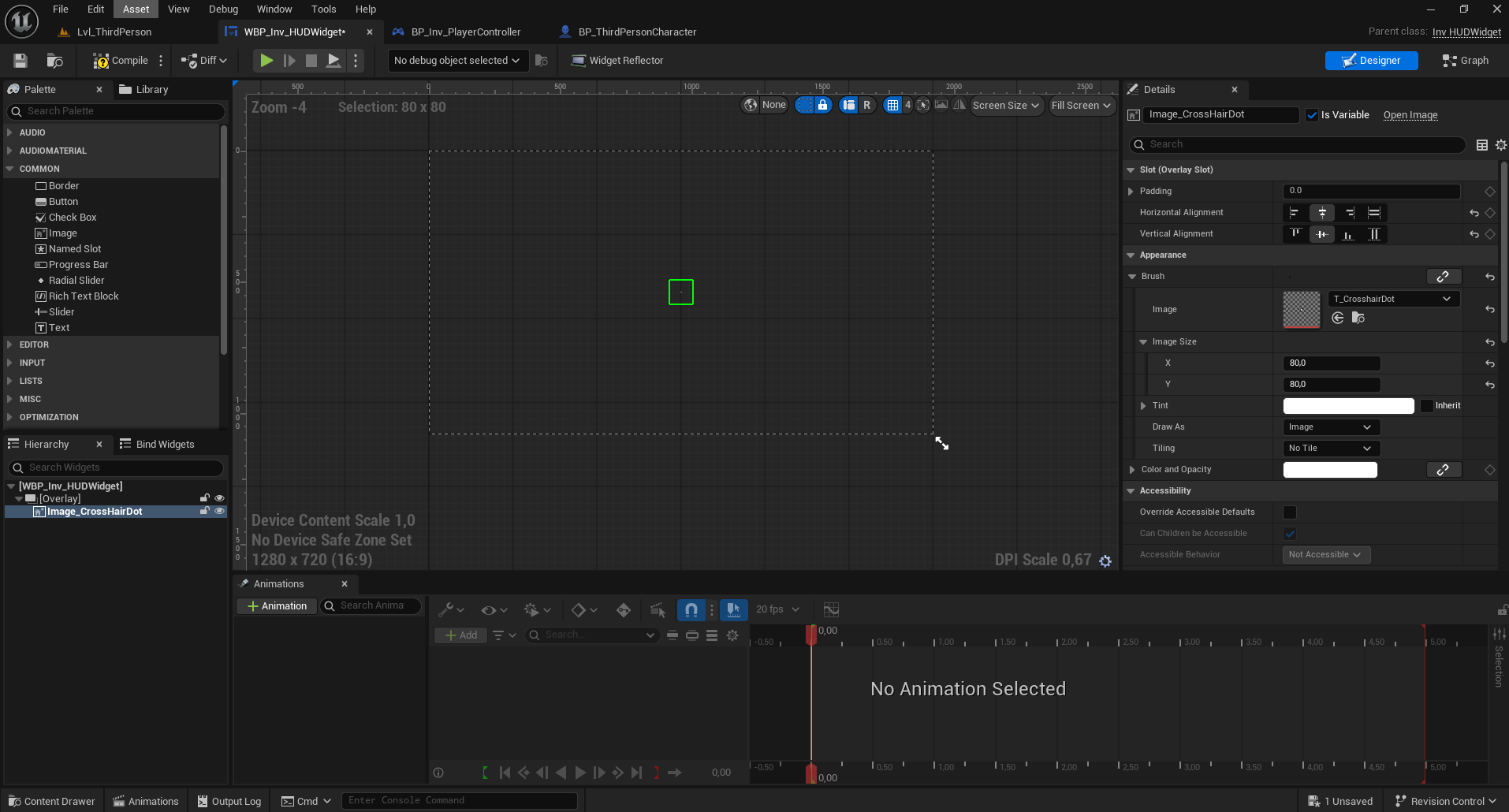
Congratulations! You've created your first widget in C++. You now need to call the CreateHUDWidget() function inside BeginPlay and create the widget on the Blueprint side based off the C++ Class you just created.
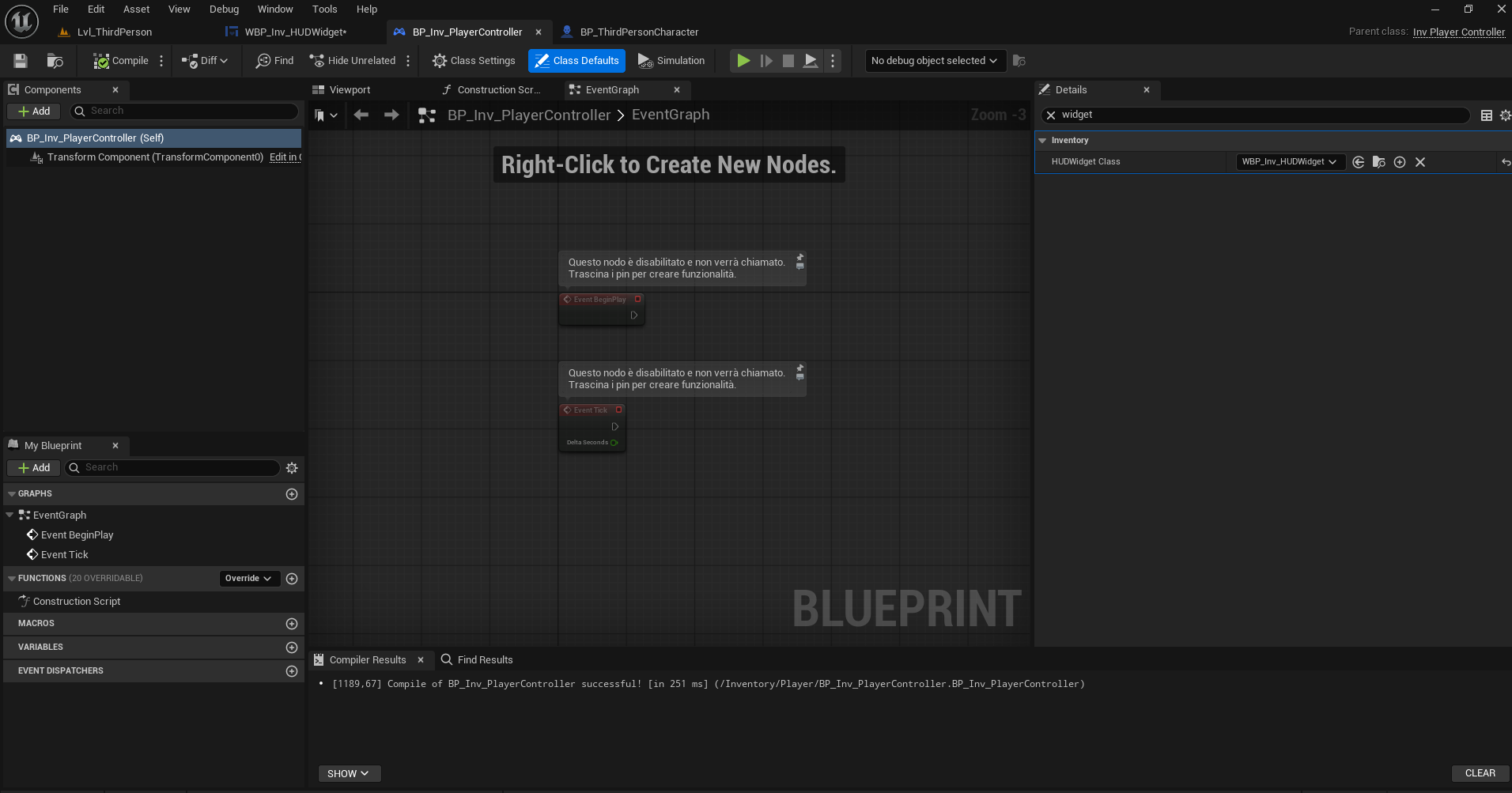
Widget Binding When working with some decent abstraction layers, you may encounter the need to "bind" C++ widgets with BP. To do that it's quite easy, you can simply do:
UPROPERTY(meta = (BindWidget))
TObjectPtr<UInv_InventoryGrid> Grid_Equippables;
Widget Switcher A widget switcher is useful because it allows you to navigate in UI easier, for example if you need to make a settings page with various sections (e.g Graphics, Screen, Gameplay, Audio etc..) this allows you to have multiple grids easier and faster, by adding a small layer of abstraction.
OnClicked Delegate The OnClicked delegate allows you to listen for UButtons interactions in C++ Code and bind a function when executed, read more about delegates, here: Delegates: Section #1.
First of all, we need to define an UButton:
UPROPERTY(meta = (BindWidget))
TObjectPtr<UButton> Button_Craftables;
after we defined our UButton, we need a function to trigger:
UFUNCTION()
void ShowCraftables();
These needs to be an UFUNCTION because the "OnClicked" delegate on buttons is a dynamic multicast delegetate, which requires an UFUNCTION macro.
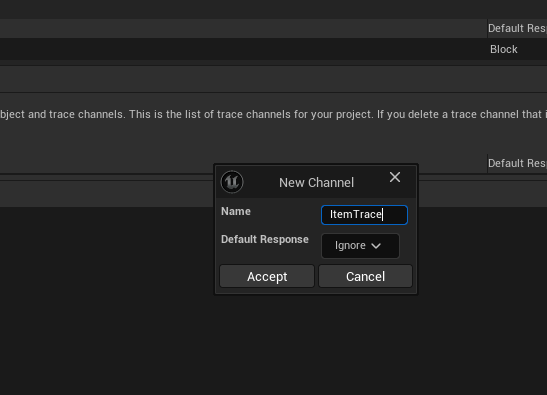
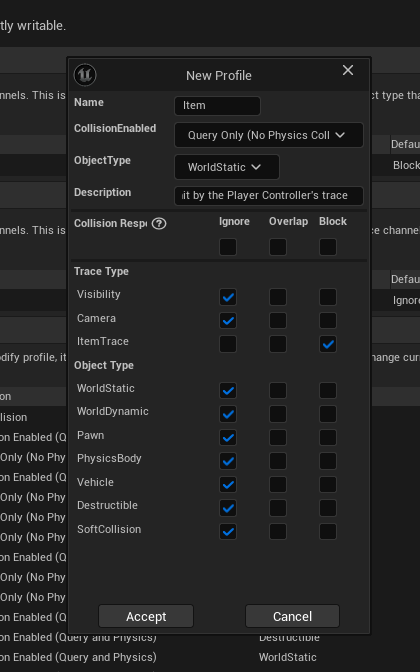
Custom Trace Channel Setup To create a Custom Channel for your projects, you need to open up the engine and go to: Project Settings → Collision → Trace Channels → New Trace Channel. We also need to define a new custom preset, there are several things to consider for Collisions, there are really good tutorials on YouTube that I'd suggest you check out.
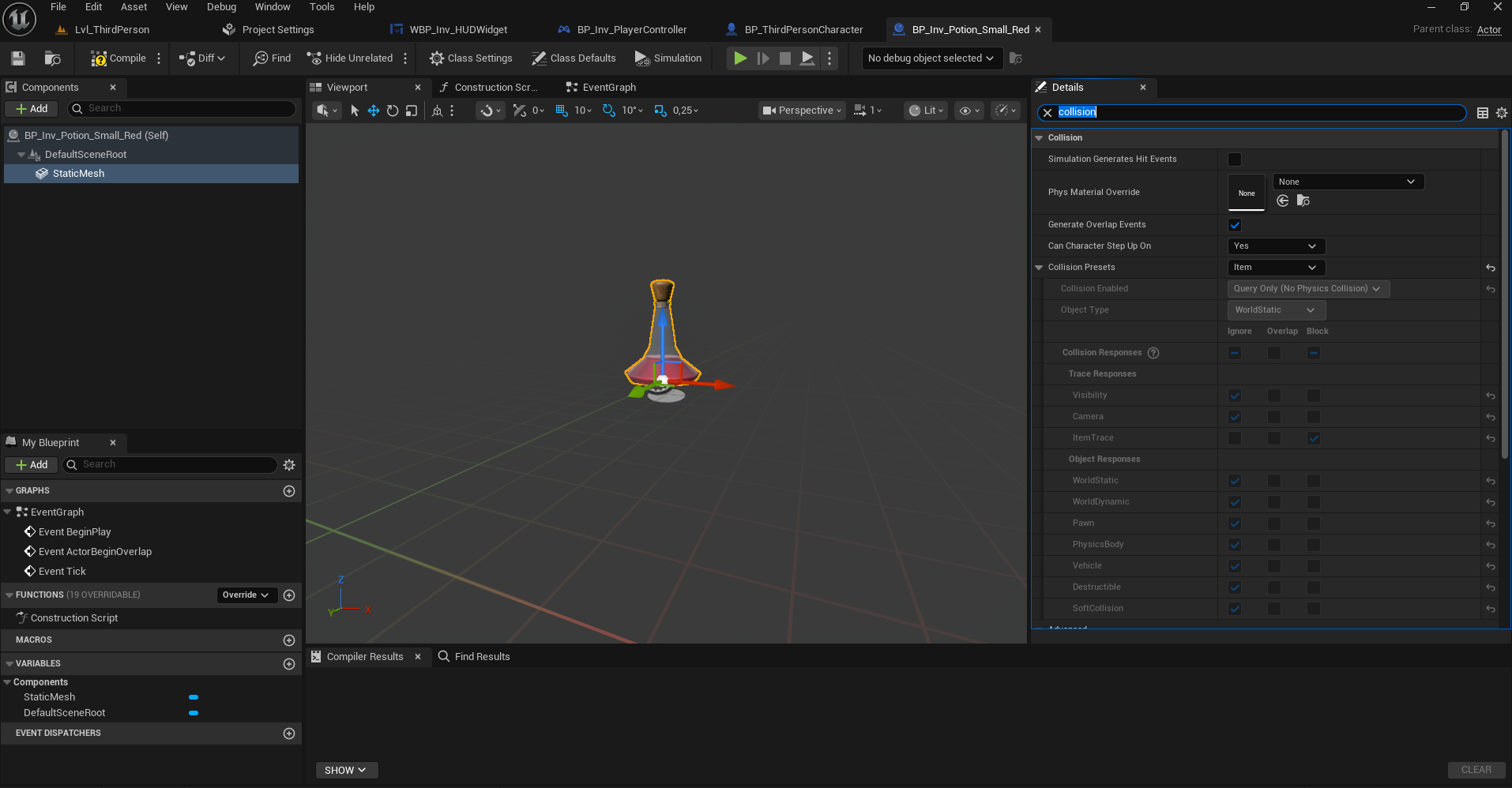
You can now assign the Custom Collision presets to your static meshes in the Blueprint Editor.
Line Trace Implementation We now need to declare a function to call inside Tick.
void AInv_PlayerController::TraceForItem()
{
    if (!IsValid(GEngine) || !IsValid(GEngine->GameViewport)) return;
    FVector2D ViewportSize;
    // We get the size of the Viewport, AKA: Player Screen size.
    GEngine->GameViewport->GetViewportSize(ViewportSize);
    // Since we are using Vectors 2D, we can simply divide the size by 2 to get the center of the screen.
    const FVector2D ViewportCenter = ViewportSize / 2.f;

    // Transforms the given 2D screen space coordinate into a 3D world-space point and direction.
    FVector TraceStart;
    FVector Forward;
    if (!UGameplayStatics::DeprojectScreenToWorld(this, ViewportCenter, TraceStart, Forward)) return;

    // Actual Line trace to see if we hit anything.
    const FVector TraceEnd = TraceStart + Forward * TraceLength;
    FHitResult HitResult;
    GetWorld()->LineTraceSingleByChannel(HitResult, TraceStart, TraceEnd, ItemTraceChannel);

    LastActor = ThisActor;
    ThisActor = HitResult.GetActor();

    if (ThisActor == LastActor) return;

    // Since ThisActor is different from LastActor, we know that we are tracing this.
    if (ThisActor.IsValid())
    {
       UE_LOG(LogTemp, Warning, TEXT("Started tracing a new actor."))
    }

    // Since ThisActor is different from LastActor, we know that we aren't tracing this anymore.
    if (LastActor.IsValid())
    {
       UE_LOG(LogTemp, Warning, TEXT("Stopped tracing last actor."))
    }
}
void AInv_PlayerController::Tick(float DeltaTime)
{
    Super::Tick(DeltaTime);

    TraceForItem();
}
HEADER:
UPROPERTY(EditDefaultsOnly, Category = "Inventory")
TEnumAsByte<ECollisionChannel> ItemTraceChannel;
Interfaces
Interfaces in Unreal Engine C++ are a powerful way to reduce boilerplate code and enforce consistent functionality across multiple classes. They allow you to define a set of functions that can be implemented by any class, without relying on inheritance hierarchies. To use an interface, follow these steps:
-
Create the Interface Class Create a new C++ class and select "Interface" as the parent class. This generates a
.hand.cppfile where you define your functions. -
Declare the Interface Functions Inside the interface header file, declare the functions you want to expose. These can be either BlueprintImplementable or BlueprintNativeEvent etc…:
UINTERFACE(MinimalAPI) class UInv_Highlightable : public UInterface { GENERATED_BODY() };
class IInv_Highlightable { GENERATED_BODY()
public: UFUNCTION(BlueprintNativeEvent, Category = "Inventory") void Highlight();
UFUNCTION(BlueprintNativeEvent, Category = "Inventory") void UnHighlight(); };
-
Implement the Interface in a Class Inherit from the interface in the class that should implement it, using the
publickeyword:UCLASS() class INVENTORY_API UInv_HighlightableStaticMesh : public UStaticMeshComponent, public IInv_Highlightable { GENERATED_BODY()
public: virtual void Highlight_Implementation() override; virtual void UnHighlight_Implementation() override; };
-
Define the Functionality Implement the interface functions in the corresponding
.cppfile:void UInv_HighlightableStaticMesh::Highlight_Implementation() { // Your highlight logic here }
void UInv_HighlightableStaticMesh::UnHighlight_Implementation() { // Your unhighlight logic here }
Interfaces are especially useful when multiple classes need to share common behavior without being directly related by inheritance. They help keep your code modular, flexible, and easier to maintain. Check if an Actor implements an interface UE5 provides a really good system to do this, we can simply do FindComponentByInterface and provide it a Static Class of the Interface.
UActorComponent* Highlightable = ThisActor->FindComponentByInterface(UInv_Highlightable::StaticClass());
we can then call the Execute function auto generated for us to call the function:
// INTERFACE::Execute_FunctionName(UObject*)
IInv_Highlightable::Execute_Highlight(Highlightable);
Enums
UENUM(BlueprintType)
enum class EInv_ItemCategory : uint8
{
    Equippable,
    Consumable,
    Craftable,
    None
};
Enums, like every other Programming Languages can be defined, like Variables and Functions, Enums are supported by Unreal Engine and they can have custom properties with:
UENUM()
UFUNCTION & UPROPERTY UFUNCTION & UPROPERTY allow you to give specific properties to a function or a variable and to make them work with the Unreal Garbage Collector. Get a list of all MACROS here:
CHECKF It's a shorter way to handle if statements that need to stop the game, for example. We are trying to do an important Cast (e.g to a PlayerController), however the cast fails, if it's an important thing, you'd like your game to stop, that's where checkf comes in clutch, it makes your code far more readable and better.
OwningController = Cast<APlayerController>(GetOwner());
checkf(OwningController.IsValid(), TEXT("Inventory Component should have a player controller as owner."));