Extension for painting application Krita, which allows to create custom, complex keyboard shortcuts.
The plugin adds new shortcuts of the following types:
Pie menu- while key is pressed, displays a pie menu, which allows to pick values by hovering a mouse.Cursor tracker- while key is pressed, tracks a cursor, switching values according to cursor offset.Canvas preview- Temporarily changes canvas elements while the key is pressed.Multiple assignment- repeatedly pressing a key, cycles between multiple values of krita property.Temporary key- temporarily activates a krita property with long press or toggles it on/off with short press.
Fixes following issues:
- Fix displaying inactive presets and tags
- Detect and support light krita theme, switch between them when changed
- PieWidget as popup - pies no longer recognized by OS as windows
- Allow different parameters for each configuration value
- Use default font to fix MacOS helvetica issue
- Allow using actions when active layer is locked
- Work around krita bug: zoom being dependent on document dpi
Shortcut Composer v1.0.1 Requires krita 5.1.0 or later.
Supported operating systems:
- Windows 10/11
- Linux
- MacOS (Known bug of canvas losing focus after using PieMenu)
- Android (Does not support python plugins yet)
- on github project page, click the green button code and pick the download zip option. Do not extract it.
- in krita's topbar, open Tools > Scripts > Import Python Plugin From File and pick the downloaded .zip file
- restart krita.
- set custom shortcuts in Settings > Configure Krita > Keyboard Shortcuts under Scripts > Shortcut Composer: Complex Actions section. By intention, there are no default bindings.
While Shortcut-Composer is highly configurable and extendable, the add-on comes with pre-made, plug-and-play actions.
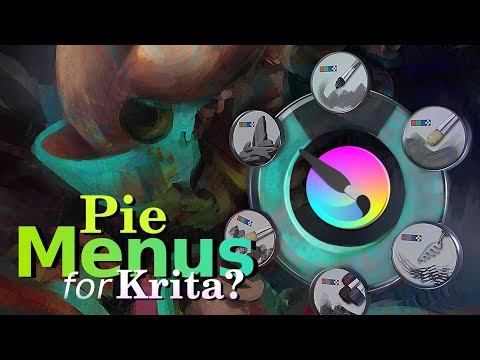
Pie menu is a widget displayed on the canvas while a key is pressed. It will disappear as soon, as the key is released. Moving cursor in a direction of a icon, activates its value on key release. The action does not recognise mouse clicks, and only requires hovering. Pie menu does nothing if the cursor is not moved out of the deadzone.
-
Three color coded pie menus that let you pick a brush preset from related tag with brush presets. Used tags can be changed in Tools > Scripts > Configure Shortcut Composer. Default tag mapping is as follows:
- red: "★ My Favorites"
- green: "RGBA"
- blue: "Erasers"
Presets in edited tags do not reload by themselves. Use Tools > Scripts > Reload Shortcut Composer or press apply/ok button in plugin configuration dialog.
-
Pie menu for picking active tools. Includes tools that are used rather sporadically, and may not be worth a dedicated keyboard shortcut each:
- crop tool,
- reference tool,
- gradient tool,
- multi_brush tool,
- assistant tool
-
Pie menu for picking painting blending modes. Consists of most commonly used ones:
- normal
- overlay,
- color,
- multiply,
- add,
- screen,
- darken,
- lighten
Cursor tracker is an action for switching values using cursor movement, while the keyboard key is pressed. It changes a single krita property according to the cursor movement along horizontal or vertical axis. The action does not recognise mouse clicks, and only requires hovering
-
Scrolls the layers by sliding the cursor vertically. Can be used for picking the active layer and analizing the layer stack. While the key is pressed, isolates the active layer to give better response of which layer is active.
- Key press: isloate active layer
- Horizontal: -
- Vertical: scroll all layers
-
Variation on "Scroll isolated layers" for animators. Scrolling is restricted only to layers pinned to the animation timeline. Horizontal mouse movement changes the current frame.
- Key press: isloate active layer
- Horizontal: scroll animation frames
- Vertical: scroll layers pinned to timeline
-
Extends the krita undo action ctrl+z. While the key is pressed, horizontal mouse movement controls the undo stack by performing undo and redo actions. Usual undo with short key press is still possible.
- Key press: undo last operation
- Horizontal: scroll left to undo, or right to redo
- Vertical: -
-
Allows to control both
brush sizeoropacitywith a single key. Opacity changes contiguously with vertical mouse movement, while brush size snaps to custom values.- Key press: -
- Horizontal: scroll brush size (descrete)
- Vertical: scroll painting opacity (contiguous)
-
Allows to control both
canvas zoomorcanvas rotationwith a single key. Does not block the ability to paint.- Key press: -
- Horizontal: canvas rotation (contiguous)
- Vertical: canvas zoom (contiguous)
Canvas preview is an action which changes canvas elements when the key is pressed, and changes them back to their original state on key release.
-
Changes active layer visibility on key press and release. Allows to quickly check layer's content.
-
Hides all visible layers above the active one on key press, and reverses this change on key release. Allows to check what is the position of current layer in a stack. It is possible to paint while action is active.
Multiple assignment is an action which cycles between multiple values of single krita property. Each key press activates next list element. Performing a long press breaks the cycle and sets a default value, which does not have to belong the the list.
-
Pressing a key repeatedly cycles most commonly used selection tools:
- freehand selection tool,
- rectangular selection tool,
- contiguous selection tool
Performing a long press, goes back to the
freehand brush tool. Tools can be used while the key is pressed. -
Pressing a key repeatedly cycles brush predefined opacity values:
100%,70%,50%,30%Performing a long press, goes back to the
100%opacity. Modified opacity can be used while the key is pressed.
-
Pressing a key temporarily activates the
move toolwhich goes back to thefreehand brush toolafter the key release. Short key presses allow to permanently toggle between those two tools. -
Pressing a key temporarily activates the
erasermode which gets turned off after the key is released. Short key presses allow to permanently toggle between those two states. -
Pressing a key temporarily activates the
preserve alphamode which gets turned off after the key is released. Short key presses allow to permanently toggle between those two states.
Shortcut-Composer comes with a settings dialog available from krita topbar: Tools > Scripts > Configure Shortcut Composer. The dialog allows to change the following aspects of actions:
- Preset pie-menus mapping
Tag (red)- tag to be used in red preset pie-menuTag (green)- tag to be used in green preset pie-menuTag (blue)- tag to be used in blue preset pie-menu
- Common settings
Short vs long press time- Time in seconds distinguishing short key presses from long ones.FPS limit- Maximum rate of Mouse Tracker and Pie Menu refresh.
- Cursor trackers
Tracker sensitivity scale- Sensitivity multiplier of all Mouse Trackers.Tracker deadzone- Amount of pixels a mouse needs to moved for Mouse Trackers to start work.
- Pie menus display
Pie global scale- Global scale factor for base of every pie menu.Pie icon global scale- Global scale factor for icons of every pie menu.Pie deadzone global scale- Global scale factor for the deadzone area of every pie menu.Pie animation time- Time (in seconds) for fade-in animation when showing the pie menu.
While the settings dialog allows to tweak the values common for plugin actions, it does not allow to modify the behaviour of the actions or create new ones.
To achieve that it is required to modify actions implementation:
- in krita's topbar, open Settings > Manage Resources > Open Resource Folder
- navigate to ./pykrita/shortcut_composer/ directory.
- action definitions are located in
actions.actionfile. - actions implementation is located in
actions.pyfile.
- Define an action in
actions.actionfile by duplicating one of the existing definitions and using an unique name for it. - Implement an action in
actions.pyfile. Once again, duplicate one of the existing implementations. It is best to pick the one that feels closest to desired action. Fill its arguments, making sure the name is exactly the same as defined earlier.
- Key bindings with modifiers like ctrl or shift are supported. When assigned to a key combination, the key is considered released when the main key in sequence (non-modifier) is released.
- Multiple shortcuts from this plugin can be used at the same time, unless bindings make it technically impossible. For example holding both keys for
Temporary eraserandCycle painting opacityresult in an eraser with 70% opacity.
- Pressing a modifier while the usual key is pressed, will result in conflict. For instance, pressing ctrl while using temporary eraser assigned to x will result in unwanted ctrl+x operation which cuts current layer.
The extension consists of elements that can be reused in other krita plugins under GPL-3.0-or-later license. Package api_krita wrappes krita api offering PEP8 compatibility, typings, and docstring documentation. Most of objects attributes are now available as settables properties.
Copy api_krita to the extension directory, to access syntax such as:
from .api_krita import Krita
from .api_krita.enums import BlendingMode, Tool, Toggle

# active tool operations
tool = Krita.active_tool  # get current tool
Krita.active_tool = Tool.FREEHAND_BRUSH  # set current tool
Tool.FREEHAND_BRUSH.activate()  # set current tool (alternative way)

# operations on a document
document = Krita.get_active_document()
all_nodes = document.get_all_nodes()  # all nodes with flattened structure
picked_node = all_nodes[3]

picked_node.name = "My layer name"
picked_node.visible = True
picked_node.opacity = 50  # remapped from 0-255 go 0-100 [%]
document.active_node = picked_node
document.refresh()

# Operations on a view
view = Krita.get_active_view()
view.brush_size = 100
view.blending_mode = BlendingMode.NORMAL  # Enumerated blending modes

# Handling checkable actions
mirror_state = Toggle.MIRROR_CANVAS.state  # get mirror state
Toggle.SOFT_PROOFING.state = False  # turn off soft proofing
Toggle.PRESERVE_ALPHA.switch_state()  # change state of preserve alpha
Only functionalities that were needed during this plugin development are wrapped, so some of them are not yet available. The syntax can also change over time.
Package input_adapter consists of ActionManager and ComplexAction which grants extended interface for creating keyboard shortcuts.
While usual actions can only recognise key press, subclassing ComplexAction lets you override methods performed on:
- key press
- short key release
- long key release
- every key release
Then use ActionManager instance to bind objects of those custom actions to krita during CreateActions phase:
from api_krita import Extension
from input_adapter import ActionManager, ComplexAction


class CustomAction(ComplexAction):
    def on_key_press(self): ...
    def on_short_key_release(self): ...
    def on_long_key_release(self): ...
    def on_every_key_release(self): ...


class ExtensionName(Extension):
    ...
    def createActions(self, window) -> None:
        action = CustomAction(name="Custom action name")
        self.manager = ActionManager(window)
        self.manager.bind_action(action)