Usage
If you already have a 3D model ready, skip to: Create your model JSON.
Use your preferred 3D software to model and export your model to a OBJ format. Your prepared model should consist of:
- An OBJ file (.obj) - This defines the 3D geometry of your model and specifies which textures to use for each "part" and how they are applied.
- A MTL file (.mtl) - This defines the name of your materials, their properties, and their textures. This can be used by more than one model.
- Texture files (.png, .jpeg, .bmp)
Example
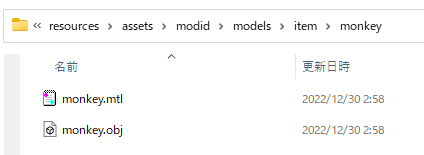
By default, it's generally safe to save all of these files together as-is somewhere in your assets folder without further modification. (src/main/resources/assets/<your_namespace>/models/<model_type> ..) However, if you'd like to separate your textures, materials, and models, you will most need to modify the resource locations in your MTL file.
Export options like Blender's path mode (absolute, relative ..) may change the generated resource location.
Specifying the resource location.
In your MTL file, change the value of map_kd to your resource location.
example_materials.mtl
newmtl example_material_a
map_Kd examplemod:block/texture1
# To learn more about material specifications: https://www.loc.gov/preservation/digital/formats/fdd/fdd000508.shtml
newmtl example_material_b
Ka 1.000000 1.000000 1.000000
Kd 0.640000 0.640000 0.640000
Ks 0.500000 0.500000 0.500000
Ns 96.078431
Ni 1.000000
d 1.000000
illum 0
map_Kd examplemod:block/texture2
Manually pathing multiple models to one MTL file.
By default, your program may export a material file for each model individually. If your models share textures, you can edit the following properties in your OBJ file:
- Change the
mtllibproperty to path to your MTL file. - Change every
usemtlproperty to the name of the material specified in your MTL file. - Delete your extra MTL files.
example_model.obj
mtllib example_materials.mtl

o example_model_part_1
v -1.506226635438361e-16 0.02636366937931145 0.5910770991920735
v 1.1102230246251565e-15 0.21875 0.0625
v -6.106226635438361e-16 -0.003001725020248258 0.5803889697131464
v 1.2212453270876722e-15 0.18938460560044035 0.051811870521072834
v 1.1102230246251565e-15 0.21875 0.0625
v -6.106226635438361e-16 0.02636366937931145 0.5910770991920735
v 1.2212453270876722e-15 0.18938460560044035 0.051811870521072834
v -6.106226635438361e-16 -0.003001725020248258 0.5803889697131464
vt 0.5625 1
vt 0 1
vt 0 0.96875
vt 0.5625 0.96875
vt 0 0.96875
vt 0.5625 0.96875
vt 0.5625 1
vt 0 1
vn 1 0 3.4129929940078955e-15
vn -1 0 -3.4129929940078955e-15
usemtl example_material_a
f 3/4/1 4/3/1 2/2/1 1/1/1
f 7/8/2 8/7/2 6/6/2 5/5/2

o example_model_part_2
...- Guide to Minecraft's art style: https://www.blockbench.net/wiki/guides/minecraft-style-guide/
- Unofficial Minecraft models and assets store: https://mcmodels.net/
Blockbench: Exporting to .OBJ isn't available.
- When starting your project in Blockbench, select the Generic Model template or go to File/New/Generic Model.
- For existing projects, go to File/Convert Project and select Generic Model.
Blockbench, other: Material names in MTL file are unreadable.
Materials in MTL files generated by Blockbench have arbitrary names (looks like: m_ee6d52af-ce19-6af4-b4e0-da065d7a5930). These will still work as usual because they remain consistent between files (material_abc in .obj == material_abc in .mtl). It's unnecessary to rename them, but if you need to, make sure to replace every instance of the material name in your models.
Create a new JSON file in your assets. The path to your model might look like this: src/main/resources/assets/<your_namespace>/models/<model_type>/example_mode.json
In the model JSON, make sure these two properties are set:
-
"parent": ...- To specify SML's OBJ loader (OBJ is currently the only one supported), set this to:special-model-loader:builtin/obj. -
"model": ...- Set this to the path to your model.
example_model.json
{
  "parent": "special-model-loader:builtin/obj",
  "model": "examplemod:models/block/example_model.obj"
}
Depending on the external program that created the model, the v-axis for textures may be flipped (v = 0 may be the bottom edge, not the top). This may be corrected in the modelling program itself or done in the model JSON like so:
To do this, add a property called "flip_v" in your model JSON and set it to true.
example_model.json
{
  "parent": "special-model-loader:builtin/obj",
  "model": "examplemod:models/block/example_model.obj"
  "flip_v": true
}These properties can also be appended to your model JSON.
"particle" - Change the breaking particle (blocks only).
"particle" can be used to specify the position of the particle's texture.
example_model.json
{
  "parent": "special-model-loader:builtin/obj",
  "model": "examplemod:models/block/example_model.obj",
  "particle": "minecraft:block/sand"
}
"display" - Change your model's positions for different in-game states and views.
"display" can be used to specify the position of the model in your inventory, hand, head, etc.
Tip: If you're using Blockbench, you can create a copy and convert your model to a Java Block/Item project to intuitively edit your model's display settings. In your copy, any non-22.5 increment rotations will be reset, you can ignore this and export the model JSON to copy the display settings.
Minecraft's default display settings: https://mcreator.net/wiki/blockbench-blockitem-display-settings
example_model.json
{
  "parent": "special-model-loader:builtin/obj",
  "model": "examplemod:models/block/example_model.obj",
  "display": {
        "gui": {
            "rotation": [ 30, 225, 0 ],
            "translation": [ -5.5, -3, 0 ],
            "scale":[ 0.5, 0.5, 0.5 ]
        },
        "ground": {
            "rotation": [ 0, 0, 0 ],
            "translation": [ 8, 3, 8] ,
            "scale":[ 0.25, 0.25, 0.25 ]
        },
        "fixed": {
            "rotation": [ 0, 0, 0 ],
            "translation": [ 8, 0, 8 ],
            "scale":[ 0.5, 0.5, 0.5 ]
        },
        "thirdperson_righthand": {
            "rotation": [ 75, 45, 0 ],
            "translation": [ 8, 2.5, 8 ],
            "scale": [ 0.375, 0.375, 0.375 ]
        },
        "firstperson_righthand": {
            "rotation": [ 0, 45, 0 ],
            "translation": [ 8, 0, 8 ],
            "scale": [ 0.40, 0.40, 0.40 ]
        },
        "firstperson_lefthand": {
            "rotation": [ 0, 225, 0 ],
            "translation": [ 8, 0, 8 ],
            "scale": [ 0.40, 0.40, 0.40 ]
        }
    }
}
"gui_light" - Change the light direction of your item in display states.
"gui_light" can be used to specify the direction of light in your display states. Accepted values are "front" and "side".
example_model.json
{
  "parent": "special-model-loader:builtin/obj",
  "model": "examplemod:models/block/example_model.obj",
  "gui_light": "side"
}
"ambientocclusion" - Enable/disable ambient occlusion.
"ambientocclusion" can be used to enable or disable ambient occlusion.
example_model.json
{
  "parent": "special-model-loader:builtin/obj",
  "model": "examplemod:models/block/example_model.obj",
  "ambientocclusion": "true"
}
"mtl_override" - Overwrite the location of the mtl file.
"mtl_override" can be used to specify the location of the mtl file.
The default is the location where the model name extension is changed from “obj” to “mtl” at the same level as the obj file.
example_model.json
{
  "parent": "special-model-loader:builtin/obj",
  "model": "examplemod:models/block/example_model.obj",
  "mtl_override": "examplemod:models/block/mtl_dir/example_model.mtl"
}Your model should be available to use in your project.
ExampleMod.class from fabricmc.net.
public class ExampleMod implements ModInitializer {

    public static final Block EXAMPLE_BLOCK = new Block(FabricBlockSettings.of(Material.METAL).strength(4.0f));

    @Override
    public void onInitialize() {
        Registry.register(Registries.BLOCK, new Identifier("tutorial", "example_block"), EXAMPLE_BLOCK);
    }
}