Feeling strained, exile?
For a long time, I've been experiencing discomfort in my left pinky from frequently having to hold modifier keys (CTRL and SHIFT). To alleviate this, I created a small script that toggles those modifier keys. Over time, I expanded the program to hotkey over other repetitive tasks to give my hands a break from the constant wrist movements and click spamming. My goal is not to hotkey anything that could compromise the integrity of the game, but simply to make the experience more comfortable (mostly in towns) and enjoyable without the pain. This program is intended for anyone who faces similar issues, especially as they deal with the strain that can come with age.
Like all programs of this nature, this one also falls into a gray area. There are programs that can achieve same results but not within one program. You'd have to use multiple programs or even combine them. Morally I don't see the harm for being able to keep playing without discomfort or pain. Personally it allows me to enjoy the game more, something I might otherwise have to give up due to discomfort. I will be expanding the program and adding features as I encounter them. To clarify again, there won't be any automation scripts. Game is supposed to be played yourself.
That said, use at your own risk! The program is designed to reduce strain on your hands, allowing you to play comfortably for longer periods, whether in a single session or over time.
- Path of Exile 1
- Path of Exile 2
- Last Epoch (beta)
- Windows 11 PC
Option 1:
Option 2:
- Download .exe file (it will be recognized as virus)
- Run it
Option 3 (advanced users, also not recommended):
- Install AHK2
- Clone repository
- Run QualityOfExile.ahk
- Windows 10 has not been tested.
- Might not work with external macro keypads. Intention is that it would work. Currently I don't own one, so it is hard to test.
- If you choose to use a toggleable CTRL key, make sure to reassign your in-game hotkeys from CTRL+# to another location. Keep in mind that hotkeys don’t have to be tied to a modifier key—you can set them to a single key also, which is something I would recommend anyway.
- Dynamic Hotkeys are enabled by default. If you launch the program while in a combat area, they won't function properly until you enter a loading screen. (read more below)
- Read Local Client.txt File
- Leverages the
Client.txtfile from Path of Exile 1 or 2 to enable advanced features.
- Leverages the
- Toggle Modifier Keys
- Instead of holding modifier keys (SHIFT and CTRL) continuously, you can toggle them on or off as needed.
- When toggling modifier keys, an overlay will display their current status. By default, this overlay appears in the bottom-right corner of the game. However, it is recommended to reposition it via the settings. The overlay is designed to fit above your flasks but can be placed anywhere you prefer.
- Automatic Toggle Reset
- Toggles are automatically reset when pressing ALT+TAB, the Windows key, or ESC.
- Toggles also reset upon entering a new area or when the game window loses focus.
- Uses local
Client.txtfile.
- Dynamic Hotkeys
- Dynamic Hotkeys allow keys to serve dual purposes based on your current location in the game.
- For example, you can assign numbers (1, 2, 3, 4, 5) to Dynamic Hotkeys. In combat areas, these keys perform their default actions (e.g. using flasks). In towns, they execute specific macros (e.g. crafting). This effectively lets you "double-bind" keys for different contexts. This is to combat keybind bloat.
- Dynamic Hotkeys are clearly marked in the list below.
- Dynamic Hotkeys are enabled by default. If you launch the program while in a combat area, they won't function properly until you enter a loading screen.
- Uses local
Client.txtfile.
- Pixel Selection
- Allows you to select specific pixels where a hotkey will be triggered.
- Designed to address differences in screen resolutions, ensuring consistent functionality across various setups.
- In-Game Hotkey Detection
- Keybinds are only active while the game is running and in focus.
- Assigned keybinds will not interfere with other applications or actions outside the game.
- Double Press Protection
- Debounce ensures that each keybind press is only registered once within a short time window, preventing accidental double activations or rapid repeats. This protects against unintended actions caused by pressing a key too quickly, making keybind usage more reliable and responsive.
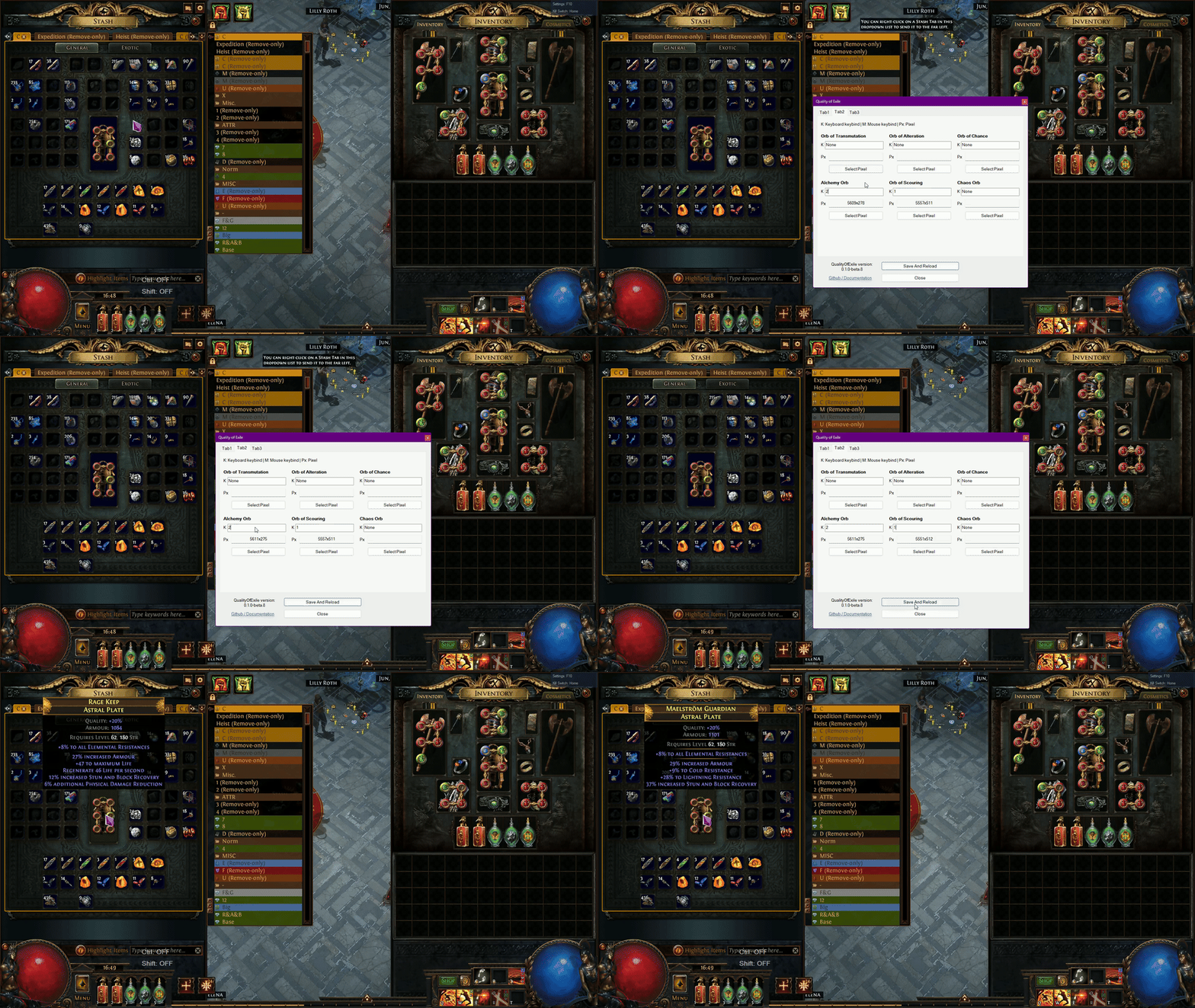
To change keybinds, press F10 (default) to open the hotkey configuration window. You can customize this keybind to your preference. Note that all the keybinds must be pressed in-game, as this script doesn't recognize keys pressed outside of the game.
If Quality of Exile has helped you play more comfortably and you'd like to show your appreciation, consider buying me a coffee! P.S. Accidentally spent way too much time on this project.

- Kill Switch
- Master keybind (activate/deactivate other keybinds)
- Enter Hideout
- Enter League Specific Area
- Toggle CTRL
- Toggle SHIFT
- Spam Left Click With Ctrl
- Logout Macro
- Calculate Weapon DPS
- Crafting With Currency (Dynamic Hotkey)
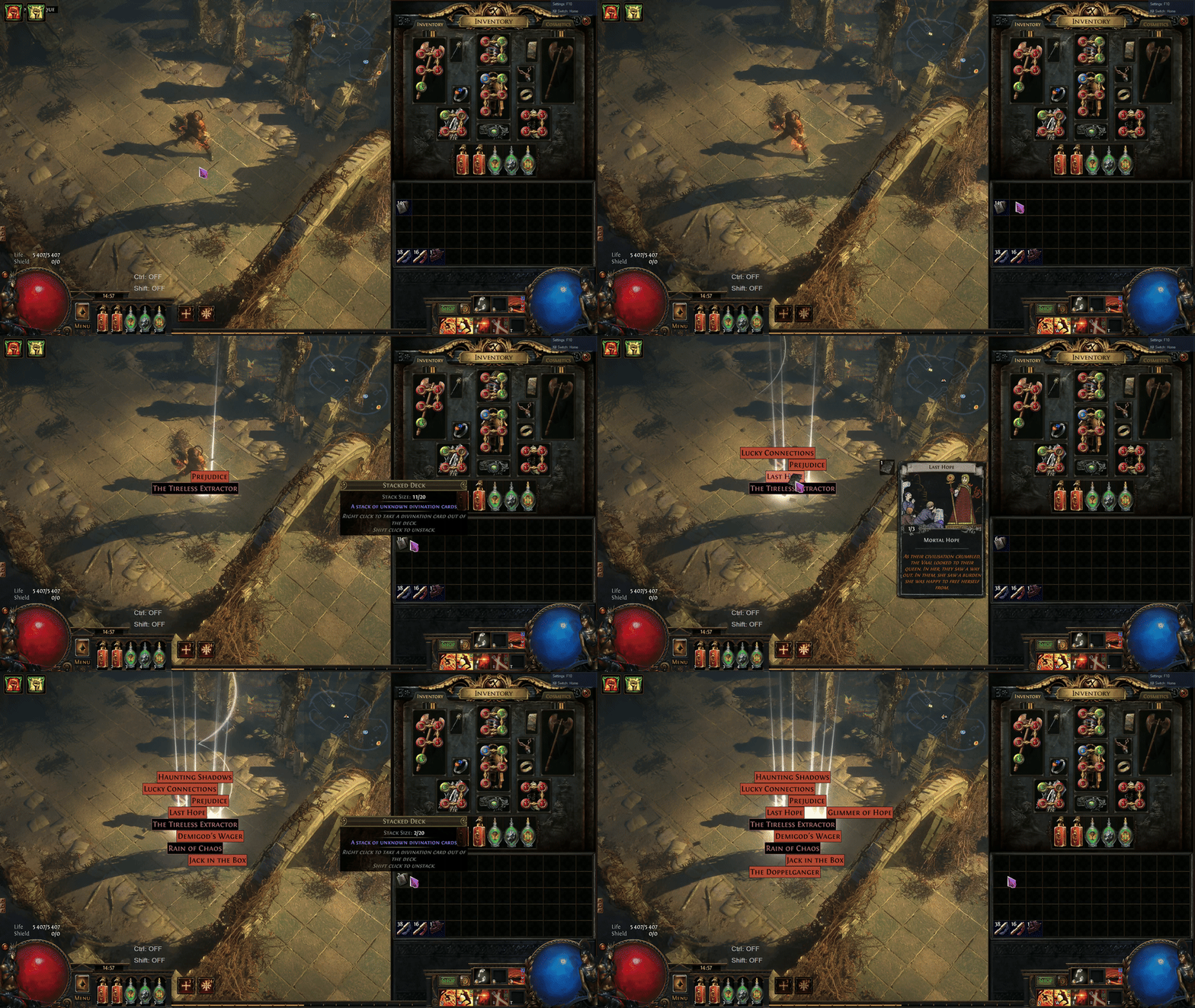
- Trade Full Stack of Divination Cards
- Open Stacked Divination Deck
- Drop Item From Inventory
- Enter RegExp
- Fill Kingsmarch Shipments
Kill the program. In case of there is a bug, you can press this to kill the program.
Important
Only keybind that works outside of the game.
Default keybind: Home key.
How to use:
- Press the assigned keybind.
Allows to enable/disable all keybinds. In case you have set your keybinds to characters a-Z1-9 and you need to use them i.e. for chatting or for any other reason. Activating this will show overlay status and shows this keybind's status.
How to use:
- Press the assigned keybind to disable keybinds.
- Press again to enable keybinds.
Travel to hideout by typing "/hideout".
How to use:
- Press the assigned keybind. (in town)
Travel to league specific area by typing e.g. "/kingsmarch".
How to use:
- Press the assigned keybind. (in town)
Press the keybind once to toggle CTRL. Press it again to release CTRL. You can also register a new key for CTRL, maybe you have small macro keypad. Registering a new key won't interfere with the CTRL key itself. If you register a new key you ultimately have two CTRL keys. Pressing any other toggleable keybind will deactivate the previously toggled one. Activating this will show overlay status and shows this keybind's status.
Use cases:
- Move items from inventory to stash.
- Move items from stash to inventory.
- Pre-toggle before interacting with an NPC to trigger specific actions, such as opening the sell window or identifying items (PoE2:The Hooded One).
Press the keybind once to toggle SHIFT. Press it again to release SHIFT. You can also register a new key for SHIFT, maybe you have small macro keypad. Registering a new key won't interfere with the SHIFT key itself. If you register a new key you ultimately have two SHIFT keys. Pressing any other toggleable keybind will deactivate the previously toggled one. Activating this will show overlay status and shows this keybind's status.
Use cases:
- Use crafting currency continuously (e.g. alterations, jewellers, fusings) without needing to hold down SHIFT yourself.
Press the keybind once to activate: the script will hold CTRL and rapidly spam left click. Press the keybind again to stop. Activating any other toggleable keybind will automatically deactivate this action. Activating this will show overlay status and shows this keybind's status.
Use cases:
- Quickly move items to the stash.
Close TCP connections of Path of Exile process.
Calculates the DPS of a weapon. The result may differ slightly (within a decimal or two) from Path of Building or trade sites due to minor differences in rounding methods.
How to use:
- Hover over a weapon.
- Press the assigned keybind.
Uses crafting currency on the item you are hovering over. There is keybinds for: Orb of Transmutation, Orb of Alteration, Orb of Chance, Alchemy Orb, Orb of Scouring, Chaos Orb. Of course you put any currency to these keybinds, the code itself is not tied to any currency. These are just named, so you know which is which.
Important
Dynamic Hotkeys are enabled by default. If you launch the program while in a combat area, they won't function properly until you enter a loading screen.
Setup:
- Select the pixel where the
Crafting Currencyis located in the currency tab. You can also use your inventory, nothing is stopping you.
How to use:
- Hover over the item in your inventory.
- Press the assigned keybind.
Trade divination cards for items.
Setup:
- Select the pixel where the TRADE BUTTON is when trade window is open.
- Select the pixel where the ITEM AREA is when trade window is open.
How to use:
- Open divination card trade window.
- Hover over full stack of divination cards.
- Press the assigned keybind.
Picks up one card from a stacked deck and drops it to the ground. This requires being in a location where dropping loot is allowed.
- Hover over the stacked divination deck in your inventory.
- Press the assigned keybind.
Drops an item to the ground. This requires being in a location where dropping loot is allowed.
- Hover over the item in your inventory.
- Press the assigned keybind.
Inputs RegExp into any window with search functionality.
- Open a window with search functionality.
- Press the assigned keybind.
Default RegExp (PoE1): (\w\W){5}|-\w-.-|(-\w){4}|(-\w){5}|nne|rint|y: r
This default RegExp is designed to target:
- 4-6 linked items.
- 6-socket items.
- Rare items.
- Movement speed 10% and 15%.
For PoE2 starter vendors I would recommend:
Note
Supposed to be used on the vendor who sells weapons and armour. Not on the wand and potion seller.
- Physical damage:
rare|y: \+|ts: S|speed|l damage$|kills$ - Elemental damage:
rare|y: \+|ts: S|speed|[dge] damage$|kills$ - Physical and Elemental damage:
rare|y: \+|ts: S|speed|[ldge] damage$|kills$
These targets:
- Quality.
- Sockets.
- Speed items (boots, weapons).
- Rare items.
- Physical or Elemental damage, or both.
You can customize the RegExp to suit your specific needs, enabling you to search for items with your own criteria. Don't include quotation marks. Field will accepts 48 characters and the last 2 are reserved for quotation marks.
Automatically fill the numerical values for Kingsmarch shipments.
Setup:
- Set the numerical values for each resource.
How to use:
- Select the first value of shipments table (Crimson Iron Ore).
- Press the assigned keybind.
