this stuff is broken, but leaving it here because open source is a thing
First, you will need to have built or..."installed"...the Urho3D Game Engine on your PC/Laptop. Please follow these links:
IMPORTANT REMINDER: Please make sure to select OpenGL when configuring CMake for URHO3D.
First: (https://github.com/urho3d/Urho3D/wiki/Compiling-Urho3D-on-Windows)
Then: (https://github.com/urho3d/Urho3D/wiki/Setting-up-Urho3D-on-Windows-with-Visual-Studio)
These are the official build guide(s), its super helpful so do not skip anything.
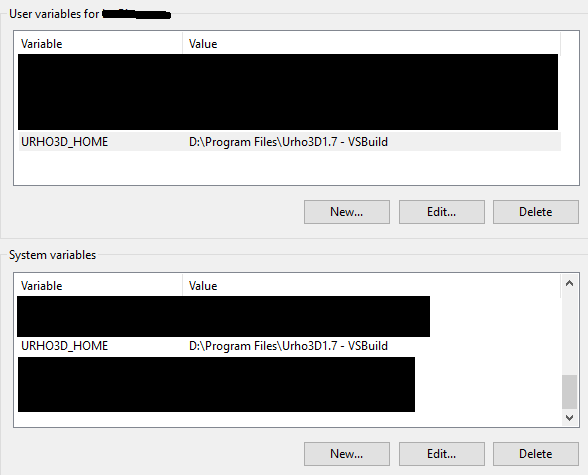
Before proceeding, please make sure that the URHO-3dHOME variables are set like in the below picture:
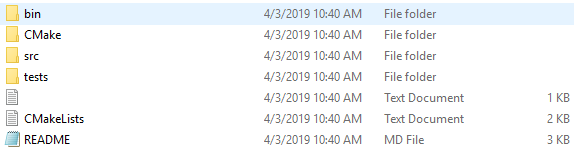
First, Download the OSP source code and extract it to the directory of your choice, I made a folder called OSPMaster and placed all the files(bin, src, tests, CMakeLists.txt, etc.) in there.
You should have two folders with Urho3D in it, the built one which you created for the system variable, and the source code downloaded from their GitHub. We want to use the source code folder, it will look like this.
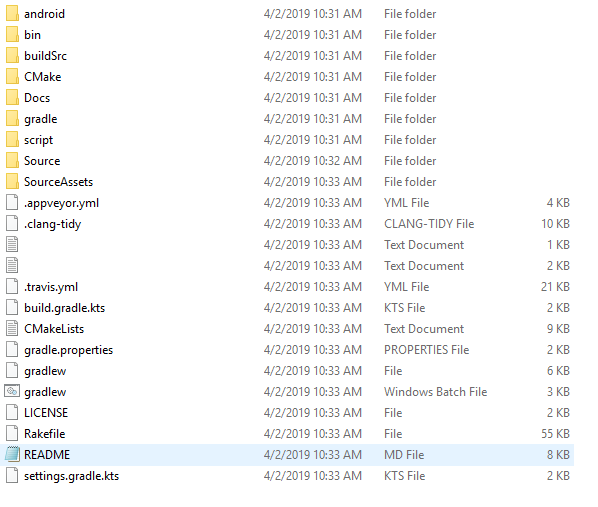
Copy the CMake folder and paste it into the OSP source code folder. It will then look like this:
Great, Now we need to build that code to a usable form, I am using VS 15 2017 for this.
Create a folder called OSPVS or something like that, then open up CMake GUI.
setup your "Where is the source Code" and "Where To build" so it looks like this:

Next, hit configure. Something like this will show up, but highlighted in red...THIS IS OK!
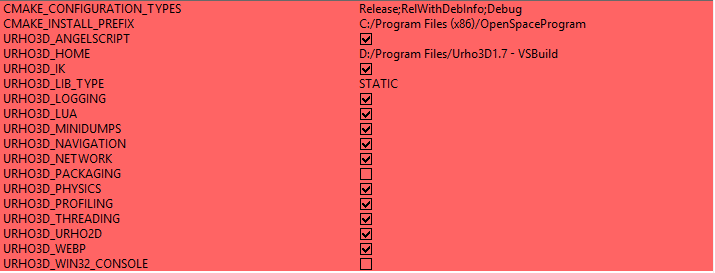
Make sure all of the values have a check in the box WARNING URHO_PACKAGING MUST BE DISABLED!!!!
and hit configure again and then hit generate, it will look like this.
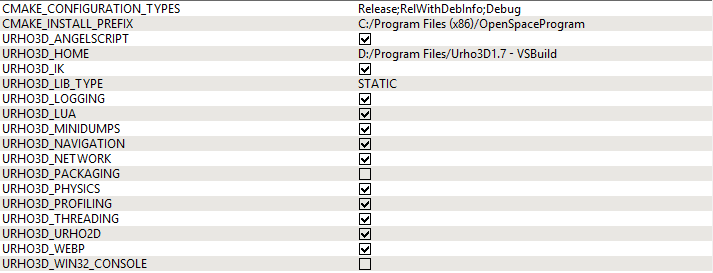
Congratulations! you built our source code! Lets move on to opening in Visual Studio.
Navigate to where you built your binaries, I am going to go to the OSPVSBuild folder.
Inside you will find a OpenSpaceProgram.sln file, open it in Visual Studio 2017.
It will look like this.
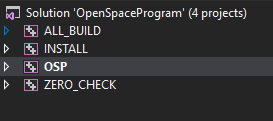
Finally, right click the OSP folder and > "Set as startup project"
Next right click the "Solution 'OpenSpaceProgram'(4 Projects)" and click build. (ctrl+shift+b)(as demonstrated below).
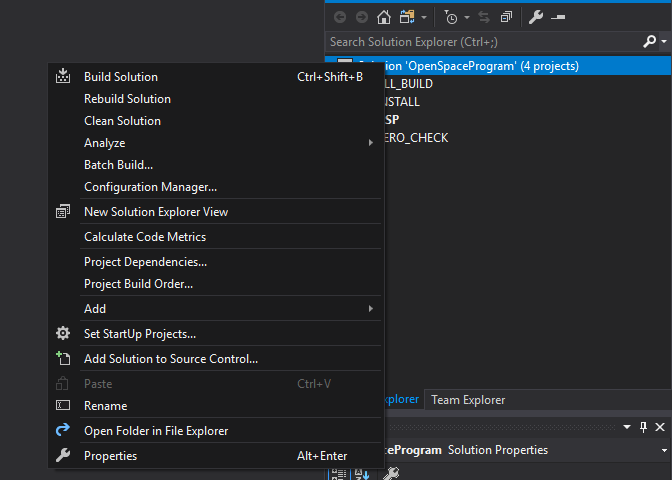
Go ahead and build the solution and now it should work!
Click F5 or click the Windows Debugger with the play button icon to play the game!