FTC Self Inspect
This page describes the Self Inspect screens in the FTC Driver Station (DS) app and the FTC Robot Controller (RC) app.
A Self Inspect screen provides a snapshot of device status, as it relates to FTC rules for the control system. These rules are described in each season's Game Manual 1, and many are summarized in that manual's Field Inspection Checklist.
The Self Inspect screen is provided only as a quick, handy reference to help teams confirm that certain control system elements are up-to-date and properly configured. Self Inspect also helps teams prepare for Field Inspection at an FTC tournament, but is not a comprehensive or official standard of compliance with FTC rules.
The challenge is to maximize useful information in a small screen. The Self Inspect layout and graphics evolve with FTC requirements; this page clarifies some of the brief but meaningful captions.
Pairing technology is a key aspect of Self Inspect reporting. Remember that RC phones host via Wi-Fi Direct, while Control Hubs host via standard, or 'infrastructure', Wi-Fi.
RC and DS phones must have Airplane Mode ON, and Wi-Fi ON but not connected to any standard/infra Wi-Fi host such as an internet router or hotspot. Devices should be set to Forget any local Wi-Fi networks.
FTC control devices may use these combinations:
- DS phone, RC phone
- DS phone, Control Hub
- Driver Hub, RC phone
- Driver Hub, Control Hub
A DS device (phone or Driver Hub) can display its own DS Self Inspect and an RC Self Inspect (for paired RC phone or Control Hub). An RC phone can display only its own RC Self Inspect.
This means that the Self Inspect screens can report as follows:
- DS Self Inspect 1, on DS phone paired to RC phone
- DS Self Inspect 2, on DS phone paired to Control Hub
- DS Self Inspect 3, on Driver Hub paired to RC phone
- DS Self Inspect 4, on Driver Hub paired to Control Hub
- RC Self Inspect 1, appearing on RC phone paired with DS phone
- RC Self Inspect 2, appearing on DS phone paired to RC phone
- RC Self Inspect 3, appearing on RC phone paired with Driver Hub
- RC Self Inspect 4, appearing on Driver Hub paired to RC phone
- RC Self Inspect 5, appearing on DS phone paired to Control Hub
- RC Self Inspect 6, appearing on Driver Hub paired to Control Hub
These combinations can display slightly different Self Inspect categories, status phrases, and pass/fail results. Click the blue link to explore the Self Inspect screen for that device and combination.
For example, a Driver Hub is capable of pairing with an RC phone, while the Driver Hub is connected to standard Wi-Fi. This is not recommended, and is reported in Self Inspect.
Likewise, a Control Hub is capable of (briefly) hosting a paired DS phone, while the Control Hub is connected to standard Wi-Fi. This is reported in Self Inspect, until the RC automatically closes the standard Wi-Fi connection.

DS Self Inspect 1, on DS phone paired to RC phone
- Item 1 is a menu with one choice: Disconnect from Wi-Fi Direct. It does work, but disconnecting in this way can be troublesome to reconnect.
- Item 8
Location servicesappears only on devices running Android 8 or higher. This is an SDK/Android technology requirement, not an FTC rule. - Items 9 and 10 must be Yes and No.
Wi-Fi Enabledmeans the device's Wi-Fi radio is turned on, to use Wi-Fi Direct. But it must not be connected to a standard/infrastructure Wi-Fi source, including an internet router or a Control Hub. - Item 11 indicates whether the device name meets FTC format requirements. It does not check whether the paired device has a matching RC name.
- Item 12 verifies that a DS device does not have an RC app installed.
- Item 13 ensures the DS app meets the minimum version for the current FTC season, based on the device's system date.

DS Self Inspect 2, on DS phone paired to Control Hub
The same points apply as for DS Self Inspect 1 (immediately above), except these:
- Items 9 and 10 must now be Yes and Yes. The DS phone's Wi-Fi radio is on, and connected via standard/infra Wi-Fi. It does not indicate what the DS phone is connected to; that is covered by Item 11.
- Item 11 shows the standard Wi-Fi network name, or Access Point (AP), that the DS phone is connected to. The check-mark indicates the AP is an FTC legal device (Control Hub) and has a correctly formatted name. This does not check that the DS and RC names match (team number). In fact, this phone is 2368-A-DS and this Control Hub is 9999-A-RC, an illegal combination to be flagged by the FTC team or the Field Inspector.

DS Self Inspect 3, on Driver Hub paired to RC phone
- Item 4 appears only on the Driver Hub. The check-mark indicates the Operating System is up-to-date with the current version of the DS app.
- Item 8
Location servicesappears only on devices running Android 8 or higher. This is an SDK/Android technology requirement, not an FTC rule. - Items 9 and 10 must be Yes and No.
Wi-Fi Enabledmeans the Driver Hub's Wi-Fi radio is turned on, to use Wi-Fi Direct for the RC phone. The Driver Hub is able to also be connected to a standard/infrastructure Wi-Fi source, including an internet router or a Control Hub. Item 10 confirms this is not happening; see next example. - Item 11 indicates whether the device name meets FTC format requirements. It does not check whether the paired device has a matching RC name.
- Item 12 verifies that the Driver Hub does not have an RC app installed.
- Item 13 ensures the DS app meets the minimum version for the current FTC season, based on the device's system date. This particular version 7.0.1 does not exactly match the RC phone's 7.0; Self Inspect will soon allow this 'point mismatch'.

DS Self Inspect 3, on Driver Hub paired to RC phone
This Self Inspect screen appeared while the Driver Hub was paired to an RC phone, then was also connected to to a Control Hub via standard Wi-Fi. The DS home screen temporarily showed "Connected" (to RC phone) and "No Heartbeat", then recovered its pairing to the RC phone.
- Item 10 shows the discrepancy. The DS app soon shuts down this standard Wi-Fi connection, allowing the Driver Hub to remain paired only with the RC phone.

DS Self Inspect 4, on Driver Hub paired to Control Hub
- Item 1 still offers one choice, "Disconnect from Wi-Fi Direct". But now, touching that selection gives this message "There was an error disconnecting from Wi-Fi Direct". That's because the Driver Hub is paired to a Control Hub, not via Wi-Fi Direct.
- Item 11 shows the standard Wi-Fi network name, or Access Point (AP), that the Driver Hub is connected to. The check-mark indicates the AP is an FTC legal device (Control Hub) and has a correctly formatted name. This does not check that the DS and RC names match (team number). In fact, this Driver Hub is 1234-A-DS and this Control Hub is 9999-A-RC, an illegal combination to be flagged by the FTC team or the Field Inspector.

DS Self Inspect 4, on Driver Hub paired to Control Hub
This Self Inspect screen appeared after the Driver Hub was paired to a Control Hub, then was connected to a Wi-Fi internet router.
- Item 11 shows the error. The Driver Hub can connect via standard Wi-Fi to only one AP at a time; this network is not an FTC RC device.

RC Self Inspect 1, appearing on RC phone paired with DS phone
Now we change from Driver Station Self Inspect screens, to Robot Controller Self Inspect screens. Again, RC screens can be viewed from the DS device or from an RC phone, and they are not necessarily the same.
- Item 5 lists the Expansion Hub addresses and firmware levels. This image shows 1 Expansion Hub, but two can be listed here. A check-mark indicates all firmware is up-to-date based on the current version of RC app.
- Item 10
RC Passwordappears only in RC Self Inspect, not in DS Self Inspect. It checks the FTC requirement for a Control Hub password different than the factory default ("password"). Although aimed only at the Control Hub, it does appear on RC phones (as here) which don't have a default password and thus always get the check-mark. - Item 14 ensures the RC app meets the minimum version for the current FTC season, based on the device's system date. It does not check for a match with the DS app version.
- Item 15 verifies that an RC device does not have an DS app installed.

RC Self Inspect 2, appearing on DS phone paired to RC phone
This is the "same" RC Self Inspect screen as the one immediately above, displayed on the paired DS phone. But there are two differences:
- The 3-dots menu is missing from the header. This menu offered a single choice, to disconnect the Wi-Fi Direct. But this cannot be performed as an RC action, from a DS phone connected by that same Wi-Fi Direct.
- Item 14 did not appear on the RC phone's display of this RC Self Inspect. Here is the verification that the DS app and RC app have matching versions, in this case both apps are version 7.0. The rejection of 'point mismatches' (e.g. 7.0 vs. 7.0.1) will be corrected soon.

RC Self Inspect 3a, appearing on RC phone paired with Driver Hub

RC Self Inspect 3b, appearing on RC phone paired with Driver Hub

RC Self Inspect 4, appearing on Driver Hub paired to RC phone

RC Self Inspect 5a, appearing on DS phone paired to Control Hub

RC Self Inspect 5b, appearing on DS phone paired to Control Hub

RC Self Inspect 6a, appearing on Driver Hub paired to Control Hub

RC Self Inspect 6b, appearing on Driver Hub paired to Control Hub
The Self Inspect screen is a quick, handy reference to help teams confirm that certain control system elements are up-to-date and properly configured.
Self Inspect also helps teams prepare for Field Inspection at an FTC tournament, but is not a comprehensive or official standard of compliance with FTC rules.
=============
Questions, comments and corrections to [email protected]
Here are clean Self Inspect screens from DS and RC phones.
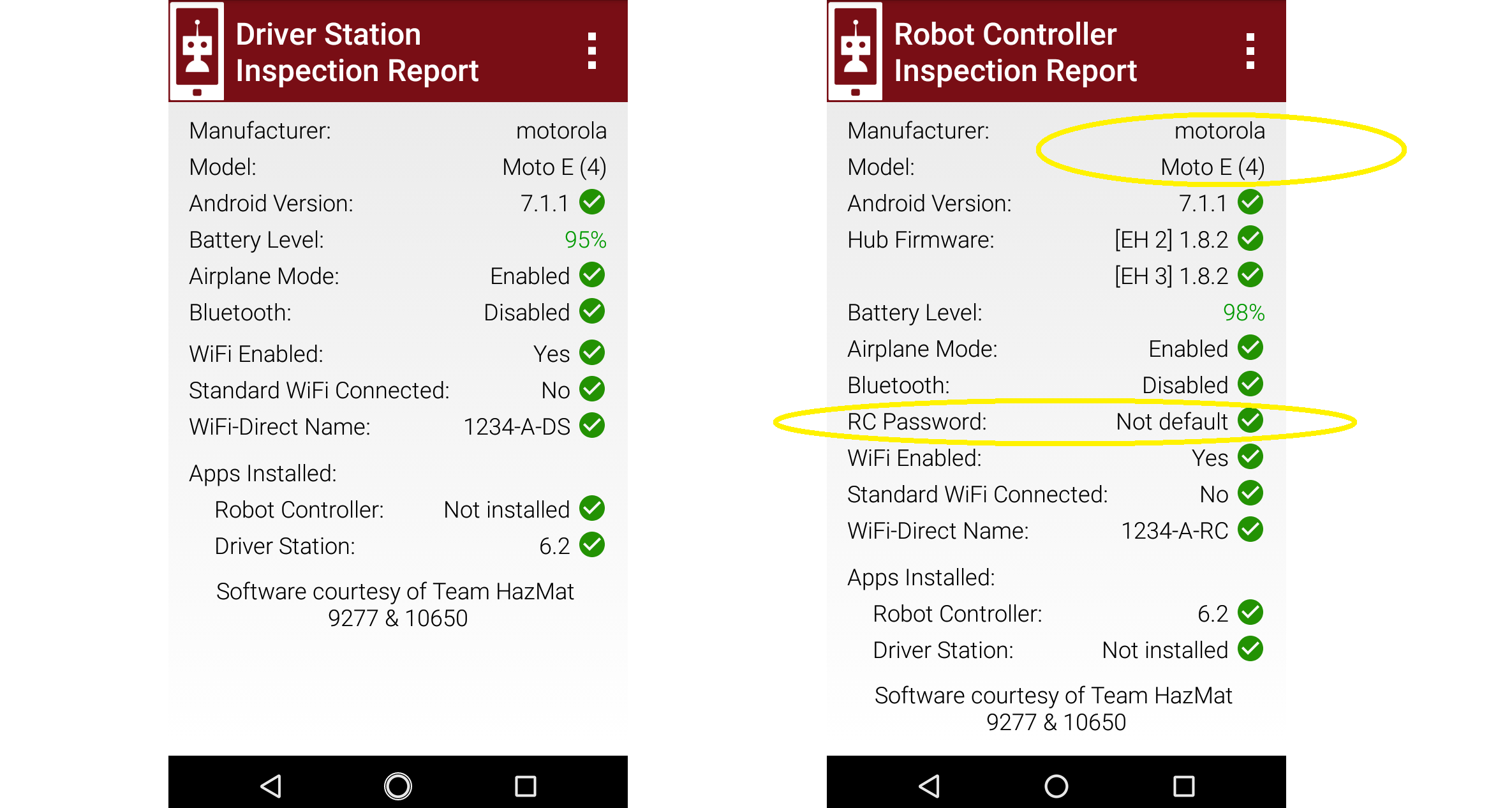
Here the RC Password status for RC phone is not meaningful. That password cannot be changed by the user; it will never be "password" as with Control Hubs. Ref. rule RS07 and the Inspection Checklist which apply a password requirement only to Control Hubs.
On the DS phone, the RC Self Inspect screen (not shown) is identical to that on the RC phone, but without the 3-dots menu at top right. That menu is discussed separately at the end of this report.
============
To illustrate rejected items, here are several 'not clean' self-inspection reports:
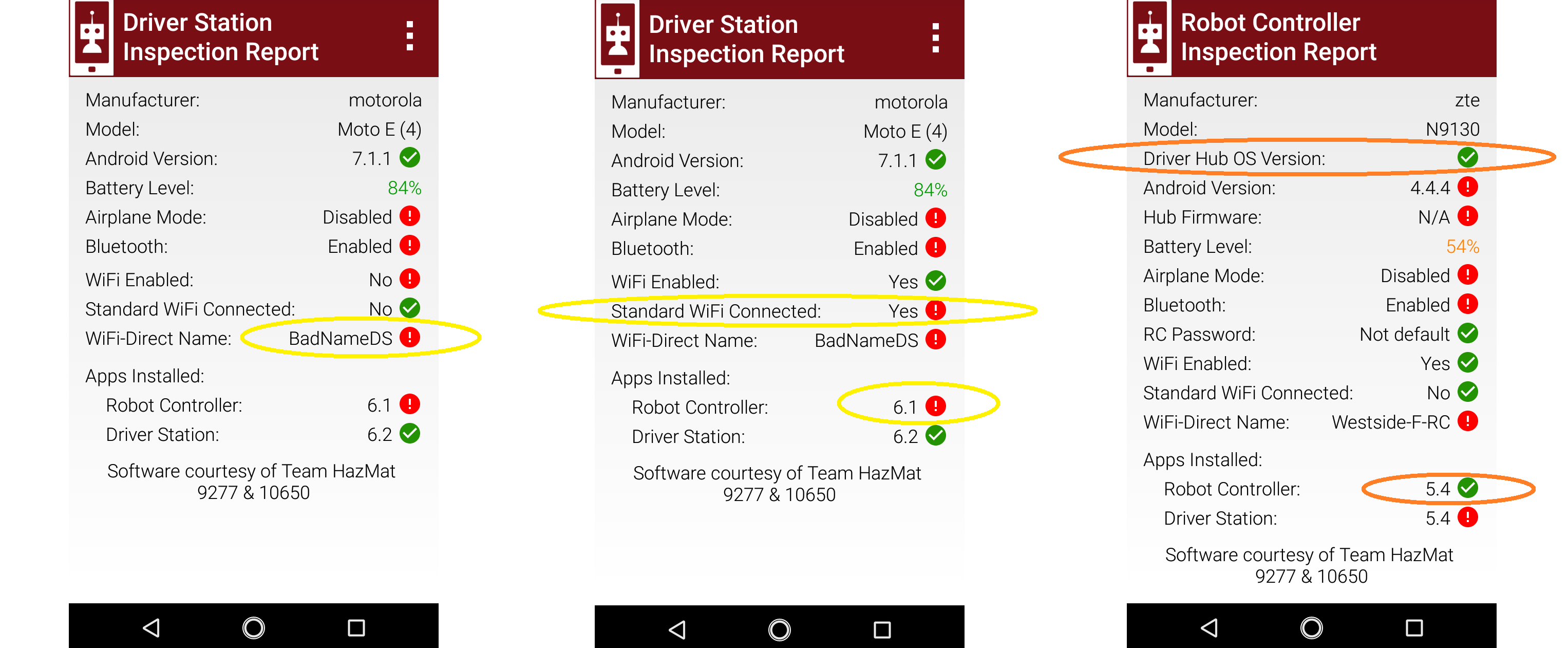
When paired with an RC phone, the DS phone should not have an active Standard WiFi Connection to anything (hotspot, internet router, Control Hub, etc.), even though it's possible. A status of Yes is rejected here.
These DS reports reject a non-FTC-legal WiFi Direct Name. Such a name cannot be created in the DS app's Settings, under Driver Station Name. But it can be entered in the DS phone's Android WiFi Direct settings.
Under Apps Installed, the RC app is rejected not for its version, but for being installed on a DS phone. Likewise a DS app must not be installed on an RC device.
The right-side screen is from an obsolete ZTE Speed, to cause rejection of the Android version. But the report also lists Driver Hub OS Version; this inspection was done from a Moto e4 DS phone! This report also accepts the RC app version 5.4, not legal now. Looking into the source of these anomalies might reveal loopholes affecting legal hardware.
============
Moving from RC phones to Control Hubs, still from DS phone, here are clean and not-clean RC self-inspections:
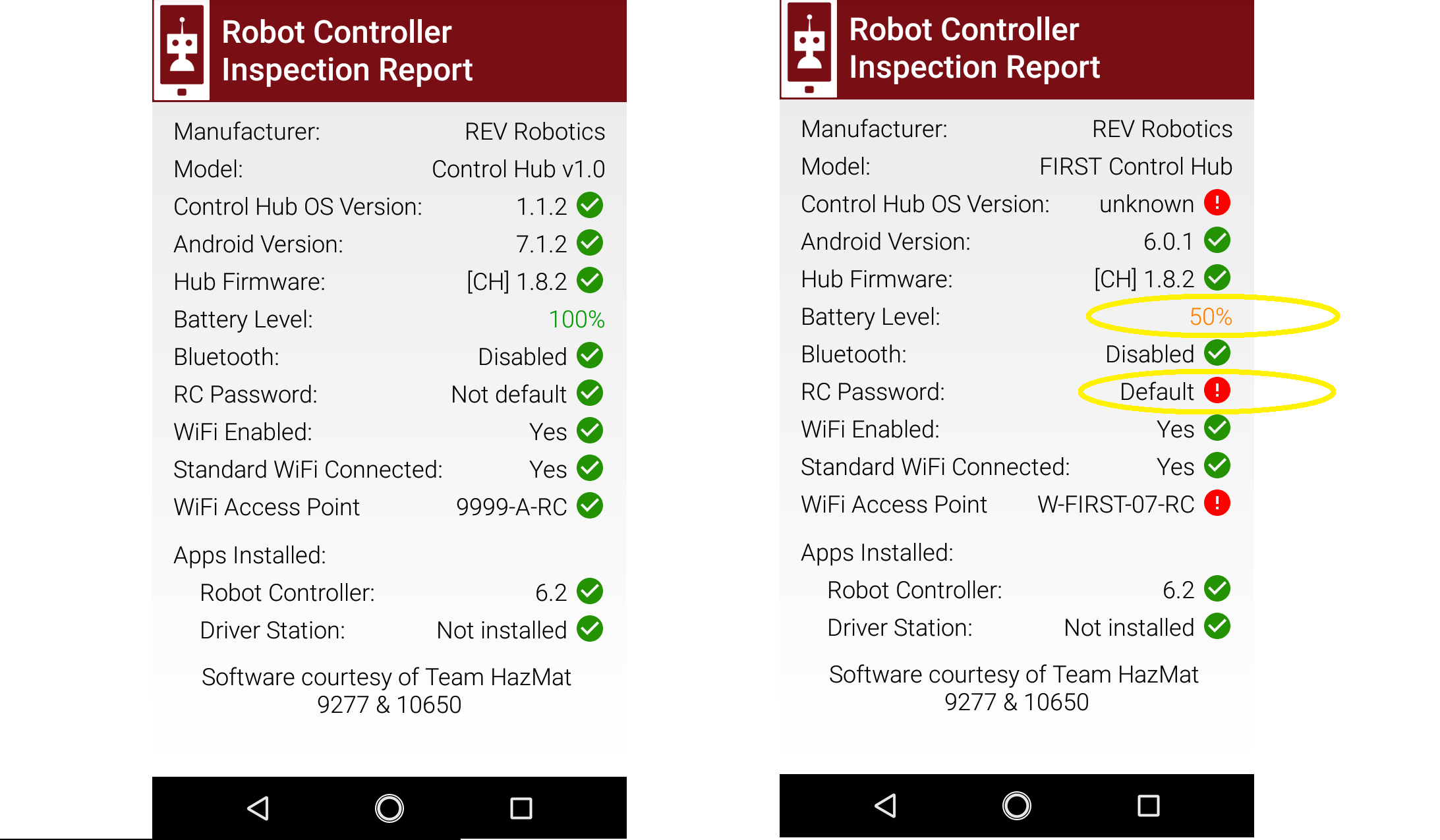
The right-side screen is from an old Dragonboard Control Hub, to cause OS rejection. Note the color change for low CH battery, and rejection of the default "password".
And here are not-clean DS self-inspections, paired to Control Hub, with and without DS WiFi enabled:
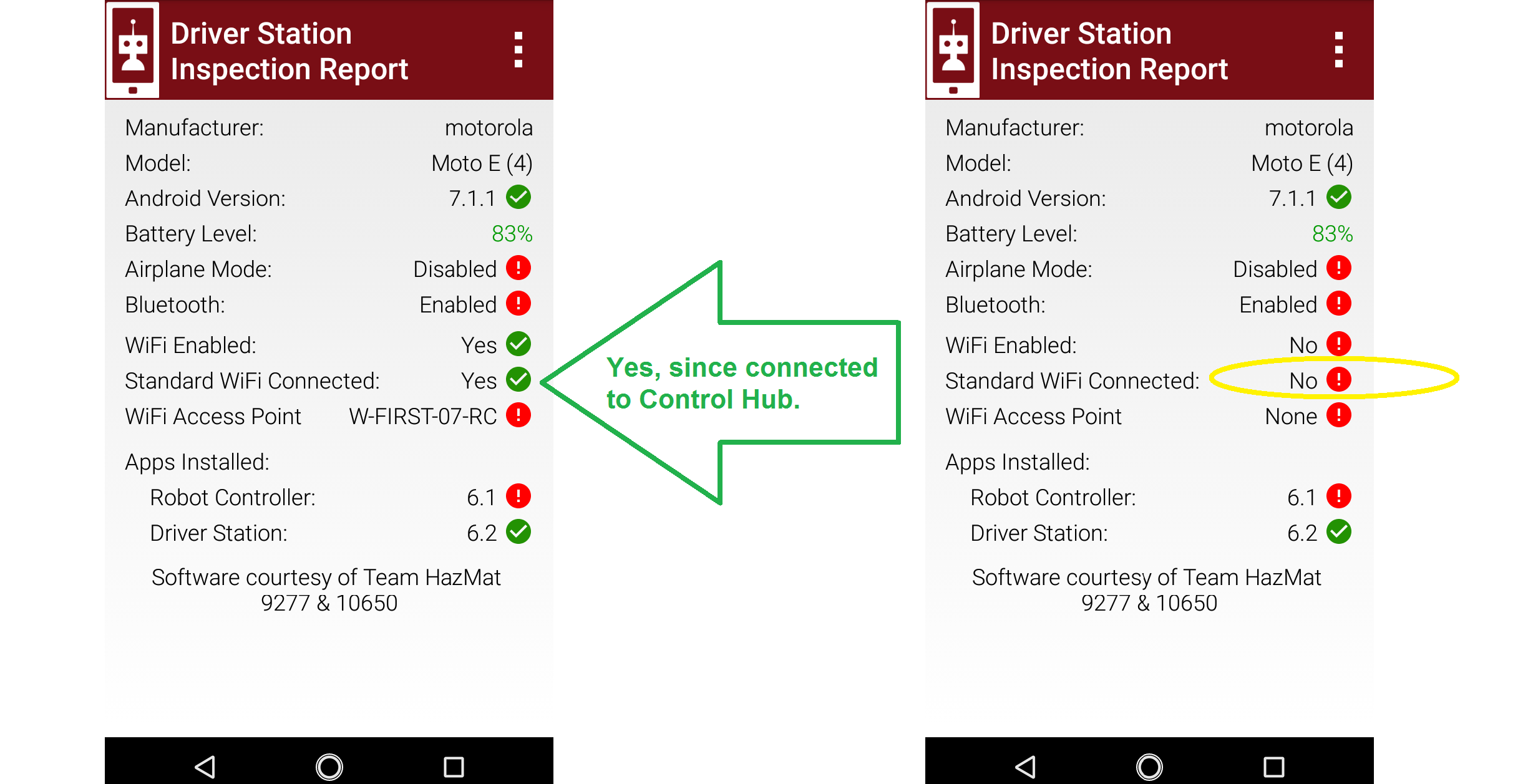
The right-side No/Red rejection (circled) is an artifact of the DS WiFi being disabled while connected to a Control Hub. It changes to Yes/Red if this DS phone re-enables WiFi and tries to pair with an RC phone, but also auto-reconnects to the Control Hub network. It then changes to No/Green if that Standard/infrastructure connection is closed (Forget network).
=============
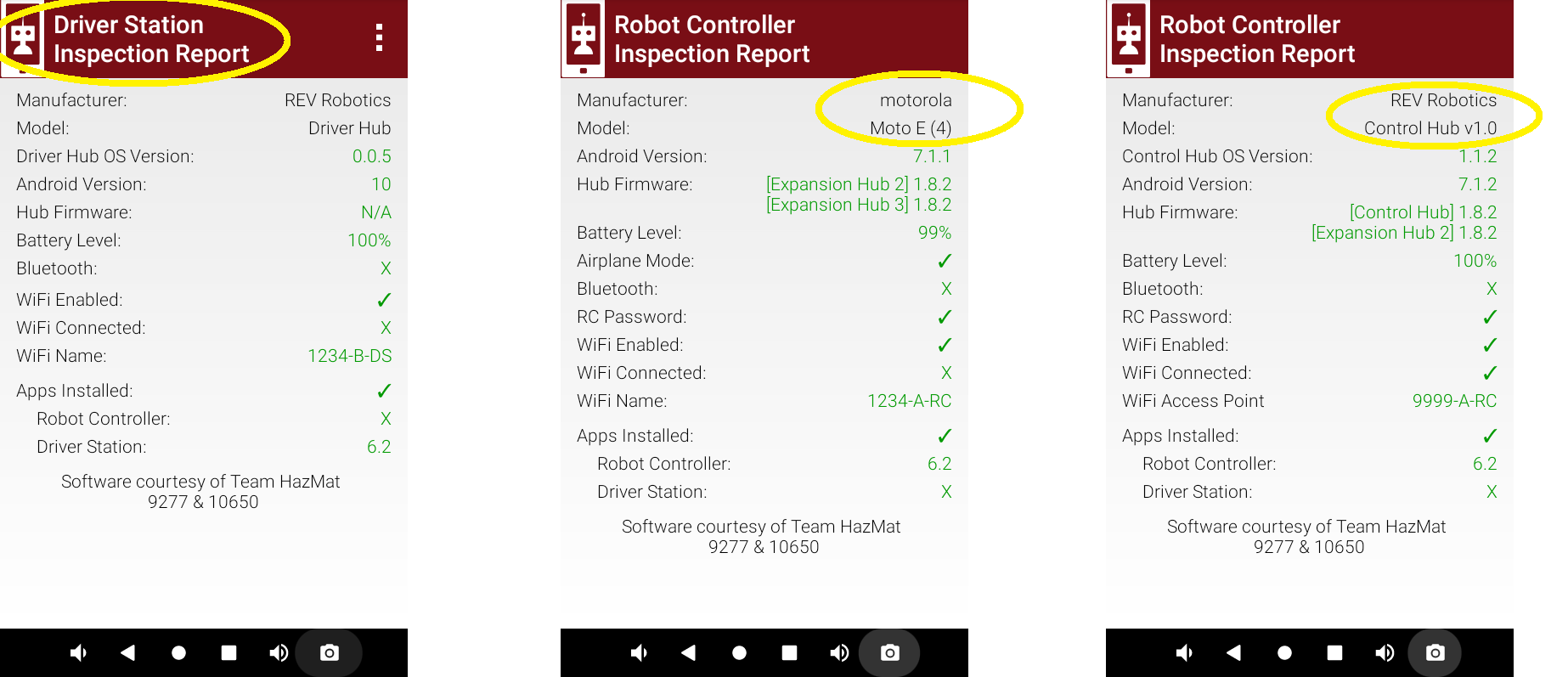
For comparison, here are clean Self Inspect screens from the REV Driver Hub, running the released version 6.2.
===========
For pairing to an RC phone, the Driver Hub should not also have an active Standard WiFi Connection to anything (hotspot, internet router, Control Hub, etc.), even though it's possible. From this PR, these DS reports show the difference:

However when connecting to a Control Hub, the Driver Hub does use Standard WiFi. Here a Yes is correct on the DS report:
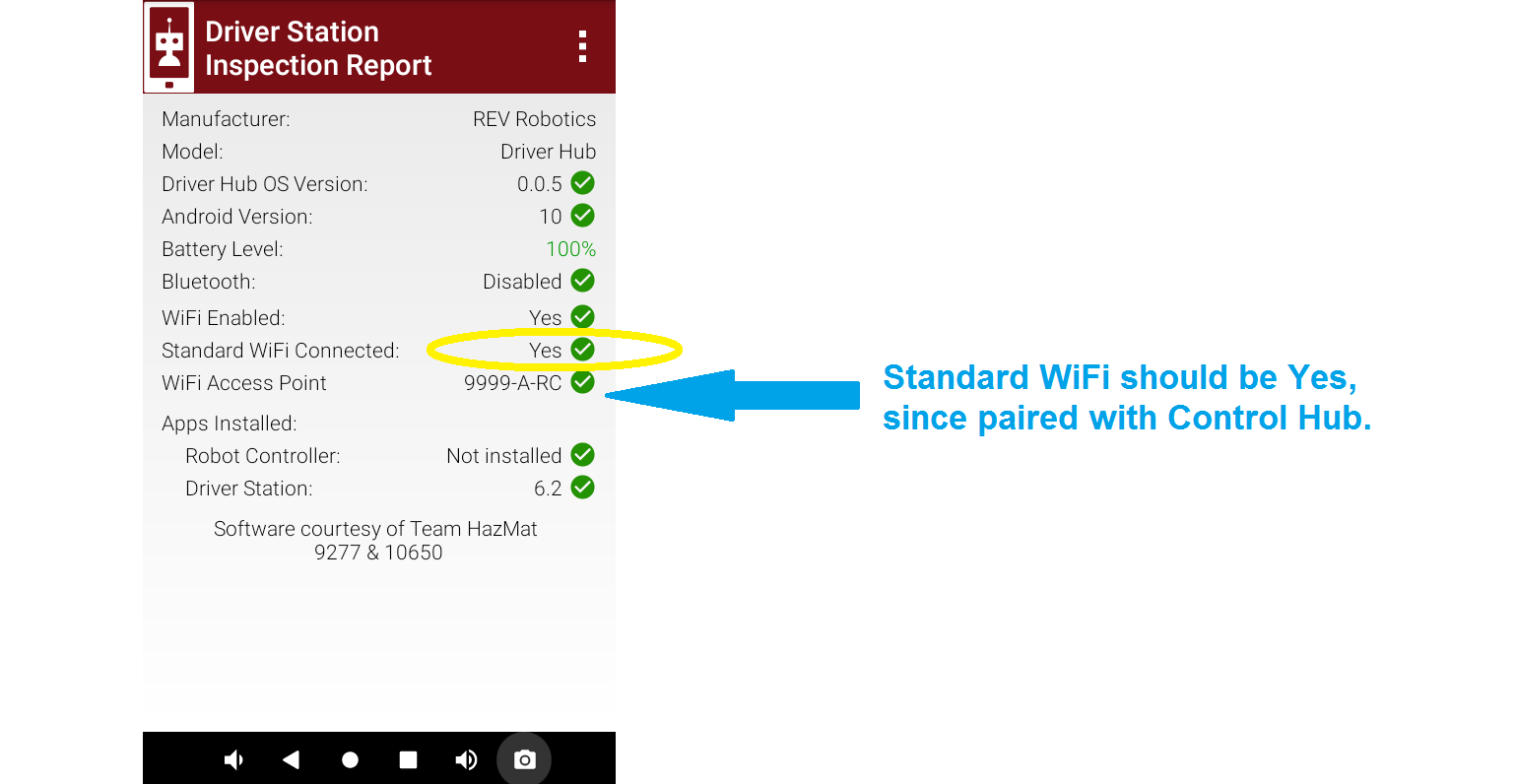
Note that Airplane Mode has been omitted from the DS inspection, only for Driver Hub. The current version of Rule RS07 excludes the Control Hub, but doesn't exclude the Driver Hub -- which does have an Android setting to turn Airplane Mode on or off. In the future, this may be reinstated to Self Inspect, or FTC may exclude it in Rule RS07.
===========
Here are clean Self Inspect screens from the Driver Hub, for Robot Controller (phone and Control Hub), running this PR.
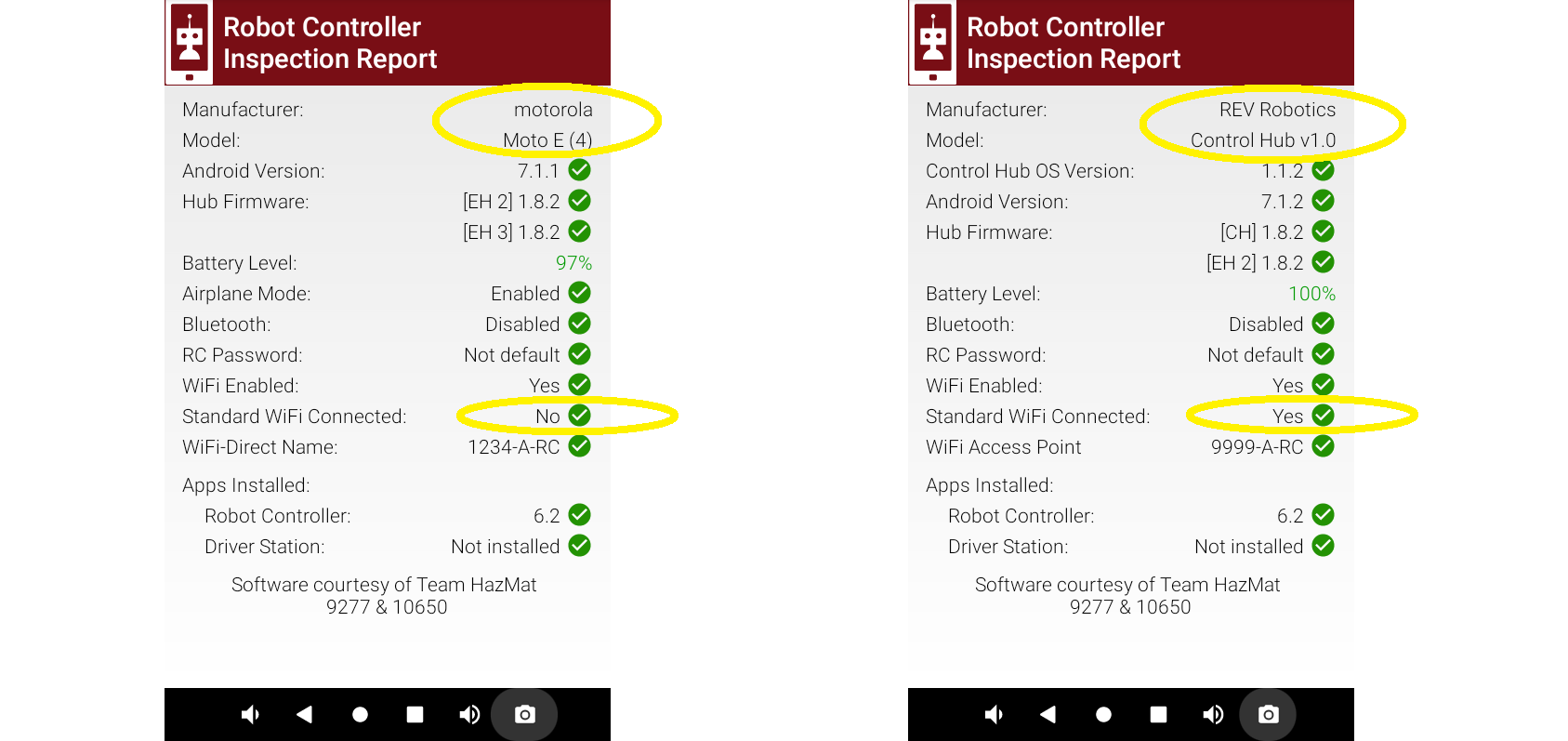
On these screens, the Standard WiFi Connected status does actually refer to the RC device (phone or Control Hub), not the DS device (Driver Hub). The RC phone is capable of connecting to an outside hotspot or internet router, and it shouldn't. The Control Hub must use its Standard WiFi to connect to the Driver Hub displaying this report.
Again, the RC Password status for RC phone is probably not needed.
===============
Here are some 'not clean' inspections for RC phones, from the Driver Hub:
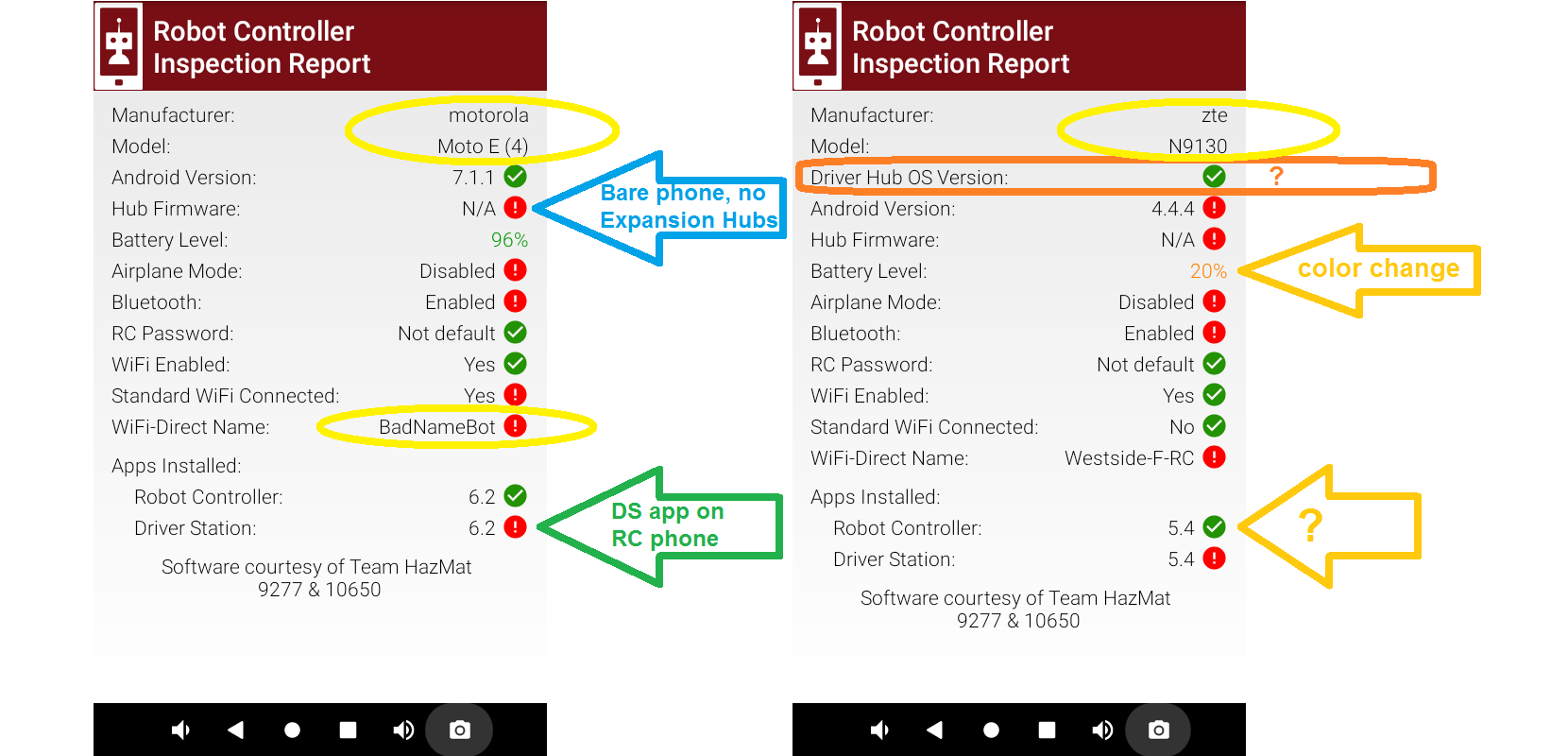
The Hub Firmware status of N/A indicates no Expansion Hubs are connected to the RC phone.
The DS app must not be installed on an RC phone.
The DS Self Inspect screen has a 3-dots menu at top right. Likewise for the RC Self Inspect screen, on the RC phone. The menu's only entry does work, per this sequence:
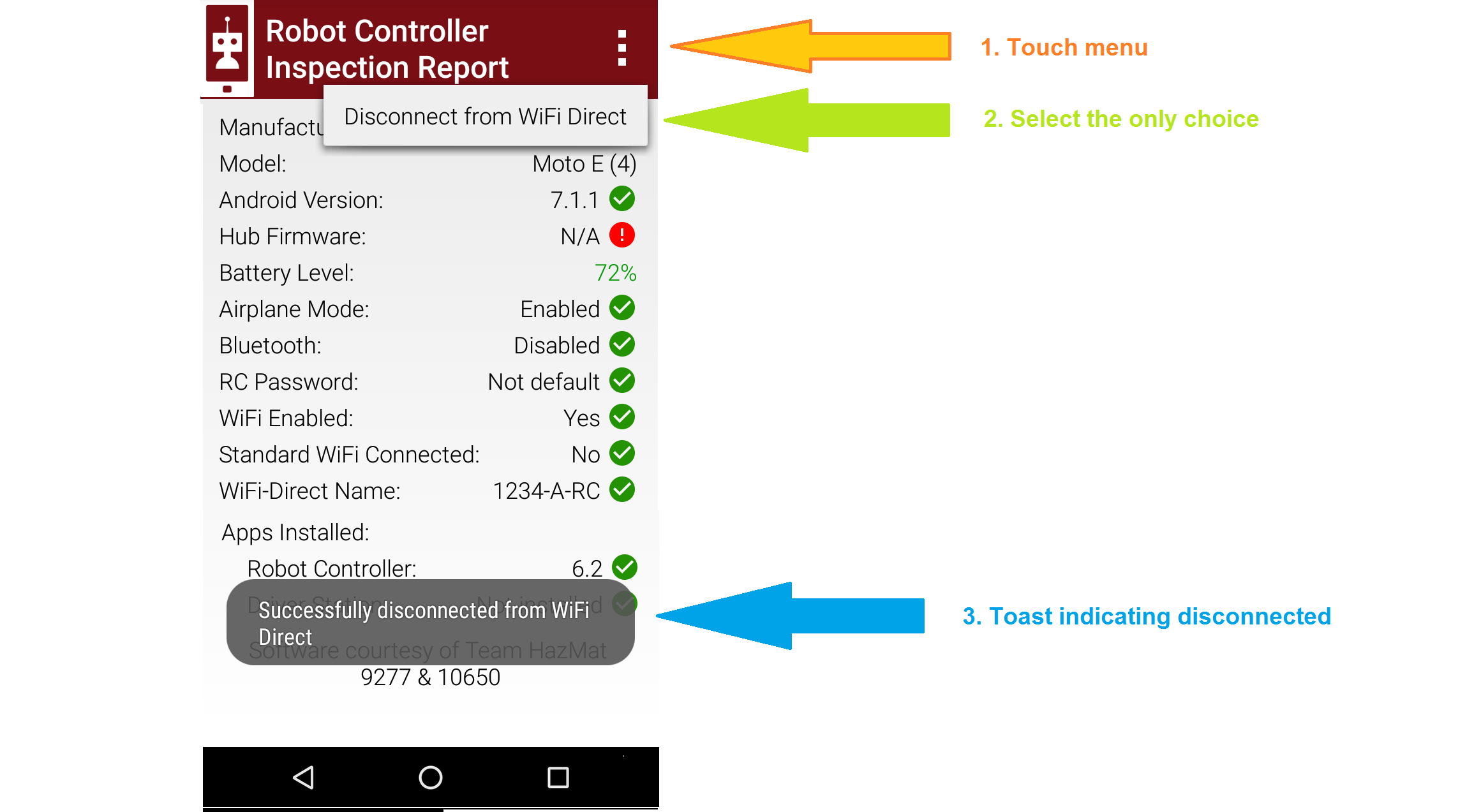
However the FTC apps now quickly re-connect automatically. This Disconnect action seems out-of-place in Self Inspect, and the DS phone's Pairing menu already offers "None - Do not pair with any device" -- with a longer-lasting effect.
It's possible this Disconnect feature was placed here to allow quick robot shutdown in case of a Field Inspection malfunction. If not needed, this feature may be evaluated for removal.
Each inspection screen updates automatically, with or without a Restart Robot. This allows quick verification that issues have been resolved.
Possible future changes
-
RC Passwordresult "Not default" does not apply for RC phones. Might omit, or list "N/A" with check-mark. - Might reinstate
Airplane Modefor DS inspect on Driver Hub, or change Rule RS07. - Might omit 3-dots menus on DS Self Inspect.