
All natural pine, faux fur and a bit of soho vibes for the classy minimalist

Preview Normal Layout
| Rosé Pine Dawn | Rosé Pine Moon | Rosé Pine Moon Cool |
|---|---|---|
 |
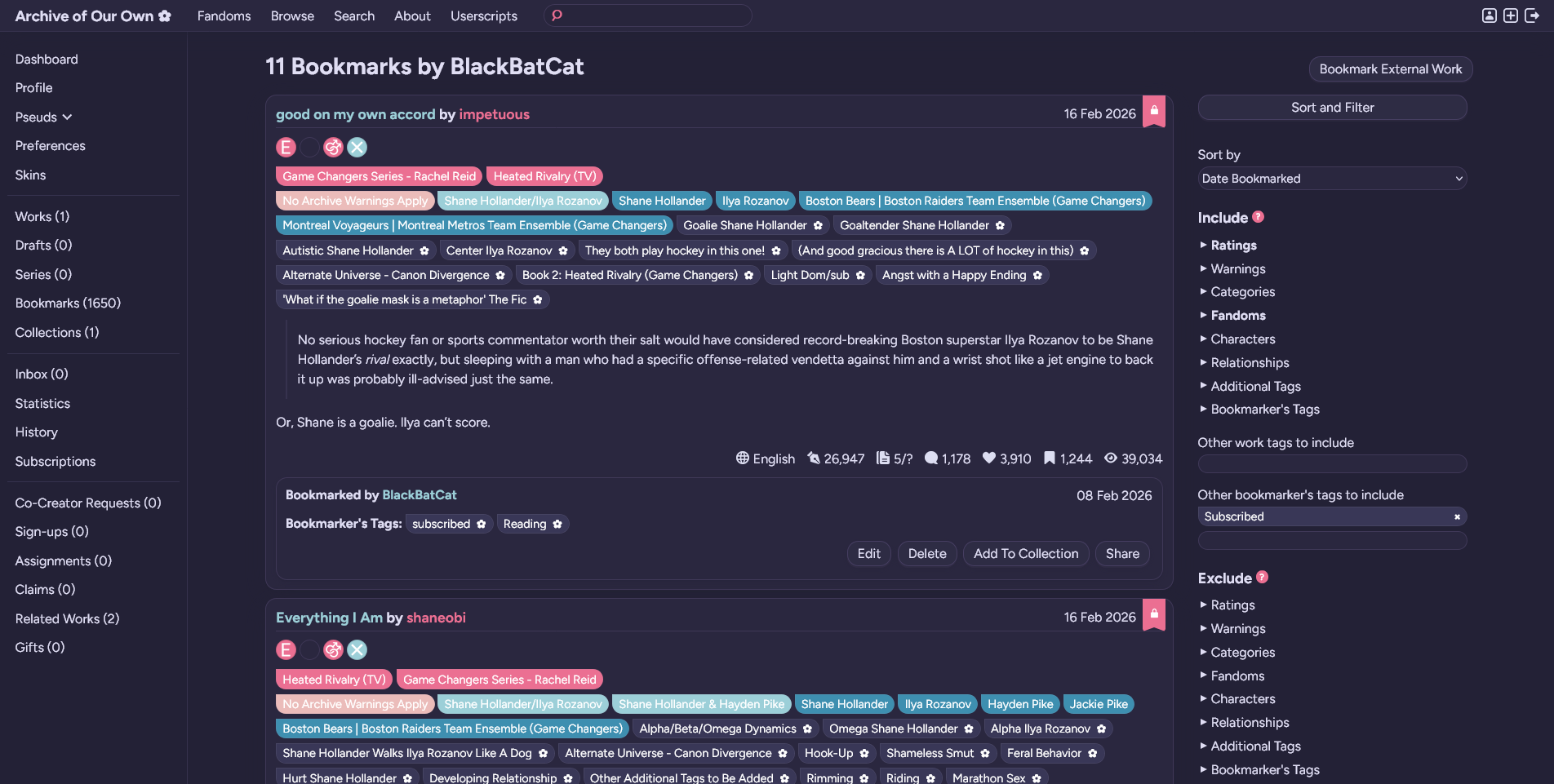 |
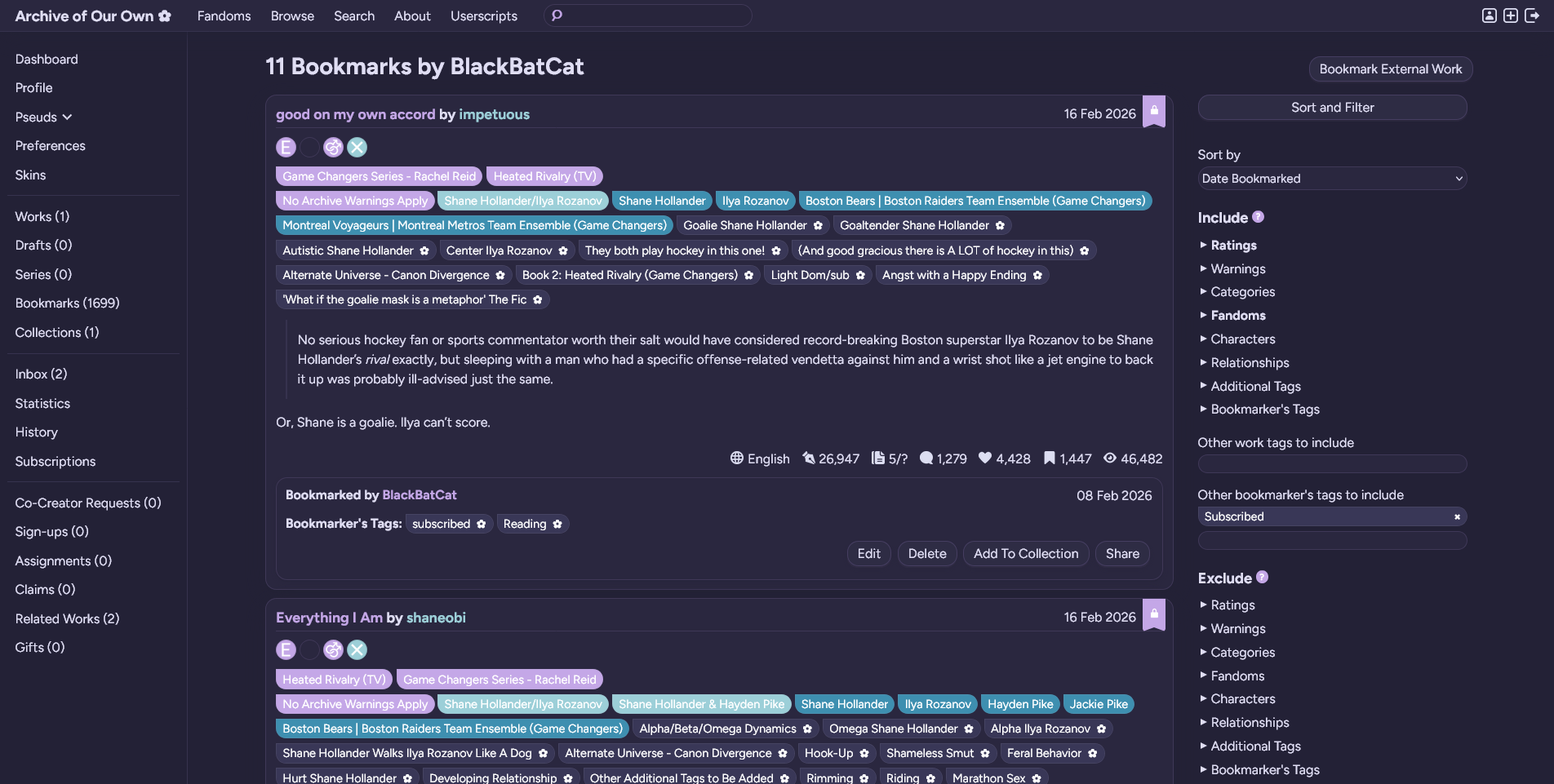 |
| Rosé Pine | Rosé Pine Cool | Mobile |
|---|---|---|
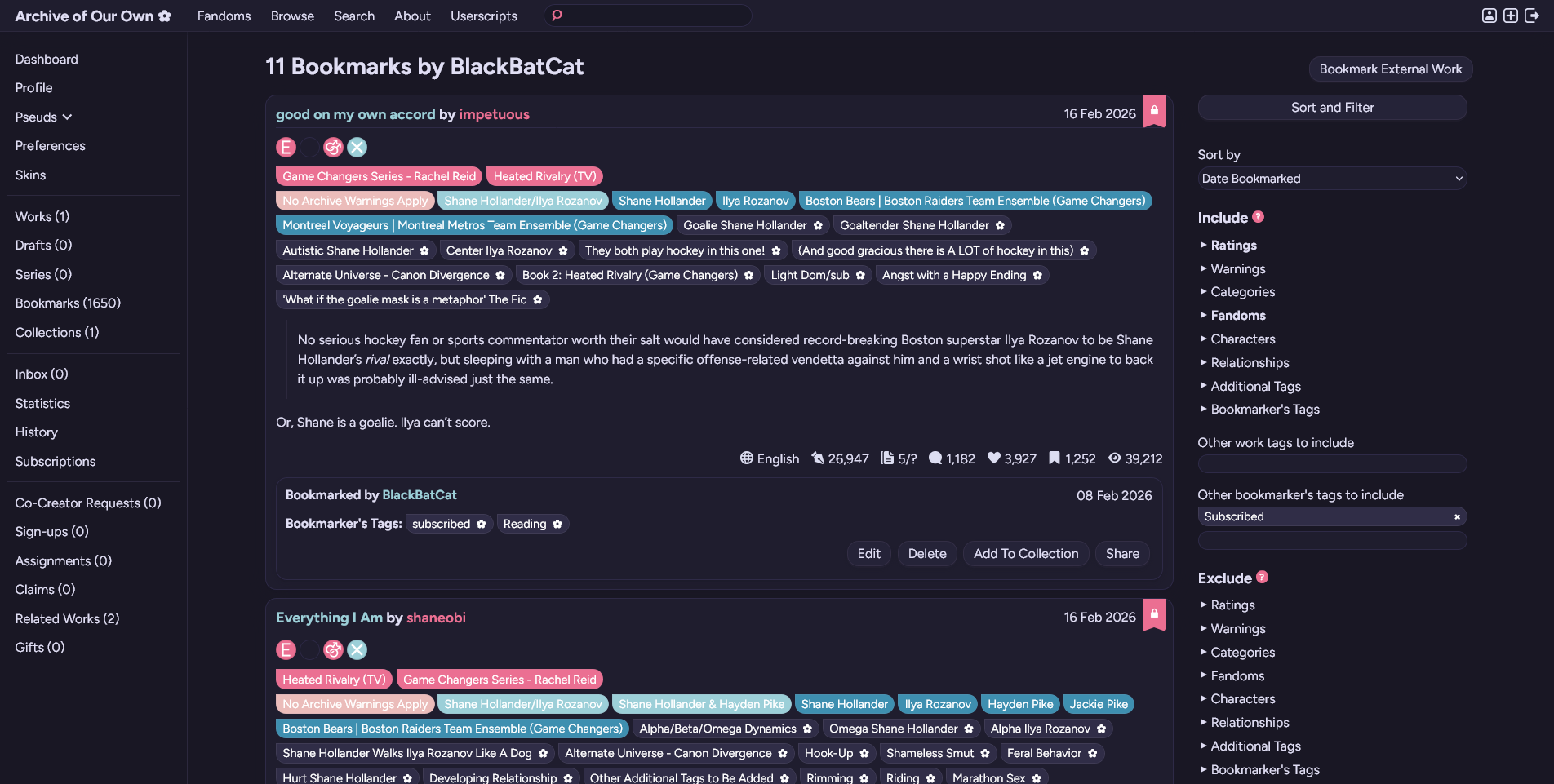 |
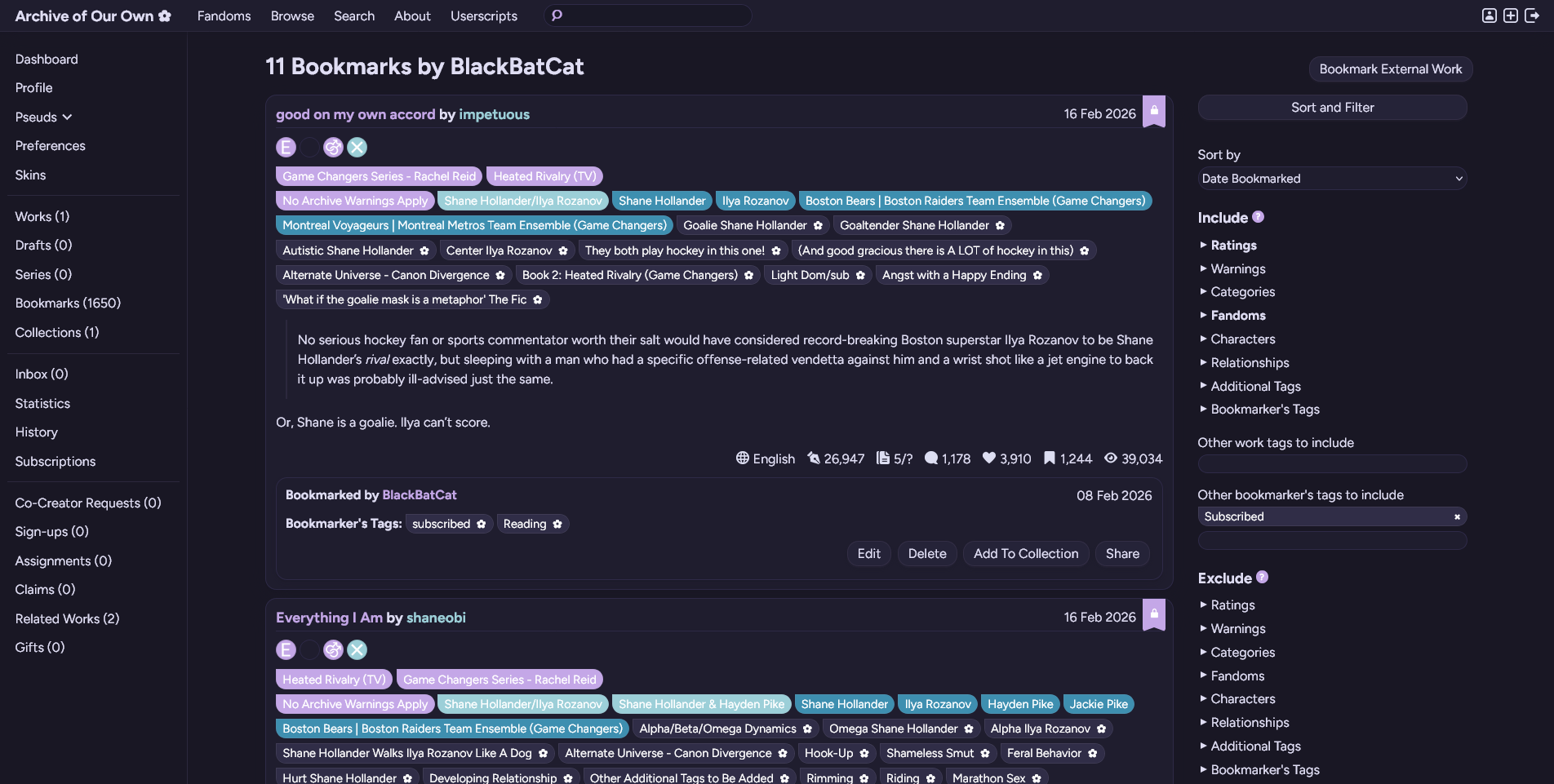 |
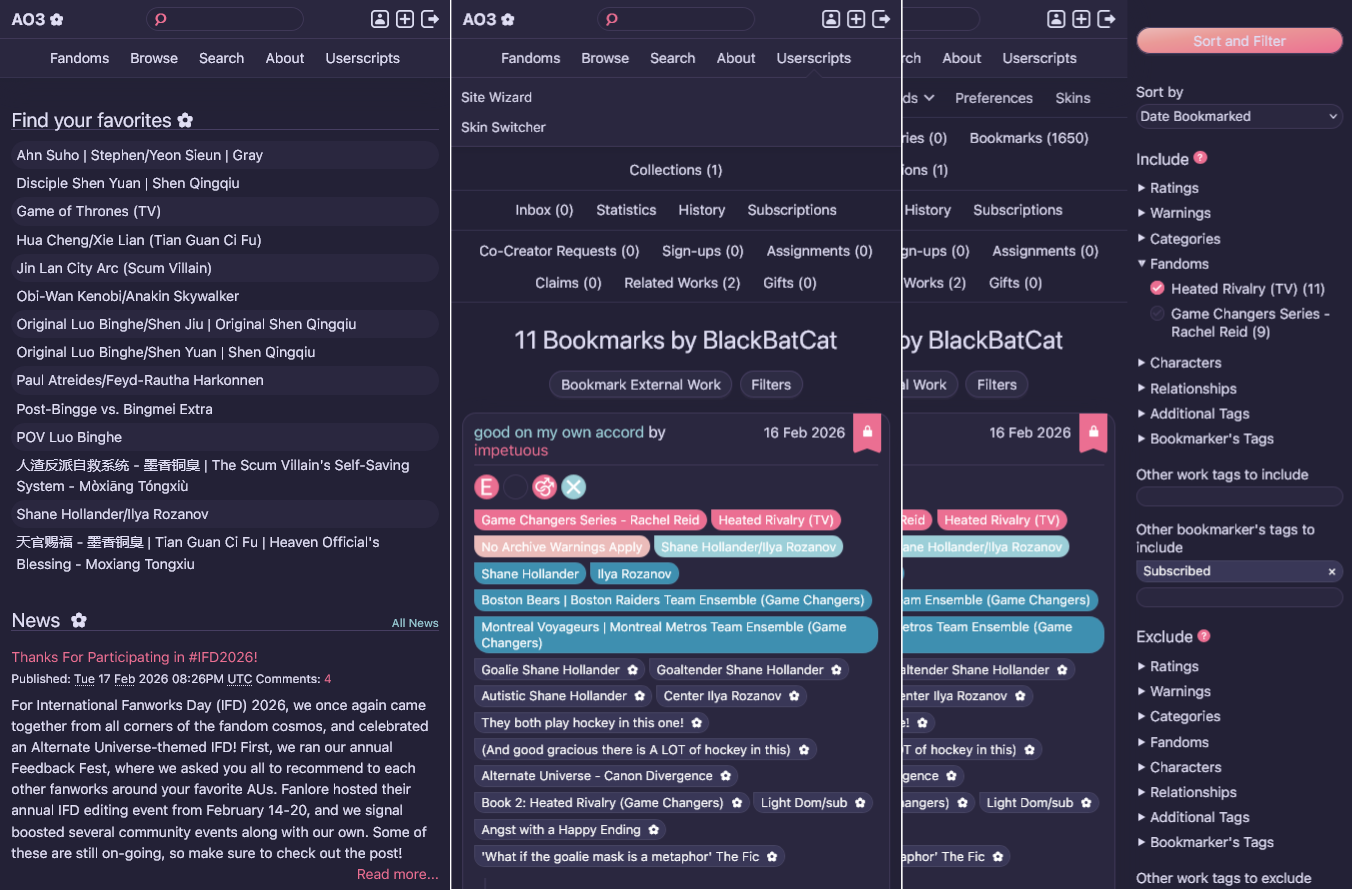 |
Preview Card Layout
| Rosé Pine Dawn | Rosé Pine Moon | Rosé Pine Moon Cool |
|---|---|---|
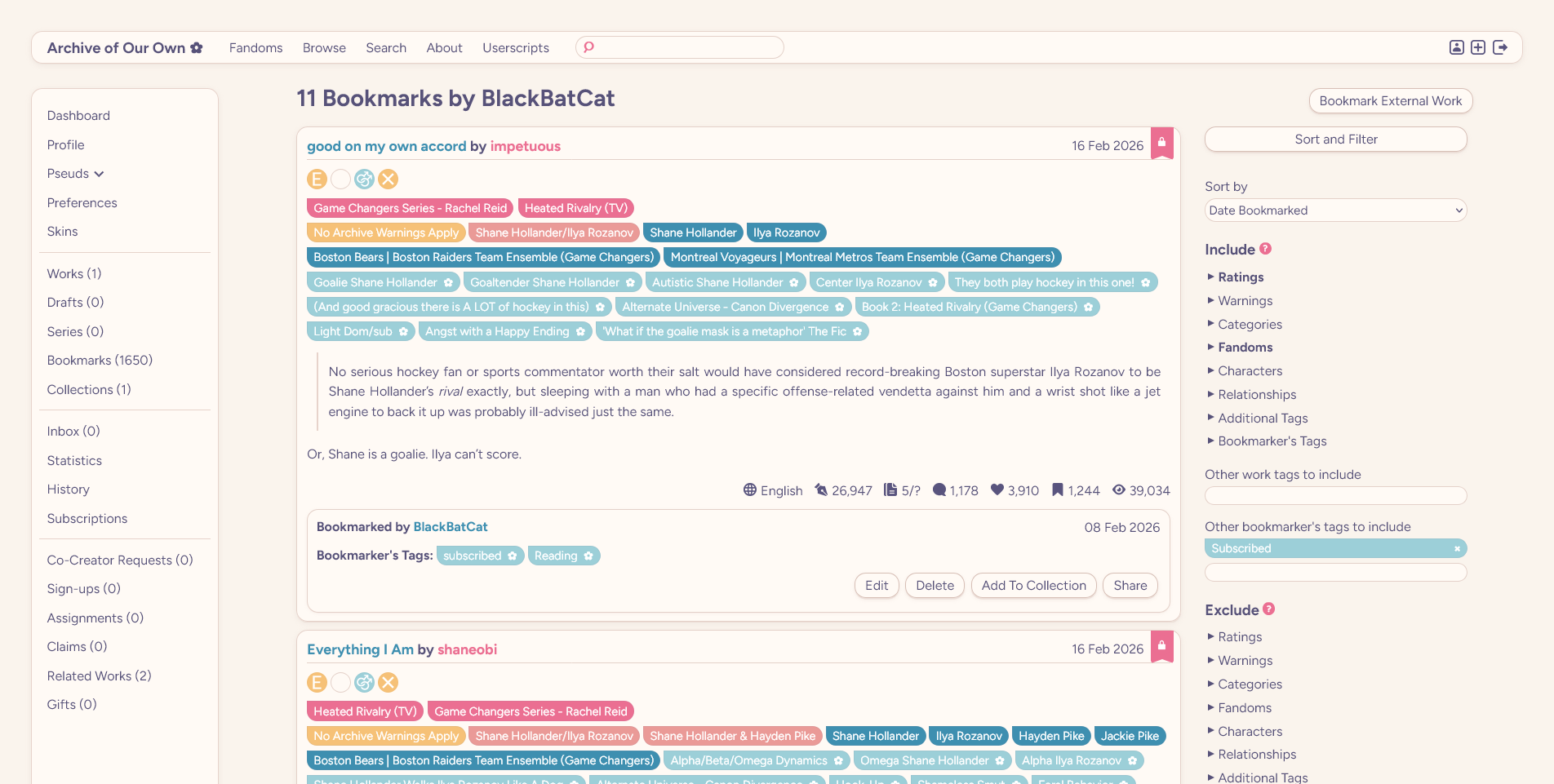 |
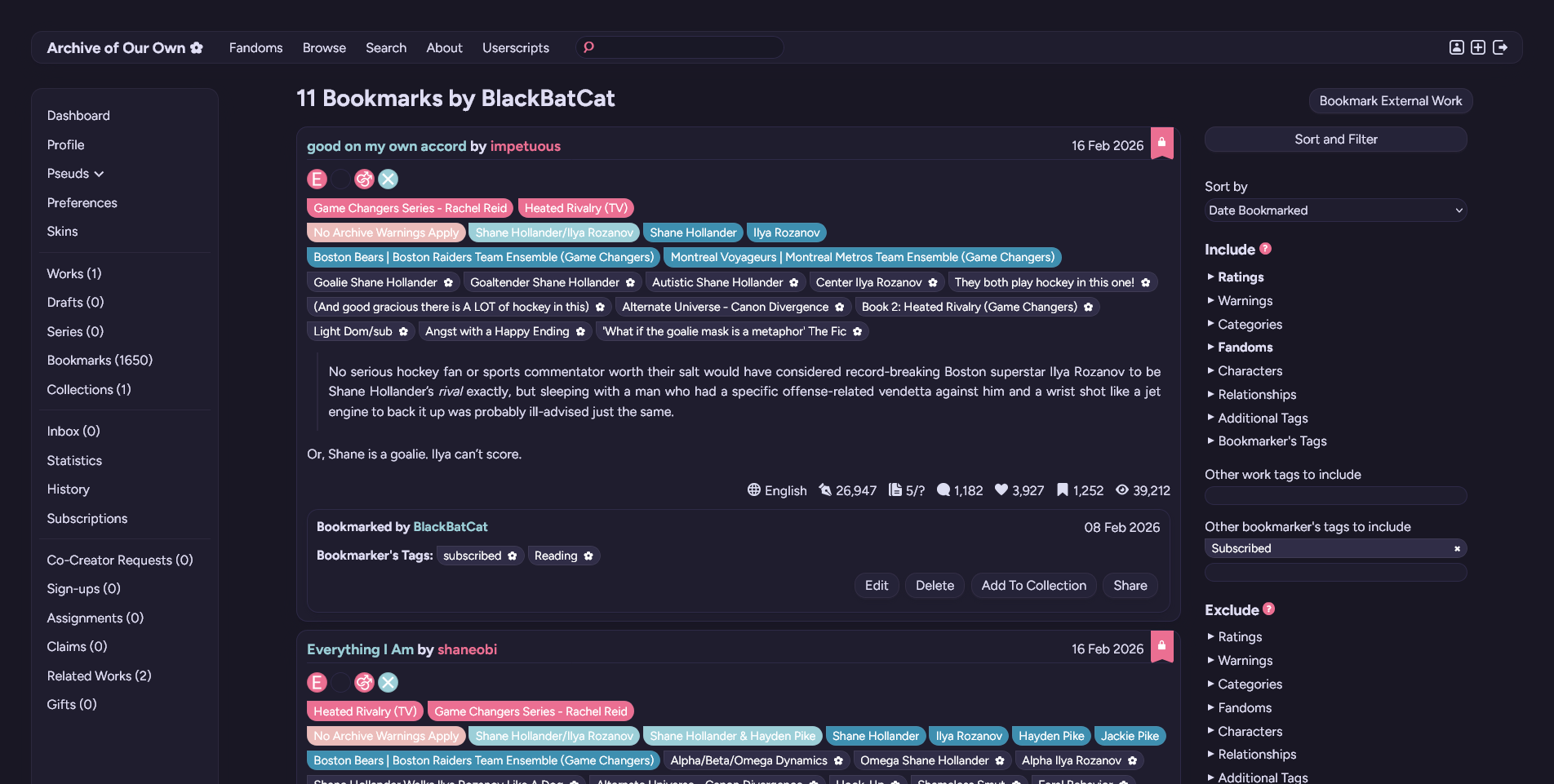 |
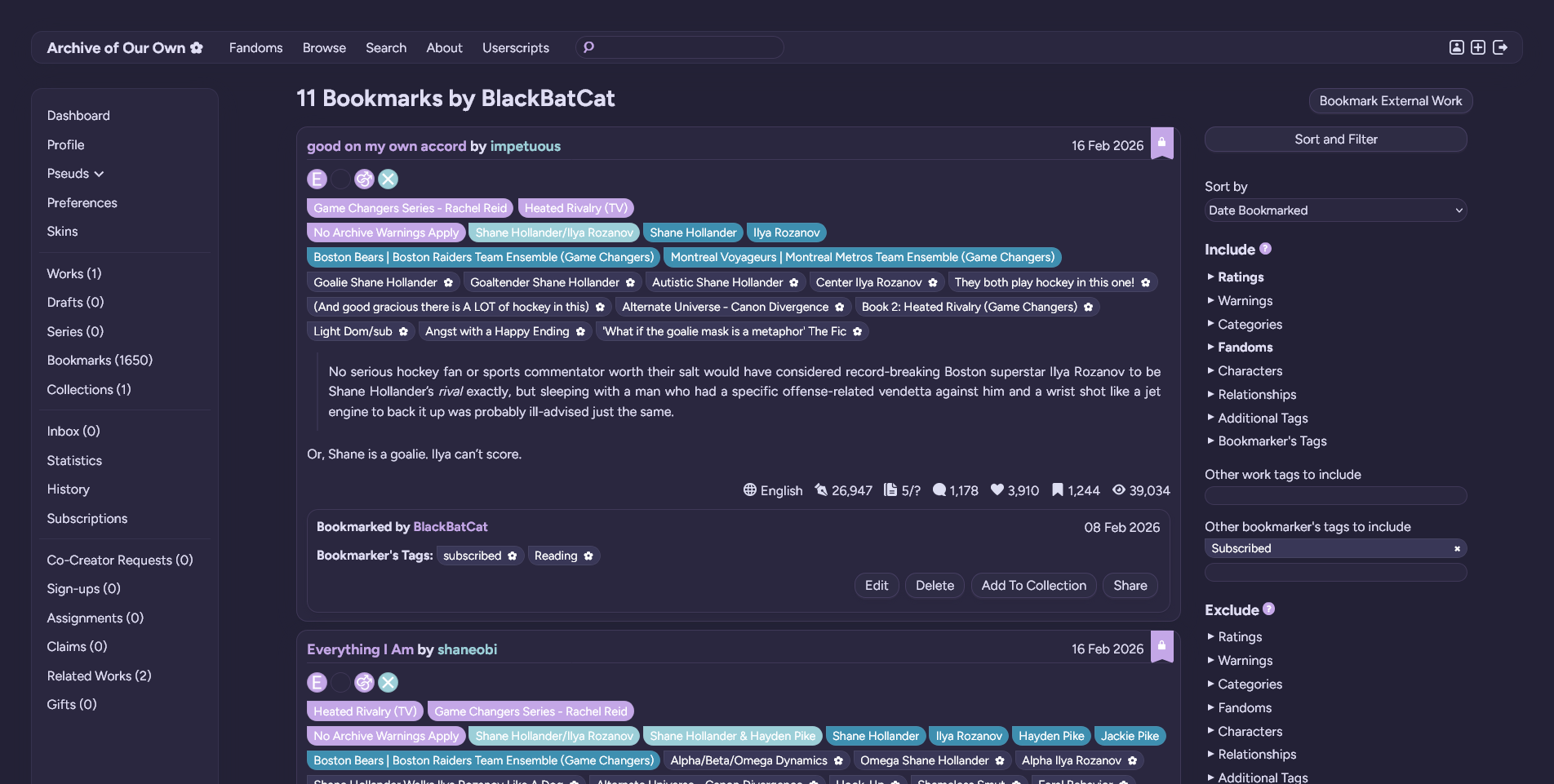 |
| Rosé Pine | Rosé Pine Cool | Mobile |
|---|---|---|
|
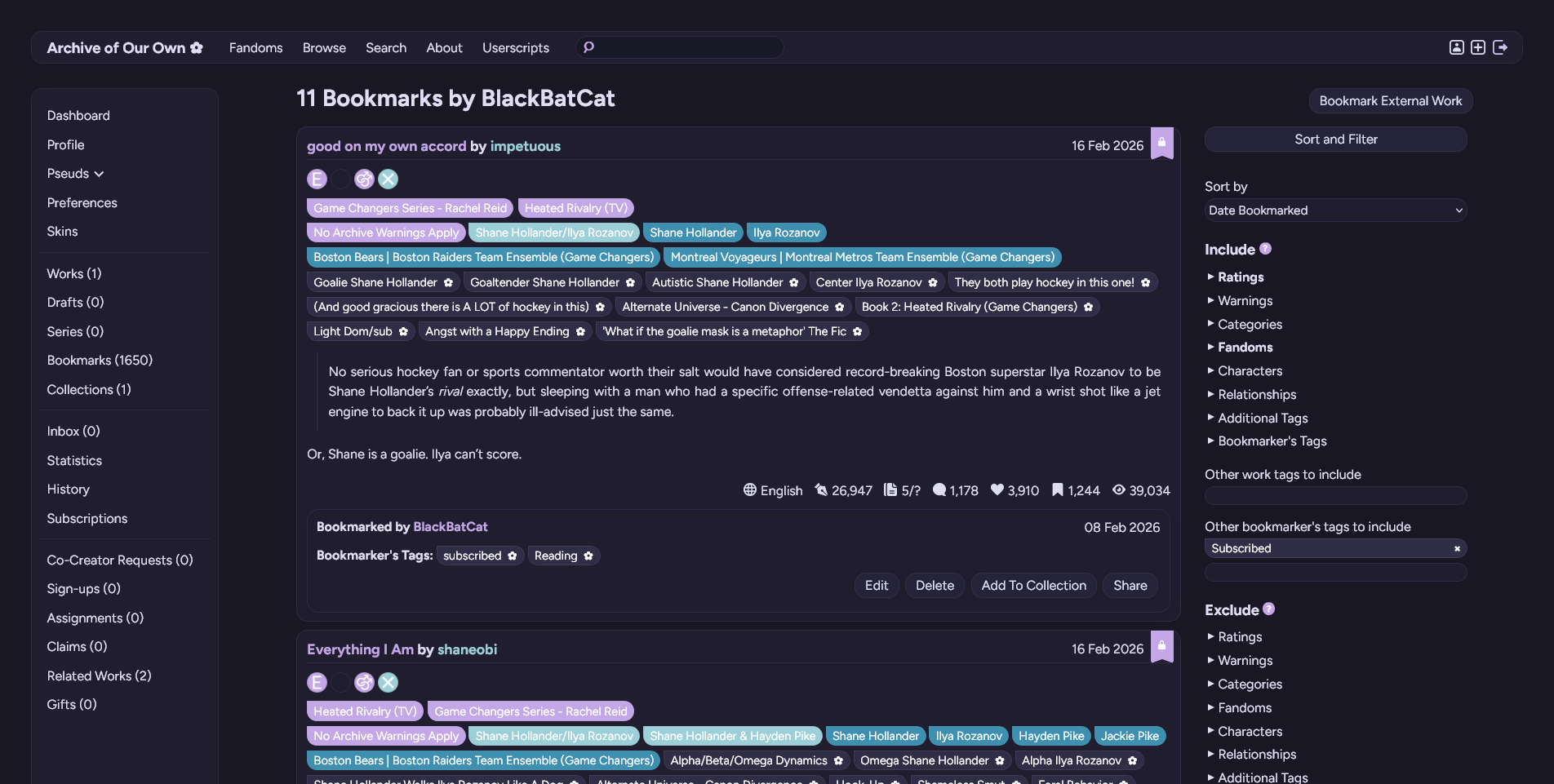 |
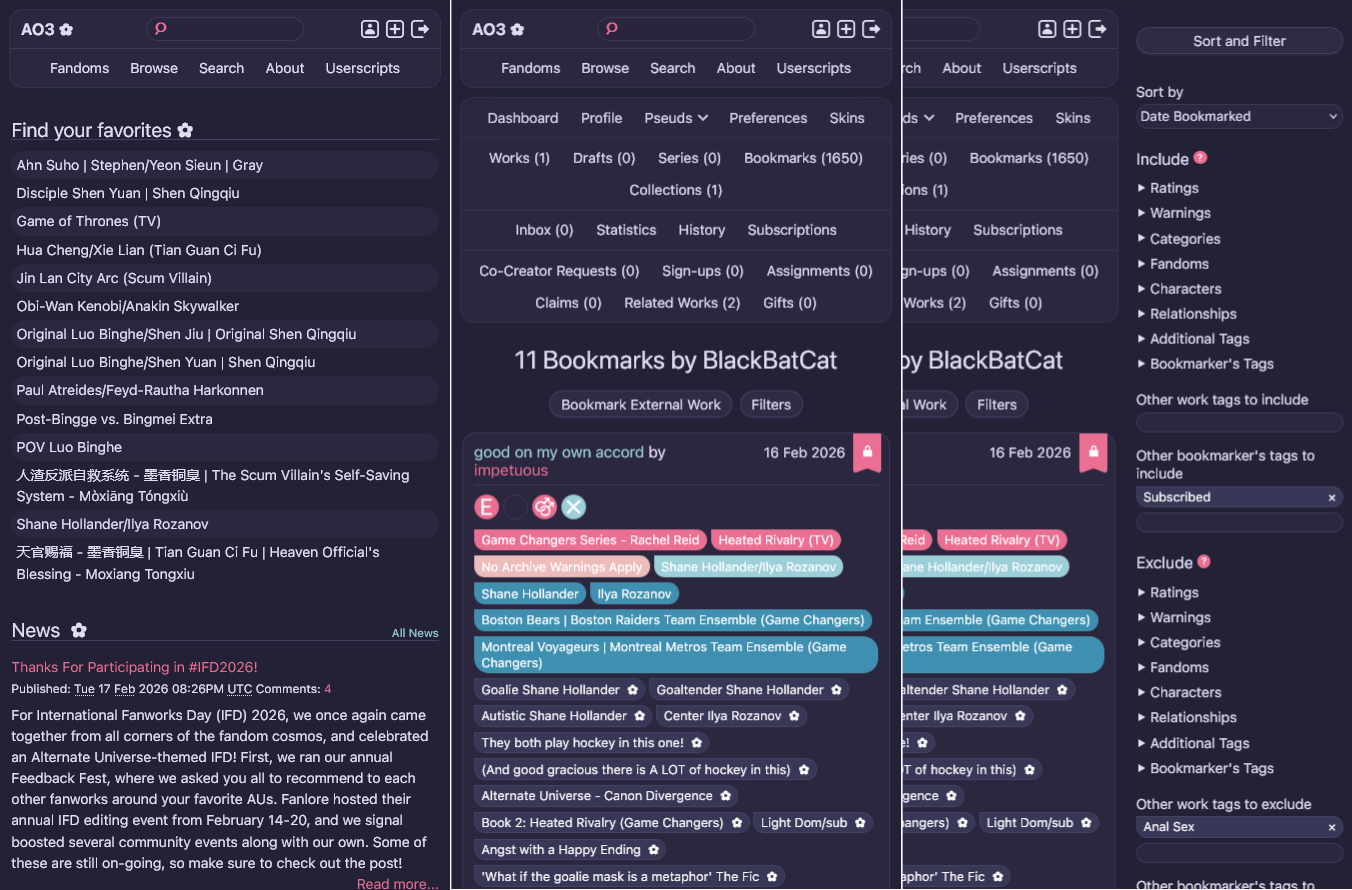 |
Preview Alternative Tag Style
| Rosé Pine (Alternative Tags) | Rosé Pine Cool (Alternative Tags) |
|---|---|
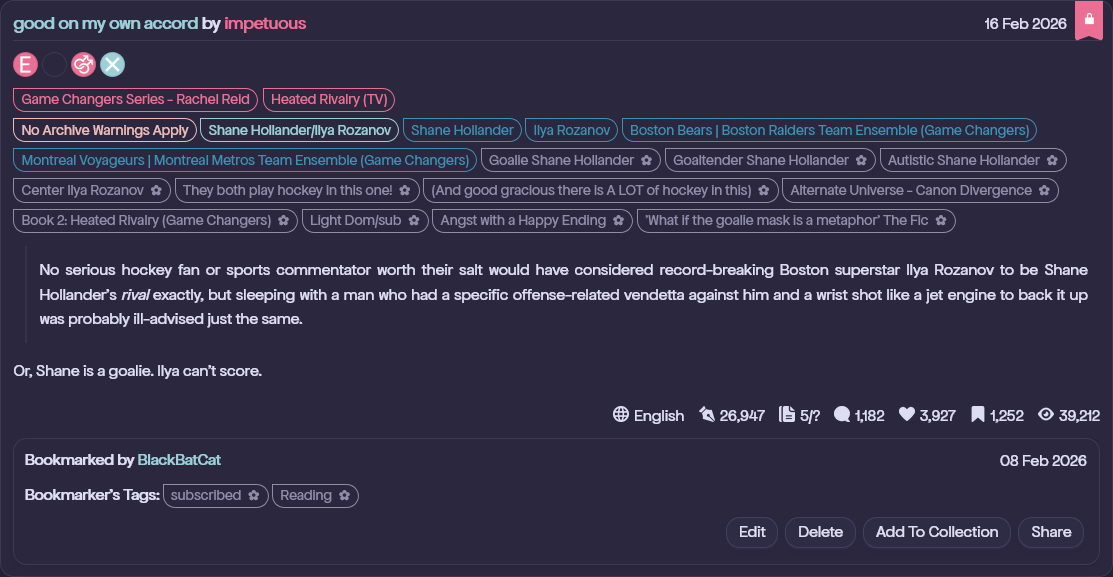 |
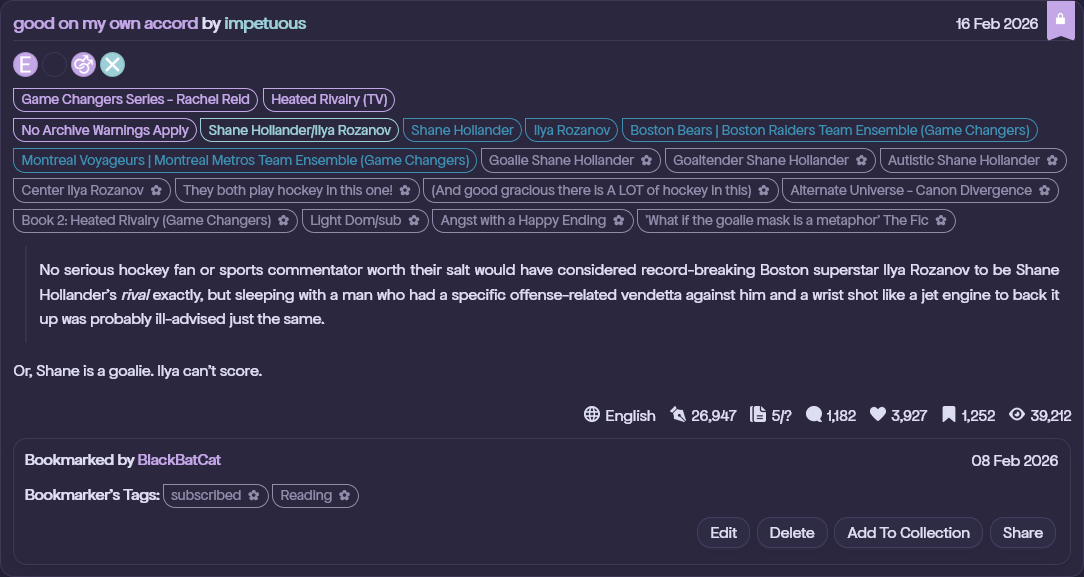 |
Full instructions, customization tips, and add-ons are available on Archive of Our Own.
To use this skin on AO3, you'll be creating a small set of linked skins. The base file sets up variables and structure, but you'll also need to apply one of the theme files (Rose Pine Dawn, Rose Pine Moon, etc.) to actually get the colors.
Important: You must choose between the Normal Layout or the Card Layout. Once you pick a layout, use all the corresponding skins for that layout (base, tablet, and mobile). Do not mix skins from different layouts.
Before you begin, decide which layout you prefer:
- Normal Layout: Uses
base.css,tablet.css, andmobile.css - Card Layout: Uses
base_alt.css,tablet_alt.css, andmobile_alt.css
Check the previews above to see which style you prefer, then follow the instructions below using the files for your chosen layout. Note that both layouts use the same theme files, so you can pick any theme you like regardless of which layout you choose.
1. Create the Base Skin
- Go to your Dashboard → Skins → Create Site Skin.
- Give it a unique name, like
[BBC] Rosé Pine - Base, with "BBC" being your username or an abbreviation. - Paste the contents of your chosen base file into the CSS field:
- Normal Layout:
base.css - Card Layout:
base_alt.css
- Normal Layout:
- Under Advanced, set it to Parent Only.
- Click Submit.
2. Create a Theme Skin
This is where the fun part happens—picking your colors! Choose one of the themes below.
- Create a skin titled something like
[BBC] Rosé Pine Dawnor[BBC] Rosé Pine Moon. - Paste the code from one of the theme files:
theme_rosepinedawn.css(Rosé Pine Dawn)theme_rosepinemoon.css(Rosé Pine Moon)theme_rosepinemooncool.css(Rosé Pine Moon Cool)theme_rosepine.css(Rosé Pine)theme_rosepinecool.css(Rosé Pine Cool)
- Set it to Parent Only and submit.
2a. (Optional) Auto Light/Dark Mode Switching
Want a skin that switches between light and dark mode automatically based on your system preferences?
- Create a second theme skin (e.g.,
[BBC] Rosé Pine Moonfor dark mode if you already created Dawn for light mode). - Paste in the CSS from your chosen second theme.
- Set it to Parent Only.
- Under Advanced → Choose @media, select
(prefers-color-scheme: dark)for your dark theme OR(prefers-color-scheme: light)for your light theme. - Go back to your first theme skin and edit it. Under Advanced → Choose @media, select the opposite @media query (
(prefers-color-scheme: light)if your second theme uses dark, or vice versa). - Now you have two themes that will switch automatically depending on your browser or device settings. When you get to Step 5, you'll add both theme skins to the parent chain.
- Tip: If you prefer to change your skins manually but want an easier way to do so then check out my AO3: Skin Switcher script. You can easily change site skins without leaving the page you were on.
2b. (Optional) Create an Alternative Tag Style Skin
Want a different tag style that's easier on the eyes with darker themes? This optional add-on changes how tags appear throughout the site. Previews available here.
- Create a skin titled something like
[BBC] Rosé Pine - Tag Mod. - Paste the code from the tag mod file that matches your theme variant:
- For regular Rosé Pine themes (Dawn, Moon, or Rosé Pine): mod_rosepine_tags.css
- For Cool variants (Moon Cool or Rosé Pine Cool): mod_rosepinecool_tags.css
- Set it to Parent Only and submit.
3. Create the Tablet Skin
Important: The tablet and mobile skins are not optional and must be included for the theme to work properly across all screen sizes.
- Create a skin titled
[BBC] Rosé Pine - Tablet. - Paste in the correct tablet file for your chosen layout:
- Normal Layout:
tablet.css - Card Layout:
tablet_alt.css
- Normal Layout:
- Under Advanced → Choose @media, select:
only screen (max-width: 62em). - Set to Parent Only and submit.
4. Create the Mobile Skin
- Create a skin titled
[BBC] Rosé Pine - Mobile. - Paste in the correct mobile file for your chosen layout:
- Normal Layout:
mobile.css - Card Layout:
mobile_alt.css
- Normal Layout:
- Under Advanced → Choose @media, select:
only screen (max-width: 42em). - Set to Parent Only and submit.
5. Chain Them Together
- Create one final skin, like
[BBC] Rosé Pine Dawn - Default(or[BBC] Rosé Pine Auto - Defaultif you created two themes for auto-switching). - In the CSS field, paste
.rose-pine {opacity: 1;}(just a placeholder so AO3 lets you save). - Under Advanced → Parent Skins, add the skins you created in this order:
- [BBC] Rosé Pine - Base
- Single theme: [BBC] Rosé Pine Dawn / [BBC] Rosé Pine Moon / [BBC] Rosé Pine
OR for auto light/dark switching: Add both of your theme skins (e.g., [BBC] Rosé Pine Dawn and [BBC] Rosé Pine Moon). The order doesn't matter since they use @media queries. - (Optional) [BBC] Rosé Pine - Tag Mod — only if you created the alternative tag style skin in Step 2b
- [BBC] Rosé Pine - Tablet
- [BBC] Rosé Pine - Mobile
- Click Submit, then Use.
Big thanks to neos by ZerafinaCSS — this skin wouldn't exist without it!
