

Yacht is a container management UI with a focus on templates and 1-click deployments.
The current develop branch supports two host management modes:
- direct Docker API hosts added manually in the UI
- agent-managed hosts where a
yacht-agentcontainer connects back to the main Yacht server
This application had gone unmaintained for a while. The current work on develop is focused on bringing dependencies, workflows, and security posture back up to date.
The rewrite effort is being explored in Yacht-sh/yacht-nuxt.
The installation docs currently live at dev.yacht.sh.
Repo-local documentation now lives in docs/.
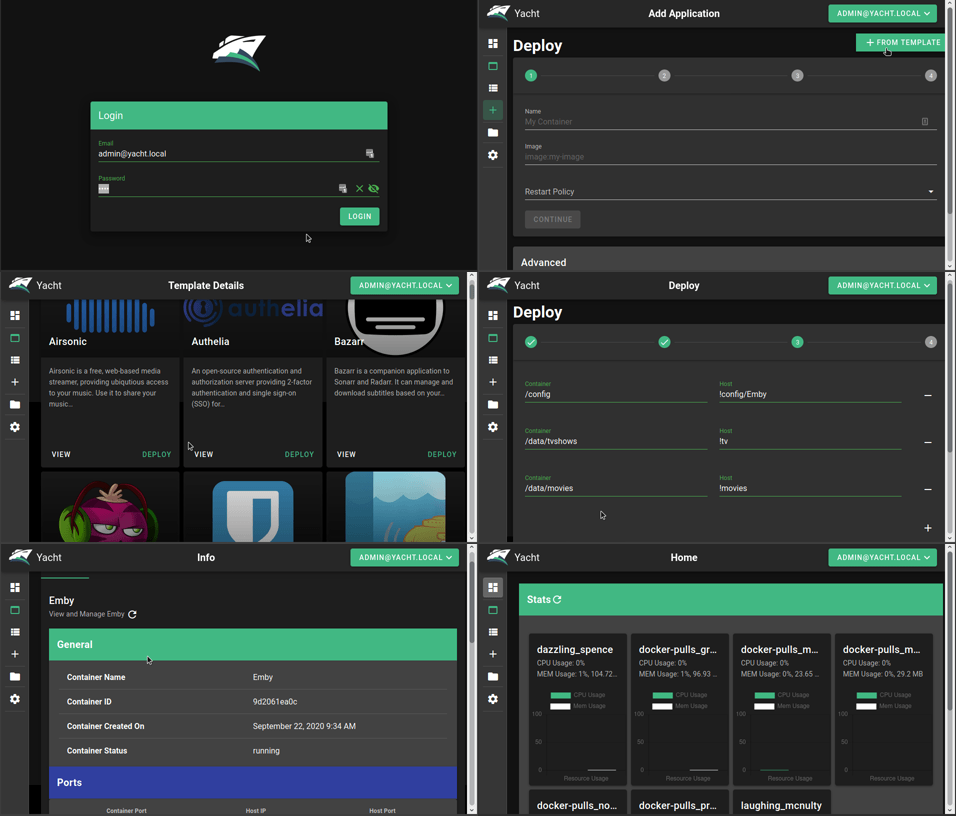
Currently only Linux has been verified as working, but Windows support is still being evaluated.
Installation documentation can be found here.
Check out the getting started guide if this is the first time you've used Yacht: dev.yacht.sh/docs/Installation/Getting_Started
We can also be found on Linode
<img src="https://www.linode.com/wp-content/uploads/2021/01/Linode-Logo-Black.svg" width="200" >
The main Yacht container is the control plane. It hosts the web UI, API, auth, and database.
Remote Docker hosts can run a separate yacht-agent container that:
- mounts the local Docker socket
- registers with the main Yacht server using a shared enrollment token
- keeps host inventory in sync
- executes container actions locally after the server queues a job
This avoids exposing the remote Docker API directly when you do not want to.
Current agent-backed write support on develop covers container actions:
startstoprestartkillremove
Set AGENT_ENROLLMENT_TOKEN on the main Yacht server first. The agent must use the same token through YACHT_AGENT_ENROLLMENT_TOKEN.
Example agent deployment:
services:
  yacht-agent:
    image: ghcr.io/yacht-sh/yacht-agent:dev-latest
    container_name: yacht-agent
    restart: unless-stopped
    environment:
      YACHT_SERVER_URL: https://yacht.example.com
      YACHT_AGENT_ENROLLMENT_TOKEN: replace-with-shared-enrollment-token
      YACHT_AGENT_NAME: edge-docker-01
    volumes:
      - /var/run/docker.sock:/var/run/docker.sock
      - yacht-agent-config:/config

volumes:
  yacht-agent-config:
Agent-managed hosts self-register. You do not create them manually from the Hosts form.
- Vuetify UI Framework
- Basic Container Management
- Template Framework
- Easy Template Updating
- Centralized settings for volume management and similar QOL functionality.
- Docker-Compose Compatibility
- Advanced Container Management (Edit/Modify)
- Container Monitoring
- Easy access to container CLI
- User Management
- Scheduled Jobs
If you want something that's not planned please open a feature request issue and we'll see about getting it added.
Currently Yacht is compatible with Portainer templates. You'll add a template URL in the "Add Template" settings. The template will be read, separated into apps, and imported into the database. The apps associated with the templates are linked via a db relationship so when the template is removed, so are the apps associated with it. We store the template URL as well so we can enable updating templates with a button press.
We recommend starting with:
https://raw.githubusercontent.com/wickedyoda/selfhosted_templates/yacht/Template/template.json
In templates you are able to define variables (starting with !) to have them automatically replaced by whatever variable the user has set in their server settings. For example, !config will be replaced by /yacht/AppData/Config by default.
If you're on ARM and graphs aren't showing up add the following to your cmdline.txt:
cgroup_enable=cpuset cgroup_enable=memory cgroup_memory=1
You can utilize the following environment variables in Yacht. None of them are mandatory.
| Variable | Description |
|---|---|
| PUID | Set userid that the container will run as. |
| PGID | Set groupid that the container will run as. |
| SECRET_KEY | Setting this to a random string ensures you won't be logged out in between reboots of Yacht. |
| ADMIN_EMAIL | This sets the email for the default Yacht user. |
| AGENT_ENROLLMENT_TOKEN | Shared secret used by yacht-agent containers when they first register with the main Yacht server. |
| DISABLE_AUTH | This disables authentication on the backend of Yacht. It's not recommended unless you're using something like Authelia to manage authentication. |
| DATABASE_URL | If you want to have Yacht use a database like SQL instead of the built in sqlite, you can put that info here in the following format: postgresql://user:password@postgresserver/db |
| COMPOSE_DIR | This is the path inside the container which contains your folders that have docker compose projects. (compose tag only) |
If you're running under WSL2 inside Windows, because of the difference in how permissions are handled, you're essentially inside a Linux machine accessing a Windows file system. You will need to run this after installation before adding the Yacht container:
sudo usermod -aG docker $USERAdditional information about this can be found in the Post-installation steps for Linux
If the built in update button isn't working for you try the following command:
docker run --rm -d -v /var/run/docker.sock:/var/run/docker.sock containrrr/watchtower:latest --cleanup --run-once <container-name>


![@dependabot[bot]](https://avatars.githubusercontent.com/in/29110?s=64&v=4)


