JavaScript developers can now just open a .ts file and start hacking
away like they are used to. No grunt, no Visual Studio. Just pure
coding.
NOTE: When updating to v12, make sure language-typescript core
package is enabled. We're discontinuing our own grammar in favor of
language-typescript. Both are very similar and are basically
Microsoft's TextMate grammar repackaged, and there's little reason to
bundle our own if there's one available by default.
NOTE: This branch contains a major rewrite (v11) of the
pulsar-typescript plugin that is lighter and faster, but lacks a few
major features that you might miss. The previous version is still
available in the legacy branch and will continue to receive minor
bugfixes. However, I wouldn't count on any new developments for that version.
- Install atom.
- Install dependencies (see below).
apm install pulsar-typescript(apmneedsgitin your path).- Fire up atom. Open a TypeScript file.
Dependencies:
pulsar-typescript relies on some external packages for providing some of its GUI. You basically have two options.
Option 1: Install atom-ide-ui package.
Option 2: Install the following packages:
linterlinter-ui-defaulthyperclickintentions
- Autocomplete
- Live error analysis
- Type information on hover
- Compile on save
- Project Context Support (
tsconfig.json) - Project Build Support
package.jsonSupport- Goto Declaration
- Find References
- Semantic view
- Block comment and uncomment
- Rename refactoring
- Common Snippets
- Alternative to symbols-view
Located online: https://github.com/albert200000/pulsar-typescript/blob/master/docs/faq.md
Internally using AutoComplete+. Just start typing and hints will show
up. Or you can explicitly trigger it using ctrl+space or cmd+space.
Press tab to make a selection.
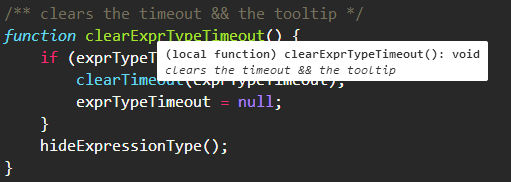
Just hover
When "compileOnSave": true is set in tsconfig.json, TypeScript files
will be compiled and saved automatically. The compiler does its best to
emit something, even if there are semantic errors in the file.
pulsar-typescript supports all the same options the TypeScript compiler
does as it's using it behind the scenes to do all of the heavy lifting.
In fact, pulsar-typescript will use the exact version of TypeScript you
have installed in your node_modules directory.
Shortcut: F12. Will open the first declaration of the said item for
now. (Note: some people call it Go to Definition)
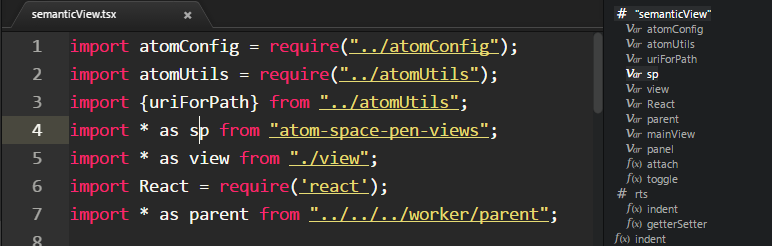
A bird's eye view of the current file. Use command
toggle semantic view. The view updates while you edit the code. You
can also click to jump to any portion of the file.
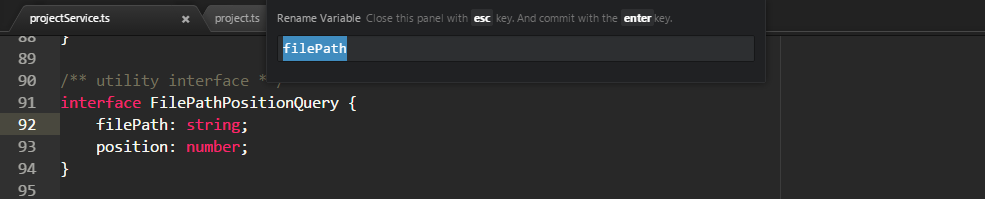
f2 to initiate rename. enter to commit and esc to cancel.
Shortcut : ctrl+enter on a Mac and alt+enter for Windows and Linux
when using intentions, alt+a when using atom-ide-ui. Currently
available codefixes:
https://github.com/Microsoft/TypeScript/tree/master/src/services/codefixes
Atom's symbols-view package only works with ctags. This is obviously
unsuitable for TypeScript. Hence, we provide two commands to emulate
symbols-view:
typescript:toggle-file-symbolstypescript:toggle-project-symbols
Both are bound to the same keys as corresponding symbols-view commands
by default:
ctrl-randctrl-shift-ron PCcmd-randcmd-shift-ron Mac
Look at CONTRIBUTING.md for curiosity. We work hard to keep the code as approachable as possible and are highly keen on helping you help us.
Breaking changes available online.