AliOS Studio.en
EN | 中文
AliOS Studio is a AliOS Things development environment based on vscode, and is available for Windows, macOS and Linux. AliOS Studio supports:
- Excellent development experience, simple UI.
- Language support for C includes Auto-completion, Symbol searching, Go to/Peek Definition/Declaration, etc.
- Compile, upload and debug with AliOS Things.
- Support many embedded boards.
- uDevice Center, Serial tool, TSL Convert tool etc.
Download and Install vscode.
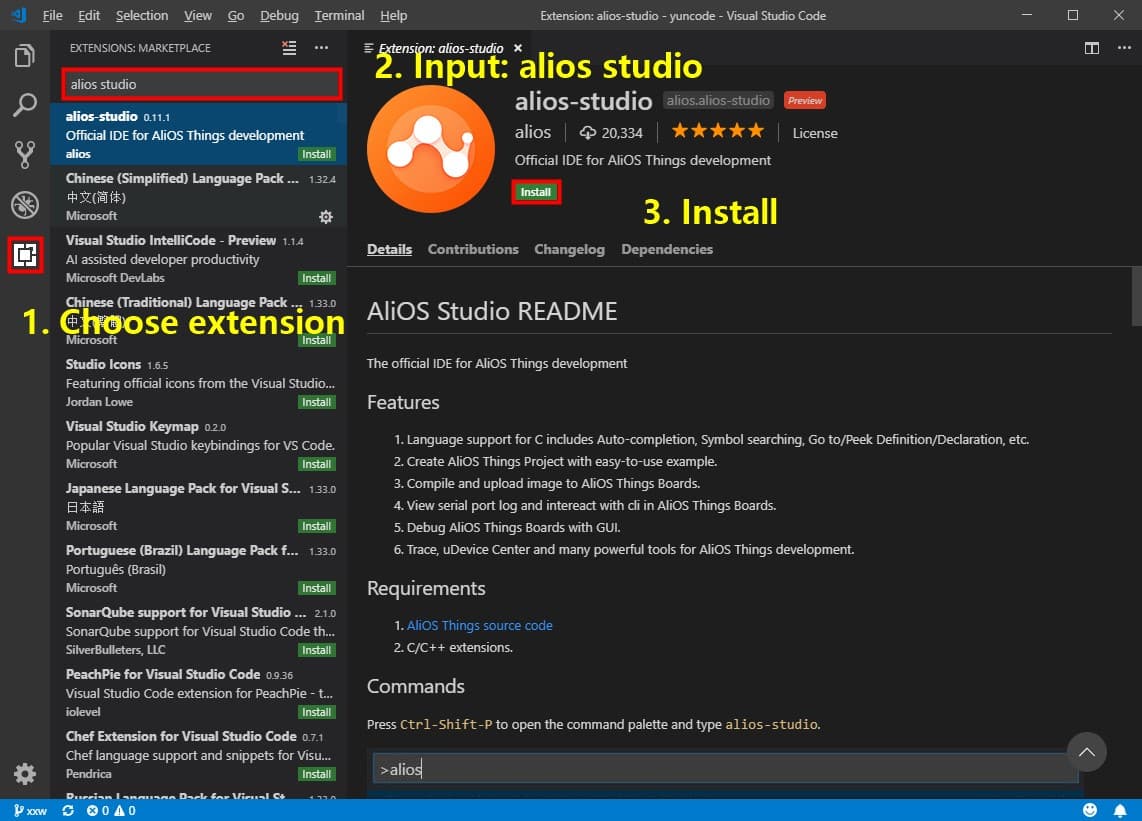
Open vscode, Install AliOS Studio extension:
AliOS Studio depends on aos-cube, check aos-cube to Install. AliOS Studio also supports install aos-cube, show like this:
NEED to install python2 and pip first !, check System envirmonent setup.
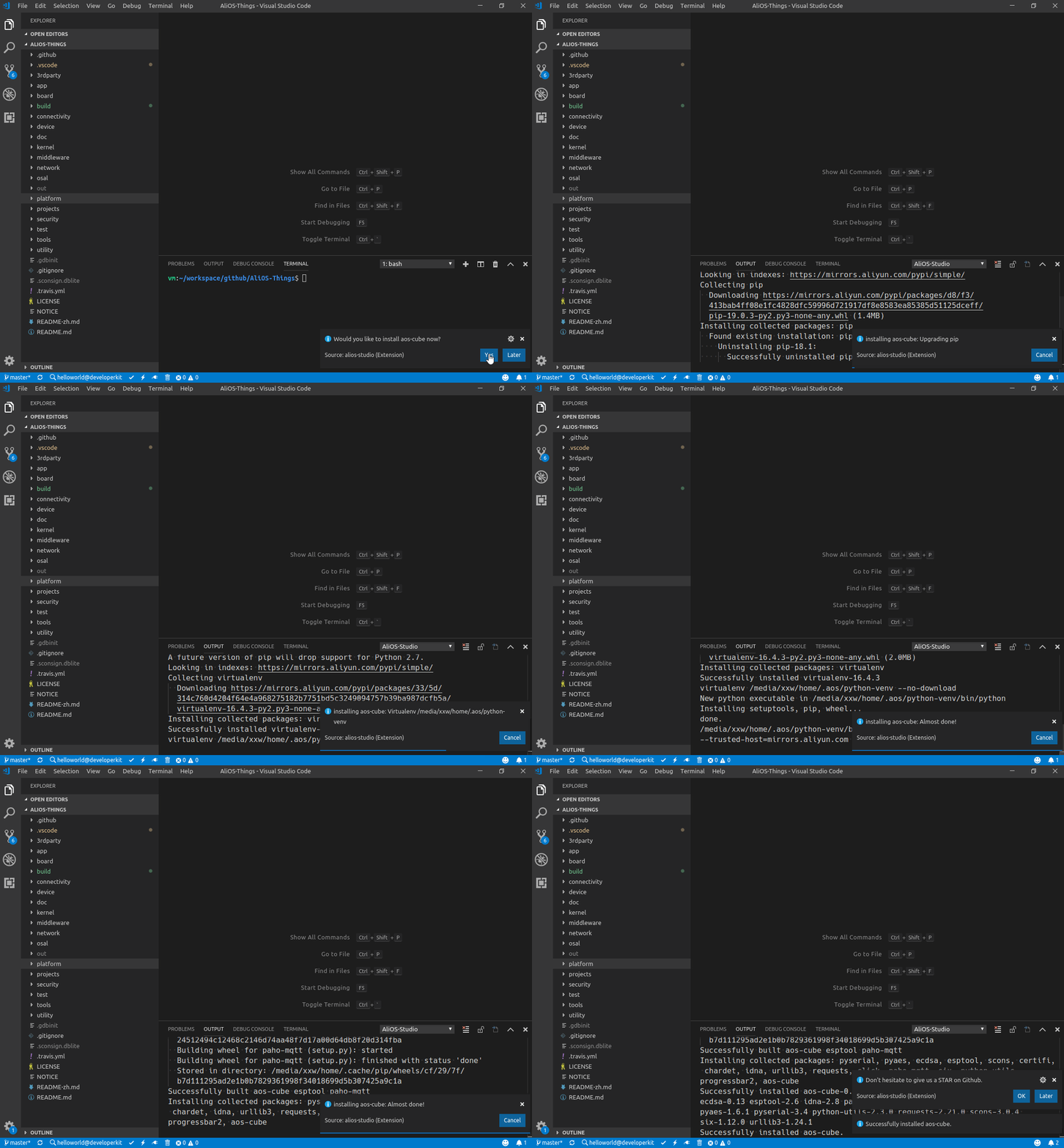
Install
aos-cubeByAliOS Studio,aos-cubewill be installed in virtual python envirmonent(virualenv), ,aos-cubeworks well in vscode terminal, but not working in other terminal likecmdorpowershell.
The main features of AliOS Studio displays in vscode statusbar on the bottom. the icons is Build, Flash, serial tool, Clean from left to right.

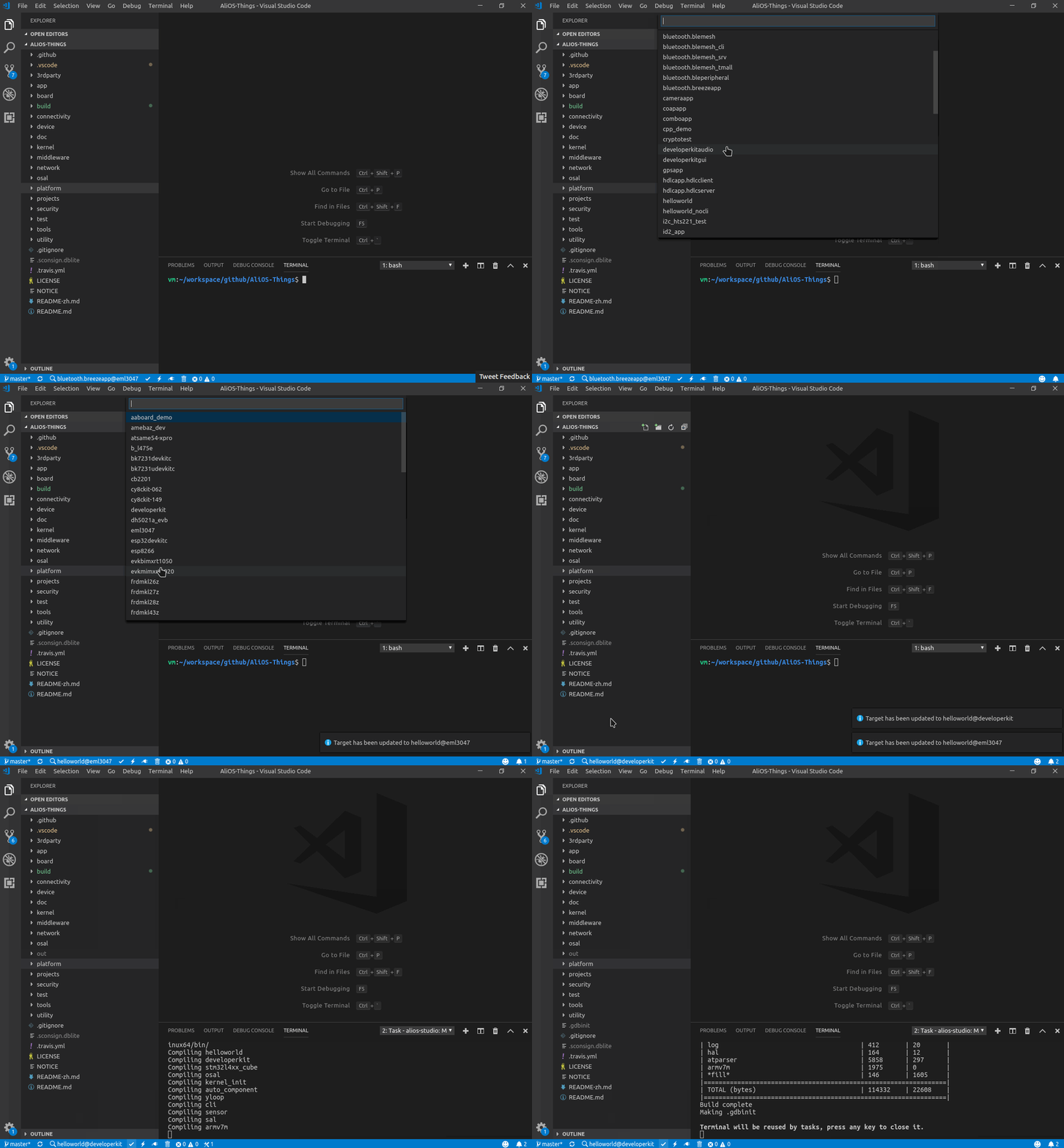
helloworld@developerkit is the build target in statusbar, which helloworld is the app name, developerkit is the board name. You can choose app and board by click it and build target like this:
- Connect board and PC by USB Micro cable.
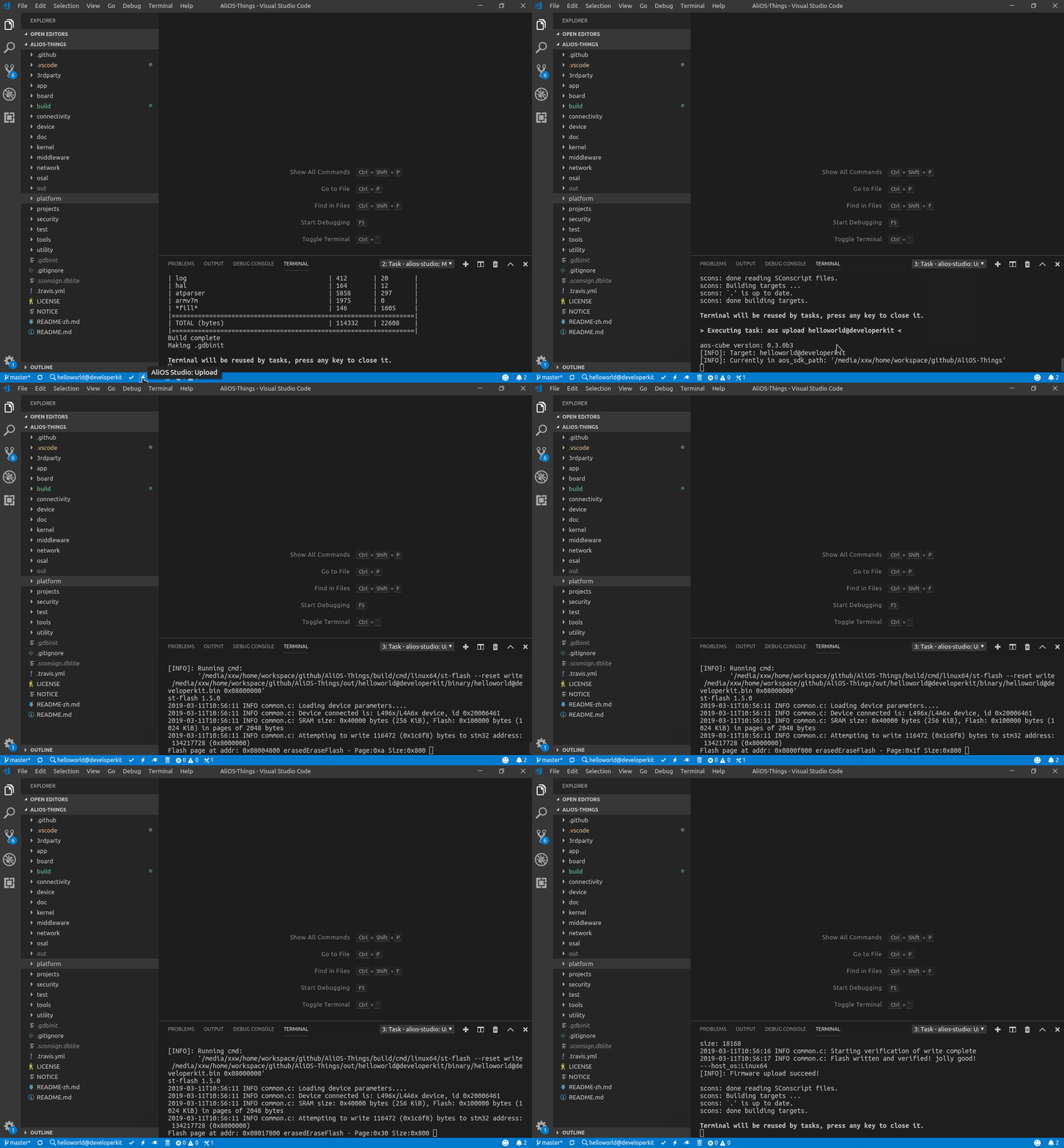
- click Flash icon to Flash binary to board.
If not set the serial port number and the baudrate, click Flash icon will show the quickpick to pick serial port and input baudrate.
Here you can see AliOS Studio board list that supports Flash. If you want your board supports AliOS Studio Flash, refer to:
In vscode, Press F5 or click Debug > Start Debugging will enter in debug mode:
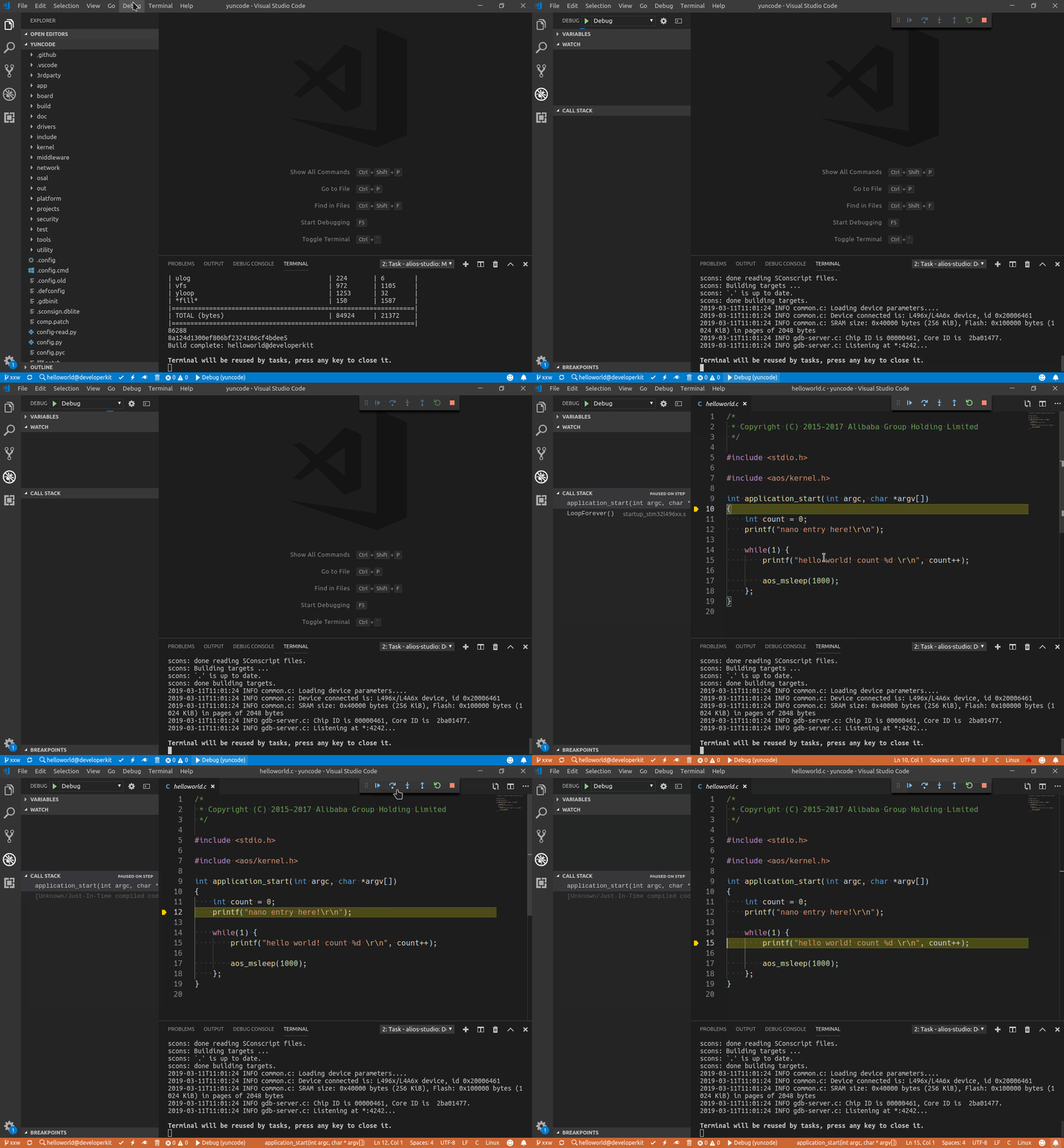
Here you can see AliOS Studio board list that supports Debug. If you want your board supports AliOS Studio Debug, refer to:
Reference video: 使用 AliOS Studio 开始 AliOS Things 调试.
Best to set the optimization level to -Og or -O0 when debugging, otherwise there will be problems such as function jump exception, single-step debugging exception, variable optimize-out. Set the optimization level:
- For AliOS Things < 2.1.0: modify
COMPILER_SPECIFIC_OPTIMIZED_CFLAGSto -Og or -O0 inbuild/aos_toolchain_arm-none-eabi.mk. - For AliOS Things >= 2.1.0: add
BUILD_TYPE=debugwhen make:aos make BUILD_TYPE=debug.
Press Ctrl-Shift-P to open the command palette and type alios-studio:
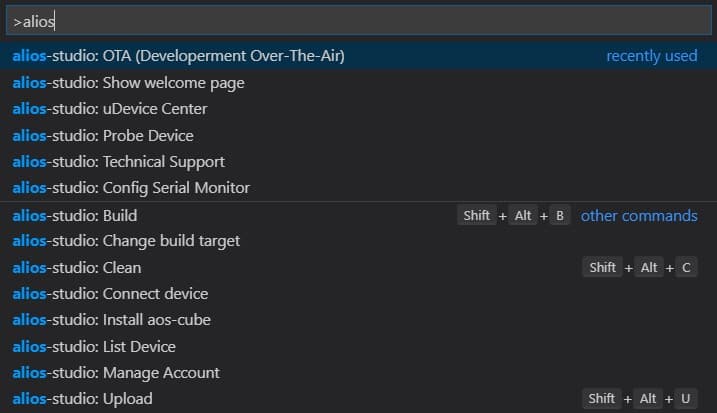
| command | description | Status bar icons |
|---|---|---|
Build |
Build AliOS Things: aos make app@board
|
 |
Change build target |
Change build target, including app and board |  |
Clean |
Clean : aos make clean
|
 |
Upload |
Upload firmware to device: aos upload app@board
|
 |
Config Serial Monitor |
- | - |
Connect device |
Execute command: aos monitor
|
 |
Install aos-cube |
Check Install aos-cube | - |
List Device |
List all the serial port | - |
Manage Account |
Manage aliyun account | - |
Probe Device |
- | - |
Technical Support |
Open dingtalk | - |
OTA(Developerment Over-The-Air) |
developerment over-the-air | - |
Show welcome page |
show welcome page | - |
AliOS Studio default keybinding:
| key | command | description |
|---|---|---|
| shift+alt+b | alios-studio.build |
build |
| shift+alt+c | alios-studio.clean |
clean |
| shift+alt+u | alios-studio.upload |
upload |
Use the following to embed a AliOS Studio shortcut in keybindings.json. Replace with your preferred key bindings:
[
    {
      "command": "alios-studio.build",
      "key": "shift+alt+b"
    },
    {
      "command": "alios-studio.clean",
      "key": "shift+alt+c"
    },
    {
      "command": "alios-studio.upload",
      "key": "shift+alt+u"
    }
]To help developers to be familiar with AliOS Things APIs faster, AliOS Studio will display api-link when hover on AliOS Things APIs:
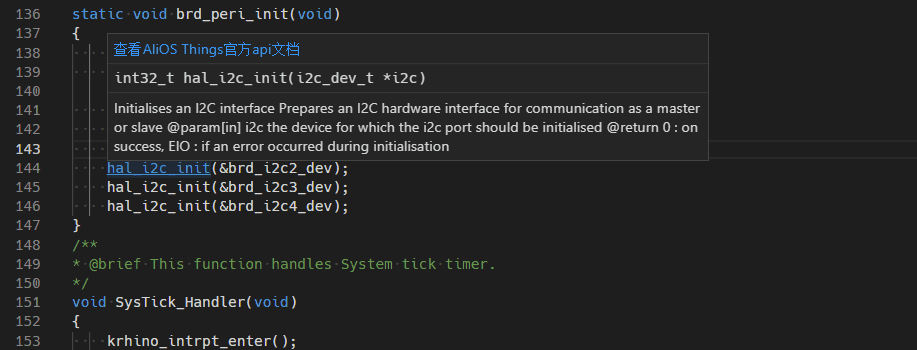
Thing Specification Language (TSL) is a data model that digitizes a physical entity and constructs the entity data model in IoT Platform.
AliOS Studio offer an efficient way to convert TSL json file to C file.
right-click json file, and click Convert TSL json to C string to convert TSL json file to C file like this:
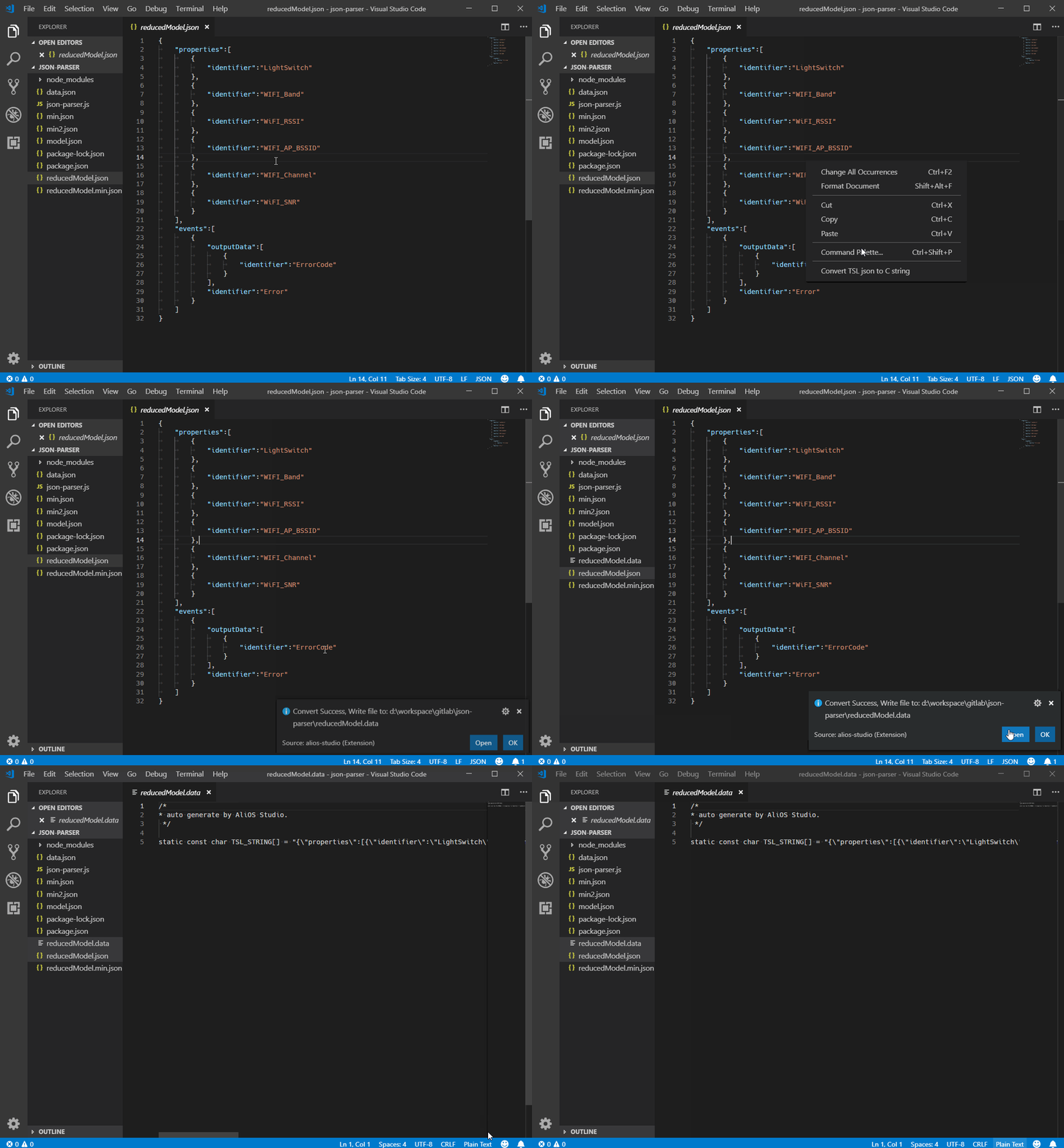
There is 3 configuration files In AliOS Things source code:
-
launch.json- configure debugging options -
settings.json- configureAliOS Studiooptions -
tasks.json- tasks list including build, flash, serial tool, clean etc.
For AliOS-Things 2.1.0, there is an symbol database named
.TAGS.AOS.DB.
AliOS Studio using vscode-cpptools to debug AliOS Things, which you can configure debug options in launch.json. refer to vscode-cpptools/launch.md for more launch.json configure options.
AliOS Studio will update launch.json every time when you change build target.
launch.json mainly options:
{
    "version": "0.2.0",
    "configurations": [
        {
            ......
            "program": "${workspaceRoot}/out/helloworld@cy8ckit-149/binary/[email protected]",
            "miDebuggerServerAddress": "localhost:4242",
            "setupCommands": [
                ......
                {
                    "text": "target remote localhost:4242"
                }
                ......
            ],
            "osx": {
                "miDebuggerPath": "arm-none-eabi-gdb"
            },
            "linux": {
                "miDebuggerPath": "arm-none-eabi-gdb"
            },
            "windows": {
                "miDebuggerPath": "arm-none-eabi-gdb.exe"
            }
        }
    ]
}| option | description |
|---|---|
program |
ELF file to debug, like out/app@board/binary/[email protected]
|
miDebuggerServerAddress and setupCommands
|
GDB connect port, Different gdb servers use different ports |
miDebuggerPath |
The path to the debugger (such as gdb) |
AliOS Studio will update settings.json automatically. but you can modify settings.json by yourself.
{
    "aliosStudio.inner.yosBin": "aos",
    "aliosStudio.hardware.board": "cy8ckit-149",
    "aliosStudio.name": "helloworld",
    "aliosStudio.aosVersion": "2.1.0",
    "C_Cpp.default.browse.databaseFilename": "${workspaceRoot}/.vscode/.TAGS.AOS.DB",
    "aliosStudio.iot.deviceName": "test_01",
    "aliosStudio.iot.productKey": "a1MZxOdcBnO"
}
This is
settings.jsonin AliOS Things 2.1.0.
| option | description |
|---|---|
yosBin |
- |
hardware.board |
board of build target |
aosVersion |
AliOS Things version |
C_Cpp.default.browse.databaseFilename |
symbol database path |
iot.deviceName |
deviceName for OTA(Developerment Over-The-Air) |
iot.productKey |
productKey for OTA(Developerment Over-The-Air) |
Official description about vscode
task.jsonplease refer to https://code.visualstudio.com/Docs/editor/tasks。options of task please refer to https://code.visualstudio.com/Docs/editor/tasks#_custom-tasks。
AliOS Studio using tasks.json to do many works such as build, flash, clean.
| label | description | statusbar icons |
|---|---|---|
| alios-studio: Make | build | |
| alios-studio: Upload | flash | |
| alios-studio: Serial Monitor | serial tool | |
| alios-studio: Clean | build | |
| alios-studio: OTA | OTA(Developerment Over-The-Air) | - |
You can add custom tasks by yourself in tasks.json, and run task by click menubar Terminal > Run Task...:
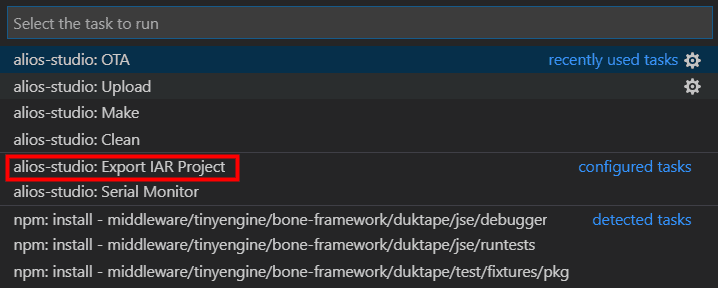
There are more tasks for AliOS Things in Appendix > Add Custom Tasks.
{
  "label": "alios-studio: Export IAR Project",
  "type": "shell",
  "command": "aos",
  "args": [
    "make",
    "IDE=iar"
  ],
  "presentation": {
    "focus": true
  }
}{
"label": "alios-studio: Parallel Build",
"type": "shell",
"command": "aos",
"args": [
"make",
"JOBS=8"
],
"presentation": {
"focus": true
}
}{
"label": "alios-studio: Build For Debug",
"type": "shell",
"command": "aos",
"args": [
"make",
"BUILD_TYPE=debug"
],
"presentation": {
"focus": true
}
}This error only appears on linux
check Visual Studio Code is unable to watch for file changes in this large workspace
same problem as Visual Studio Code is unable to watch for file changes in this large workspace
Don't add comments in .vscode/tasks.json or .vscode/launch.json.
Report this problem to us: https://github.com/alibaba/AliOS-Things/issues