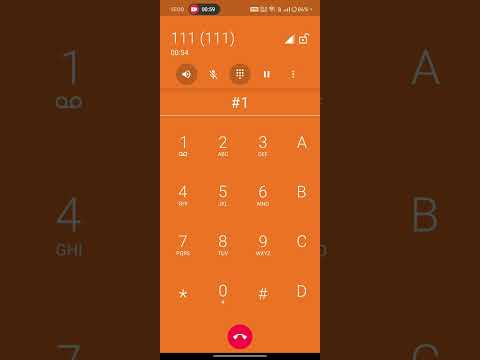
This application allows users to dial any sip extension and ask any question from Gemini
git clone https://github.com/aqeelabpro/gemini-asterisk
cd gemini-asterisk
git switch gemini
open in your favourite editor or IDE
- FreePBX installed
- Zoiper/Any other Softphone of your choice(some other popular softphones: linphone, microsip) Installed
Goto https://www.zoiper.com/en/voip-softphone/download/current and choose it according to your own OS
- Follow The instructions on FreePBX Installation on Ubuntu 22.04/23.04
- Goto Config Edit in the Admin tab in FreePBX(you will have to download config edit module)
- Paste the code provided at the end to the
extensions_custom.conffile, and clickSavebutton and theApply Configbutton at the top - create
Jar filefrom this Application and upload to server - Create a main folder like
gemini-asteriskinside your home dir or whereever you want and also create relevant folders and files in the respective folder as described below - Inside
gemini-asteriskfolder, create 2 folders,configandbin - Inside the
configfolder, create a fileapplication.ymland paste content from this Java Application - Inside the Same
configfolder, create another filelog4j2.xmland pastelog4j2.xmlfrom this Java Application - You also have to have a
google-auth.jsonor any other name you want the service account key generated inside google cloud and replace its path in theapplication.ymlfile, so follow below steps
You will also need a Google Cloud account.
Follow the guidelines here, https://cloud.google.com/iam/docs/service-accounts-create#console
Follow the guidelines here, https://cloud.google.com/iam/docs/keys-create-delete
- Goto
Admin Tabas shown inFigure.1 - Select the
Updatesfrom the dropdown as shown inFigure 1.1 - Click The
Modules Updatesas shown inFigure 1.2 - Click
StandardandExtendedin there and hit the check online button as shown inFigure 1.2 - You will get the
Download Allbutton, Press that button and it will download all modules including theConfig Editmodule, which we require as shown inFigure 1.2
you also have to create two wav files of 8k sample rate called ask_question interrupt-ai and copy them to /var/lib/asterisk/sounds/en/
you can use any text in the files like to ask question wait for beep sound and ask a question and press # after completing your question inside ask-question.wav file and add press any key to interrupt the ai and wait for the beep to ask the question if you don't want an answer to be completed and want to ask other question inside interrupt-ai.wav
 |
|---|
| Figure 1.1 |
 |
|---|
| Figure 1.2 |
[google-speech]
exten => 111,1,NoOp(============ ${CONTEXT} =============)
exten => 111,n,Set(__AGI_SERVER_IP=127.0.0.1)
exten => 111,n,Set(__AGI_SERVER_PORT=9000)
exten => 111,n,Set(__AGI_SERVER=agi://${AGI_SERVER_IP}:${AGI_SERVER_PORT})
exten => 111,n,Set(__SOUND_FOLDER=/var/lib/asterisk/sounds/en)
exten => 111,n,Set(__LANG_CODE=en-GB)
exten => 111,n,Set(__LANG_NAME=en-GB-Wavenet-F)
exten => 111,n,Goto(record-answer,111,1)

exten => h,1,Goto(grace_fully_hangup,s,1)

[record-answer]
exten => 111,1,NoOp(=========== ${CONTEXT} ===========)
exten => 111,n,Set(__RECORDING_FILE_NAME=${EPOCH})
; ADDED THIS LINE
exten => 111,n,Playback(ask_question&interrupt-ai)
exten => 111,n(record),Record(${SOUND_FOLDER}/${RECORDING_FILE_NAME}:wav,8,300)
exten => 111,n,AGI(${AGI_SERVER}/speechToText.agi)
exten => 111,n,Goto(play-prompt,111,1)

exten => h,1,Goto(grace_fully_hangup,s,1)

[play-prompt]
exten => 111,1,NoOp(=========== ${CONTEXT} ===========)
exten => 111,n,AGI(${AGI_SERVER}/textToSpeech.agi)
exten => 111,n,Wait(1)
exten => 111,n,Background(${SOUND_FOLDER}/${ANSWER_FILE})
exten => 111,n,Goto(record-answer,${EXTEN},record)

exten => _X,1,Goto(record-answer,111,record)

exten => h,1,Goto(grace_fully_hangup,s,1)

[grace_fully_hangup]
exten => s,1,NoOp(=========== ${CONTEXT} ===========)
exten => s,n,StopMonitor()
exten => s,n,Hangup
Learn more about AMI at https://docs.asterisk.org/Configuration/Interfaces/Asterisk-Manager-Interface-AMI/