Integration‐GL.iNet
This guide has been tested with a GL.Inet FLint 2 (GL-MT6000) running Firmware v4.8.3
(OpenWRT 21.02). It might also work with other GL.iNet Routers and different Firmware
versions, but was not tested.
It is assumed your router IP is 192.168.2.1. If that is not the case, replace the IP in
the upcoming steps with your correct one.
Warning
The version of AdGuard Home you are syncing from must NOT be newer than the version of AdGuard Home on the Router, otherwise sync will fail!
By default, when trying to access the interface for AdGuard Home (192.168.2.1:3000), you are blocked by the
login screen of the GL.iNet Router and adguardhome-sync won't work.
You can though access directly the login interface of AdGuard Home with
192.168.2.1:3000/login.html. But you do not have login credentials out of the box.
- Login to the Admin Panel
- Enable Adguard Home:
- Applications -> AdGuard Home ->
Enable - AdGuard Home Handle Client Requests ->
Enable
- Applications -> AdGuard Home ->
- Enable SSH on the Router:
- System -> Security -> Access Control -> SSH ->
Enable - Click
Apply
- System -> Security -> Access Control -> SSH ->
- SSH into the Router:
- Open a console and type
ssh root@192.168.2.1 - Type in the root password
- You should see the terminal stating
root@GL-MT6000:~#

-
If you are an advanced user, you can create an SSH Key and add this key to
/etc/dropbear/authorized_keys. This way you don't have to type in the root password everytime you SSH into the Router, but you are logged in automatically
-
- Generate a password for the AdGuard Home login:
- Steps were taken from Reset web password
- If you already have a system which has htpasswd, skip the next sub-step
- Install htpasswd
- In the terminal type
opkg update && opkg install apache-utils
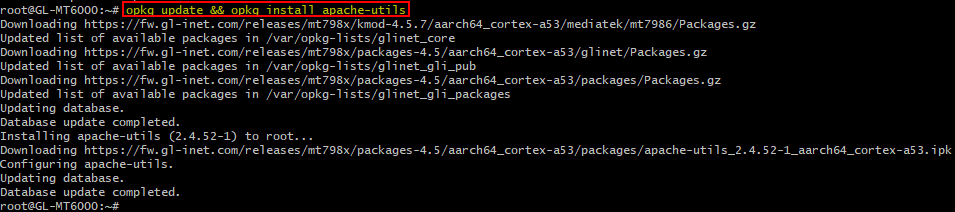
- In the terminal type
- Type
htpasswd -B -C 10 -n -b YourDesiredUsername YourDesiredSuperSecretPassword - You will get username and hashed password in a
username:hashedpasswordformat

- Copy & paste that into a temporary textfile
- Type
opkg remove apache-utilsto remove the package again if desired
- Prepare login information:
-
In a temporary text file, prepare the following code and replace it with your result from htpasswd:
users:
  - name: YourDesiredUsername
    password: $2y$10$2I2muCksiN8PkDAbZ.mLT.fnZ6AmJPx7tN.CgEg0W.lnyOT6cCg3u
-
Copy it to the clipboard
-
- In the terminal type
vi /etc/AdGuardHome/config.yaml- In the bottom left of vi you should see something like
- /etc/AdGuardHome/config.yaml

- In the bottom left of vi you should see something like
- The beginning of the file should look like this
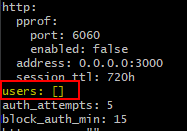
- Press
ito enable insert mode in vi. You should see aIin the bottom left now - Replace the
users: []part with what you have prepared (normallymouse rightclick->paste) and it should look like this

- Pay attention to the spacings!
-
users:does not have spacings -
- name:has 2 spacings to the left -
passwordhas 4 spacings to the left
-
- Press
Escto leave insert mode - Type
:wqto save the file and exit vi - Type
exitto log out from the SSH session
- Pay attention to the spacings!
- Disable AdGuard Home in Applications -> AdGuard Home
- Apply
- Enable AdGuard Home again
- Open
192.168.2.1:3000/login.htmland log in with your credentialsYourDesiredUsernameandYourDesiredSuperSecretPassword
- Open a console and type
- Open
adguardhome-sync.yaml - Either edit the
replicaorreplicassection to contain the following information:
# url of the replica instance
  url: http://192.168.2.1 # do NOT add a port!
  username: YourDesiredUsername
password: YourDesiredSuperSecretPassword- Save the file and restart adguardhome-sync

- Once you have synced settings from your other AdGuard Home instance, you can swap
originandreplicain youradguardhome-sync.yamlif you want to use AdGuard Home on the router as DNS #1.