
and turn Your Learning Intuition into Data!



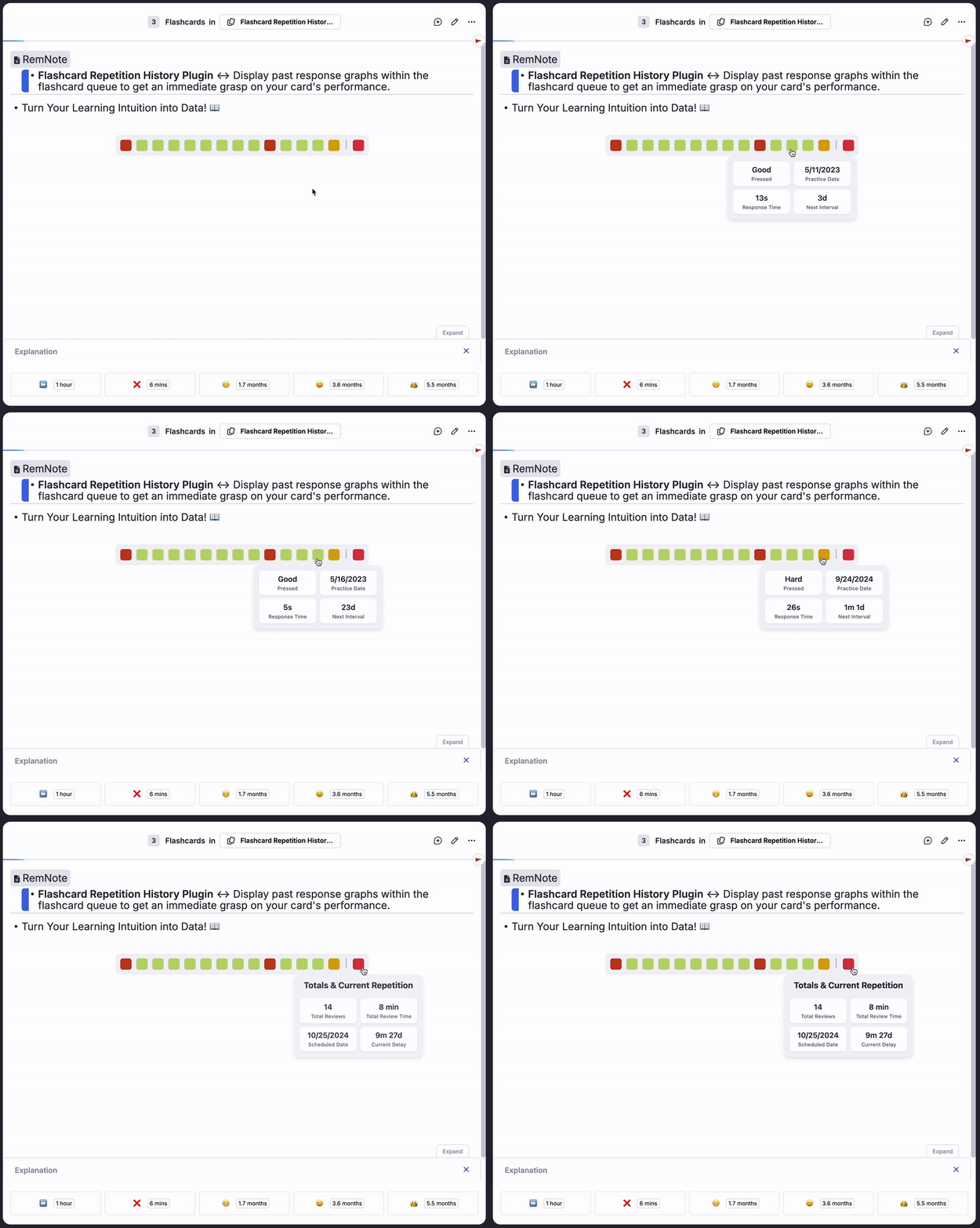
Ever felt like you were "getting the hang of" a topic? Or that you were constantly forgetting a specific card? This plugin transforms those feelings into concrete, visual data. It provides an at-a-glance history of your flashcard performance, empowering you to understand your learning patterns, identify difficult cards, and build a more effective study routine. Stop guessing and start seeing your progress.
To provide the best experience for everyone, this plugin operates in two modes, which can be selected in the settings:
-
Simple Mode (Default): A clean, minimalist view that shows your performance history at a glance. It's perfect for daily reviews without overwhelming you with data.
-
Advanced Mode: Unlocks a powerful suite of analytics for users who want to dive deeper into their spaced repetition metrics. It reveals detailed statistics and new visual cues to help you truly understand your memory's behavior.

The plugin displays a row of squares for each flashcard. Each square is a time capsule of a single review session, giving you information through two visual cues: its fill color and its border color.
The color that fills each square tells you how you graded that card. This helps you quickly spot patterns of difficulty.
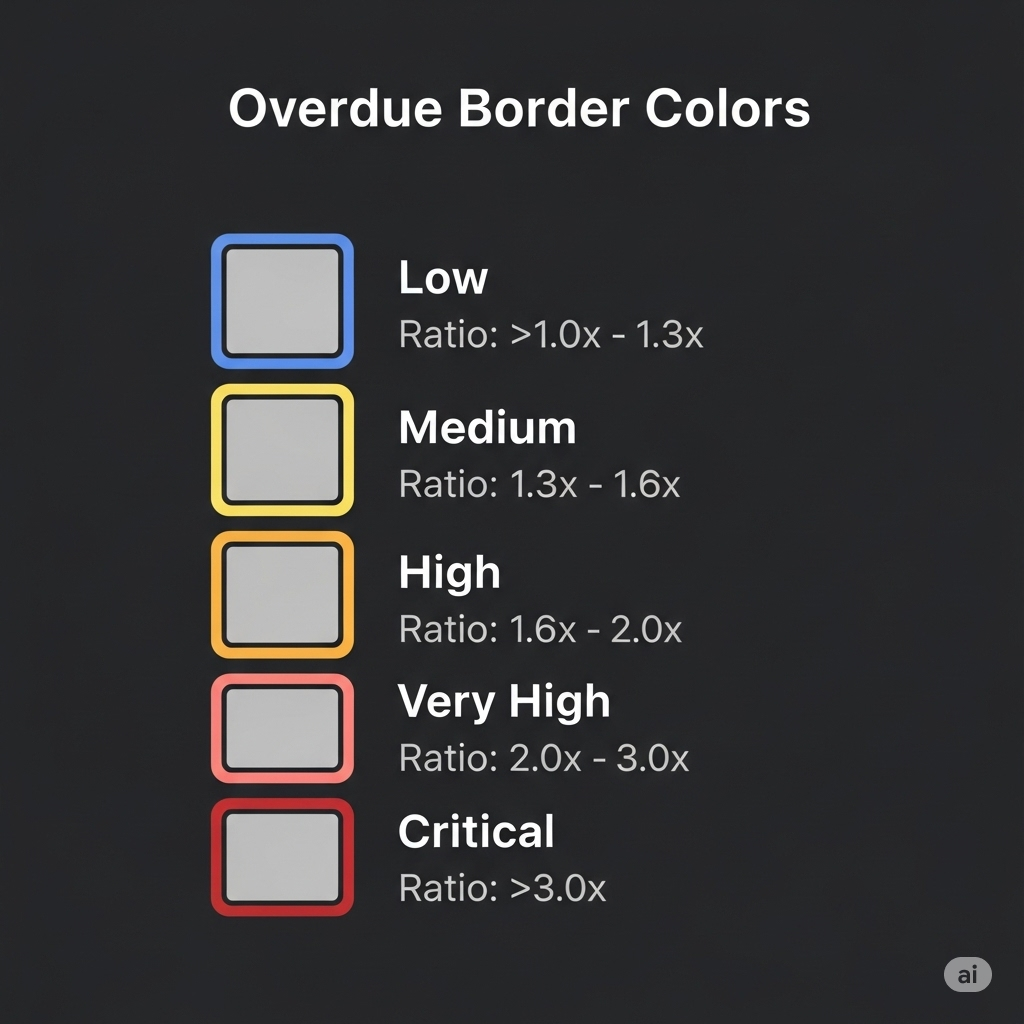
In Advanced Mode, the border of each square tells you how overdue the card was when you reviewed it.
Overdueness is a measure of how late you are for a scheduled review. It's calculated as a ratio: the actual time that passed (Used Interval) divided by the time that should have passed (Calculated Interval). A high ratio means you were very late.
🔵 Blue Border: Reviewed on time or slightly late.
🟡 Yellow Border: Moderately overdue (e.g., 30%-60% later than the interval).
🟠 Orange Border: Highly overdue.
🔴 Light Red Border: Very highly overdue.
⚫ Dark Red Border: Critically overdue (e.g., more than 3x the interval).
A Quick Caveat: To avoid confusion, remember this simple rule:
-
Fill Color = How well you remembered.
-
Border Color = How on-time you were.
This allows you to spot interesting patterns. For example, do cards with red borders (reviewed late) also tend to have red fills (forgotten)? If so, it's a strong sign that punctuality is key for that topic!
To the far right of the history, separated by a thin vertical bar, is a single square that represents the card's current state. Unlike the other squares, this one does not show a past review. Instead, it tells you about the review you are about to do.
Its visual language is different:
- Fill Color = Current Overdueness: The fill color of this square is dedicated to showing how overdue the card is right now. It uses the same color scale as the overdue borders (Blue for on-time, progressing to Yellow, Orange, and Red for increasing lateness). This helps you see at a glance if you're on time for the current review.
Hovering over any square reveals a detailed breakdown of that review session.
Displays the essential information for a quick overview:
-
Pressed: The grade you gave the card (e.g., "Good").
-
Practice Date: The date of the review.
-
Response Time: How long it took you to answer.
-
Next Interval: The new waiting period calculated by the SRS algorithm after that review.
Unlocks a full suite of SRS analytics:
-
All of the Simple Mode stats, plus:
-
Review Delay: How late you were for that specific review.
-
Used Interval: The actual time that passed between this review and the previous one.
-
Overdue Ratio: (Used Interval / Old Calculated Interval) shown as a percentage.
-
U-Factor (Used Interval Increase): A powerful metric that shows how much the New Interval you got after rating the card grew compared to the last Used Interval (time between your previous repetition and that specific repetition).
Hovering over the final, separated square provides a summary of the card's entire history and its current scheduling status.
-
Total Reviews: The total number of times you have reviewed the card.
-
Total Review Time: The cumulative time spent reviewing the card.
-
Scheduled Date: The date in which you were supposed to be doing the current repetition.
-
Last Interval : (Advanced Mode Only) The interval that was scheduled after your last review.
-
Used Interval: (Advanced Mode Only) The time that has actually passed since your last review.
-
Overdue Ratio: (Advanced Mode Only) A percentage showing how overdue the card currently is.
-
Current Delay: The amount of time that has passed since the card's scheduled review date.
The concept of an interval increase factor is central to spaced repetition. The authors of SuperMemo define U-Factor as:
"number associated with each memorized element. It equals to the ratio of the current interval and the previously used interval. ... The greater the U-Factor the greater the increase of the interval between repetitions. ... U in U-Factor stands for used interval increase"
This is a measure of the stabilization of your memory traces due to successful recall, as measured by your Spaced Repetition System (SRS) algorithm's memory model. Each time you successfully recall a flashcard, your memory traces get stronger, making them take longer to fade away. The slope of your memory forgetting curve decreases, so you don't have to review that item as soon.
In simple terms, the U-Factor is a measure of the empowerment your memory gained from that review, as calculated by your SRS algorithm. It's the ratio of the new interval divided by the last used interval.
-
A high U-Factor (e.g., 3x) means you are remembering the information well, and the algorithm decided you could wait much longer before the next review.
-
A low U-Factor (e.g., 1.2x) means you are struggling, and the algorithm is being cautious, only slightly increasing the interval.
Wondering when to switch to Advanced Mode and dig into the numbers? Here are a few questions the detailed stats can help you answer:
Check the Next Interval and U-Factor on your "Good" reviews. If the U-Factor is consistently high (e.g., > 3.0x), maybe the intervals are growing too quickly for this piece of information.
Look at your history. Do you see a pattern where squares with orange or red colored borders (high overdueness) are often followed by squares with red or orange fills (poor grades)? This provides direct visual feedback on how sensitive your memory is to delays.
A healthy learning pattern shows the Next Interval growing steadily over time. If your intervals for a card are stuck at a low number (e.g., 1d, 3d, 10d), it might be a "leech" card that needs to be rephrased or broken down.
This plugin is highly customizable via the Settings > Plugin Settings menu:
-
Display Mode: Switch between the Simple and Advanced UI.
-
Show Overdue Borders: If you are in Advanced UI, you can choose if you will have fill colors and border colors showing different information. If you think it brings confusion, you can disable the overdue borders, while retaining the enhanced tooltips of the Advanced UI.
-
Display Grade Names As: Choose between default RemNote labels ("Recalled with Effort") or shorter, Anki-style labels ("Good").
-
Inherit Square Colors: If enabled, the fill color of the squares will match your RemNote theme's highlight colors. If disabled, you can set your own custom colors.
-
Custom Colors: In the settings, you can customize all fill colors and the overdue border colors to your liking.
| Term | Definition |
|---|---|
| Next Interval | The ideal waiting time calculated by the SRS algorithm after a review. |
| Review Delay | How late a specific review was, compared to its scheduled date. |
| Used Interval | The actual time that passed between two reviews (Old Calculated Interval + Review Delay). |
| Overdue Ratio | A percentage comparing the Used Interval to the Old Calculated Interval. >100% means you were on time. >200% means you took twice as long as you should have. |
| U-Factor | "Used Interval Increase." The ratio of the new Next Interval divided by the last Used Interval. Measures how fast the interval (and your memory stability) is growing. |
| Stability of Memory | How long a memory can last if not retrieved. |
- In multi-line cards, where RemNote now stores sub-card info (a specific schedule record for each sub-item), the row of squares becomes somewhat cluttered and maybe not as meaningful.
- When used with the Incremental Everything plugin, the history widget may be hidden on the back of the card after pressing "Show Answer." This is due to a plugin conflict that we are working to resolve (we already posted a Pull Request to Incremental Everything GitHub repo that will solve this).
📆 Copyright © 2023 coldenate / Nathan Solis