Using Google Drive integration
Calibre library (metadata.db) can be located on a Google Drive.
To use Google Drive integration, you have to use the Google Developer Console to create a new app. https://console.developers.google.com.
-
After logging in create a project:
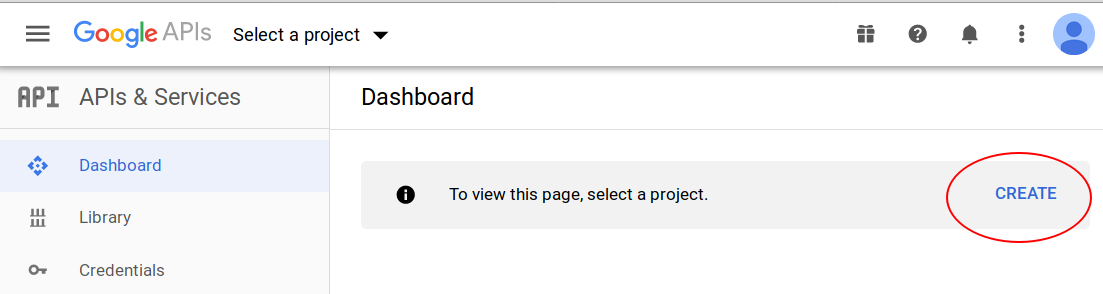
-
Choose a name and save the project:
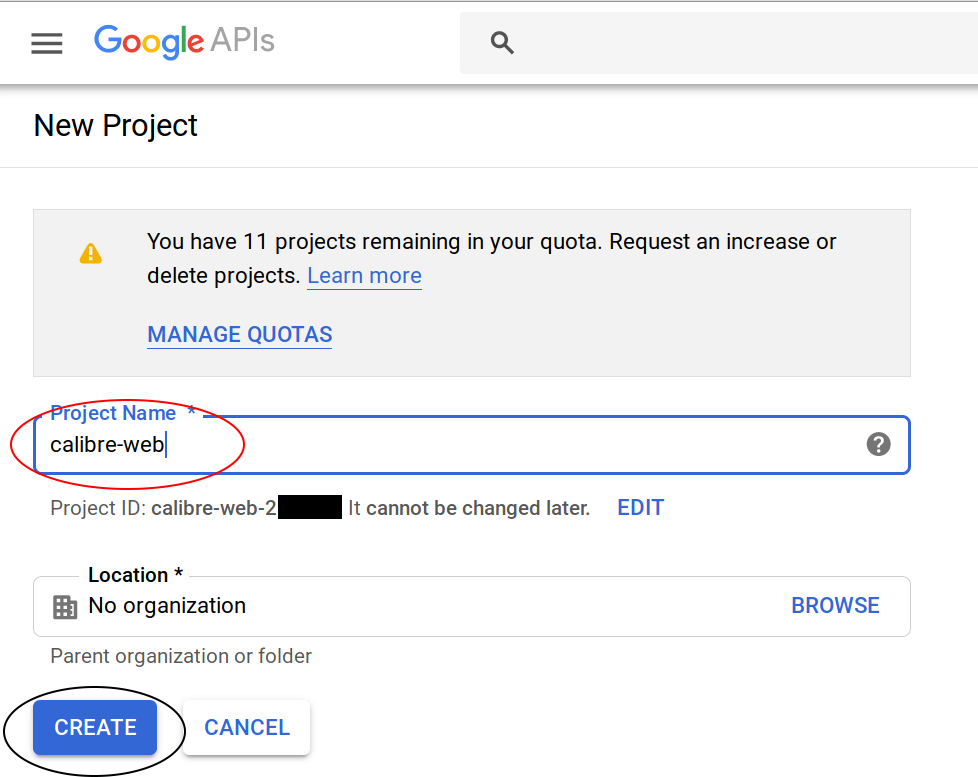
-
Activate the API for the created project by clicking on enable APIs and services or API library
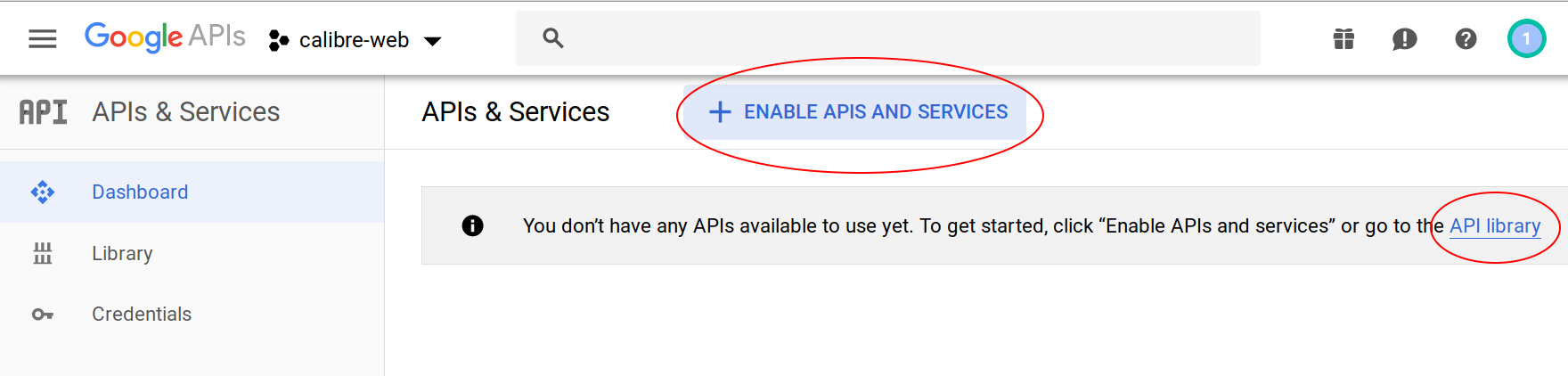
-
Choose Google Drive API from the listed Apps
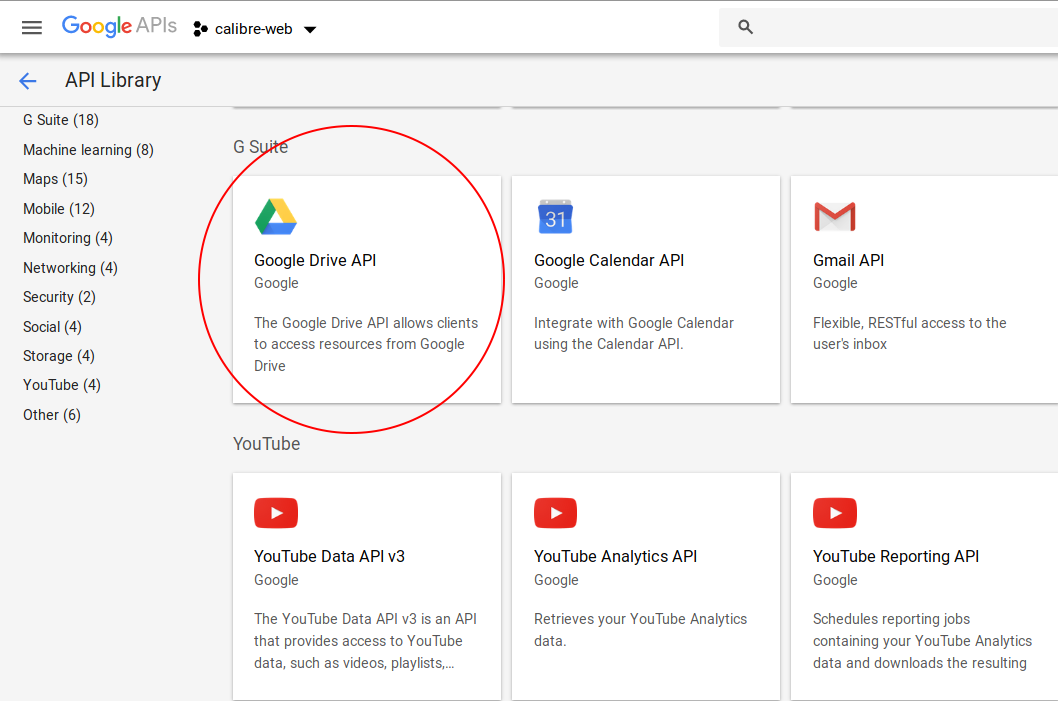
-
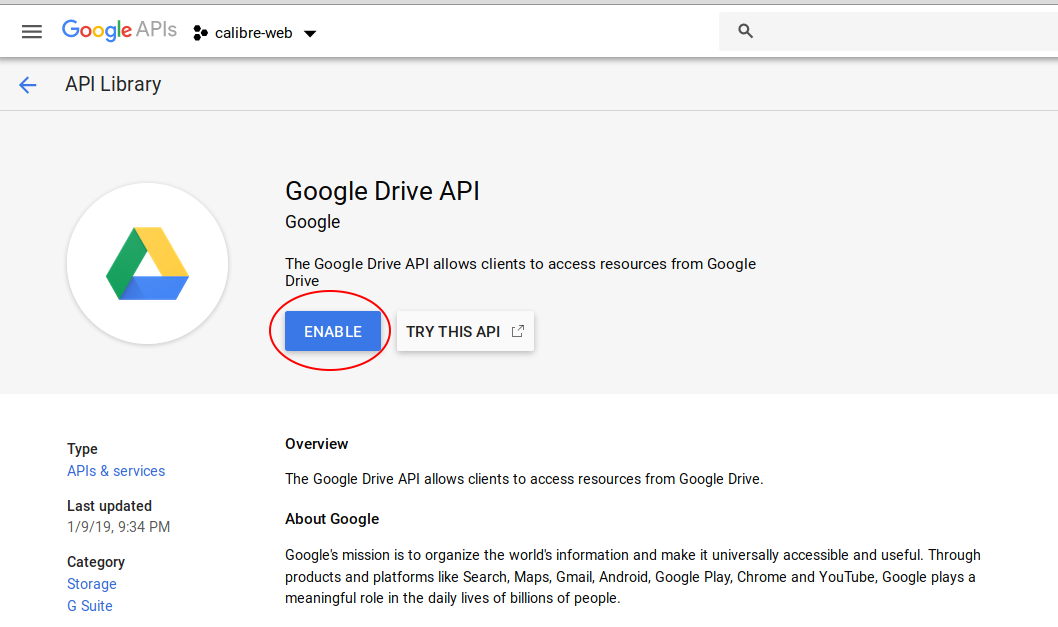
Enable the Google Drive API by clicking on enable
-
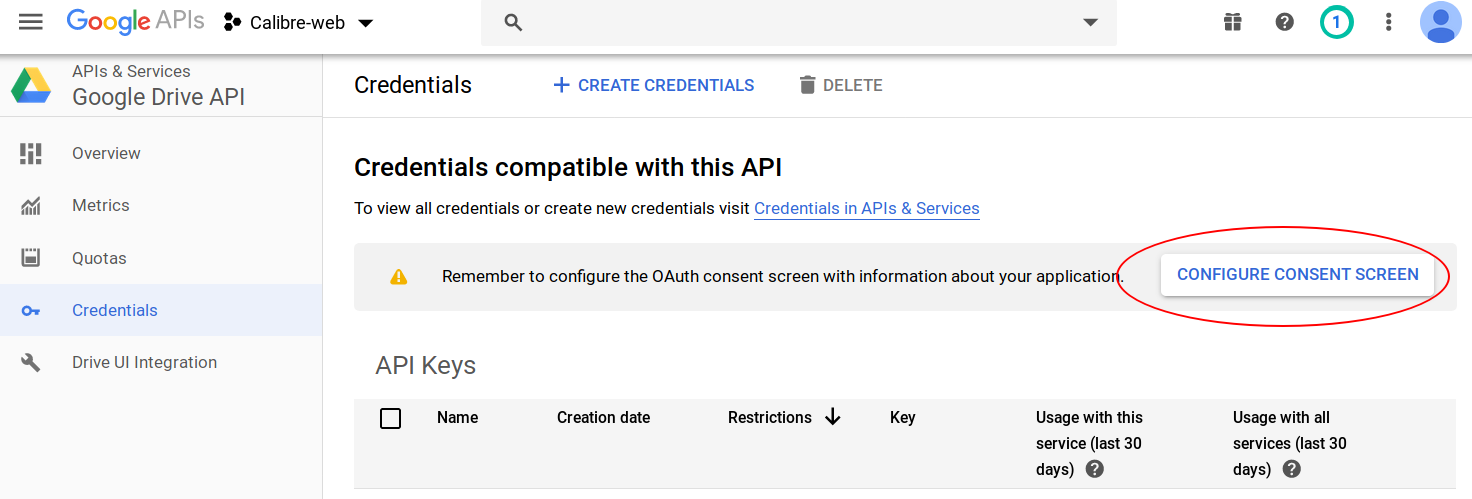
Click on Configure consent screen:
-
Enter:
- your e-mail adress,
- the applications name,
- the domain name of your application
- and add scope for '../auth/drive':
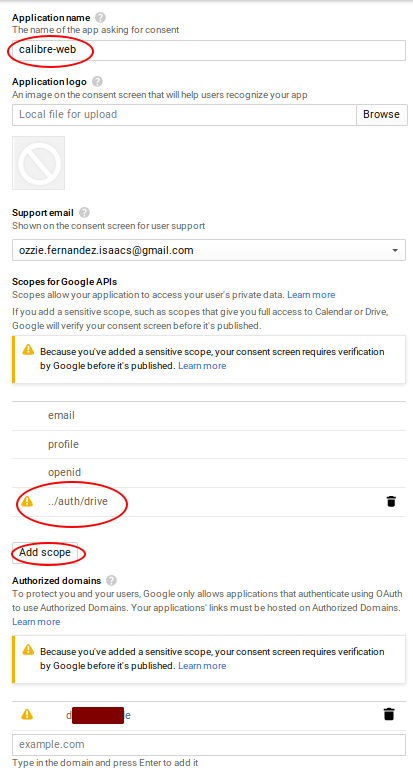
- Save your changes.
- Click on create credentials in the following screen:
- Choose OAuth Client ID from the selection.
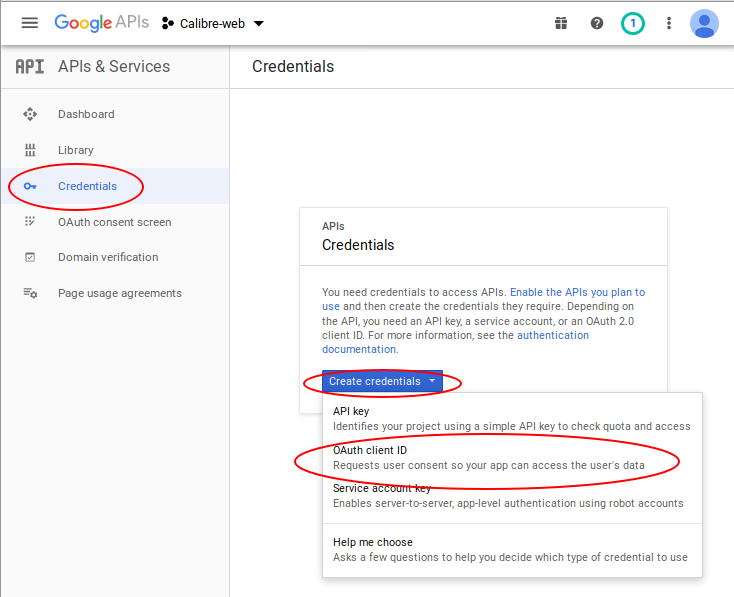
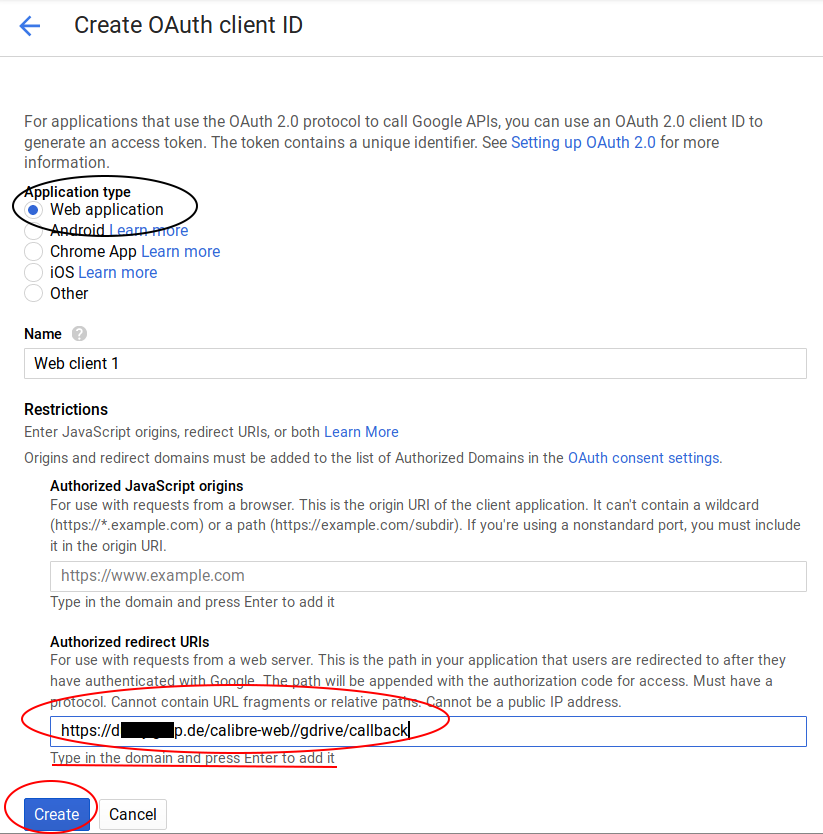
- Choose the app type: Web-application
- enter in the field 'Authorized redirect URIs' the complete domain address with the callback path: CALIBRE_WEB_URL/gdrive/callback
- E.g.: For a https connection to example.com where Calibre-Web is located in the folder 'test' you have to enter: https://example.com/test/gdrive/callback
- The address has to be public, localhost, http://internalServername or similar wont work. The field can't be empty.
-
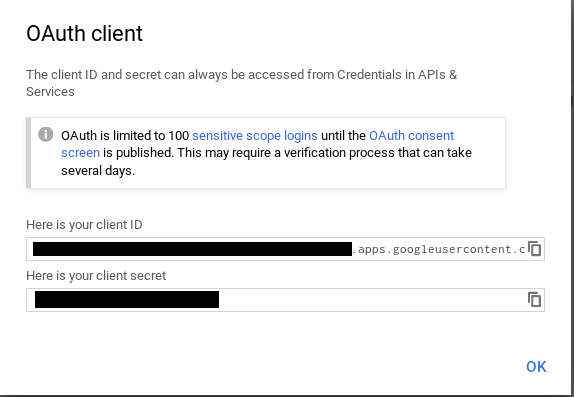
Google is now presenting your client ID and your client secret. We just close the popup, we download the information.
-
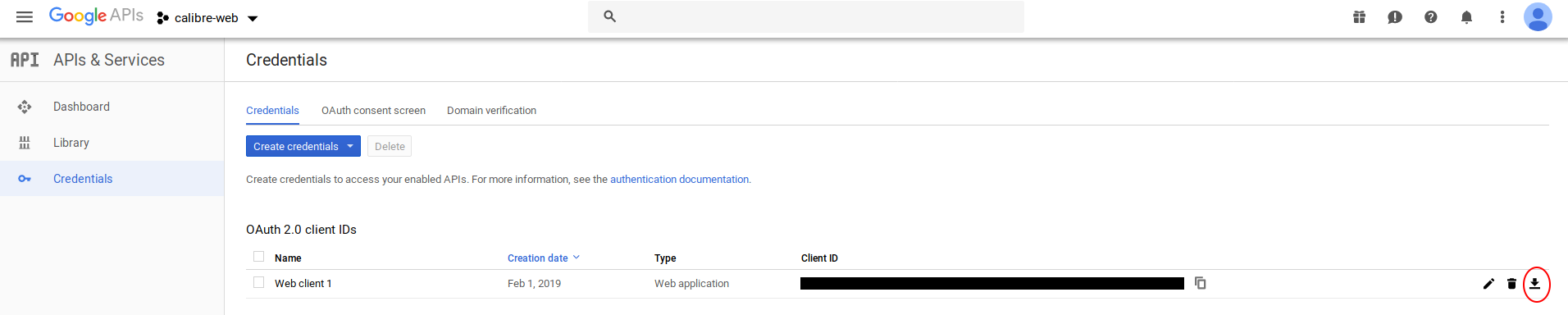
Now we download the information in json format by clicking on the download button on the overview page
-
Download json file and place it in
~/.calibre-webdirectory, with the nameclient_secrets.json. For manual installation place the file with the same name into thecalibre-webdirectory. -
Final step is the verification of your domain. First you need to add your domain (this is the address, if you want to access your server from the internet) to the google search console (https://search.google.com/search-console):
-
Please follow the steps there for verifying the domain address
- The one one the right is the easiest for self hosted domains.
After entering your domain name, download the html file and make it accessible under the address http[s]://[your-domain-name]/[filename]
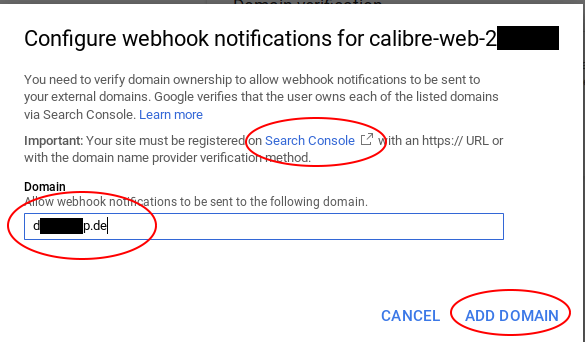
- Afterwards you can enter your domain to the screen from step 14 and activate your domain
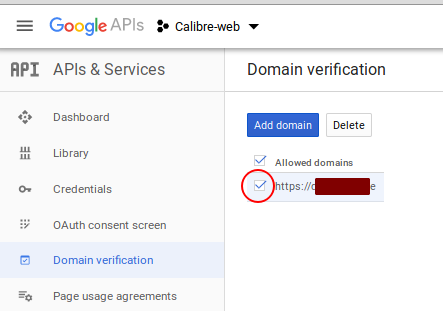
The Drive API should now be setup and ready to use, so we need to integrate it into Calibre-Web. This is done as described below:
-
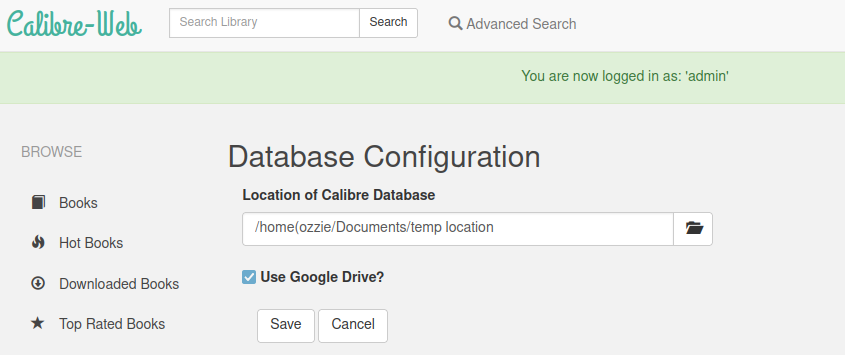
Open config page (happens automatically during initial config, otherwise open "Edit Calibre Database Configuration" in admin section)
-
Enter the location that will be used to store the metadata.db file locally, and to temporary store uploaded books and other temporary files for upload ("Location of Calibre database"). The metadata.db file has to exist and should be consistent with the books stored on Google Drive.
-
Tick Use Google Drive
-
Click the "Save" button.
-
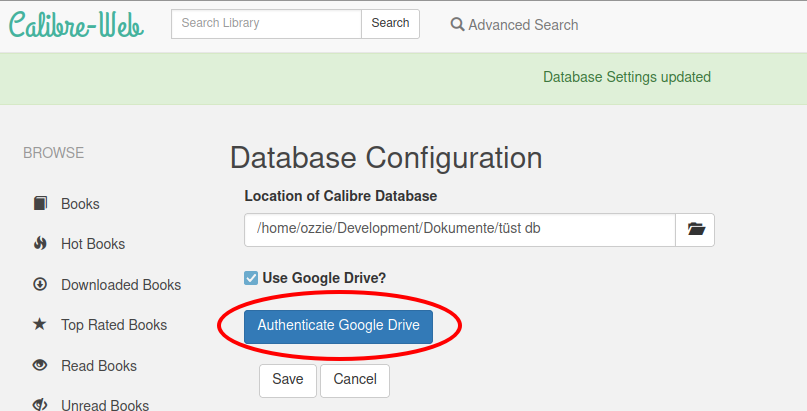
Now select Authenticate Google Drive
-
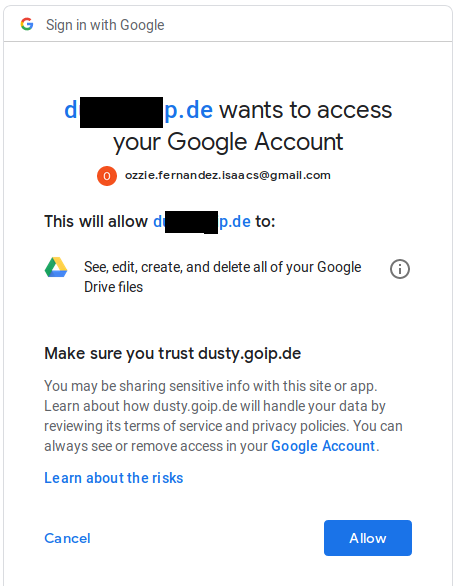
This should redirect you to Google.
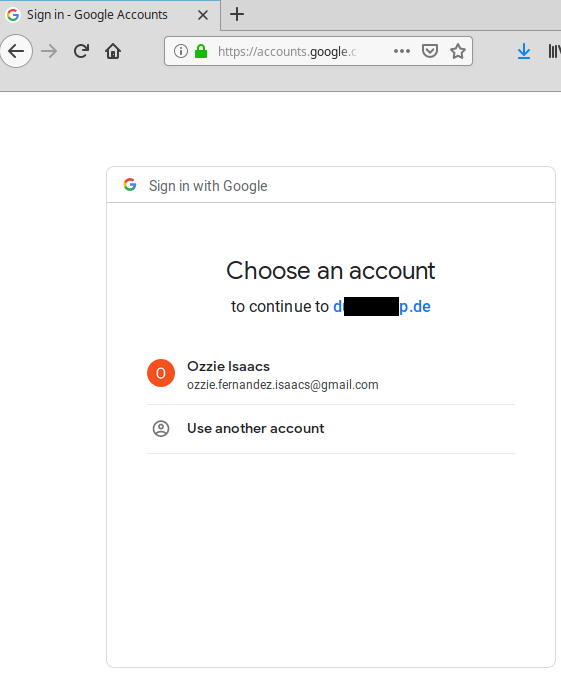
You will be warned the app isn't verified and you have to show advanced options and click on the "Go to ... unsafe" button. After allowing it to use your Drive, it redirects you back to the previous config page of your Calibre-Web instance.
-
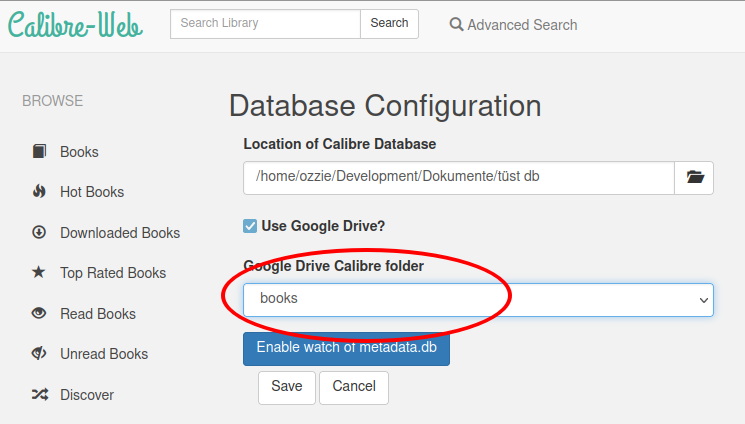
Select the folder that is the root of your Calibre library on Gdrive ("Google drive Calibre folder")
-
Click the "Save" button
-
Google Drive should now be connected
And can now be used to get images and download Epubs. Themetadata.dbis stored in the Calibre library location.
Upon Upload of new books the Calibre library folder acts as temporary folder before the final upload to Google Drive.
If your Calibre-Web is using https, it is possible to add a "watch" to the drive.
This will inform us if the metadata.db file is updated from outside and allows us to update our Calibre library accordingly.
Additionally the public address your server uses (e.g.https://example.com) has to be verified in the Google developer console.
After this is done, please wait a few minutes, then
- Open "Edit Calibre Database Configuration" page
- Click enable watch of metadata.db
- Note that this expires every week, so you need manually refresh it each week