


|
The term tickler file originally referred to a file system for reminders which used 12 monthly files and 31 daily files. Tklr, pronounced "tickler", is a digital version that ranks tasks by urgency and generally facilitates the same purpose - managing what you need to know quickly and easily. It supports the entry format and projects of etm, the datetime parsing and recurrence features of dateutil and provides both command line (Click) and graphical user interfaces (Textual). Make the most of your time! |
|
❌ Preliminary and incomplete. This notice will be removed when the code is ready for general use.
tklr began life in 2013 as etm-qt sporting a gui based on Qt. The intent was to provide an app supporting GTD (David Allen's Getting Things Done) and exploiting the power of python-dateutil. The name changed to etmtk in 2014 when Tk replaced Qt. Development of etmtk continued until 2019 when name changed to etm-dgraham, to honor the PyPi naming convention, and the interface changed to a terminal based one based on prompt_toolkit. In 2025 the name changed to "tklr", the database to SQLite3 and the interface to Click (CLI) and Textual. Features have changed over the years but the text based interface and basic format of the reminders has changed very little. The goal has always been to be the Swiss Army Knife of tools for managing reminders.
tklr offers a simple way to manage your event, task and note reminders.
Rather than filling out fields in a form to create or edit reminders, a simple text-based format is used. Each reminder in tklr begins with a type character followed by the subject of the reminder and then, perhaps, by one or more @key value pairs to specify other attributes of the reminder. Mnemonics are used to make the keys easy to remember, e.g, @s for scheduled datetime, @l for location, @d for details and so forth.
The 4 types of reminders in tklr with their associated type characters:
| type | char |
|---|---|
| event | * |
| task | ~ |
| project | ^ |
| note | % |
| goal | ! |
| draft | ? |
~ pick up milk
* Lunch with Ed @s tue 12p @e 1h30m
- starting (@s) next Tuesday at 12pm
- with an extent (@e) of 1 hour and 30 minutes, i.e., lasting from 12pm until 1:30pm.
% Give me a pig - Churchill @d Dogs look up at
  you. Cats look down at you. Give me a pig - they
  look you in the eye and treat you as an equal.
The subject, "Give me a pig - Churchill" in this example, follows the type character and is meant to be brief - analogous to the subject of an email. The optional details follows the "@d" and is meant to be more expansive - analogous to the body of an email.
^ Build dog house
  @~ pick up materials &r 1 &e 4h
  @~ cut pieces &r 2: 1 &e 3h
  @~ assemble &r 3: 2 &e 2h
  @~ sand &r 4: 3 &e 1h
  @~ paint &r 5: 4 &e 4h
The "&r X: Y" entries set "X" as the label for the task and the task labeled "Y" as a prerequisite. E.g., "&r 3: 2" establishes "3" as the label for assemble and "2" (cut pieces) as a prerequisite. The "&e extent" entries give estimates of the times required to complete the various tasks.
! interval training @s 2025-12-01 @o 3/1w
Starting December 1, a Monday, and calling for 3 completions per week.
At 8am on Wednesday, December 3 with 4d16h remaining in the week and 1 of the 3 instances completed, this goal would be displayed in Goal View as
1 2/3 4d16h interval training
where "1" is the current priority of the goal, "2/3" is the fraction of the goal remaining to be completed and "4d16h" is the remaining time for completion.
Goals are sorted in this view by their priority. How is priority determined? Suppose i_g is the number of instances specified in the goal and t_g is the period specified for their completion. In the example, i_g = 3 and t_g = 1w. Further suppose that at a particular moment, i_r is the number of instances remaining unfinished and t_r is the time remaining in the period for their completion. Initially, the goal is i_g/t_g. At the moment being considered the goal for the remaining period is i_r/t_r. E.g., i_g/t_g = 3/w = 1/2d8h and at 8am Wednesday i_r/tr = 2/4d16h = 1/2d8h.
i_r/t_r > i_g/t_g: the needed completion rate has increased - behind schedulei_r/t_r = i_g/t_g: the needed completion rate is unchanged - on schedulei_r/t_r < i_g/t_g: the needed completion rate has decreased - ahead of schedule
Equivalently, if we define priority = (i_r * t_g) / (i_g * t_r), then these conditions become
priority > 1: the needed completion rate has increased - behind schedulepriority = 1: the needed completion rate is unchanged - on schedulepriority < 1: the needed completion rate has decreased - ahead of schedule
In the example, the inital completion rate is 1/2d8h and at 8am on Wednesday it is remains 1/2d8h thus priority equals 1.
A goal is automatically refreshed either when all instances are completed within the given period or when the period ends. In either case, the @s entry is reset to the original starting date plus the period specified for completion. E.g., for the example the new starting date would be 2025-12-01 + 1w = 2025-12-08.
While a goal is somewhat like a task, it has these important differences:
- Only the instances of a goal for a given period can be finished. The goal itself automatically refreshes forever unless it is deleted.
- A goal can never be past due, only behind schedule (priority > 1) and then at most for the remainder of the given period.
? Coffee with Alex @s fri @e 1h
This can be changed to an event when the details are confirmed by replacing the ? with an * and adding the time to @s. This draft will appear highlighted on the current day until you make the changes to complete it.
-
An appointment (event) for a dental exam and cleaning at 2pm on Feb 5 and then again, @+, at 9am on Sep 3.
- dental exam and cleaning @s 2p feb 5 @e 45m @+ 9am Sep 3
-
A reminder (task) to fill the bird feeders starting Friday of the current week and repeat after an offset of 4 days from datetime of the previous completion.
~ fill bird feeders @s fri @o 4d
The full flexibility of the superb Python dateutil package is supported. Consider, for example, a reminder for Presidential election day which starts in November, 2020 and repeats every 4 years on the first Tuesday after a Monday in November (a Tuesday whose month day falls between 2 and 8 in the 11th month). In tklr, this event would be
* Presidential election day @s nov 1 2020
  @r y &i 4 &w TU &m 2, 3, 4, 5, 6, 7, 8 &M 11
Each of the views listed below can be opened by entering the first letter of the view's name, e.g., pressing A (shift+a) will open Agenda View.
These views involve vertical lists of reminders, each row beginning with a tag from "a", "b", ..., "z", followed by the pertinent details of the reminder. When necessary, lists are split into pages so that no more than 26 reminders appear on any one page. The left and right cursor keys are used to move back and forth between pages.
On any page, pressing the key corresponding to a tag will open a display with all the details of the corresponding reminder. When the details of reminder are being displayed, various commands are available to modify the reminder. E.g., ,e (comma followed by e) to edit the reminder or ,d to delete the reminder are two examples. Additionally, the key corresponding to the tag of another reminder will switch the details display to that reminder, escape will close the details display and entering the upper case letter corresponding to another view will open that view.
The point of using tags to select and display reminders in this way is to minimize key presses. Any reminder on a page can be selected and its details displayed with a single key press.
Scheduled Reminders for the Week with busy times displayed by a leading busy bar.
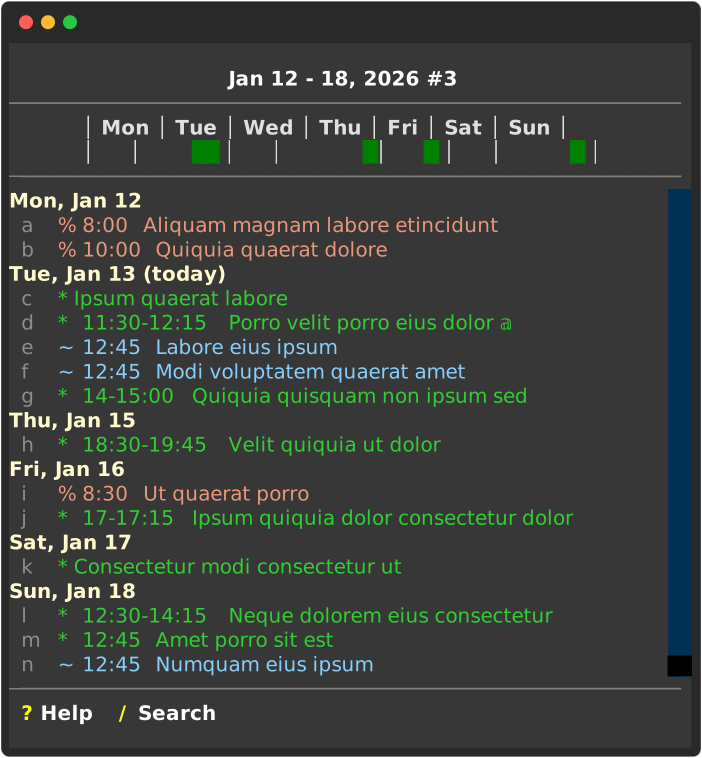
Weeks View: busy bar and scheduled reminders for week
The left and right cursor keys shift the display backward and forward one week at a time. Adding shift to these cursor keys shifts by four weeks at a time. The space key restores the display to the current week.
There are 5 cells in the busy bar for each week day. The first (furthest left) displays a yellow square if an all day event such as a holiday is scheduled for that date. The remaining 4 cells correspond to the 6-hour periods during the day:
Press G to open Goal View. It displays a prioritized, taggable list of every reminder whose itemtype is !:
tag priority num_completed/num_required time_remaining subject
Priorities are recomputed whenever the view opens. For each goal, let i_g be the number of required completions in the period t_g, i_r the number of instances remaining this period, and t_r the time remaining before the period ends. The ratio priority = (i_r * t_g) / (i_g * t_r) indicates how far ahead or behind the schedule you are:
priority > 1: the goal is behind schedule, so it floats to the top of the view.priority = 1: you are on schedule.priority < 1: you are ahead of schedule.
The time remaining column uses the current datetime, so refreshing the view immediately reflects newly completed instances.
- 00:00-05:59 night
- 06:00-11:59 morning
- 12:00-17:59 afternoon
- 18:00-23:59 evening
If the busy period for an event overlaps one or more of these periods then those periods are tentatively colored green. If the busy periods for two events overlap within one or more periods, then those periods are colored red to indicate the conflict. E.g., the red afternoon cell for Wednesday, reflects the conflict between the reminders tagged g and h
Pressing g displays the details for that reminder.
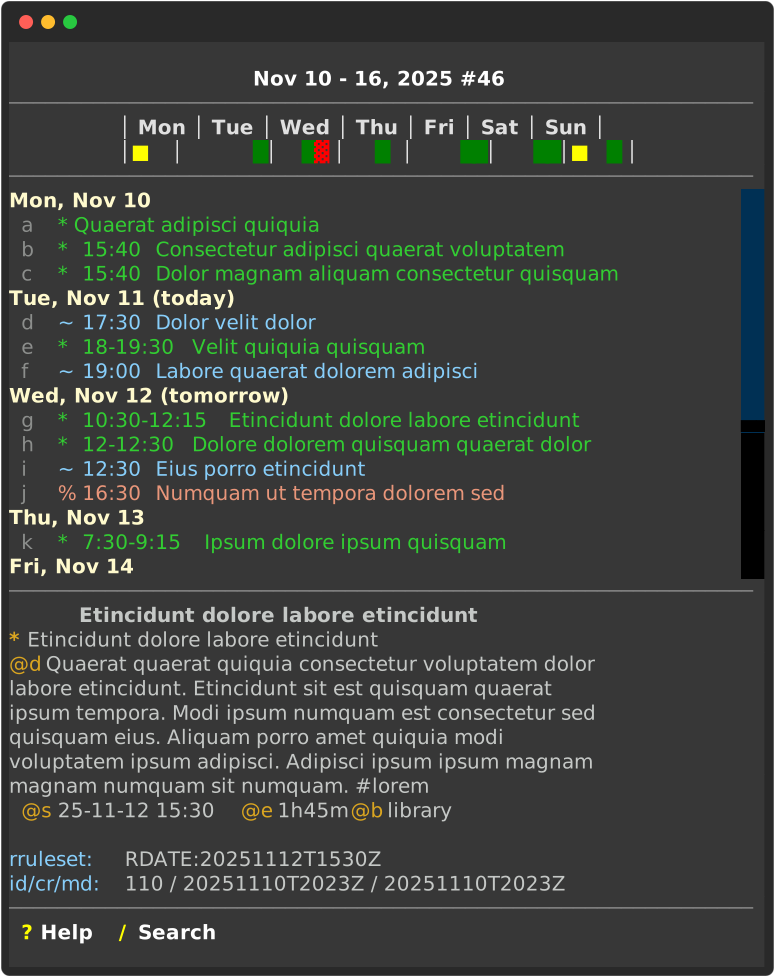
Weeks View: details for the reminder tagged g
The next three days of events with notices and drafts followed by tasks ordered by their urgency.
The first day will always include any notice or drafts in addition to any scheduled events. In this case the reminber tagged b indicates that there is an event beginning in 4 days (+4d) whose subject begins with "Quisquam" and which has a notice entry, "@n INTERVAL" in which INTERVAL > 4d. This notice of the upcoming event will be displayed on the first day (current date) of Agenda View each day until the day of the event.
There is also a draft entry displayed in red. This is simply a reminder whose item type is "?". This is used to flag a reminder as incomplete as would be the case, e.g., if a final datetime for the event had not yet been finalized. Draft reminders are displayed on the current, first day in Agenda view until the item type is changed.
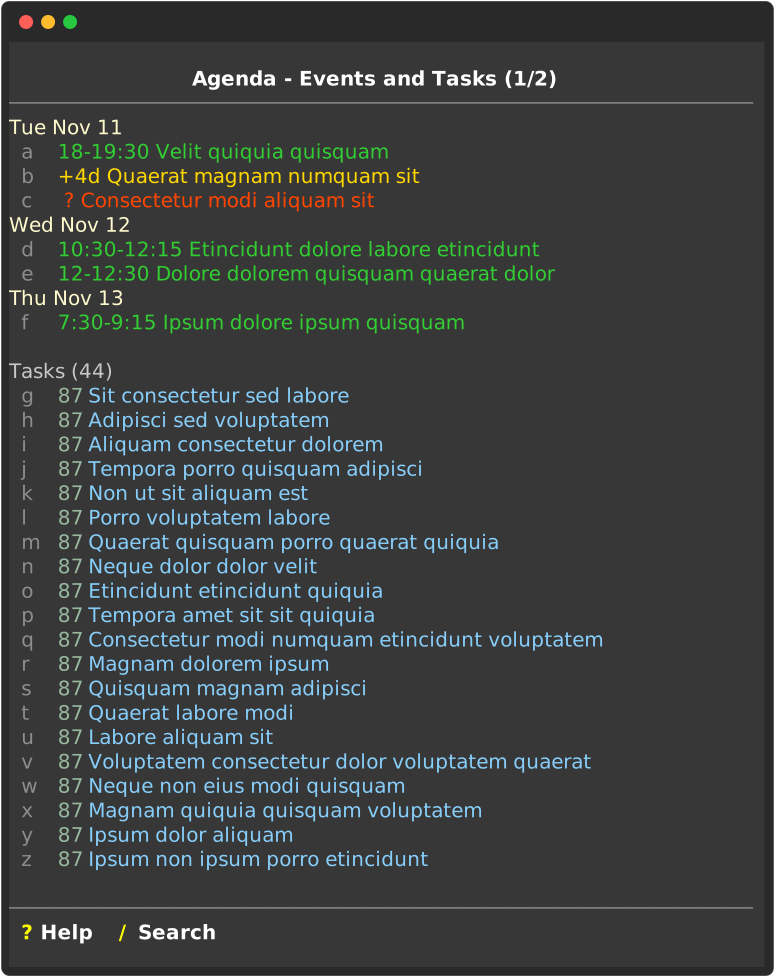
Agenda View: Upcoming events and tasks ordered by urgency
Since there are more than 26 reminders to be displayed and only 26 available lower-case letters to use as tags, the reminders are spread over as many pages as necessary with left and right cursor keys to change pages. Here is the second page.
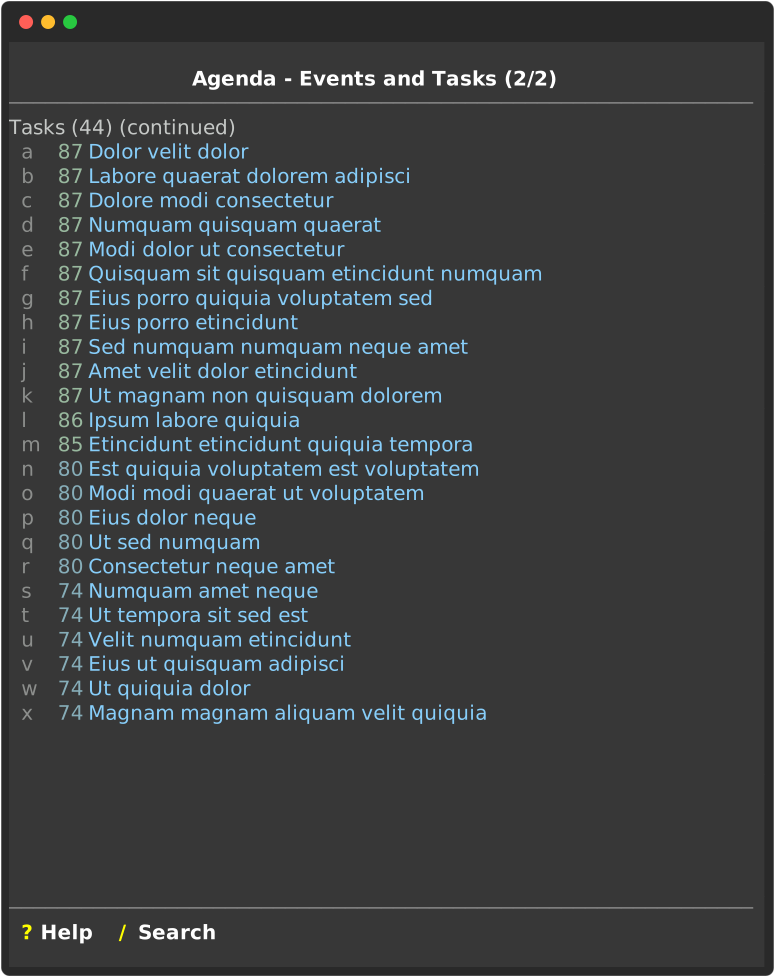
Agenda View: The second and last page
The first instance of every scheduled reminder occurring after the current moment listed in ascending order by date and time.
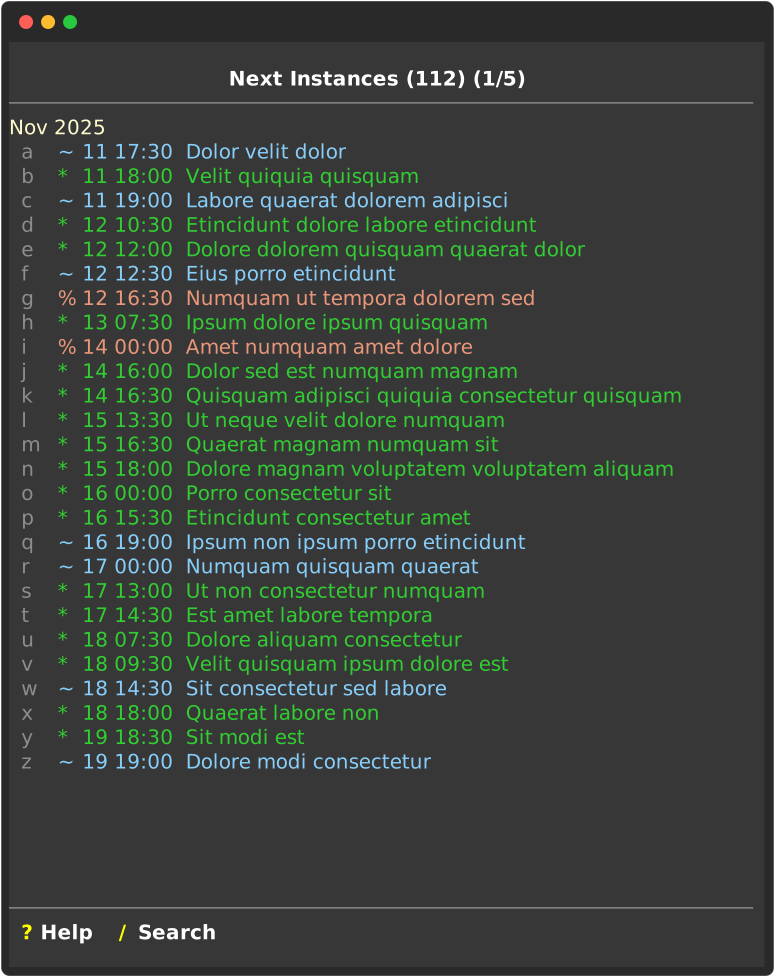
Agenda View: The second and last page
Need to find, say, your next dental appointment - this is the view. Just press / to activate search and enter the expression.
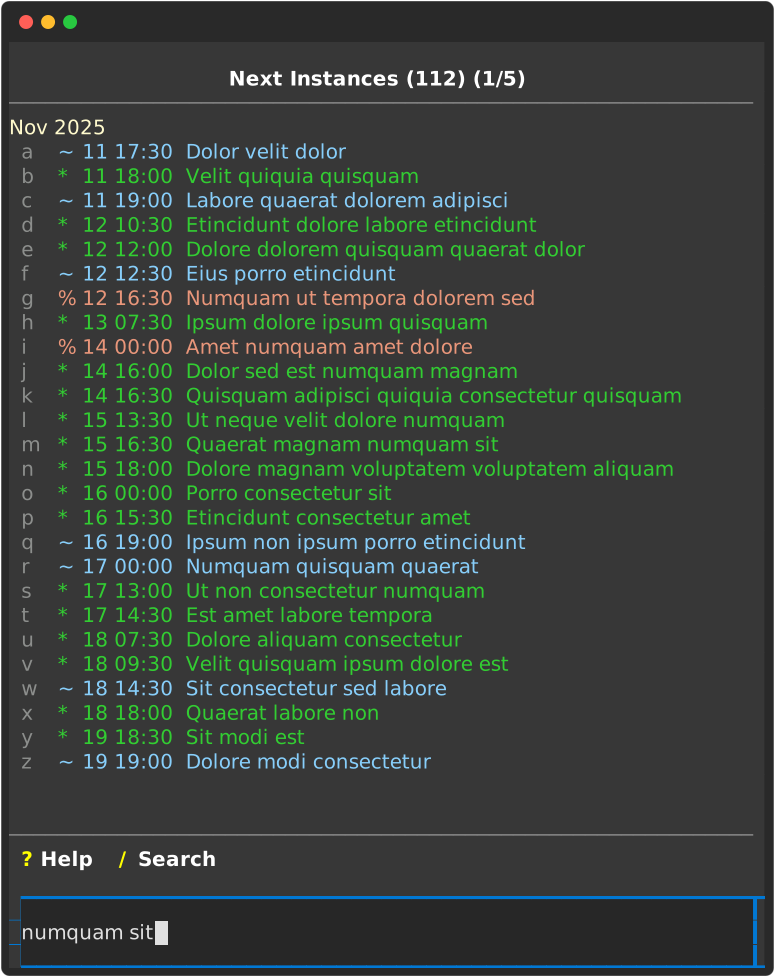
Search: initializing the search
The reminders with case-insensitive matches will be highlighted:
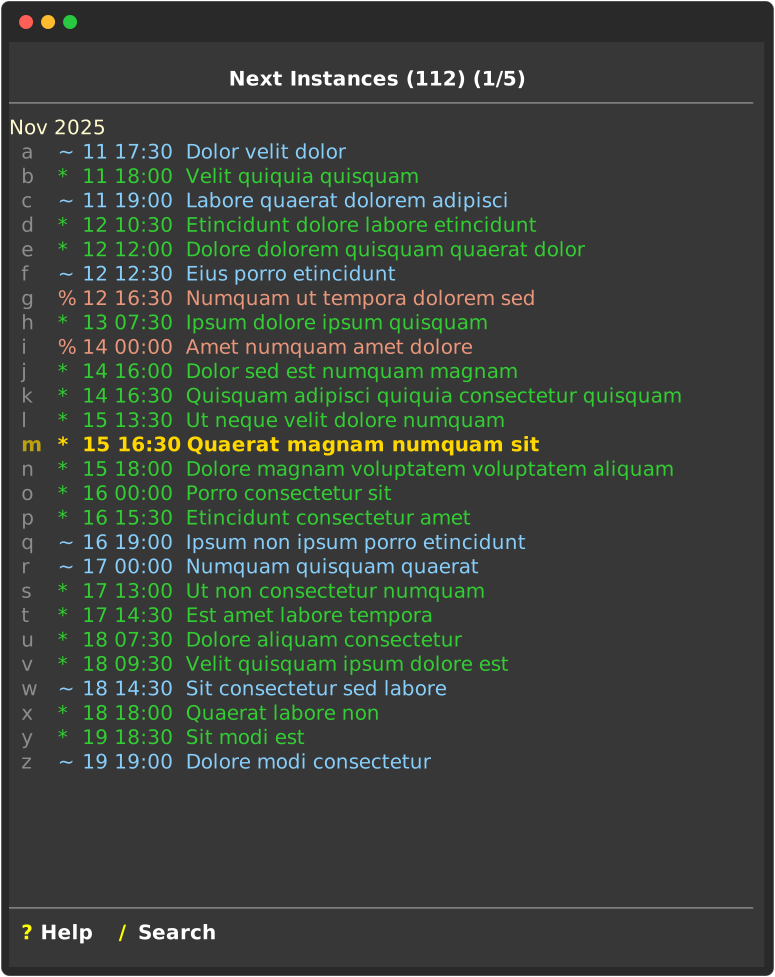
Search: highlighted matches
The last instance of every scheduled reminder occurring before the current moment listed in descending order by date and time.
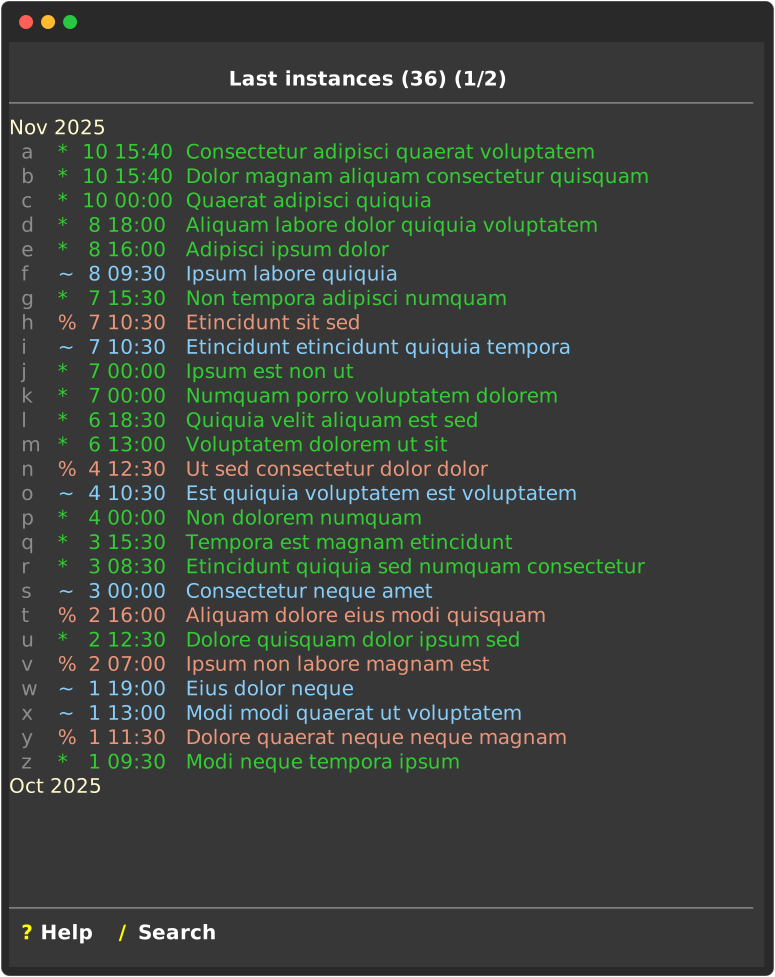
Agenda View: The second and last page
Reminders whose subject or detail entries contain a case-insensitive match for an entered expression.
When you need an exhaustive search across all reminders for a case-insensitive match in either the subject or the details, this is the view. Just press "F" in any view to activate the search bar:
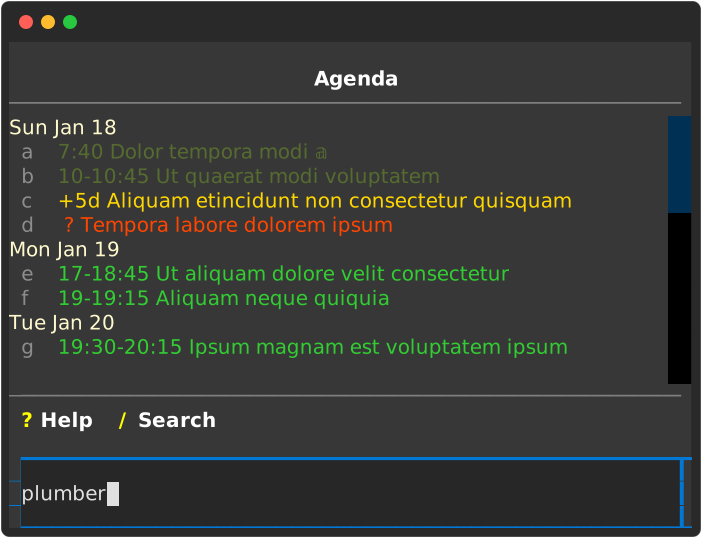
Find: initializing the search
When submitted, the matching reminders are listed:
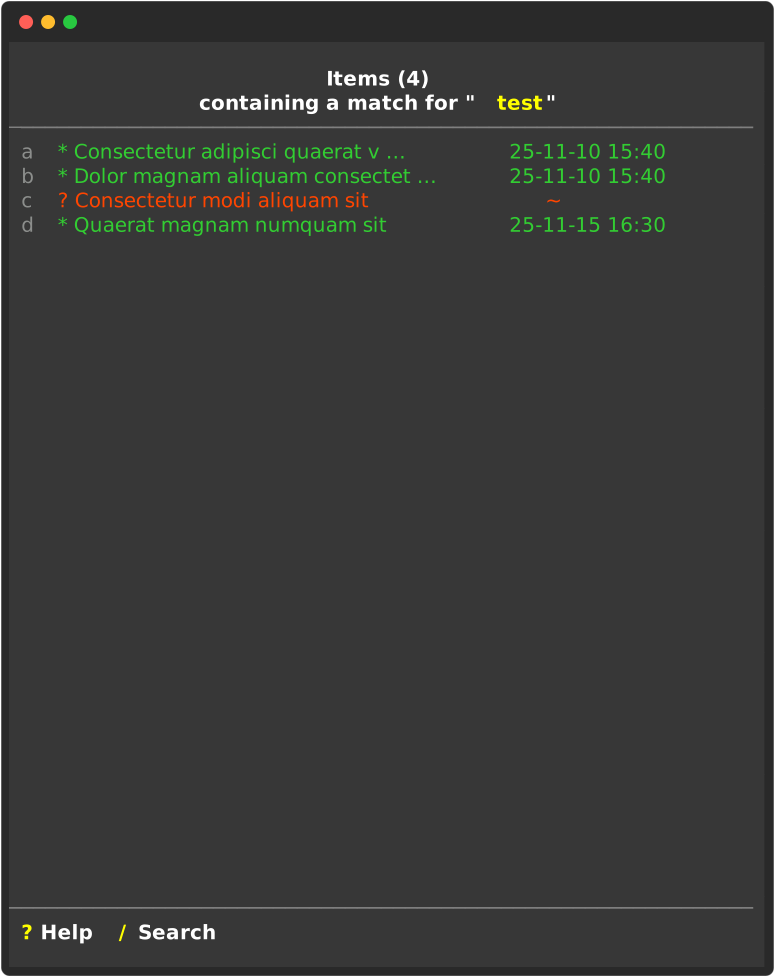
Find: matching reminders
Hierarchical display of bins and reminders.
Many note taking applications provide a means for establishing links between notes. The terms Zettelkasten and Second Brain come to mind. A different approach is taken in tklr where bins serve as containers for both reminders and other bins. While a system of links between reminders might be broken by the removal of a reminder, when a reminder is removed from tklr, it simply disappears from the relevant bin membership lists. Bins themselves and their membership lists are otherwise unaffected.
These are the important facts:
- Bin names are unique.
- A bin can contain many other bins (children)
- A bin can belong to at most one other bin (parent).
- A reminder can belong to many bins.
The first three are illustrated by Bins view:
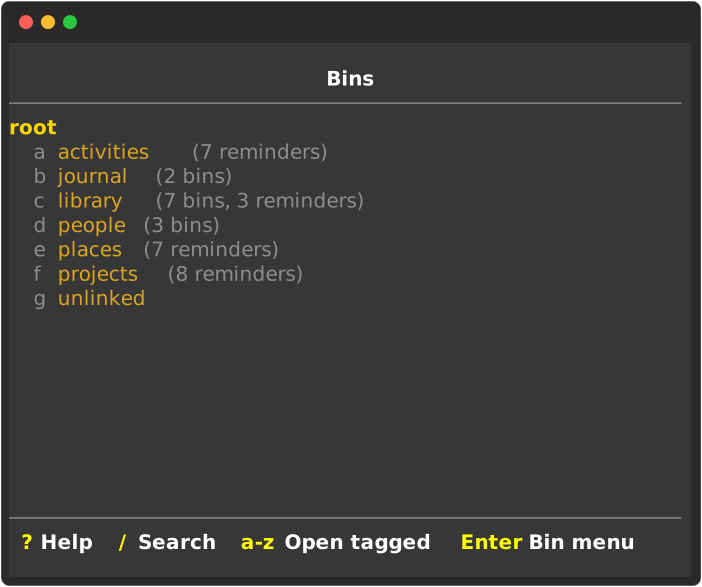
Bins: root is the active parent
You may think in the journal branch the years 2025, 2026 and so forth may be unique, but surely the months 11, 12, and so forth, will be repeated. Similarly, under people, the children names A, B, ... might be needed for other purposes as well. How is uniqueness to be maintained? The solution is that 11, 12, A, B, ... are aliases for the actual bin names which are, in fact, 2025:11, 2025:12, people:A, people:B, .... The general rule is this: whenever a bin named XXX:YYY is the child of a bin named XXX, the child will be displayed using the alias YYY. Why this insistence upon uniqueness? It means that specifying membership in the bin root / journal / 2025 / 2025:11 can be done by just specifying @b 2025:11.
As an illustration of the power of being able to place a reminder in many bins consider a note describing a visit to Lille, France on November 11, 2025 which involved meeting a dear friend, Mary Smith for lunch. Bins to which this might belong:
- travel (in activities)
- 2025:11 (in journal)
- Smith,Mary (in people)
- Lille (in places)
As with the other views, key presses corresponding to tags control the action. Note that the children of root are tagged. Pressing the tag for journal, b, makes it the active parent:
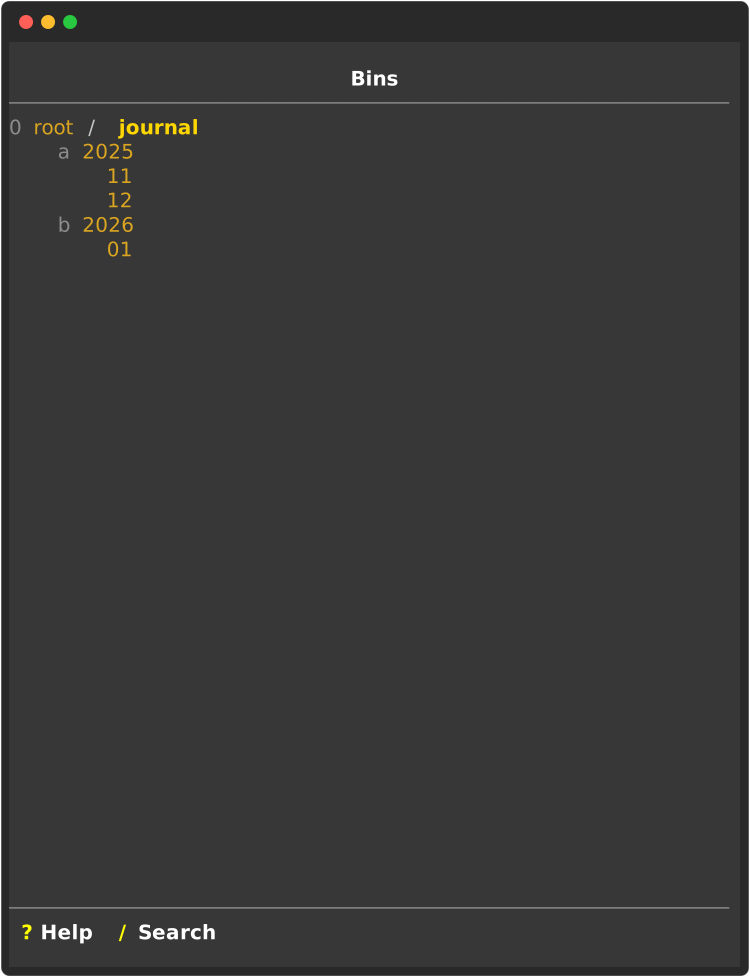
Bins: journal is the active parent
Note the bread crumb header, 0 root / journal, in which root now has the tag 0 and is followed by journal which is now the active parent with its children now displayed with tags. Pressing 0 would restore root as the active parent and pressing the tag for one of the children would make that the active parent. Here's the view that results from pressing a, the tag for 2025:
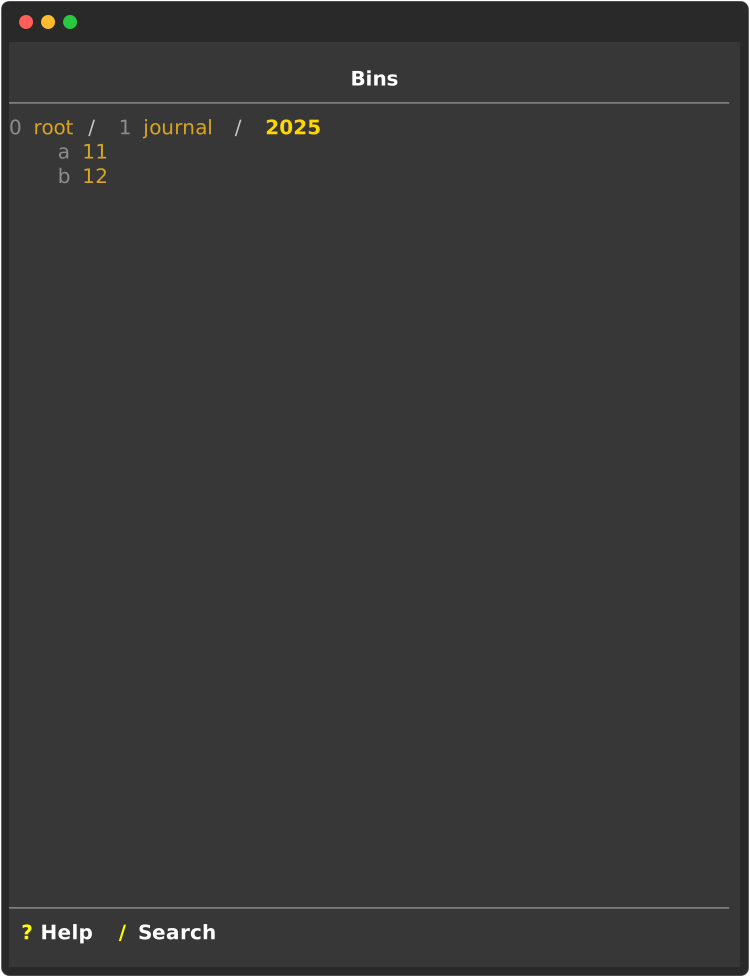
Bins: 2025 is the active parent
Pressing a again, now the tag for 2025:11, makes this the active parent:
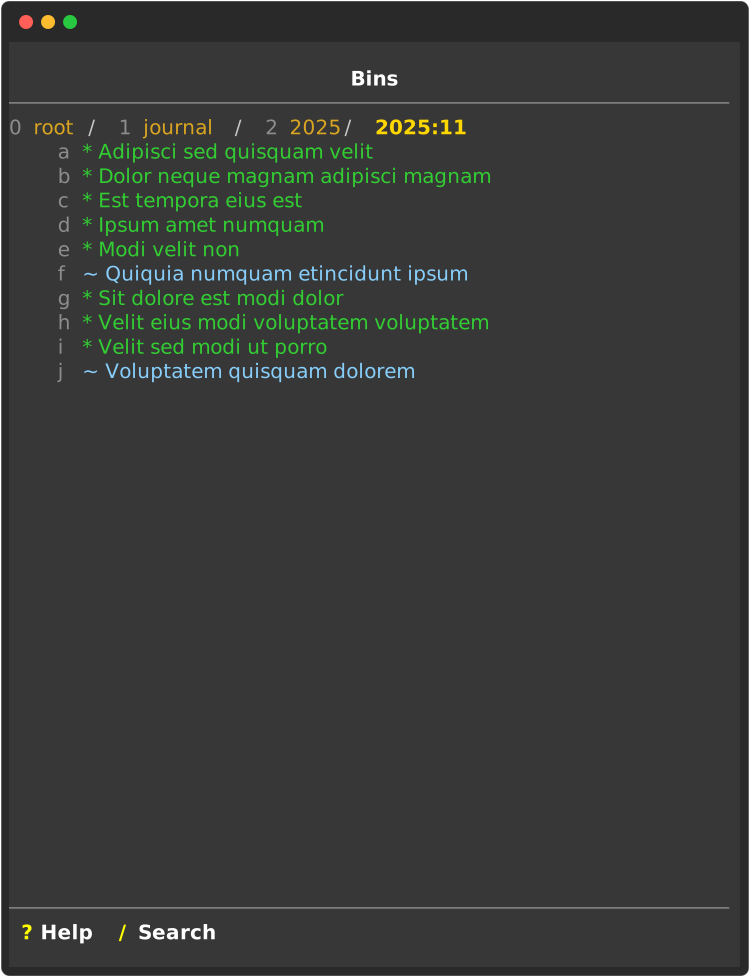
Bins: 2025 is the active parent
Notice in the bread crumb header that there are integer tags going backward for each of the ancestors and the active parent is, as usual, the last element of the path. But it is listed here not using the alias, 11, but the actual bin name, 2025:11.
Intelligent parsing of the user's entry of a datetime is supported. Suppose it is Thursday, November 6 2025 in the US/Eastern timezone. When a datetime is entered it is interpreted relative to the current date, time and timezone. When entering the scheduled datetime for a reminder using @s, the following table illustrates how various entries would be interpreted and the resulting user feedback.
| @s entry | interpretation | user feedback |
|---|---|---|
| wed | 2025-11-12 | Wed, Nov 12 2025 |
| 9a | 2025-11-06 09:00 EST | Thu, Nov 6 2025 09:00 EST |
| 9a fri | 2025-11-07 09:00 EST | Fri, Nov 7 2025 09:00 EST |
| 10 9p z none | 2025-11-10 09:00 | Mon, Nov 10 2025 21:00 |
| 3p z US/Pacific | 2025-11-06 18:00 EST | Thu, Nov 6 2025 18:00 EST |
| 10 13:30 z CET | 2025-11-10 07:30 EST | Mon, Nov 10 2025 07:30 EST |
| 10 20h z none | 2025-11-23 20:00 | Mon, Nov 10 2025 20:00 |
Datetimes entered with "z none" and dates are naive - have no timezone information. Datetimes entered with "z TIMEZONE" are interpreted as aware datetimes in TIMEZONE. Datetimes without a "z" entry are also interpreted as aware but in the timezone of the user's computer. Aware datetimes are always reported using the timezone of the user's computer, wherever it might be. Times can be entered using the suffix of either a/p or am/pm for AM/PM times or h for 24-hour times. Times are reported using the preference of the user, here as 24-hour times.
Why would you want to use a "z" in specifying a time? Suppose a colleague in Europe at asked you to call Friday at 18:00 CET time. Then setting "@s fri 18h z CET" will schedule your reminder for the correct time to call wherever you might be. In the US/Eastern timezone, this would be "Fri, Nov 12 2025 12:00 EST". As a second example, suppose you want to take a daily medication at 4pm in whatever timezone you happen to be. Then you will want to schedule the reminder for "@s 4p z none".
When dates and datetimes are recorded, aware datetimes are first converted to UTC time and then stored with a "Z" appended. E.g., the "3p z US/Pacific" datetime would be interpreted as "2025-11-06 18:00 EST" but would be recorded as "20251106T2300Z". Dates and naive datetimes are recorded without conversion and without the trailing "Z". When aware datetimes are displayed to the user, they are first converted to the timezone of the user's computer. Thus the "PST" example would be displayed as scheduled for 6pm today in US/Eastern. Dates and naive datetimes are displayed without change in every timezone.
When an @s scheduled entry specifies a date without a time, i.e., a date instead of a datetime, the interpretation is that the task is due sometime on that day. Specifically, it is not due until 00:00 on that day and not past due until 00:00 on the following day. The interpretation of @b and @u in this circumstance is similar. For example, if @s 2025-04-06 is specified with @b 3d and @u 2d then the task status would change from waiting to pending at 2025-04-03 00:00 and, if not completed, to deleted at 2025-04-09 00:00.
Note that times can only be specified, stored and displayed in hours and minutes - seconds and microseconds are not supported. Internally datetimes are interpreted as having seconds equal to 0.
An interval is just a period of time and is entered in tklr using expressions such as
| entry | period of time |
|---|---|
| 2h | 2 hours |
| -2h | - 2 hours |
| 1w7d | 1 week and 7 days |
| 2h30m | 2 hours and 30 minutes |
| 1m27s | 1 minute and 27 seconds |
Note that w (weeks), d (days), h (hours), m (minutes) and s (seconds) are the available units for entering intervals. Seconds are ignored save for their use in alerts - more on alerts later.
An interval, I, can be added to a datetime, T, to get a datetime, T + I, that will be after T if I > 0 and before T if I < 0. Similarly, one datetime, A, can be subtracted from another, B, to get an interval, I = B - A, with I > 0 if B is after (greater than) A and I < 0 if B is before (less than) A.
For the discussion that follows, it will be assumed that the current date is 2025-10-01 and that the scheduled datetime for the illustrative reminder is
@s 2025-10-21 10:00am
The entry @e 2h30m would set the extent for the reminder to two hours and 30 minutes.
If the reminder were an event, this would schedule the "busy time" for the event to extend from 10am until 12:30pm.
For a task, this same entry would indicate that attention to completing the task should begin no later than 10am and that 2 hours and 30 minutes is the estimate of the time required for completion. The period from 10am until 12:30pm is not displayed as a busy time, however, since the task could be begun before or after 10am and could take more or less than 2 hours and 30 minutes to complete. For a task, both @s and @e are best regarded as estimates.
For a project, this same entry would similarly indicate that attention to completing the project should begin no later than 10am and that two hours and 30 minutes is estimated for completion subject to additional times specified in the jobs. A job entry containing &s 2d &e 3h, for example, would set the scheduled time for this job to be two days after the @s entry for the project and would add three hours to the estimate of total time required for the project.
The entry @n I where I is a positive interval specifies that a notice for the reminder should begin on the date in which scheduled - I falls. For the example, adding @b 1d12h would set notice to the date corresponding to
2025-10-21 10am - 1d12h = 2025-10-19 10pm
so notices would begin on 2025-10-19.
If the reminder is an event, then the agenda view would display an notice for the event beginning on 25-10-19 and continuing on the 25-10-20, i.e., from the date of the notice through the date before the scheduled datetime. For an event think of this notice as a visual alert of the proximity of the event.
If the reminder is a task, then the task would not appear in the agenda view until 25-10-19, i.e., it would be hidden before that date.
The entry @w BEFORE, AFTER, where BEFORE and AFTER are intervals, can be used to wrap the scheduled datetime of a reminder. Possible entries and the resulting values of BEFORE and AFTER are illustrated below:
| entry | before | after |
|---|---|---|
| @w 1h, 30m | 1 hour | 30 minutes |
| @w 1h, | 1 hour | None |
| @w , 30m | None | 30 minutes |
Consider an event with @s 2025-10-21 10am @e 2h30m, which starts at 10am and ends at 12:30pm and suppose that it will take an hour to travel to the location of the event and 30 minutes to travel from the event to the next location. The entry @w 1h, 30m could be used to indicate these travel periods from 9am until 10am before the event begins and from 12:30pm until 1pm after the event ends.
An alert is specified using @a <list of invervals> : <list of commands>. An @s <datetime> is required and the result is to execute the commands in <list of commands> at the datetimes resulting from subtracting the intervals in <list of intervals> from <datetime>. E.g., with @s 17:00 fri and @a 1h, -15m: c, d, the commands c and d would each be executed at 17:00 - 1h = 16:00 and 17:00 + 15m = 17:15 on Friday.
A command such as d in the example must be specified in the user configuration file. This is the relevant section:
[alerts]
# dict[str, str]: character -> command_str.
# E.g., this entry
#   d: '/usr/bin/say -v Alex "[[volm 0.5]] {subject}, {when}"'
# would, on my macbook, invoke the system voice to speak the subject
# of the reminder and the time remaining until the scheduled datetime.
# The character "d" would be associated with this command so that, e.g.,
# the alert entry "@a 30m, 15m: d" would trigger this command 30
# minutes before and again 15 minutes before the scheduled datetime.
When an item is specified with an @r entry, an @s entry is required and is used as the DTSTART entry in the recurrence rule. E.g.,
* datetime repeating @s 2025-11-06 14:00 @r d &i 2
With this entry, the @s 2025-11-06 14:00 and @r d &i 2 parts would be combined by tklr to generate this rruleset:
"rruleset": "DTSTART:20251106T1900Z\nRRULE:FREQ=DAILY;INTERVAL=2"
Two aspects of this rruleset are worth emphasizing
- "DTSTART:20251106T1900Z\nRRULE:FREQ=DAILY;INTERVAL=2" is a string and can therefore be stored without conversion in SQLite3 - the database used for tklr.
- Even though it is only 50 characters long, it actually represents an infinite number of datetimes - every datetime matching the recurrence rule which occurs on or after 2025-11-06 19:00 UTC.
In the hands of the wonderful python library dateutil, this rruleset string can be asked a variety of useful questions which will be answered almost instantly. E.g, What datetimes does it represent which lie between 2025-06-23 08:00 and 2026-01-01 00:00?, What is the first datetime after 2025-10-15 00:00? What is the last datetime before 2025-12-15 00:00? And so forth.
For every reminder in tklr which involves datetimes, a rruleset is used to represent all of those datetimes.
Note: The datetimes generated by the rruleset correspond to datetimes matching the specification of @r which occur on or after the datetime specified by @s. The datetime corresponding to @s itself will only be generated if it matches the specification of @r.
On the other hand, if an @s entry is specified, but @r is not, then the @s entry would be stored as an RDATE in the recurrence rule. E.g.,
* datetime only @s 2025-11-06 14:00would be serialized (stored) as
"rruleset": "RDATE:20251106T1900Z"
The datetime corresponding to @s itself is, of course, generated in this case.
When @s is specified, an @+ entry can be used to specify one or more, comma separated datetimes. When @r is given, these datetimes are added to those generated by the @r specification. Otherwise, they are added to the datetime specified by @s. E.g., is a special case. It is used to specify a datetime that is relative to the current datetime. E.g.,
... @s 2025-11-06 14:00 @+ 2025-11-13 21:00
would be serialized (stored) as
"rruleset": "RDATE:20251106T1900Z, 20251114T0200Z"
This option is particularly useful for irregular recurrences such as annual doctor visits. After the initial visit, subsequent visits can simply be added to the @+ entry of the existing event once the new appointment is made.
Note: Without @r, the @s datetime is included in the datetimes generated but with @r, it is only used to set the beginning of the recurrence and otherwise ignored.
When a datetime is specified without an z component, the timezone is assumed to be aware and in the local timezone. The datetime is converted to UTC for storage in the database. When a datetime is displayed, it is displayed using the local timezone of the computer.
This remains true with recurrence and daylight savings time but is a little more complicated. As always, the recurrence rules are stored in UTC and the datetimes generated by the rules are also in UTC. When these datetimes are displayed, they are converted to the local timezone.
... @s 2025-10-31 14:00 @r d &i 1 &c 4
With this entry, the rruleset and datetimes generated show the effect of the transition from daylight to standard time:
"rruleset": "DTSTART:20251031T1800Z\nRRULE:FREQ=DAILY;INTERVAL=1;COUNT=4"

  Fri 2025-10-31 14:00 EDT -0400
  Sat 2025-11-01 14:00 EDT -0400
  Sun 2025-11-02 13:00 EST -0500
  Mon 2025-11-03 13:00 EST -0500
Since urgency values are used ultimately to give an ordinal ranking of tasks, all that matters is the relative values used to compute the urgency scores. Accordingly, all urgency scores are constrained to fall within the interval from -1.0 to 1.0. The default urgency is 0.0 for a task with no urgency components.
There are some situations in which a task will not be displayed in the "urgency list" and there is no need, therefore, to compute its urgency:
- Completed tasks are not displayed.
- Hidden tasks are not displayed. The task is hidden if it has an
@sentry and an@bentry and the date corresponding to@s - @bfalls sometime after the current date. - Waiting tasks are not displayed. A task is waiting if it belongs to a project and has unfinished prerequisites.
- Only the first unfinished instance of a repeating task is displayed. Subsequent instances are not displayed.
There is one other circumstance in which urgency need not be computed. When the pinned status of the task is toggled on in the user interface, the task is treated as if the computed urgency were equal to 1.0 without any actual computations.
All other tasks will be displayed and ordered by their computed urgency scores. Many of these computations involve datetimes and/or intervals and it is necessary to understand both are represented by integer numbers of seconds - datetimes by the integer number of seconds since the epoch (1970-01-01 00:00:00 UTC) and intervals by the integer numbers of seconds it spans. E.g., for the datetime "2025-01-01 00:00 UTC" this would be 1735689600 and for the interval "1w" this would be the number of seconds in 1 week, 7*24*60*60 = 604800. This means that an interval can be subtracted from a datetime to obtain another datetime which is "interval" earlier or added to get a datetime "interval" later. One datetime can also be subtracted from another to get the "interval" between the two, with the sign indicating whether the first is later (positive) or earlier (negative). (Adding datetimes, on the other hand, is meaningless.)
Briefly, here is the essence of this method used to compute the urgency scores using "due" as an example. Here is the relevant section from config.toml with the default values:
[urgency.due]
# The "due" urgency increases from 0.0 to "max" as now passes from
# due - interval to due.
interval = "1w"
max = 8.0
The "due" urgency of a task with an @s entry is computed from now (the current datetime), due (the datetime specified by @s) and the interval and max settings from urgency.due. The computation returns:
0.0ifnow < due - intervalmax * (1.0 - (now - due) / interval)ifdue - interval < now <= duemaxifnow > due
For a task without an @s entry, the "due" urgency is 0.0.
Other contributions of the task to urgency are computed similarly. Depending on the configuration settings and the characteristics of the task, the value can be either positive or negative or 0.0 when missing the requisite characteristic(s).
Once all the contributions of a task have been computed, they are aggregated into a single urgency value in the following way. The process begins by setting the initial values of variables Wn = 1.0 and Wp = 1.0. Then for each of the urgency contributions, v, the value is added to Wp if v > 0 or abs(v) is added to Wn if v negative. Thus either Wp or Wn is increased by each addition unless v = 0. When each contribution has been added, the urgency value of the task is computed as follows:
urgency = (Wp - Wn) / (Wp + Wn)Equivalently, urgency can be regarded as a weighted average of -1.0 and 1.0 with Wn/(Wn + Wp) and Wp/(Wn + Wp) as the weights:
urgency = -1.0 * Wn / (Wn + Wp) + 1.0 * Wp / (Wn + Wp) = (Wp - Wn) / (Wn + Wp)Observations from the weighted average perspective and the fact that Wn >= 1 and Wp >= 1:
-1.0 < urgency < 1urgency = 0.0if and only ifWn = Wpurgencyis always increasing inWpand always decreasing inWnurgencyapproaches1.0asWn/Wpapproaches0.0- asWpincreases relative toWnurgencyapproaches-1.0asWp/Wnapproaches0.0- asWnincreases relative toWp
Thus positive contributions always increase urgency and negative contributions always decrease urgency. The fact that the urgency derived from contributions is always less than 1.0 means that pinned tasks with urgency = 1 will always be listed first.
This guide walks you through setting up a development environment for tklr using uv and a local virtual environment. Eventually the normal python installation procedures using pip or pipx will be available.
This step will create a directory named tklr-dgrham in your current working directory that contains a clone of the github repository for tklr.
git clone https://github.com/dagraham/tklr-dgraham.git
cd tklr-dgrahamwhich uv || curl -LsSf https://astral.sh/uv/install.sh | shThis will create a .venv/ directory inside your project to hold all the relevant imports.
uv venvuv pip install -e .You have two options for activating the virtual environment for the CLI:
source .venv/bin/activateThen you can run:
tklr --version
tklr add "- test task @s 2025-08-01"
tklr ui
To deactivate:
deactivatebrew install direnv # macOS
sudo apt install direnv # Ubuntu/Debianeval "$(direnv hook zsh)" # or bashRestart your shell or run source ~/.zshrc.
echo 'export PATH="$PWD/.venv/bin:$PATH"' > .envrcdirenv allowNow every time you cd into the project, your environment is activated automatically and, as with the manual option, test your setup with
tklr --version
tklr add "- test task @s 2025-08-01"
tklr ui
You're now ready to develop, test, and run tklr locally with full CLI and UI support.
To update your local copy of Tklr to the latest version:
# Navigate to your project directory
cd ~/Projects/tklr-dgraham  # adjust this path as needed

# Pull the latest changes from GitHub
git pull origin master

# Reinstall in editable mode (picks up new code and dependencies)
uv pip install -e .Tklr needs a home directory to store its files - most importantly these two:
- config.toml: An editable file that holds user configuration settings
- tkrl.db: An SQLite3 database file that holds all the records for events, tasks and other reminders created when using tklr
Any directory can be used for home. These are the options:
-
If started using the command
tklr --home <path_to_home>and the directory<path_to_home>exists then tklr will use this directory and, if necessary, create the filesconfig.tomlandtklr.dbin this directory. -
If the
--home <path_to_home>is not passed to tklr then the home will be selected in this order:- If the current working directory contains files named
config.tomlandtklr.dbthen it will be used as home - Else if the environmental variable
TKLR_HOMEis set and specifies a path to an existing directory then it will be used as home - Else if the environmental variable
XDG_CONFIG_HOMEis set, and specifies a path to an existing directory which contains a directory namedtklr, then that directory will be used. - Else the directory
~/.config/tklrwill be used.
- If the current working directory contains files named
These are the default settings in config.toml:
# DO NOT EDIT TITLE
title = "Tklr Configuration"

[ui]
# theme: str = 'dark' | 'light'
theme = "dark"

# ampm: bool = true | false
# Use 12 hour AM/PM when true else 24 hour
ampm = false

# dayfirst and yearfirst settings
# These settings are used to resolve ambiguous date entries involving
# 2-digit components. E.g., the interpretation of the date "12-10-11"
# with the various possible settings for dayfirst and yearfirst:
#
# dayfirst  yearfirst    date     interpretation  standard
# ========  =========  ========   ==============  ========
#   True     True      12-10-11    2012-11-10     Y-D-M ??
#   True     False     12-10-11    2011-10-12     D-M-Y EU
#   False    True      12-10-11    2012-10-11     Y-M-D ISO 8601
#   False    False     12-10-11    2011-12-10     M-D-Y US
#
# The defaults:
#   dayfirst = false
#   yearfirst = true
# correspond to the Y-M-D ISO 8601 standard.

# dayfirst: bool = true | false
dayfirst = false

# yearfirst: bool = true | false
yearfirst = true

[alerts]
# dict[str, str]: character -> command_str.
# E.g., this entry
#   d: '/usr/bin/say -v Alex "[[volm 0.5]] {subject}, {when}"'
# would, on my macbook, invoke the system voice to speak the subject
# of the reminder and the time remaining until the scheduled datetime.
# The character "d" would be associated with this command so that, e.g.,
# the alert entry "@a 30m, 15m: d" would trigger this command 30
# minutes before and again 15 minutes before the scheduled datetime.


# ─── Urgency Configuration ─────────────────────────────────────

[urgency.due]
# The "due" urgency increases from 0.0 to "max" as now passes from
# due - interval to due.
interval = "1w"
max = 8.0

[urgency.pastdue]
# The "pastdue" urgency increases from 0.0 to "max" as now passes
# from due to due + interval.
interval = "2d"
max = 2.0

[urgency.recent]
# The "recent" urgency decreases from "max" to 0.0 as now passes
# from modified to modified + interval.
interval = "2w"
max = 4.0

[urgency.age]
# The "age" urgency  increases from 0.0 to "max" as now increases
# from modified to modified + interval.
interval = "26w"
max = 10.0

[urgency.extent]
# The "@e extent" urgency increases from 0.0 when extent = "0m" to "max"
# when extent >= interval.
interval = "12h"
max = 4.0

[urgency.blocking]
# The "blocking" urgency increases from 0.0 when blocked = 0 to "max"
# when blocked >= count. Blocked is the integer count of tasks in a project for which the given task is an unfinished prerequisite.
count = 3
max = 6.0

[urgency.tags]
# The "tags" urgency increases from 0.0 when tags = 0 to "max" when
# when tags >= count. Tags is the count of "@t" entries given in the task.
count = 3
max = 3.0

[urgency.priority]
# The "priority" urgency corresponds to the value from "1" to "5" of `@p`
# specified in the task. E.g, with "@p 3", the value would correspond to
# the "3" entry below. Absent an entry for "@p", the value would be 0.0.

"1" = -5.0

"2" = 2.0

"3" = 5.0

"4" = 8.0

"5" = 10.0

# In the default settings, a priority of "1" is the only one that yields
# a negative value, `-5`, and thus reduces the urgency of the task.

[urgency.description]
# The "description" urgency equals "max" if the task has an "@d" entry and
# 0.0 otherwise.
max = 2.0

[urgency.project]
# The "project" urgency equals "max" if the task belongs to a project and
# 0.0 otherwise.
max = 3.0