This is the smartwatch food ordering app for Wear OS, built in Kotlin with Jetpack Compose, with API integrations with Stripe (for online payment) and ExchangeRate-API + Alchemy (for crypto payment).
- The user installs the smartwatch app for their favorite restaurant from the Google Play Store.
- The user opens the app, clicks on the "Contact data" chip to insert his information for the order confirmation. Input via microphone and phone number import are supported so that the user doesn't need to rely on the smartwatch keyboard. The user returns to the main menu.
- The user clicks on the "Delivery mode" chip to select delivery, collection or dine-in (i.e. the delivery modes the restaurant allows for). The user returns to the main menu.
- The user selects the food to order by clicking the desired food chips. Food might include a description and (single or multi) options to choose and can be grouped into categories.
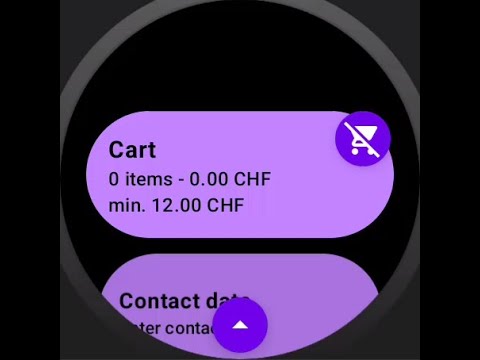
- The user clicks on the "Cart" chip. There, a tabular overview of the food with prices is displayed. Online and crypto payment options are offered if the restaurant enabled them. The user's data is displayed. Having checked the details, the user clicks the "Order now" button at the bottom to finalize the order.
-
- a. (if neither online payment nor crypto payment selected) No further steps required.
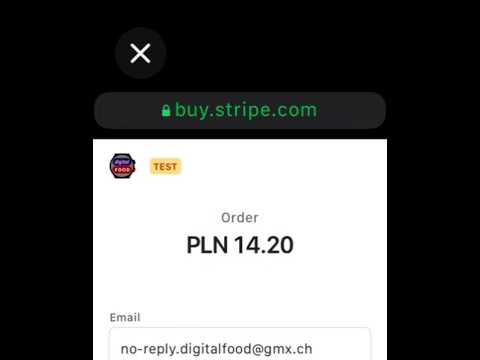
- b. (if online payment is selected) The user enters his credit card number, expiration date and CVV and confirms his payment. The payment amount will be deducted from the credit card and sent to the restaurant's Stripe account. Afterwards, he closes the screen to finalize the order.
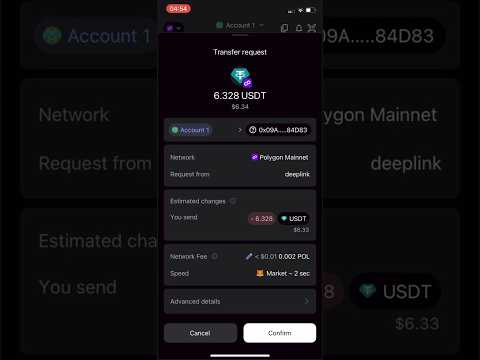
- c. (if crypto payment is selected) The user can choose between USDC/USDT, Solana/Polygon and Native/Metamask/Trust to generate the QR code for the payment. The user scans the QR code on their smartphone to finalize with their preferred wallet the crypto payment to the restaurant's wallet.
- The order confirmation method enabled by the restaurant (email or WhatsApp) is used to confirm the order.
The app can be displayed in a local language + English. Which one is used depends on the locale setting of the smartwatch: if it does not match the local language of the app, English is used.
To simplify the entry of contact data, the app supports microphone input. The flow looks as follows:

- SplashActivity: The first activity upon startup is the SplashActivity. Using the credentials and configuration from the Constants, data is read from the Firestore database, while a splash screen is being displayed. It is checked whether the app is inactive, the restaurant closed, the app version below the minimum allowed, the login or the Internet connection unsuccessful, or, as the happy case, if the MainActivity can be displayed next. If contact data has been saved in the shared preferences of the device, it is read here so that the user does not have to type it again. Pictures from Cloud Storage which override the default ones in the Wear OS app are loaded as well.
- MainActivity: This activity is displayed after loading. It shows all chips: CartChip, AddressChip, ModeChip, FoodOverviewChip, FoodChip, TermsOfUseChip, ImprintChip. It also contains the InactiveScreen, RestaurantClosedError, UpdateError, LoginError, InternetError screens that are displayed when the respective error case occurred. The user can swipe up to refresh the activity.
- CartActivity: The activity upon clicking the CartChip. It displays a tabular overview of the user's order for the chosen delivery mode and also shows the user's and the restaurant's data. If online and crypto payment are enabled respectively, the user can enable one of these payment modes here. At the bottom, the activity shows a button to order. Upon clicking it, the order confirmation is constructed from a template by filling it with the proper data and sent to the user and restaurant via a functions endpoint using the activated way (email, WhatsApp). Another functions endpoint updating the cumulated order price (for the monthly invoices for the client, to realize commission-based payment) is also called. A success or failure message with the appropriate haptic is displayed.
- ContactActivity: The activity upon clicking the AddressChip. It displays fields where a user can enter their contact details, which are saved in the shared preferences of the smartwatch. Depending on the delivery mode selected in the ModeActivity, different fields are mandatory, as highlighted by the error colors.
- ModeActivity: The activity upon clicking the ModeChip. Here a user can select between delivery, collection and dine-in, if those options are enabled by the restaurant.
- FoodActivity: The activity upon clicking a visible and non-disabled FoodChip (i.e. it is available on the day, at the time, is in stock, and is not hidden). Includes the food name, description and quantity. Unless it is a food category, the user can increase and decrease the quantity of the food item.
- OptionsActivity: The activity that appear upon increasing the quantity of a product from the FoodActivity if a food item has options. Both OptionChip (single-choice) and OptionMultiChip (multi-choice) lead to it. The user can scroll to select the desired options. Upon closing a single-choice screen i.e. without a choice, the food increase is reverted and all option selections until that point discarded, because a single-choice screen demands a choice to be made. By contrast, multi-option screens can be closed with no option selected, because a lack of choice is allowed there.
- TermsOfUseActivity: The activity upon clicking the TermsOfUseChip. It reads the terms of service from tos.txt (local variant) or tosEn.txt (English variant) and displays them to the user.
- ImprintActivity: The activity upon clicking the ImprintChip, if it is displayed at all. It reads the imprint from imprint.txt (local variant) or imprintEn.txt (English variant) and displays them to the user.
- PaymentActivity: The activity after clicking the "Order now" button from the CartActivity if online payment is enabled. It opens a payment link for the user to enter their credit card data. Upon paying, the user clicks the X button on the top-left to finalize the order i.e. so that the order confirmation is sent.
- CryptoActivity: The activity after clicking the "Order now" button from the CartActivity if crypto payment is enabled. It constructs a QR code based on the user's selection of currency, network and wallet for the user to scan and pay with their smartphone. For Polygon, the app checks if the payment has actually happened to confirm the order once the user clicks on the "I have paid" button. For Solana, the restaurant would have to see manually that the payment amount has arrived in their wallet. After the "I have paid" button is clicked, the order confirmation is sent.
- ReusableComponents: Contains the chips (AddressChip, CartChip, FoodChip, FoodOverviewChip, ImprintChip, ModeChip, OptionChip, OptionMultiChip, TermsOfUseChip) and utility functions (getAvailabilityRestrictions, getDaySpecificText, getMinimumOrderValuePrice, getMinimumOrderValueText, isRestaurantCurrentlyOpen, isUnavailable, isWrongDay, satisfiesTimeCriteria).
- DataHolder: The class that holds the loaded data from the database, configuration of the app by the user (contact data, delivery mode) and utility functions.
- Constants: Specifies collections, documents, the user access, country and local language settings for the app, used to fetch the database and show the app correctly to the user.
- confirmation.html: Template for order confirmation. Its placeholders will be replaced with the actual order details.
- imprint.txt: Imprint (local variant)
- imprintEn.txt: Imprint (international variant)
- tos.txt: Terms of service (local variant)
- tosEn.txt: Terms of service (international variant)
- strings.xml: Messages prior to loading from Firebase are internationalized here.
- proguard-rules.pro: App obfuscation rules.
- drawable-xxxhdpi: The folder for images referenced in the background field of a food or options item.
- mipmap: App icons for different screen sizes. You can generate your icon using https://romannurik.github.io/AndroidAssetStudio/icons-launcher.html . Google currently requires a 48x48dp app icon on a black background during app startup.
- Replace the google-services.json with yours so that the app can access the Firebase database and storage. Get yours in Firebase's project settings -> Add app -> Android apps -> Download google-services.json.
- Constants: insert collection, document, global collection, global document, username, password, country, local language. Make sure your Google cloud user can access the database with the rules that you set online.
- SplashActivity: insert the path to your Google cloud storage, as well as rules for your user to be allowed to access it.
- Build variants: There are four build variants: internalDebug, internalRelease, prodDebug, prodRelease. For the Android Studio emulator, work with internalDebug and prodDebug. For releasing the app, use internalRelease (for Google internal testing) and prodRelease (for the productive app). Difference between internal and prod: the commission.cumulatedOrdersPrice field in Firebase will only be updated for prod. That way, the invoices generated from that to the clients due to commission-based pricing will reflect the correct amount, because their testing does not modify the field.
- Include your food images in drawable-xxxhdpi and generate your app icon for the mipmap folders.
- Go to "Build -> Generate Signed App Bundle or APK", generate your keystore if necessary and create your .aab app bundle, which you upload to the Google Play Store.
This is how a Google Play listing for the app can look like:
