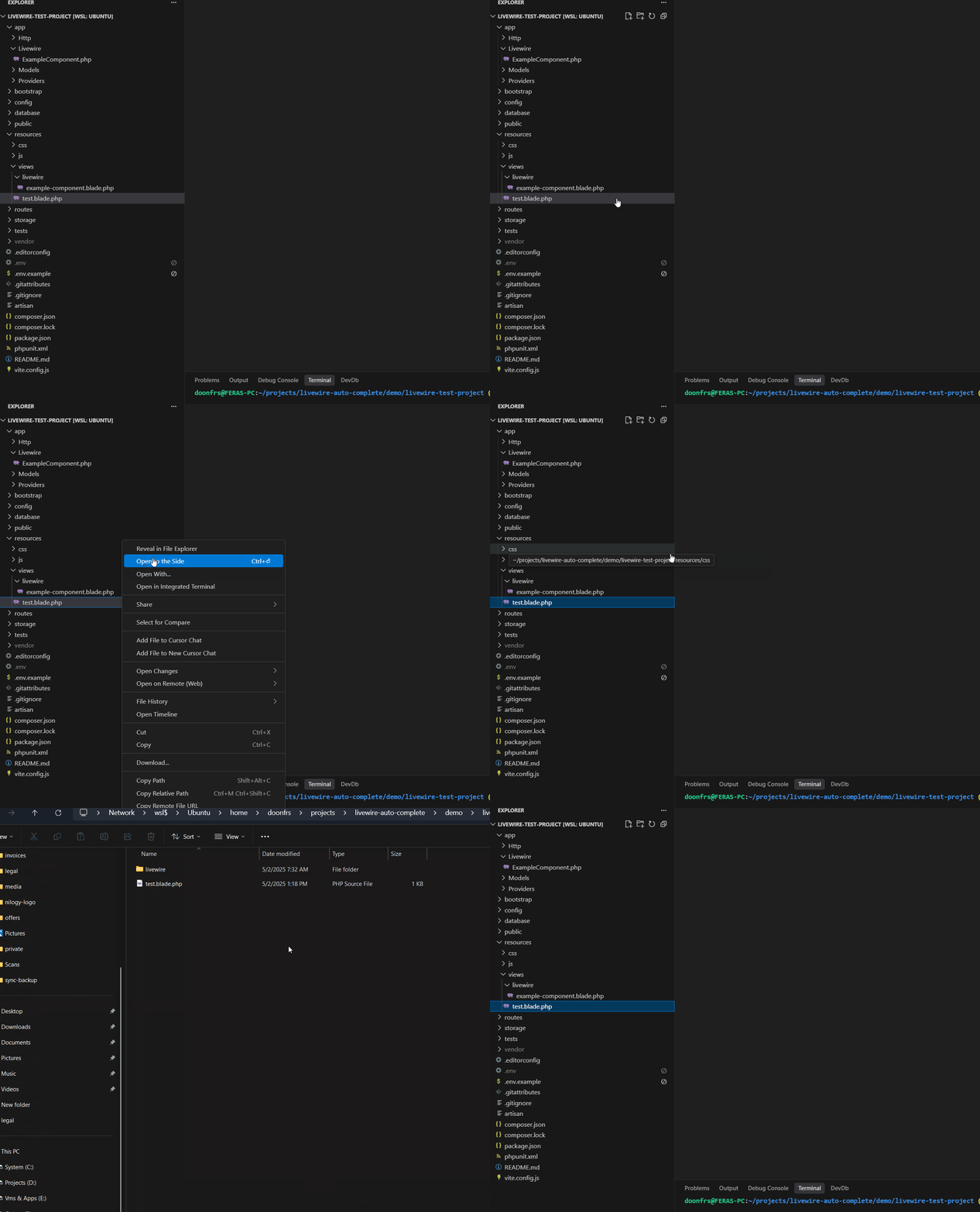
A VS Code extension that seamlessly opens Windows File Explorer from WSL and Remote SSH connections, allowing you to reveal files and folders in the native Windows file manager with a simple right-click.
If this extension helps you, consider supporting the development:

Your support helps maintain and improve this extension!
- Zero Configuration Required - Works out of the box with any WSL distribution
- Remote SSH Support - Also works with Remote SSH connections and mounted drives
- Custom File Explorer Support - Use your preferred file manager or stick with default Windows Explorer
- Context Menu Integration - Right-click any file or folder to reveal it in Windows Explorer or your custom choice
- Automatic WSL Detection - Dynamically detects your WSL distribution name
- Custom Distribution Support - Override auto-detection with your own distribution name
- Configurable Path Prefix - Customize network path prefix for different connection types
- Reliable Path Translation - Converts remote paths to Windows-compatible UNC paths
- Cross-Distribution Support - Works with Ubuntu, Debian, Alpine, and other WSL distributions
- Windows Subsystem for Linux (WSL) or WSL2, or Remote SSH connection
- Visual Studio Code running in WSL mode or connected to Remote SSH
- PowerShell available on Windows (included by default)
- For Remote SSH: Network drives or shares accessible from Windows
If you find this extension useful:
- ⭐ Star this repository on GitHub
- 📝 Leave a review on the VS Code Marketplace
- ☕ Buy me a coffee to support development: buymeacoffee.com/doonfrs
Every star, review, and coffee means a lot and helps keep this project alive! 🚀
- Open VS Code in WSL - Make sure you're running VS Code in WSL mode
- Right-click any file or folder in the VS Code explorer panel
- Select "Reveal in File Explorer" from the context menu
- Windows File Explorer opens showing the selected file/folder location
That's it! No configuration needed by default.
The extension automatically:
- Detects your WSL distribution name (or uses your custom configuration)
- Converts Linux paths to Windows UNC format (
\\wsl$\Distribution\path) - Uses PowerShell to reliably open Windows File Explorer
- Handles path escaping and special characters
If automatic detection fails or you have a custom WSL distribution name, you can override it:
-
Via Settings UI:
- Open VS Code Settings (
Ctrl+,) - Search for "WSL Reveal Explorer"
- Set "Default Distribution Name" to your distribution name
- Open VS Code Settings (
-
Via settings.json:
{
  "wsl-reveal-explorer.defaultDistributionName": "Ubuntu2"
}
Common examples:
Ubuntu2- for secondary Ubuntu installationsUbuntu-22.04- for version-specific Ubuntu distributionsDebian- for Debian distributionskali-linux- for Kali Linux distributions
Note: Leave this setting empty (default) to use automatic detection.
For Remote SSH connections or custom network drives, you can configure a custom path prefix:
-
Via Settings UI:
- Open VS Code Settings (
Ctrl+,) - Search for "WSL Reveal Explorer"
- Set "Path Prefix" to your network path
- Open VS Code Settings (
-
Via settings.json:
{
  "wsl-reveal-explorer.pathPrefix": "\\\\server\\share",
  "wsl-reveal-explorer.defaultDistributionName": ""
}
Examples:
- WSL (default):
"\\\\wsl$"- Standard WSL access - Network Share:
"\\\\server\\share"- Direct network share access - Mapped Drive:
"\\\\192.168.1.100\\projects"- IP-based network path - SSHFS Mount:
"\\\\sshfs\\hostname"- SSHFS mounted drives
Note: When using custom path prefixes, the distribution name is optional and can be left empty.
Use your preferred file manager instead of the default Windows Explorer:
-
Via Settings UI:
- Open VS Code Settings (
Ctrl+,) - Search for "WSL Reveal Explorer"
- Set "Custom Command" to your preferred command
- Open VS Code Settings (
-
Via settings.json:
{
  "wsl-reveal-explorer.customCommand": "explorer.exe {path}"
}
Available placeholders:
{path}- The folder path to open
Examples:
- Total Commander:
"C:\\totalcmd\\TOTALCMD64.EXE /O /T {path}" - FreeCommander:
"C:\\FreeCommander XE\\FreeCommander.exe /C /T {path}" - Directory Opus:
"C:\\Program Files\\GPSoftware\\Directory Opus\\dopus.exe {path}" - Q-Dir:
"C:\\Q-Dir\\Q-Dir.exe {path}"
Note: Leave this setting empty (default) to use Windows Explorer.
To contribute or modify this extension:
# Clone the repository
git clone <repository-url>
cd vscode-wsl-reveal-explorer

# Open in VS Code
code .

# Press F5 to run in Extension Development Host
# Test the functionality by right-clicking files in the explorerIf the extension doesn't work:
- Ensure you're running VS Code in WSL mode or Remote SSH (not Windows locally)
- Verify that PowerShell is available on your Windows system
- Check that Windows File Explorer can access your configured paths manually
- For WSL:
\\wsl$\<distribution> - For Remote SSH: Your custom network path
- For WSL:
If the extension opens the wrong folder or fails to work:
-
Check your actual WSL distribution name:
# In WSL terminal, run: wsl.exe -l -v -
Set the correct distribution name manually:
- Use the exact name from the command above
- Go to VS Code Settings and search for "WSL Reveal Explorer"
- Set "Default Distribution Name" to the correct name (e.g.,
Ubuntu-22.04,Ubuntu2)
-
Common distribution name issues:
- Auto-detection might return
Ubuntubut your distribution isUbuntu2 - Version-specific names like
Ubuntu-20.04vsUbuntu-22.04 - Custom installation names
- Auto-detection might return
For Remote SSH connections:
-
Verify your network path configuration:
- Set the correct
pathPrefixin settings - Test the path manually in Windows File Explorer
- Set the correct
-
Common Remote SSH scenarios:
- SSHFS mounts: Configure path like
\\\\sshfs\\hostname - Network shares: Use
\\\\server\\shareformat - Direct IP access: Use
\\\\192.168.1.100\\pathformat
- SSHFS mounts: Configure path like
-
Path mapping examples:
Remote path: /home/user/project
Windows path: \\server\share\home\user\project
Configuration: "pathPrefix": "\\\\server\\share"
If your custom file explorer doesn't open:
- Verify the file explorer is installed and accessible from the configured path
- Check the custom command syntax - ensure it's a valid PowerShell command
- Test manually: Try running the command directly in PowerShell to debug issues
- Use default: Set the custom command to empty to fall back to Windows Explorer
This project is licensed under the MIT License - see the LICENSE file for details.
Feras Abdalrahman