


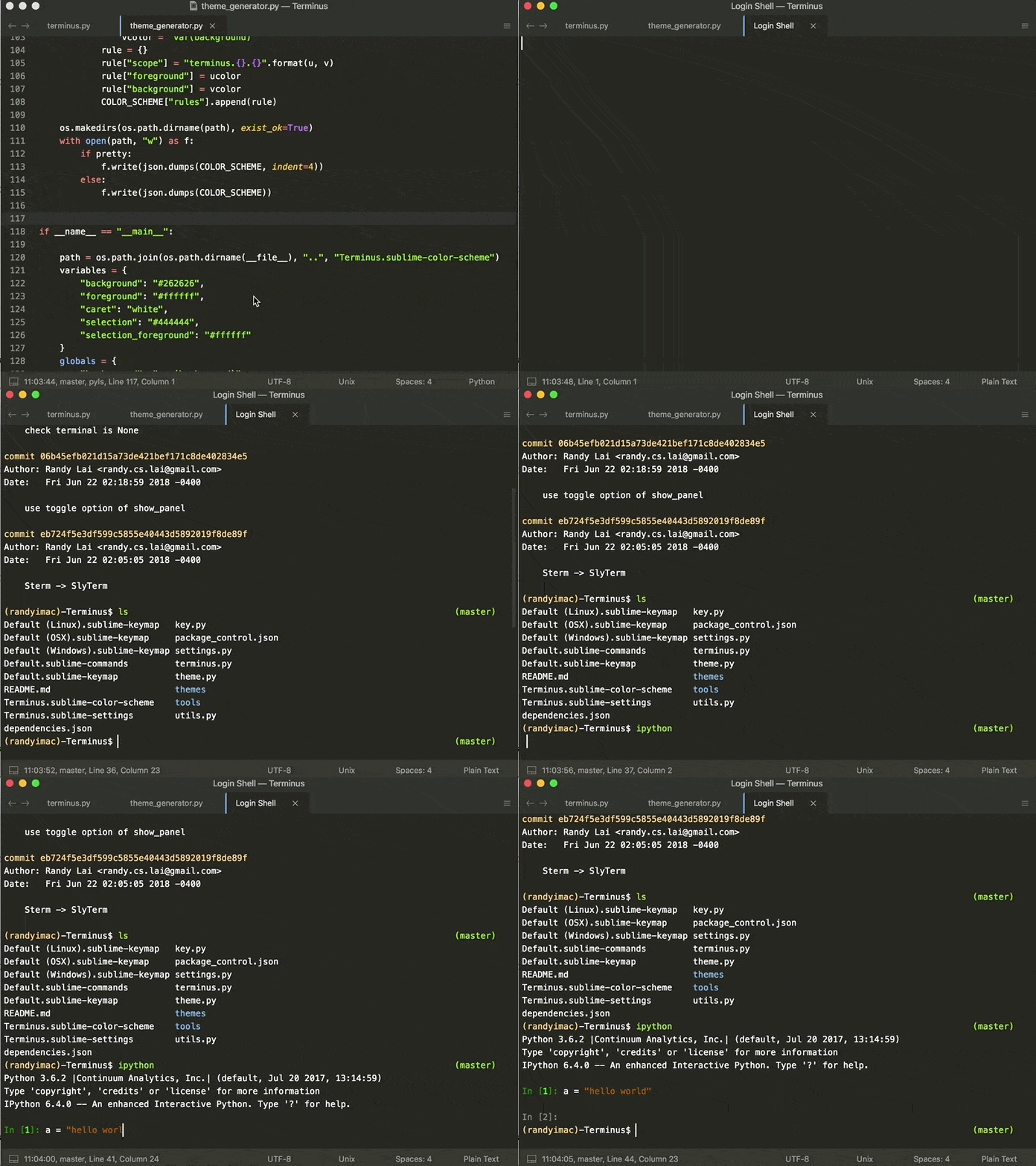
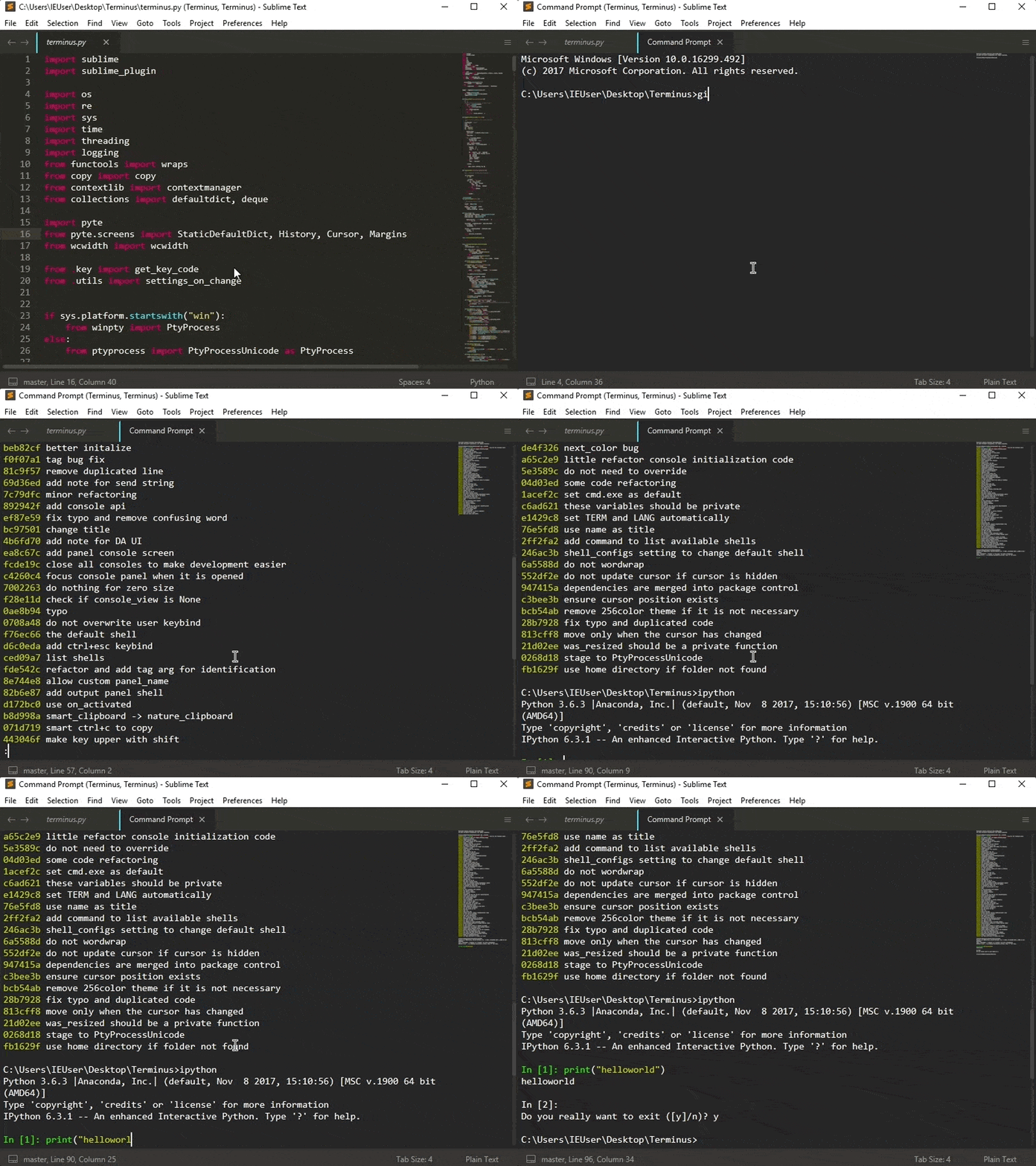
The first cross platform terminal for Sublime Text.
| Unix shell | Cmd.exe |
|---|---|
|
|
| Terminal in panel | |

|
This package is heavily inspired by TerminalView. Compare with TerminalView, this has
- Windows support
- continuous history
- easily customizable themes (see Terminus Utilities)
- unicode support
- 256 colors support
- better xterm support
- terminal panel
- imgcat support (PS: it also works on Linux / WSL)
- Download & Install
Sublime Text 3(https://www.sublimetext.com/3) - Go to the menu
Tools -> Install Package Control, then, wait few seconds until the installation finishes up - Now,
Go to the menu
Preferences -> Package Control - Type
Add Channelon the opened quick panel and press Enter - Then,
input the following address and press Enter
https://raw.githubusercontent.com/evandrocoan/StudioChannel/master/channel.json - Go to the menu
Tools -> Command Palette... (Ctrl+Shift+P) - Type
Preferences: Package Control Settings – Useron the opened quick panel and press Enter - Then,
find the following setting on your
Package Control.sublime-settingsfile:"channels": [ "https://packagecontrol.io/channel_v3.json", "https://raw.githubusercontent.com/evandrocoan/StudioChannel/master/channel.json", ],
- And,
change it to the following, i.e.,
put the
https://raw.githubusercontent...line as first:"channels": [ "https://raw.githubusercontent.com/evandrocoan/StudioChannel/master/channel.json", "https://packagecontrol.io/channel_v3.json", ],
- The
https://raw.githubusercontent...line must to be added before thehttps://packagecontrol.io...one, otherwise, you will not install this forked version of the package, but the original available on the Package Control default channelhttps://packagecontrol.io...
- The
- Now,
go to the menu
Preferences -> Package Control - Type
Install Packageon the opened quick panel and press Enter - Then,
search for
Terminusand press Enter
See also:
- ITE - Integrated Toolset Environment
- Package control docs for details.
- run
Terminus: Open Default Shell in View
You may find these key bindings useful. To edit, run Preferences: Terminus Key Bindings.
Check the details for the arguments of terminus_open below.
- toggle terminal panel
[
    { "keys": ["alt+`"], "command": "toggle_terminus_panel" }
]- open a terminal view at current file directory
[
    {
        "keys": ["ctrl+alt+t"], "command": "terminus_open", "args": {
            "config_name": "Default",
            "cwd": "${file_path:${folder}}"
        }
    }
]
or by passing a custom cmd, say ipython
[
    {
        "keys": ["ctrl+alt+t"], "command": "terminus_open", "args": {
            "cmd": "ipython",
            "cwd": "${file_path:${folder}}"
        }
    }
]- open terminal in a split view
[
    {
        "keys": ["ctrl+alt+t"],
        "command": "terminus_open",
        "args": {
            "config_name": "Default",
            "pre_window_hooks": [
                ["set_layout", {
                    "cols": [0.0, 1.0],
                    "rows": [0.0, 0.5, 1.0],
                    "cells": [[0, 0, 1, 1], [0, 1, 1, 2]]
                }],
                ["focus_group", {"group": 1}]
            ]
        }
    }
]
or by applying Origami's carry_file_to_pane
[
    {
        "keys": ["ctrl+alt+t"],
        "command": "terminus_open",
        "args": {
            "config_name": "Default",
            "post_window_hooks": [
                ["carry_file_to_pane", {"direction": "down"}]
            ]
        }
    }
]- run
Preferences: Terminus Command Palette. Check the details for the arguments ofterminus_openbelow
[
    {
        "caption": "Terminus: Open Default Shell at Current Location",
        "command": "terminus_open",
        "args"   : {
            "config_name": "Default",
            "cwd": "${file_path:${folder}}"
        }
    }
]
or by passing custom cmd, say ipython
[
    {
        "caption": "Terminus: Open iPython",
        "command": "terminus_open",
        "args"   : {
            "cmd": "ipython",
            "cwd": "${file_path:${folder}}",
            "title": "iPython"
        }
    }
]- open terminal in a split view
[
    {
        "caption": "Terminus: Open Default Shell in Split View",
        "command": "terminus_open",
        "args": {
            "config_name": "Default",
            "pre_window_hooks": [
                ["set_layout", {
                    "cols": [0.0, 1.0],
                    "rows": [0.0, 0.5, 1.0],
                    "cells": [[0, 0, 1, 1], [0, 1, 1, 2]]
                }],
                ["focus_group", {"group": 1}]
            ]
        }
    }
]
or by applying Origami's carry_file_to_pane
[
    {
        "caption": "Terminus: Open Default Shell in Split View",
        "command": "terminus_open",
        "args": {
            "config_name": "Default",
            "post_window_hooks": [
                ["carry_file_to_pane", {"direction": "down"}]
            ]
        }
    }
]Use Terminus as a build system. For example, the following can be added to your project settings to allow
"SSH to Remote" build system.
{
    "build_systems":
    [
        {
            "cmd":
            [
                "ssh", "user@example.com"
            ],
            "name": "SSH to Remote",
            "target": "terminus_open",
            "working_dir": "$folder"
        }
    ]
}
Another build system for compiling C++ (with g++) is possible with the following code (as project settings).
{
    "build_systems":
    [
        {
            "name": "Build & Run (g++)",
            "cmd":
            [
                "bash",
                "-c",
                "g++ -pedantic -Wall -Wextra -Wconversion -pthread \"${file}\" -o \"${file_path}/${file_base_name}\" && \"${file_path}/${file_base_name}\" && echo && echo Press ENTER to continue && read line && exit"
            ],
            "target": "terminus_open",
            "working_dir": "$folder"
        }
    ]
}- Bash: add the following in
.bash_profileor.bashrc
if test -n "$TERMINUS_SUBLIME"; then
    bind '"\e[1;3C": forward-word'
    bind '"\e[1;3D": backward-word'
fi
- Zsh: add the following in
.zshrc
if test -n "$TERMINUS_SUBLIME"; then
    bindkey "\e[1;3C" forward-word
    bindkey "\e[1;3D" backward-word
fi
Some programs, such as julia, does not recognize the standard keycodes for alt+left and alt+right. You could
bind them to alt+b and alt+f respectively
[
    { "keys": ["alt+left"], "command": "terminus_keypress", "args": {"key": "b", "alt": true}, "context": [{"key": "terminus_view"}] },
    { "keys": ["alt+right"], "command": "terminus_keypress", "args": {"key": "f", "alt": true}, "context": [{"key": "terminus_view"}] }
]- A terminal could be opened using the command
terminus_openwith
window.run_command(
    "terminus_open", {
        "config_name": None,     # the shell config name, use "Default" for the default config
        "cmd": None,             # the cmd to execute
        "cwd": None,             # the working directory
        "working_dir": None,     # alias of "cwd"
        "env": {},               # extra environmental variables
        "title": None,           # title of the view
        "panel_name": None,      # the name of the panel if terminal should be opened in panel
        "tag": None,             # a tag to idFentify the terminal
        "pre_window_hooks": [],  # a list of window hooks before opening terminal
        "post_window_hooks": [], # a list of window hooks after opening terminal
        "post_view_hooks": [],   # a list of view hooks after opening terminal
        "auto_close": True       # auto close terminal if process exits successfully
    }
)
The fields cmd and cwd understand Sublime Text build system variables.
-
the setting
view.settings().get("terminus_view.tag")can be used to identify the terminal and -
keybind can be binded with specific tagged terminal
    {
        "keys": ["ctrl+alt+w"], "command": "terminus_close", "context": [
            { "key": "terminus_view.tag", "operator": "equal", "operand": "YOUR_TAG"}
        ]
}- text can be sent to the terminal with
window.run_command(
    "terminus_send_string",
    {
        "string": "ls\n",
        "tag": "<YOUR_TAG>"        # ignore this or set it to None to send text to the first terminal found
    }
)
If tag is not provided or is None, the text will be sent to the first terminal found in the current window.
If you are using DA UI and your terminal panel has weired background color,
try playing with the setting panel_background_color in DA UI: Theme Settings.

{
    "panel_background_color": "$background_color"
}This package won't be possible without pyte, pywinpty and ptyprocess.