Recently I renamed the tool to runProcess to better reflect that you can run more than just shell commands with it. There are two explicit modes now:
mode=executablewhere you passargvwithargv[0]representing theexecutablefile and then the rest of the array contains args to it.mode=shellwhere you passcommand_line(just like typing intobash/fish/pwsh/etc) which will use your system's default shell.
I hate APIs that make ambiguous if you're executing something via a shell, or not. I hate it being a toggle b/c there's way more to running a shell command vs exec than just flipping a switch. So I made that explicit in the new tool's parameters
If you want your model to use specific shell(s) on a system, I would list them in your system prompt. Or, maybe in your tool instructions, though models tend to pay better attention to examples in a system prompt.
I've used this new design with gptoss-120b extensively and it went off without a hitch, no issues switching as the model doesn't care about names nor even the redesigned mode part, it all seems to "make sense" to gptoss.
Let me know if you encounter problems!
Tools are for LLMs to request. Claude Sonnet 3.5 intelligently uses run_process. And, initial testing shows promising results with Groq Desktop with MCP and llama4 models.
Currently, just one command to rule them all!
run_process- run a command, i.e.hostnameorls -alorecho "hello world"etc- Returns
STDOUTandSTDERRas text - Optional
stdinparameter means your LLM can- pass scripts over
STDINto commands likefish,bash,zsh,python - create files with
cat >> foo/bar.txtfrom the text instdin
- pass scripts over
- Returns
Warning
Be careful what you ask this server to run!
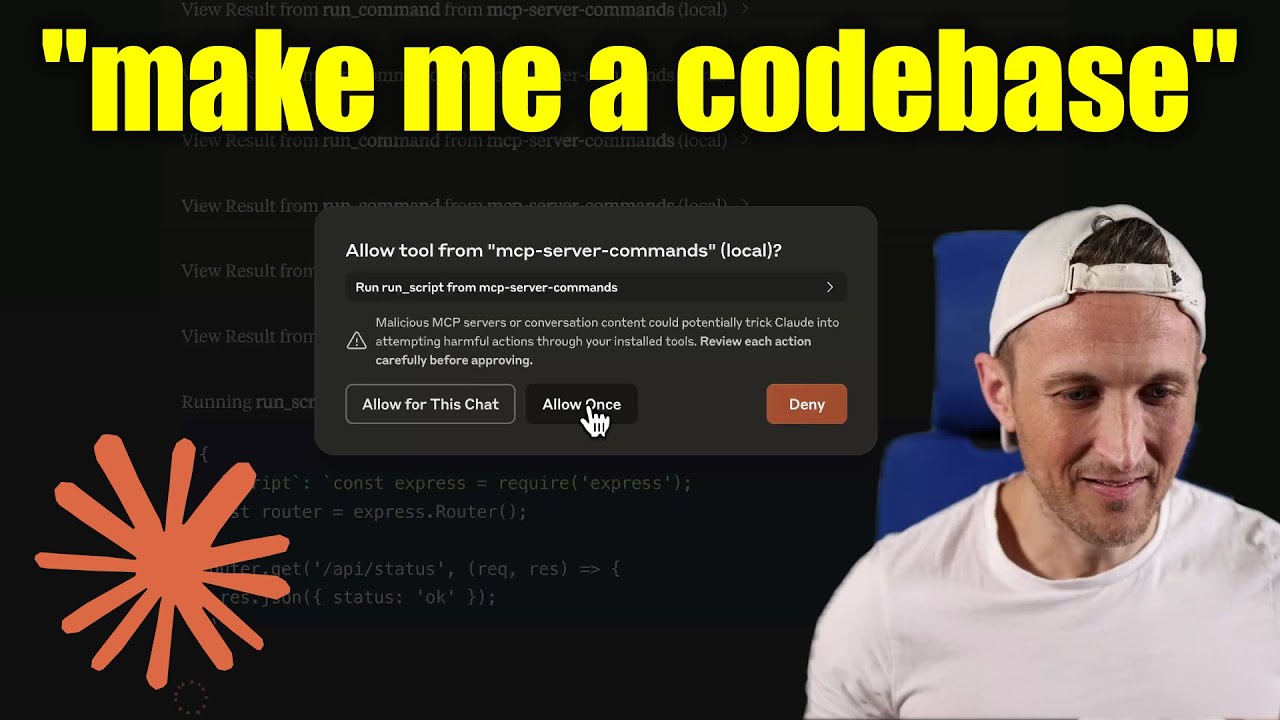
In Claude Desktop app, use Approve Once (not Allow for This Chat) so you can review each command, use Deny if you don't trust the command.
Permissions are dictated by the user that runs the server.
DO NOT run with sudo.
Prompts are for users to include in chat history, i.e. via Zed's slash commands (in its AI Chat panel)
run_process- generate a prompt message with the command output
- FYI this was mostly a learning exercise... I see this as a user requested tool call. That's a fancy way to say, it's a template for running a command and passing the outputs to the model!
Install dependencies:
npm installBuild the server:
npm run buildFor development with auto-rebuild:
npm run watchTo use with Claude Desktop, add the server config:
On MacOS: ~/Library/Application Support/Claude/claude_desktop_config.json
On Windows: %APPDATA%/Claude/claude_desktop_config.json
Groq Desktop (beta, macOS) uses ~/Library/Application Support/groq-desktop-app/settings.json
Published to npm as mcp-server-commands using this workflow
{
  "mcpServers": {
    "mcp-server-commands": {
      "command": "npx",
      "args": ["mcp-server-commands"]
    }
  }
}Make sure to run npm run build
{
  "mcpServers": {
    "mcp-server-commands": {
      // works b/c of shebang in index.js
      "command": "/path/to/mcp-server-commands/build/index.js"
    }
  }
}- Most models are trained such that they don't think they can run commands for you.
- Sometimes, they use tools w/o hesitation... other times, I have to coax them.
- Use a system prompt or prompt template to instruct that they should follow user requests. Including to use
run_processswithout double checking.
- Ollama is a great way to run a model locally (w/ Open-WebUI)
# NOTE: make sure to review variants and sizes, so the model fits in your VRAM to perform well!

# Probably the best so far is [OpenHands LM](https://www.all-hands.dev/blog/introducing-openhands-lm-32b----a-strong-open-coding-agent-model)
ollama pull https://huggingface.co/lmstudio-community/openhands-lm-32b-v0.1-GGUF

# https://ollama.com/library/devstral
ollama pull devstral

# Qwen2.5-Coder has tool use but you have to coax it
ollama pull qwen2.5-coderThe server is implemented with the STDIO transport.
For HTTP, use mcpo for an OpenAPI compatible web server interface.
This works with Open-WebUI
uvx mcpo --port 3010 --api-key "supersecret" -- npx mcp-server-commands

# uvx runs mcpo => mcpo run npx => npx runs mcp-server-commands
# then, mcpo bridges STDIO <=> HTTP
Warning
I briefly used mcpo with open-webui, make sure to vet it for security concerns.
Claude Desktop app writes logs to ~/Library/Logs/Claude/mcp-server-mcp-server-commands.log
By default, only important messages are logged (i.e. errors).
If you want to see more messages, add --verbose to the args when configuring the server.
By the way, logs are written to STDERR because that is what Claude Desktop routes to the log files.
In the future, I expect well formatted log messages to be written over the STDIO transport to the MCP client (note: not Claude Desktop app).
Since MCP servers communicate over stdio, debugging can be challenging. We recommend using the MCP Inspector, which is available as a package script:
npm run inspectorThe Inspector will provide a URL to access debugging tools in your browser.