Getting started
This page documents the basic features in the app to help you get started. It is very likely that the screenshots on this page will get outdated. If you spot an old screenshot or some other issue with the instructions, please open an issue.
Table of contents generated with markdown-toc
The first thing to do in the app is to find something to follow. To do this, navigate to the first page ("Follows") in settings by clicking the burger menu icon (☰) in the top left corner of the screen:
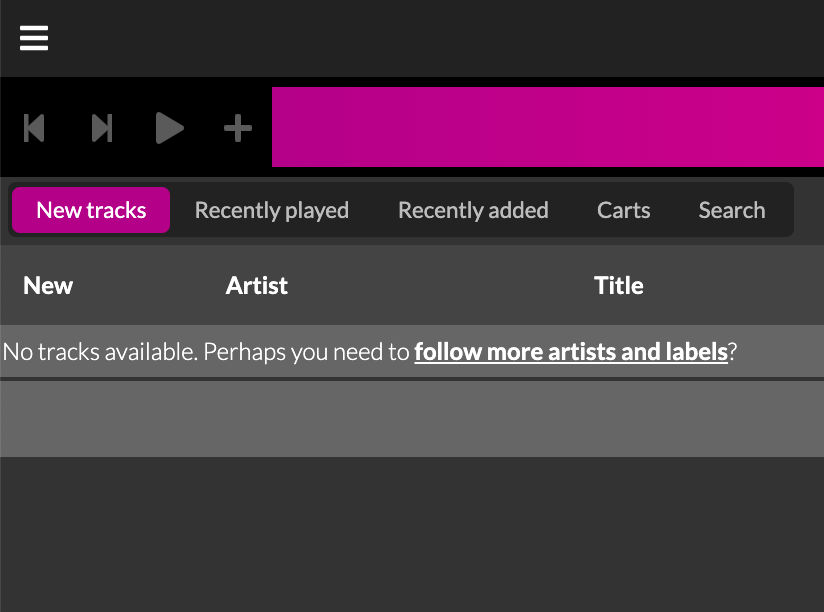
Type the artist or label name you want to follow into the search box:
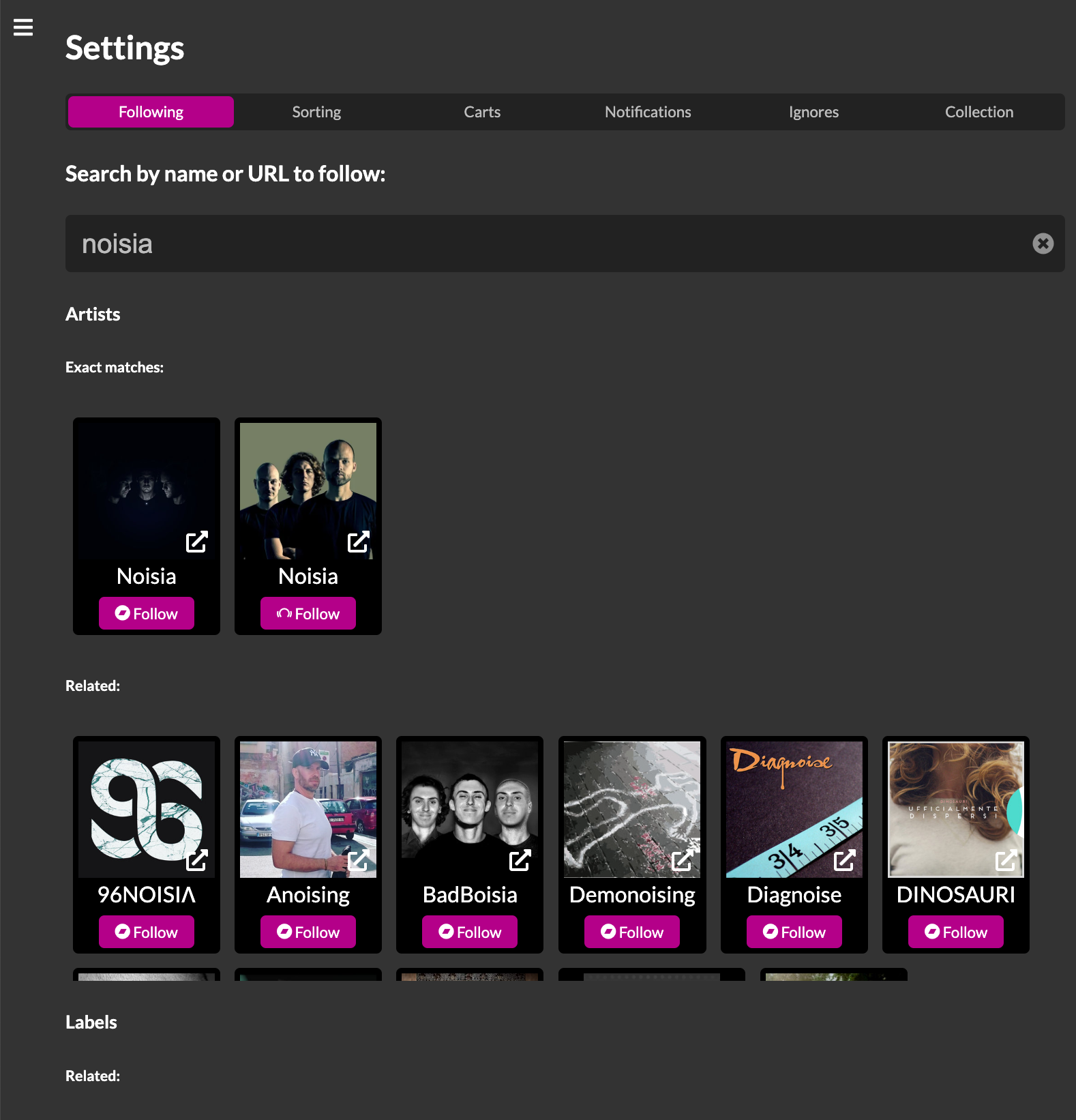
You can then click the follow button in the search results to follow the artists and labels. The search finds artists and labels from all the supported stores (i.e. currently Bandcamp, Beatport and Spotify). The results are not grouped and thus you will get a separate item for each store. The search is implemented this way in order for you to be able to select the specific artists and labels you want to follow instead of having to follow all artists / labels by the same name.
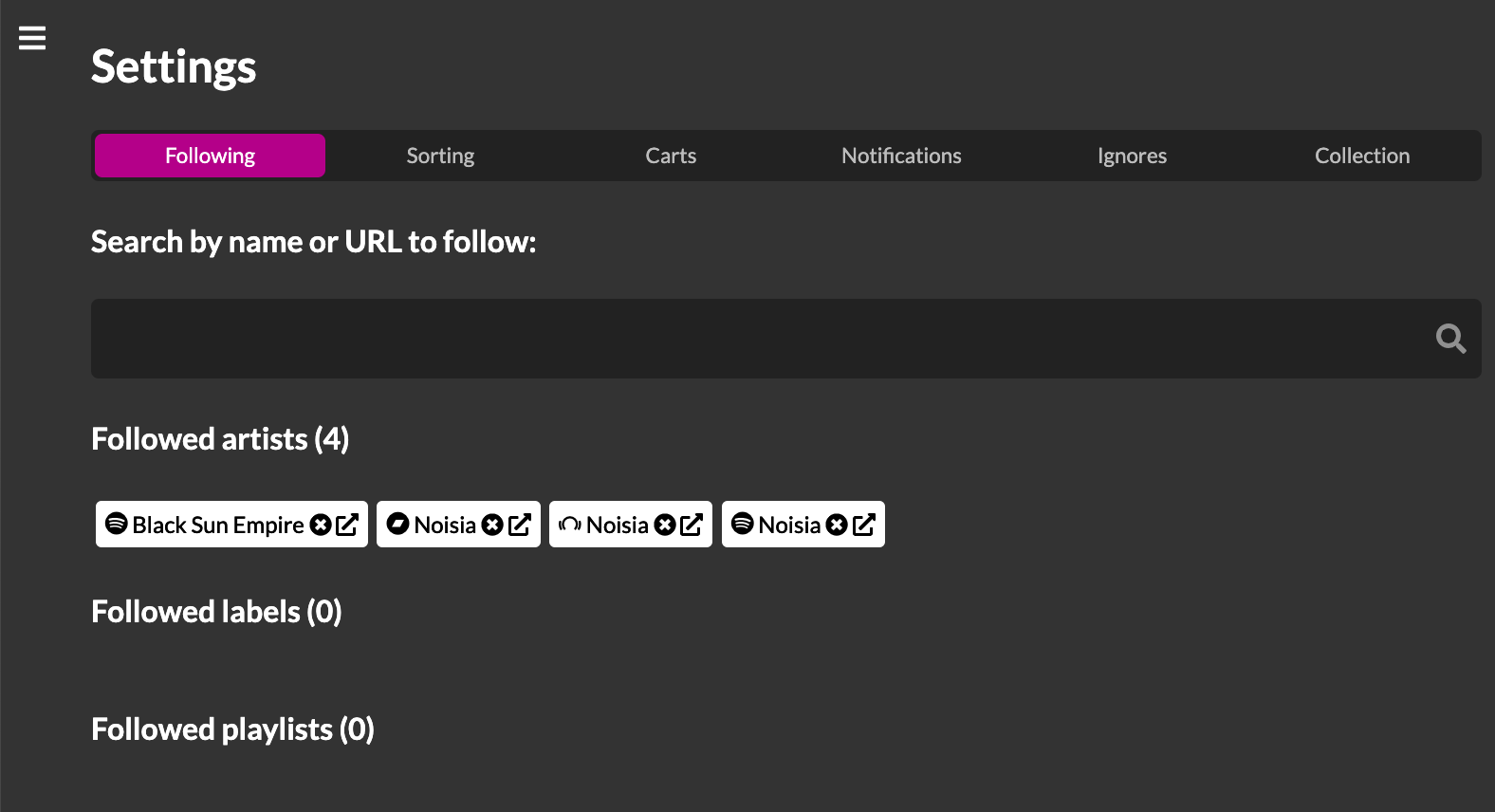
If you want to stop following some artist / label, you can do so from the lists below the search by clicking the "circled x" button in one of the listed items.
In addition to following specific artist and labels, you can follow the following playlist-like urls:
- Spotify playlists
- Any Beatport page with tracks to play (e.g. charts)
- Bandcamp tag pages
Subscribing to the updates for each of these is done in the same way i.e. by copying and pasting the page url to the search bar.
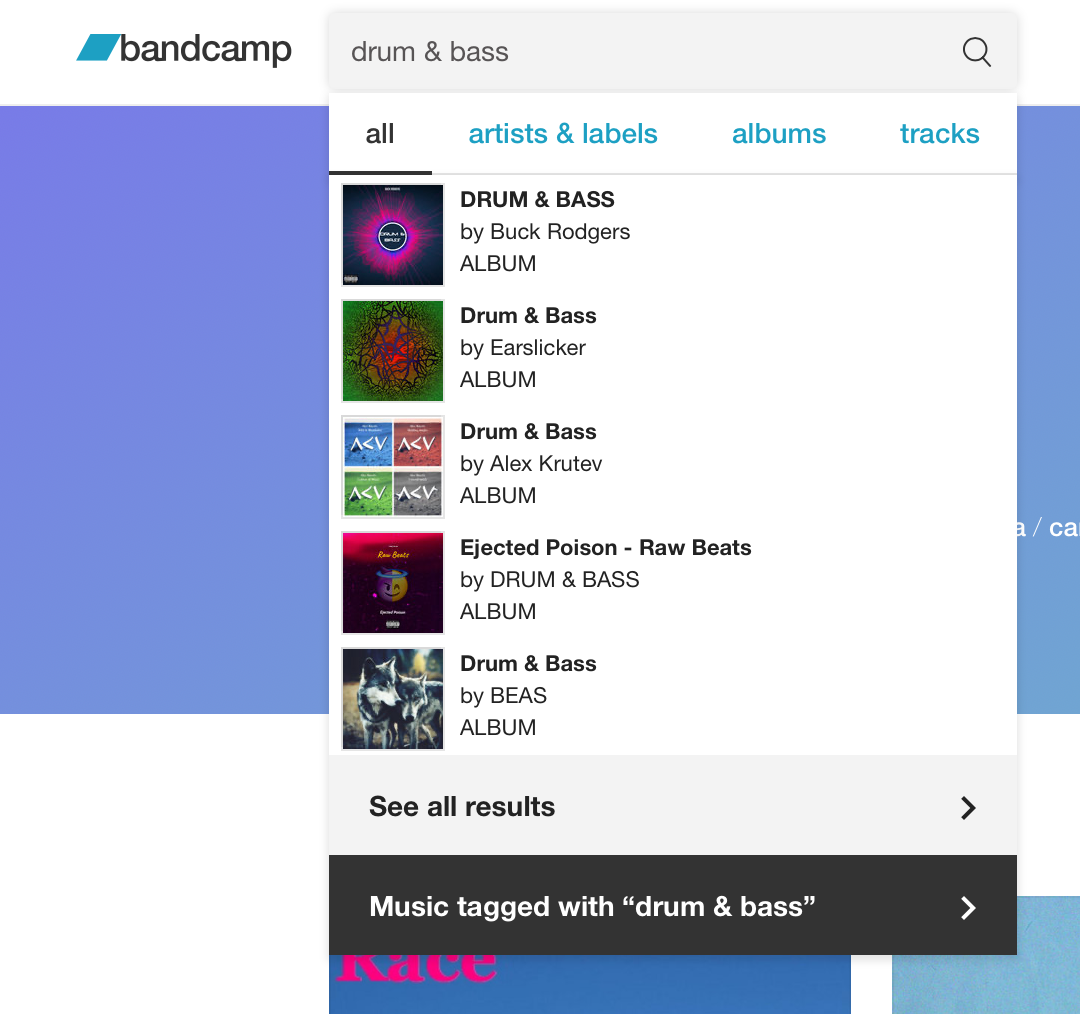
You can find the Bandcamp tag pages with the search. Input the tag you want to follow (e.g. a genre name such as 'drum & bass') into the search box. Click the item at the bottom of the result list i.e. e.g. 'Music tagged with "drum & bass"'.
Copy the url from the browser window and paste it into the search box in the Fomo Player settings.
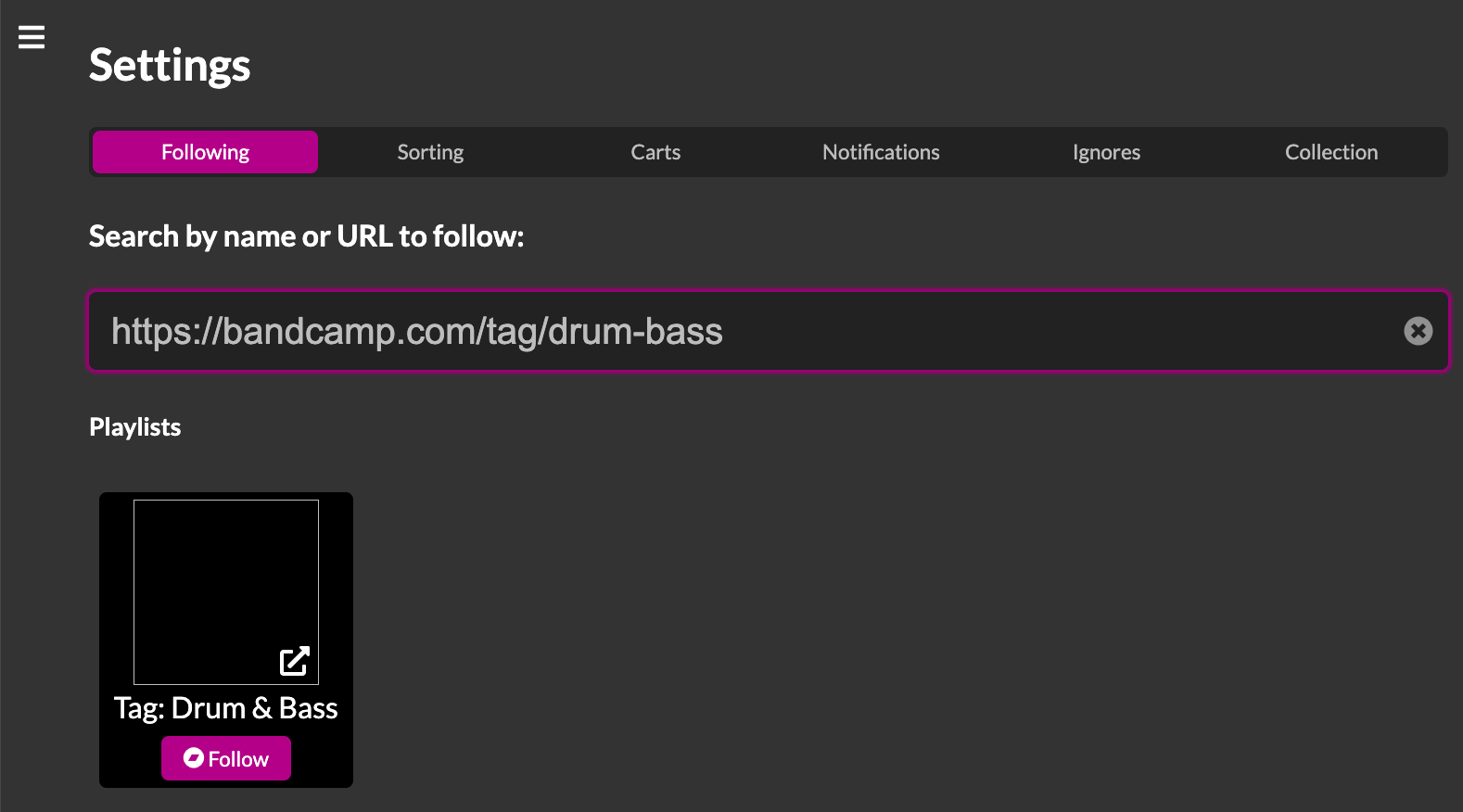
Click the follow button to get the new tracks into your track list.
Navigate to the page on Beatport you want to follow. You can for example get the genre top 100 updates following the steps below:
Open the genre page by clicking the genre name in the menu at the top left.
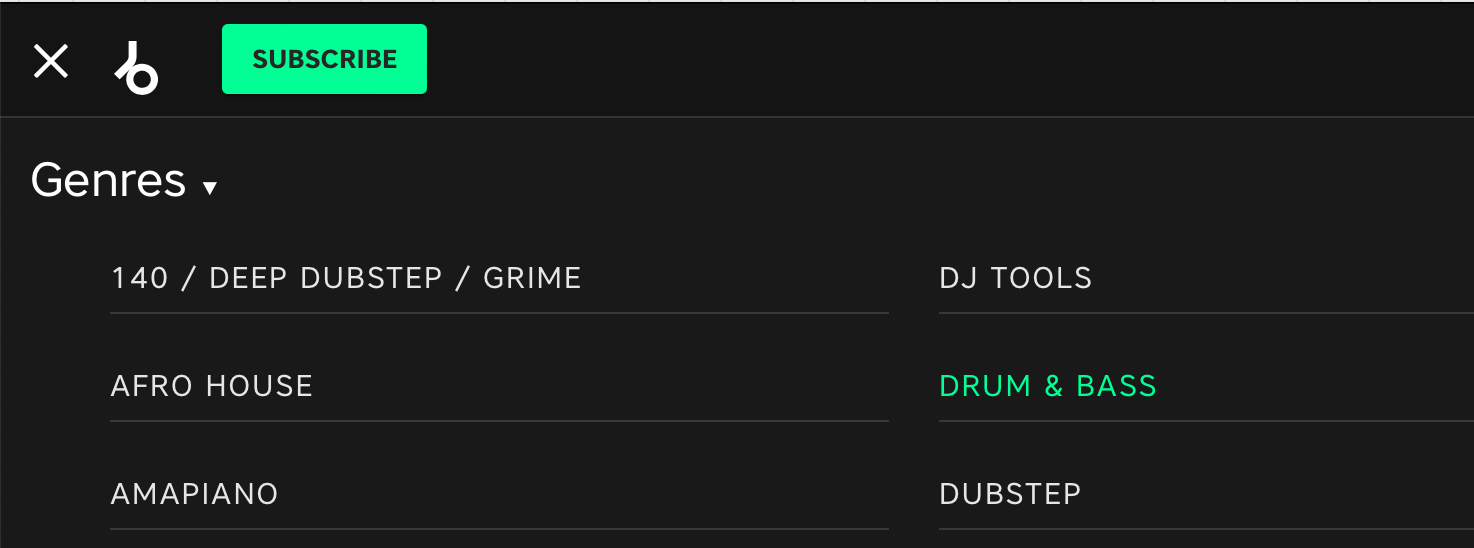
Scroll down until you see the link to the top 100 page (e.g. "View drum & bass top 100 tracks")

Copy the url from the browser window and paste it into the search box in the Fomo Player settings.
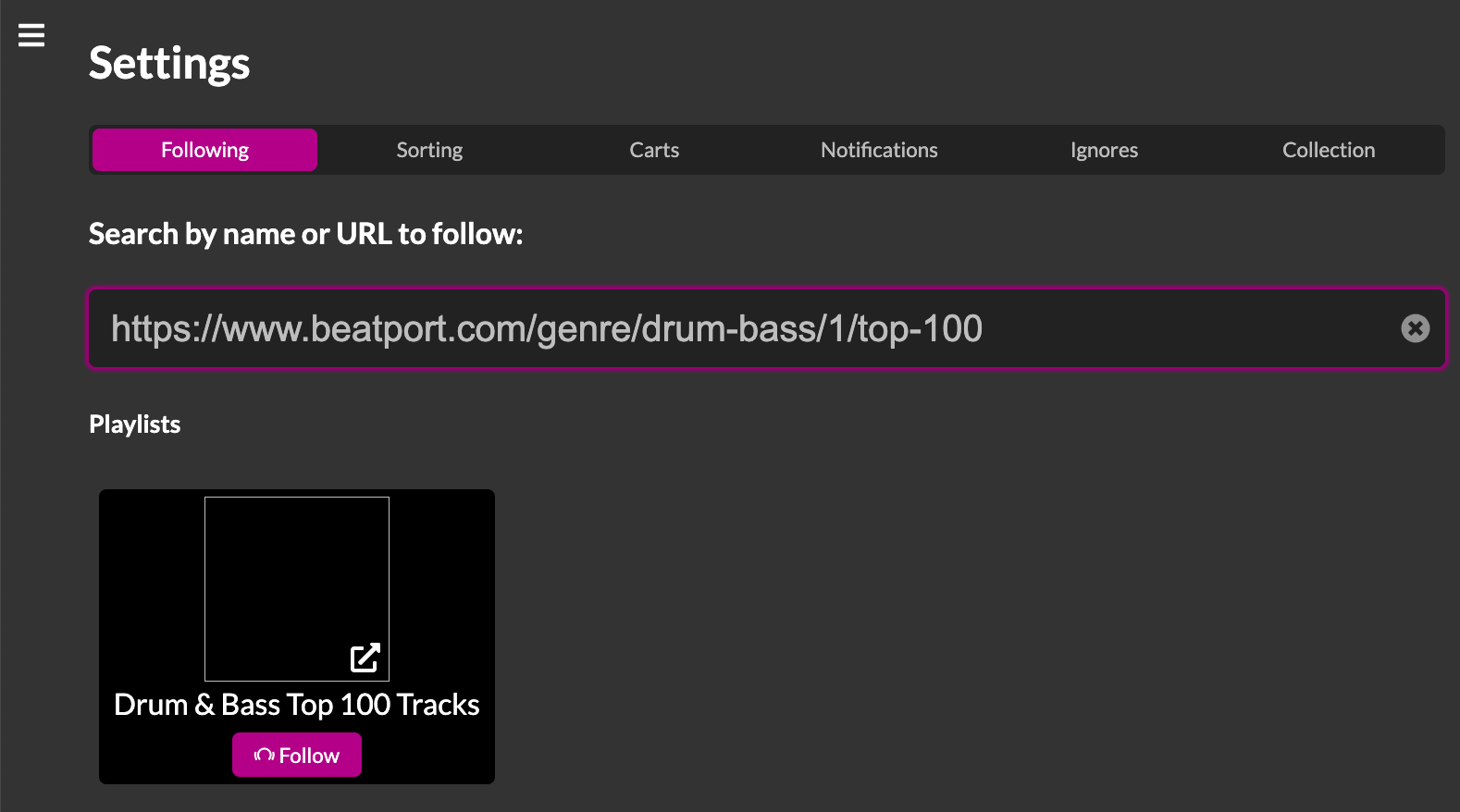
Click the follow button to get the new tracks into your track list.
In order to follow Spotify playlists, you need to get the share link to it. You can get it at least from the web player and the desktop player. Notice that you need to copy the link not the code.
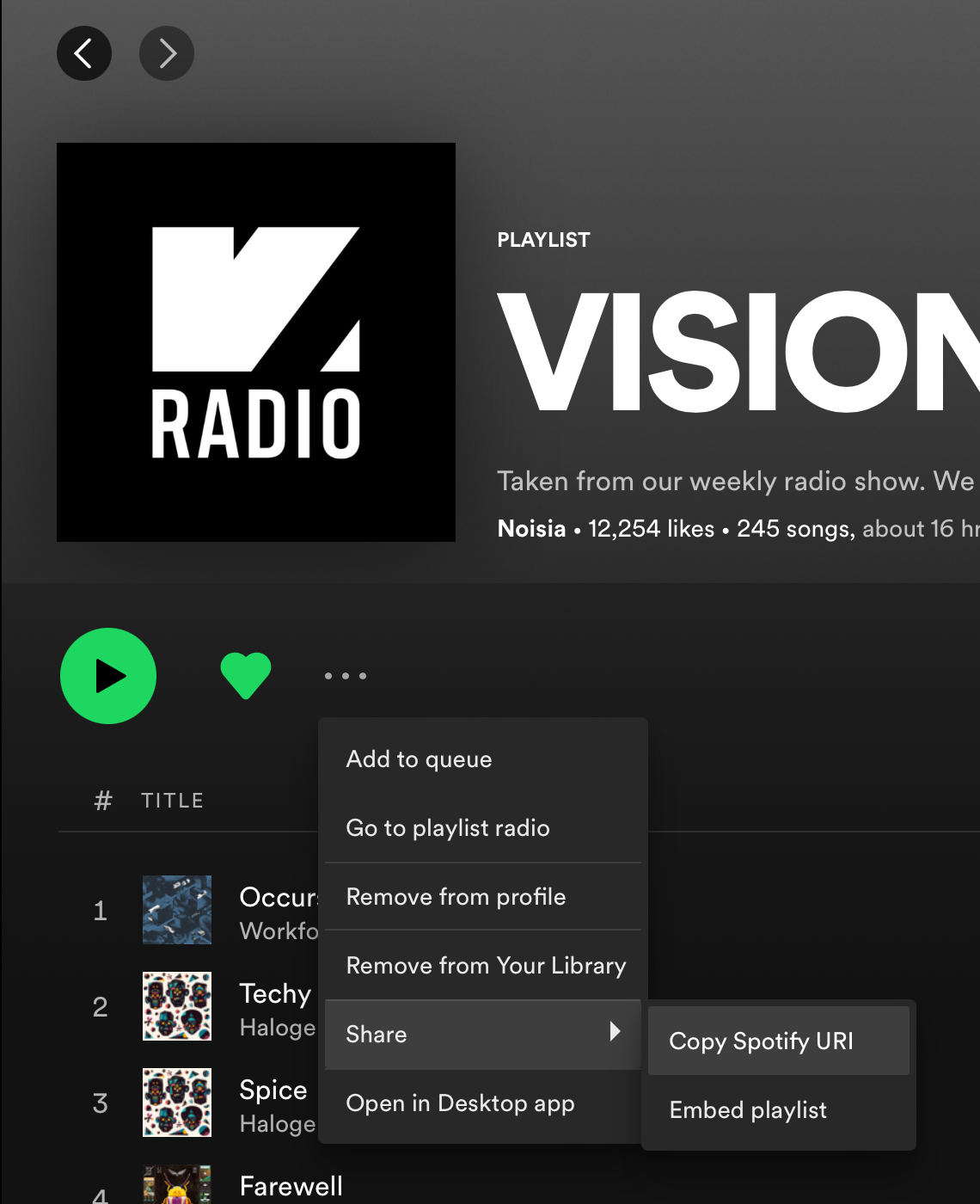
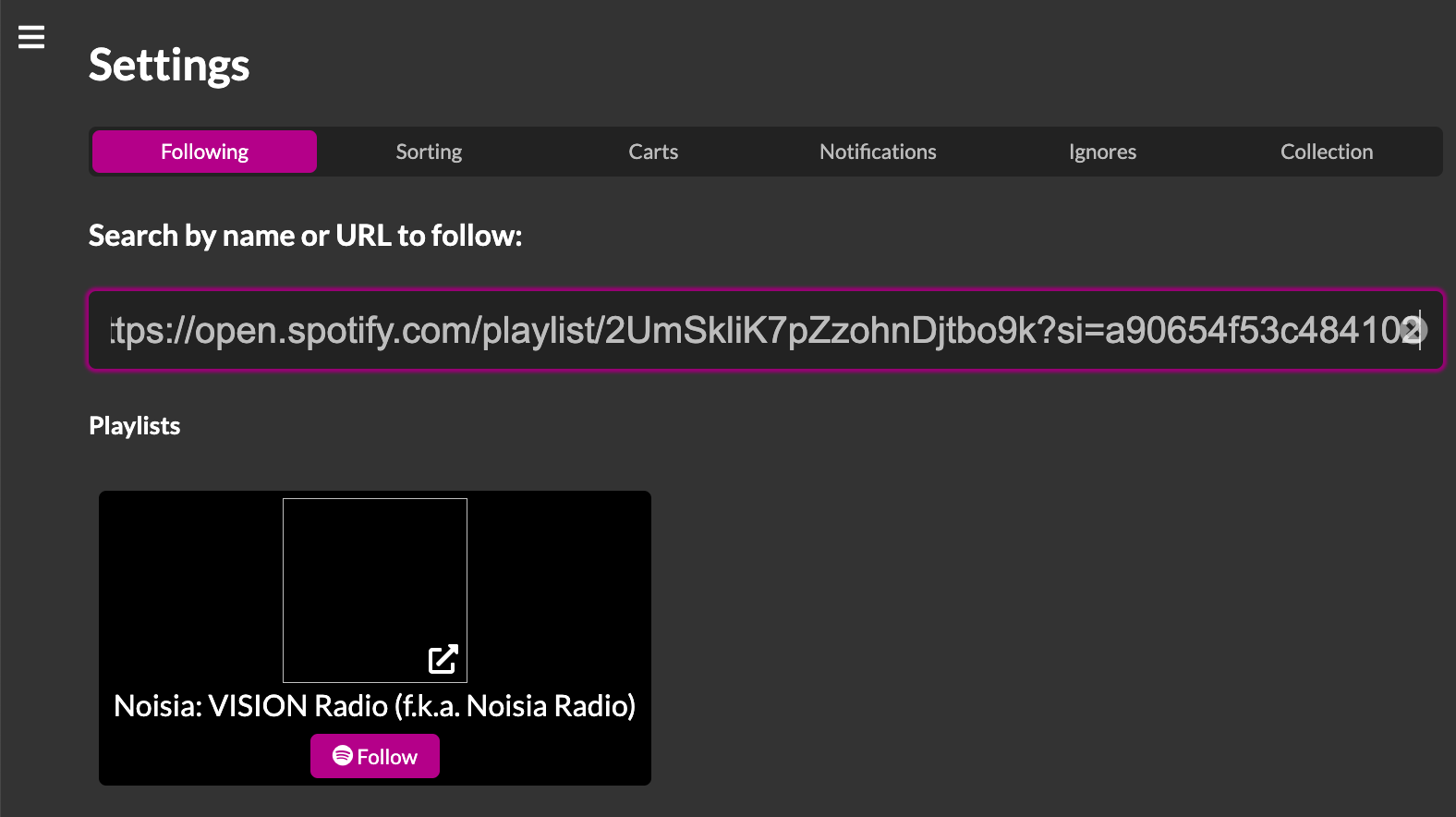
Paste the url into the search box in the Fomo Player settings.
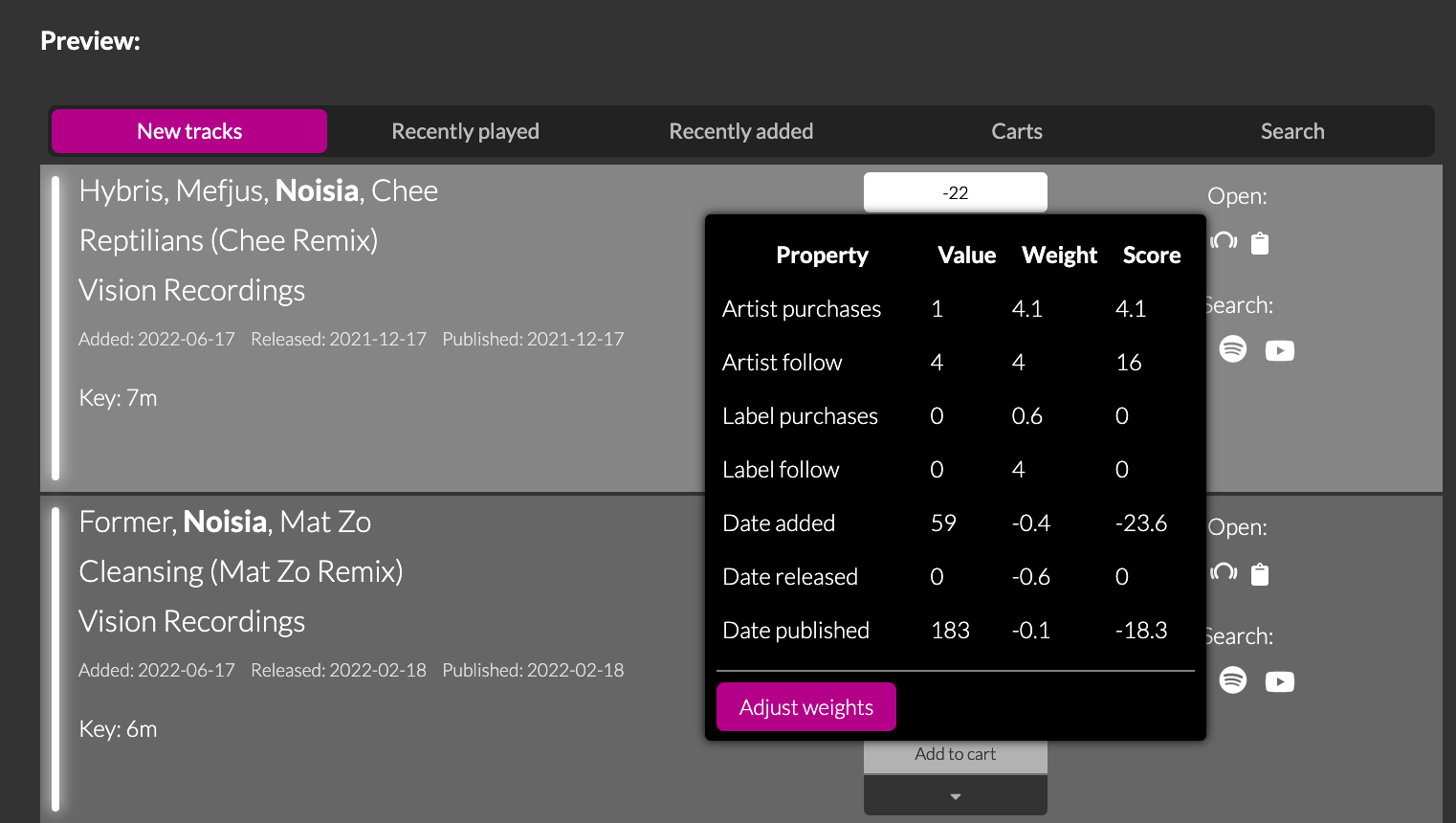
The main purpose of the app (in addition to keeping log of which tracks have been listened to) is to show the most relevant releases at the top of the track list. This is done by counting a score for each track according to the following parameters:
- The artists and labels related to the track (i.e. who made, remixed or released the track)
- How many tracks have you purchased (according to how you marked tracks purchased in this app) from the artists and labels
- How many days it has been since the track was released, published and added to the app
The app provides default values for how these parameters are weighted. If you want, you can further adjust the weights in the settings:
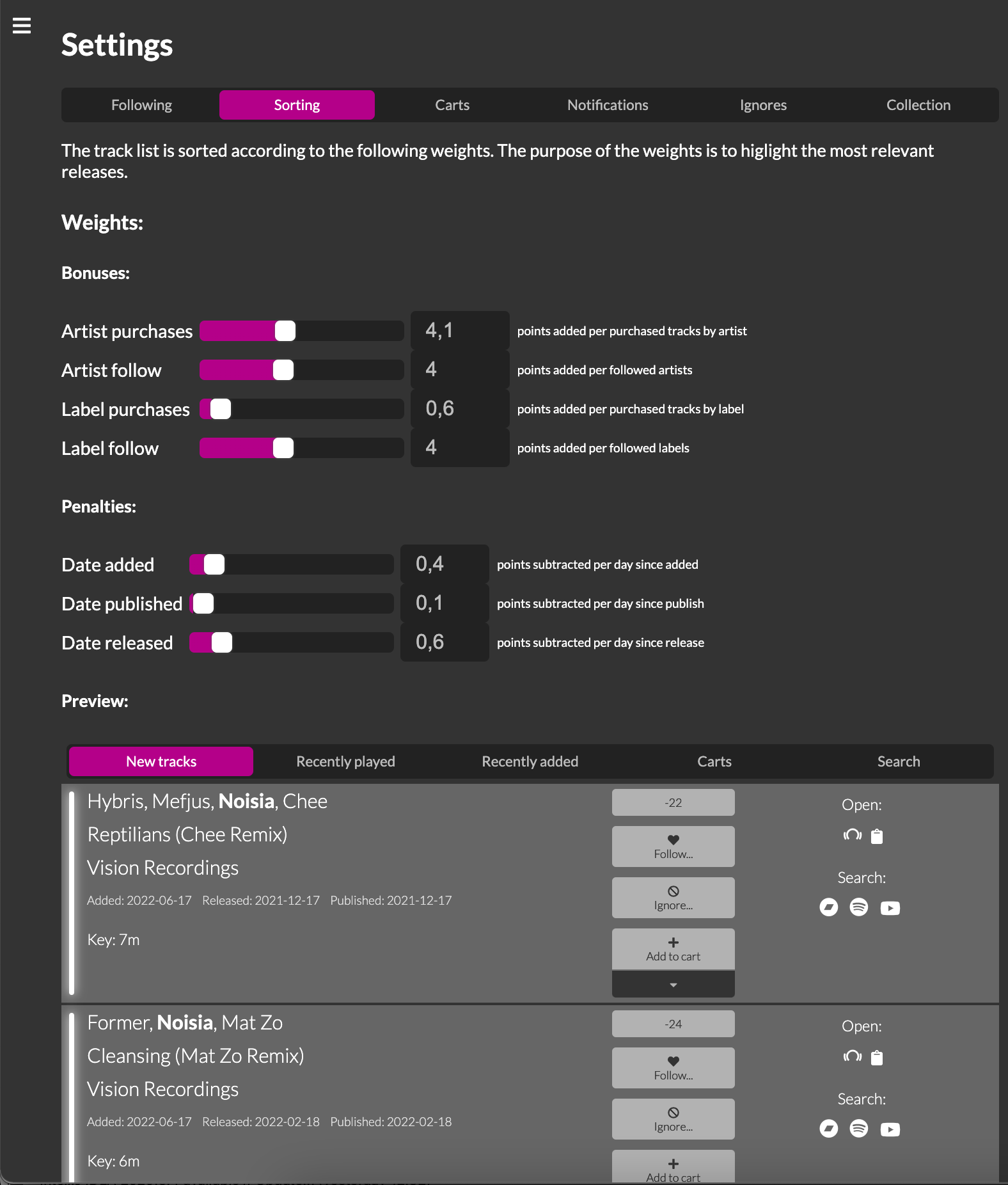
You can see how the score is formed by hovering the score in the track list