5. Erasing macOS
Use the --erase parameter to initiate the erase and reinstall of the system volume.
If the --erase parameter is used alone, erase-install.sh will check for a cached installer in /Applications, or an installed package in the working directory. If it finds one, it will use this installer for the erase-and-reinstall process described below. If it does not find one, it will download the latest compatible installer for the system on which the script is running. This is also compatible with the --fetch-full-installer and --pkg parameters described elsewhere.
The erase-and-reinstall process calls startosinstall --eraseinstall (startosinstall is a command-line tool included in the macOS installer app).
The startosinstall command requires user credentials to be supplied when run on an Apple Silicon Mac. When running this script on an Apple Silicon Mac, the user will be prompted to enter a username and password via a dialog window. The current user is pre-filled in the dialog and chosen if skipped by the user, but a different user can be filled in instead. The script checks that the user exists, is a "Volume Owner", and that the password is correct.
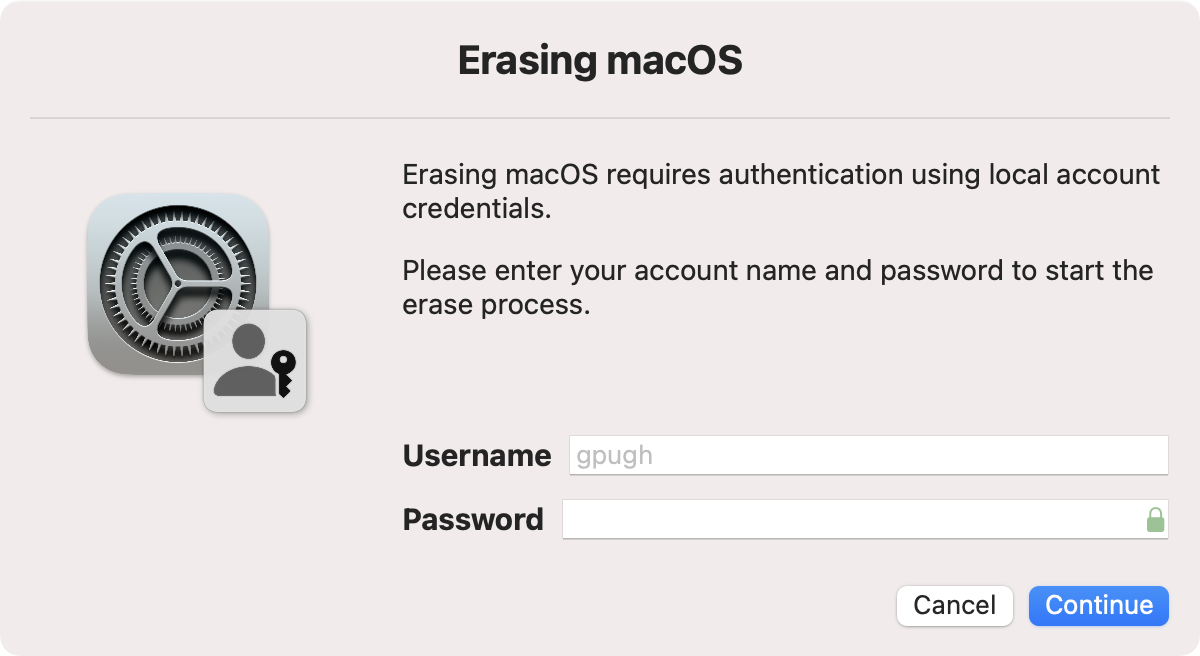
The user is given a number of attempts to enter their password, with the default number set to 5. This can be overridden using the --max-password-attempts option. If --max-password-attempts is set to infinite, then there is no limit, and the cancel button is removed.
macOS Big Sur requires around 45 GB spare drive space to perform an upgrade using startosinstall. If this space is not available, the user is informed via a dialog and the script ends.
The specific amount of space required on the drive for reinstallation is not exact, and varies with each OS. You can override the default minimum space required for startosinstall to run with the --min-drive-space=NN or --min-drive-space NN parameter, where NN is a value in GB. Example --min-drive-space 30. It's up to you to test whether the figure you specify is enough.
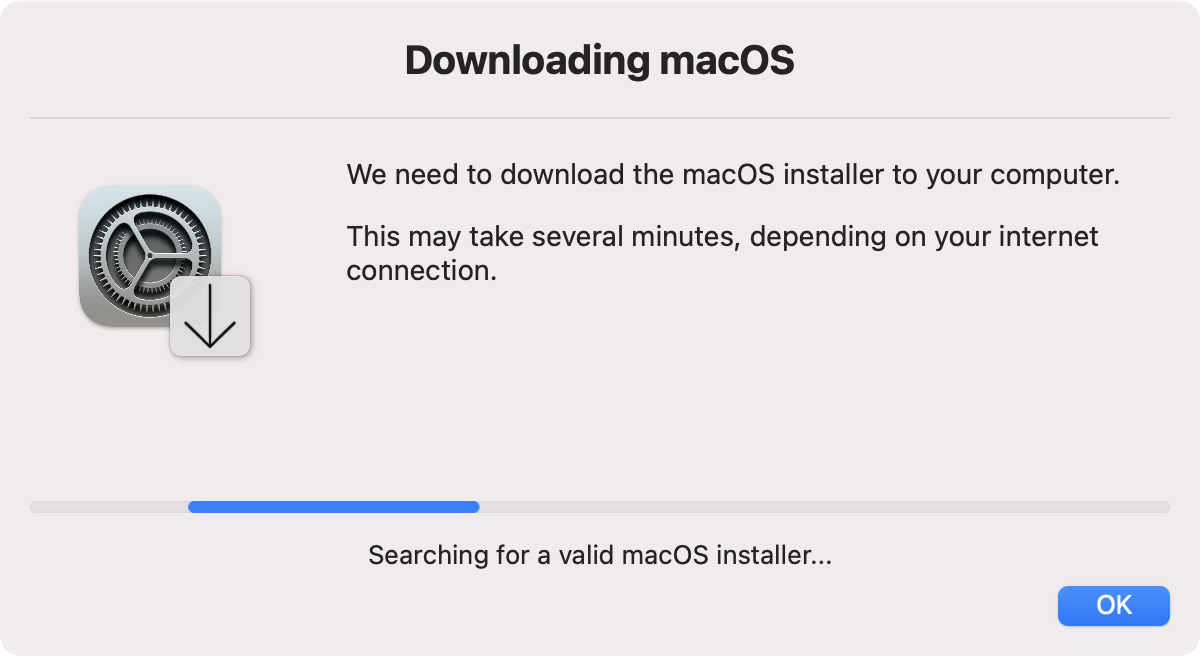
A notification message is displayed during the download process. Once the download is complete, the window is closed and the script moves on to the reinstall process described below.
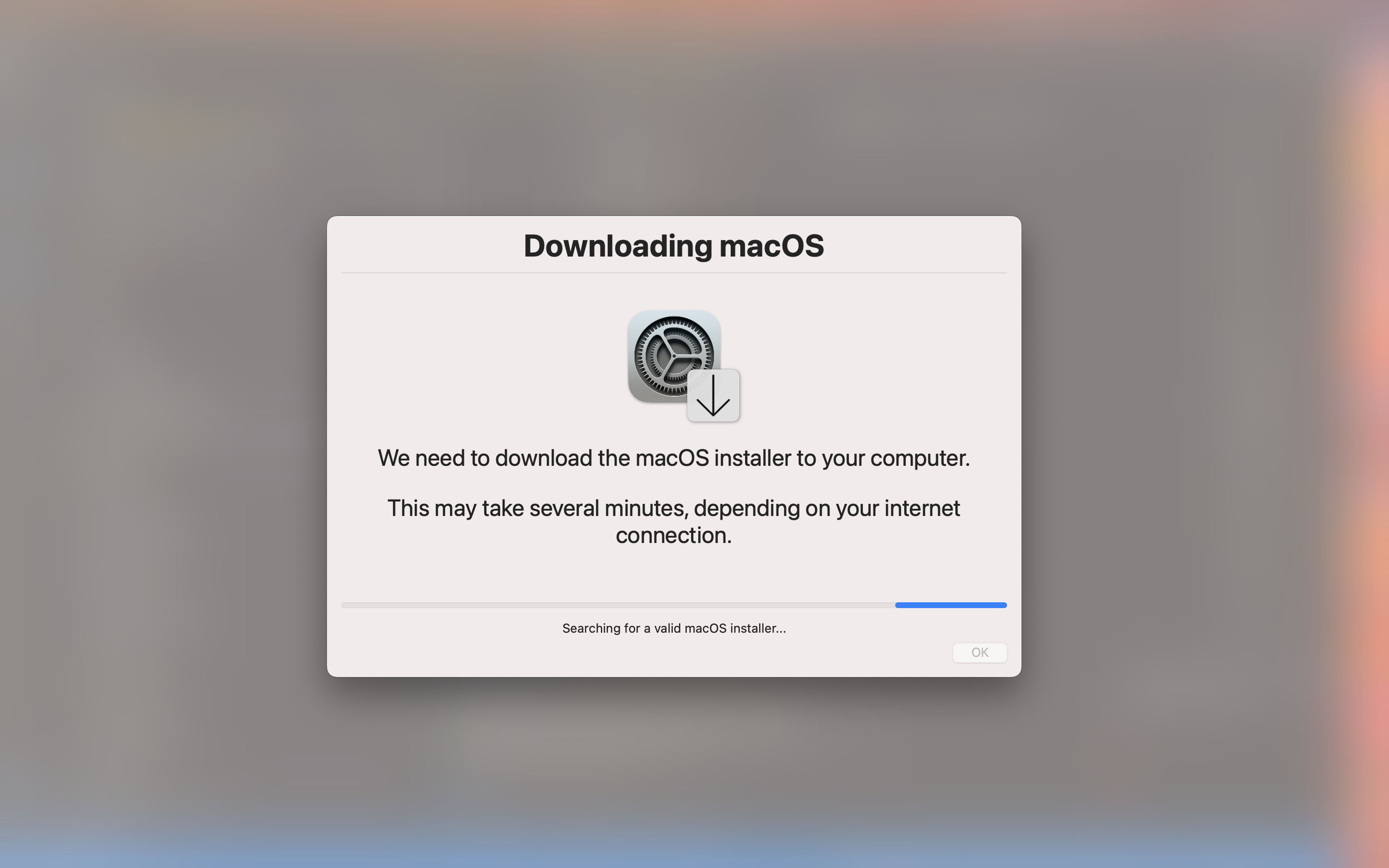
If the --fs parameter is added, the download dialog will be fullscreen.
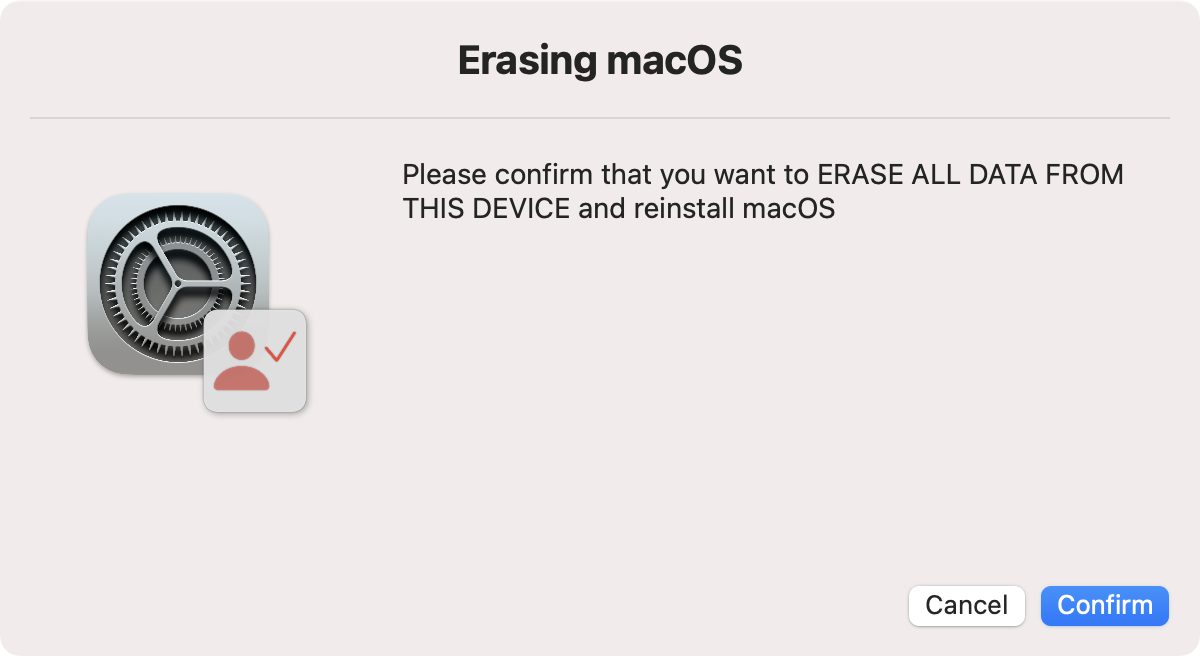
If you wish for the user of the computer to confirm that they wish to erase the device before startosinstall is called, add the --confirm parameter. This will bring up a dialog asking the user to confirm that they wish to proceed.
Once the erase-and-reinstall process is ready to begin, a fullscreen dialog is launched.
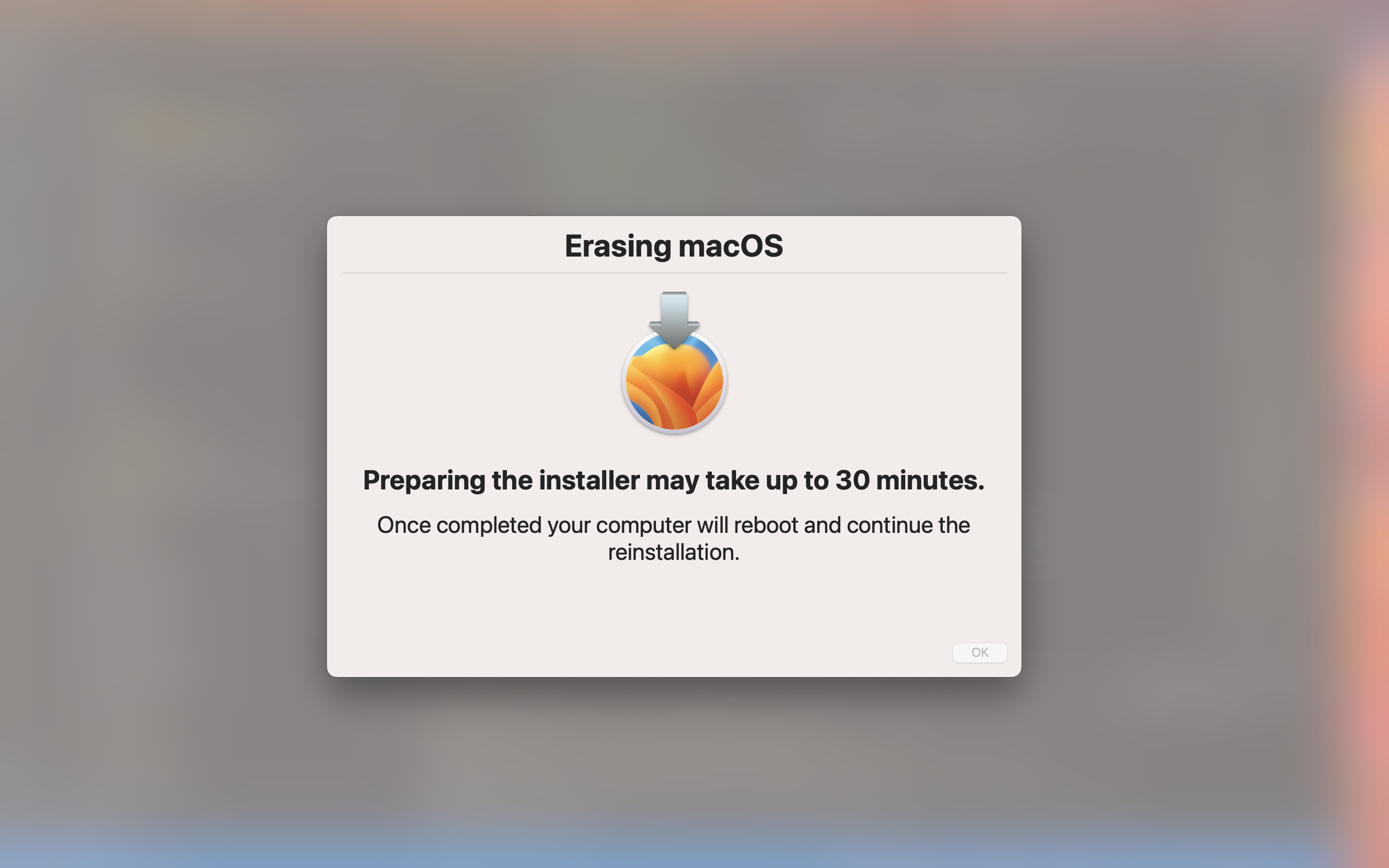
You can add the --no-fs parameter to switch to a utility window instead of the full screen window.
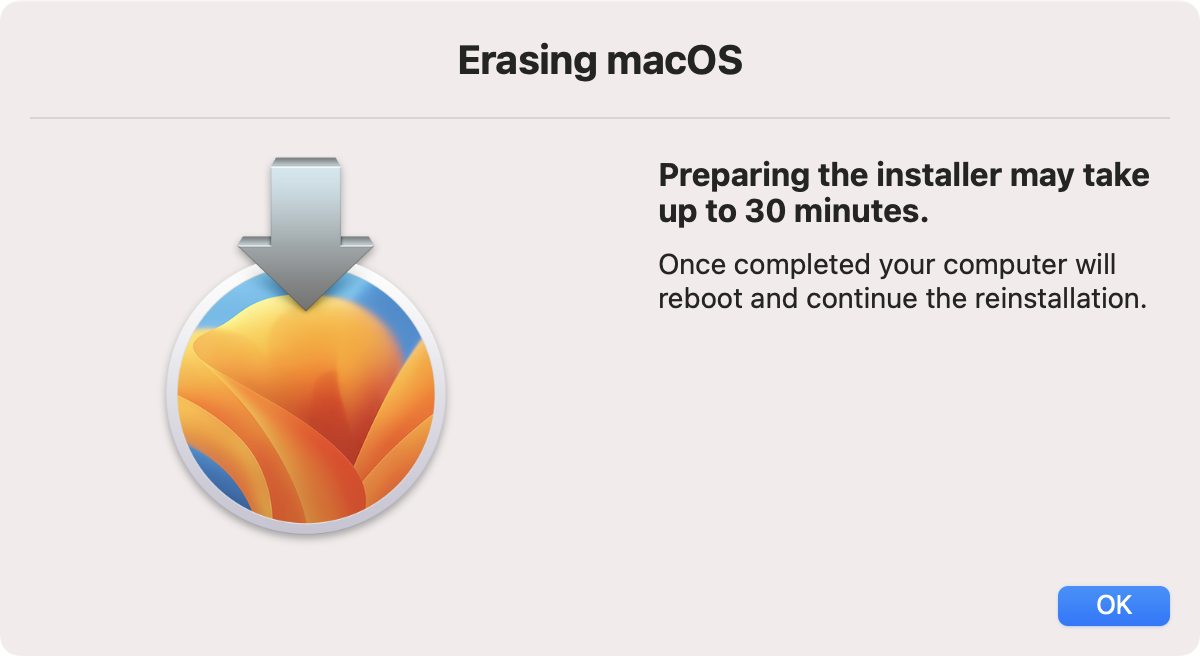
Shift+Cmd+C will quit the dialog window (not the script).
There are various additional parameters that can customise the erase-and-reinstall workflow.
You can specify a specific OS, version or Build ID to download using the --os, --version or --build parameters. You can keep to the same OS as the current system using the --sameos parameter. You can keep to the same Build ID using the --samebuild parameter. See the section on downloading a specific version for more details of how these parameters work.
You can place any signed packages in a folder named extras in the working directory (i.e. /Library/Management/erase-install by default). These packages will be installed on the system as part of the erase-and-reinstall process. These packages must be signed.
The path to search for these packages can be overridden with the --extras argument:
sudo /path/to/erase-install.sh --erase --extras /path/containing/extra/packages
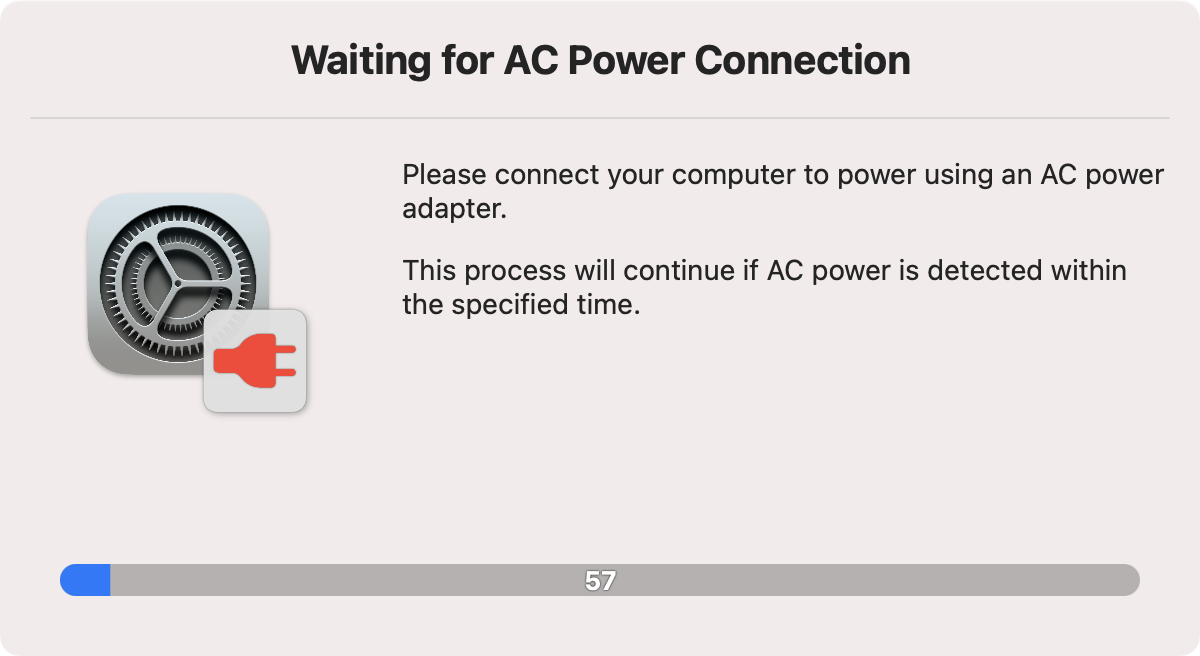
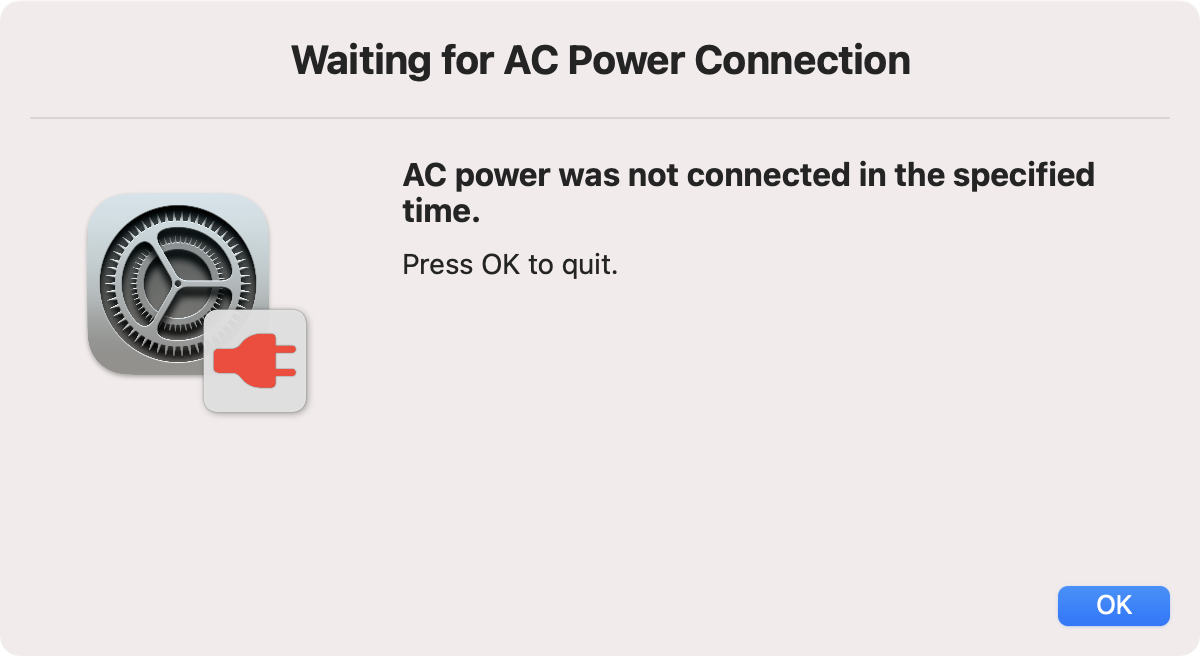
If the --check-power option is used, the script will check if the computer is connected to AC power. If it isn't, it will wait for a default of 60 seconds for power to be added, and otherwise fail.
The default time to wait can be altered by setting the --power-wait-limit option, e.g. --power-wait-limit 180 for 3 minutes.
This is the dialog shown:
Once the time is up, this is the dialog shown:
This parameter enables you to supply a shell command to run immediately prior to startosinstall running. An example might be:
--preinstall-command "jamf recon -department Spare"
Ensure that the command is in quotes.
This parameter enables you to supply a shell command to run immediately after startosinstall runs, but before the computer restarts. An example might be:
--postinstall-command "rm -rf /Applications/Google Chrome.app"
Ensure that the command is in quotes.
Note: this does NOT run after the computer restarts, but after startosinstall has finished preparing the update and immediately before the restart. So it is not useful for Jamf Pro users who wish to run recon. If you want to do that, create a separate policy that runs "Update Inventory" after every restart.
If you want to upgrade or erase a system without asking the user for credentials, you can supply credentials in advance using --very-insecure-mode.
NOTE THIS IS VERY INSECURE! ONLY USE IN A SAFE ENVIRONMENT!!!
- Use the supplied script
set-credentials.shto generate the base64-encoded credentials. - Alternatively use the following shell command:
printf "%s:%s" "<USERNAME>" "<PASSWORD>" | iconv -t ISO-8859-1 | base64 -i -- Add the following option:
--credentials ENCODEDCREDENTIALS(whereENCODEDCREDENTIALSis the output of the script or command above. - You must also add this option:
--very-insecure-mode(this is required in addition to the--credentialsoption!).
For testing out the script, you can add the --test-run parameter. This runs through the entire workflow up to but not including the startosinstall command. Instead, a sleep 120 command is run.