x11docker allows to run graphical applications in Docker Linux containers.
- Docker allows to run applications in an isolated container environment. The result is similar to a virtual machine, but needs less resources.
- Docker does not provide a display server that would allow to run applications with a graphical user interface.
- x11docker fills the gap. It runs an X display server on the host system and provides it to Docker containers.
- Additionally x11docker does some security setup to enhance container isolation and to avoid X security leaks. This allows a sandbox environment that fairly well protects the host system from possibly malicious or buggy software.
Software can be installed in a deployable Docker image with a rudimentary Linux system inside. This can help to run or deploy software that is difficult to install on several systems due to dependency issues. It is possible to run outdated versions or latest development versions side by side. Files to work on can be shared between host and container.
x11docker runs on Linux and (with some setup and limitations) on MS Windows. x11docker is not adapted to run on macOS except in a Linux VM.
x11docker wiki provides some how-to's for basic setups without x11docker.
- Focus on security:
- Avoids X security leaks by running additional X servers.
- Restricts container capabilities to bare minimum.
- Container user is same as host user to avoid root in container.
- Low dependencies:
- No obliging dependencies on host beside X and Docker. Recommended:
xpraandXephyr. - No dependencies inside of Docker images except for some optional features.
- No obliging dependencies on host beside X and Docker. Recommended:
- Several optional features like GPU, sound, webcam and printer support.
- Remote access with SSH, VNC or HTML5 possible.
- Easy to use. Examples:
x11docker jess/cathodex11docker --desktop --size 320x240 x11docker/lxde(needs nested X serverXephyr)


- GUI for x11docker
- Terminal usage
- Installation
- Options
- Dependencies
- Security
- MSYS2, Cygwin and WSL on MS Windows
- Troubleshooting
- Contact
- Examples
x11docker-gui is an optional graphical frontend for x11docker. It runs from console, too.
x11docker-guineeds packagekaptain. If your distribution misses it, look at kaptain repository.- If
kaptainis not installed on your system,x11docker-guiuses imagex11docker/kaptain.

Just type x11docker IMAGENAME [COMMAND].
- Get an overview of options with
x11docker --help.- For desktop environments in image add option
-d, --desktop. - To run without X at all use option
-t, --tty. - Get an interactive TTY with option
-i, --interactive.
- For desktop environments in image add option
- If startup fails, look at chapter Troubleshooting.
General syntax:
To run a Docker image with new X server:
  x11docker [OPTIONS] IMAGE [COMMAND]
  x11docker [OPTIONS] -- IMAGE [COMMAND [ARG1 ARG2 ...]]
  x11docker [OPTIONS] -- DOCKER_RUN_OPTIONS -- IMAGE [COMMAND [ARG1 ARG2 ...]]
To run a host application on a new X server:
  x11docker [OPTIONS] --exe COMMAND
  x11docker [OPTIONS] --exe -- COMMAND [ARG1 ARG2 ...]
To run only a new empty X server:
  x11docker [OPTIONS] --xonly
DOCKER_RUN_OPTIONS are just added to docker run command without a check by x11docker.
Note that x11docker is just a bash script without library dependencies. Basically it is a wrapper for X servers and Docker. To allow advanced usage of x11docker abilities look at chapter Dependencies.
As root you can install, update and remove x11docker on your system:
x11docker --install: install x11docker and x11docker-gui from current directory.x11docker --update: download and install latest release from github.x11docker --update-master: download and install latest master version from github.x11docker --remove: remove all files installed by x11docker.
Copies x11docker and x11docker-gui to /usr/bin. Creates an icon in /usr/share/icons.
Creates x11docker.desktop in /usr/share/applications. Copies README.md, CHANGELOG.md and LICENSE.txt to /usr/share/doc/x11docker.
Remove sudo and run as root if your system does not use sudo.
curl -fsSL https://raw.githubusercontent.com/mviereck/x11docker/master/x11docker | sudo bash -s -- --update
For a first test you can run with bash x11docker respective bash x11docker-gui.
For minimal installation make x11docker executable with chmod +x x11docker and move it to /usr/bin (or another location in PATH).
Other files than x11docker script itself are not essential.
Description of some commonly used options.
If no X server option is specified, x11docker automatically chooses one depending on installed dependencies and on given or missing options --desktop, --gpu and --wayland.
- Overview of all possible X server and Wayland options.
- Hints to use option
--xorgwithin X. - Use option
-t, --ttyto run without X at all.
- Hints to use option
x11docker assumes that you want to run a single application in seamless mode, i.e. a single window on your regular desktop. If you want to run a desktop environment in image, add option --desktop.
- Seamless mode is supported with options
--xpraand--nxagent. As a fallback insecure option--hostdisplayis possible.- If neither
xpranornxagentare installed, but x11docker finds a desktop capable X server likeXephyr, it avoids insecure option--hostdisplayand runs Xephyr with a host window manager.- You can specify a host window manager with option
--wm=WINDOWMANAGER, for example--wm=openbox.
- You can specify a host window manager with option
- If neither
- Desktop mode with
--desktopis supported with all X server options except--hostdisplay. If available, x11docker prefers--xephyrand--nxagent.
Changes in a running Docker container system will be lost, the created Docker container will be discarded. For persistent data storage you can share host directories:
- Option
-m, --homecreates a host directory in~/.local/share/x11docker/IMAGENAMEthat is shared with the container and mounted as itsHOMEdirectory. Files in container home and configuration changes will persist. x11docker creates a softlink from~/.local/share/x11dockerto~/x11docker. - Option
--sharedir DIRmounts a host directory at the same location in container.--sharedir DIR:rorestricts to read-only access. - Option
--homedir DIRis similar to--homebut allows you to specify a custom host directory for data storage. - Special cases for
$HOME:--homedir $HOMEwill use your host home as container home. Discouraged, use with care.--sharedir $HOMEwill symlink your host home as a subfolder of container home.
Note that x11docker copies files from /etc/skel in container to HOME if HOME is empty. That allows to provide customized user settings.
Hardware acceleration for OpenGL is possible with option -g, --gpu.
- This will work out of the box in most cases with open source drivers on host. Otherwise have a look at Dependencies.
- Closed source NVIDIA drivers need some setup and support less x11docker X server options.
Clipboard sharing is possible with option -c, --clipboard.
- Image clips are possible with
--xpraand--hostdisplay. - Some X server options need package
xclipon host.
Sound is possible with options -p, --pulseaudio and --alsa.
- For pulseaudio sound with
--pulseaudioyou needpulseaudioon host and in image. - For ALSA sound with
--alsayou might need to specify a sound card with e.g.--alsa=Generic. Get a list of available sound cards withaplay -l. To support virtual ALSA devices likedmix, too, the image needs ALSA libraries, e.g.libasound2in debian images.
Webcams on host can be shared with option --webcam.
- If webcam application in image fails, install
mesa-utils(debian) ormesa-demos(arch) in image. guvcviewneeds--pulseaudioor--alsa.cheeseandgnome-ringneed--init=systemdor--dbus-system.
Printers on host can be provided to container with option --printer.
- It needs CUPS on host, the default printer server for most linux distributions.
- The container needs package
libcups2(debian) orlibcups(arch).
x11docker provides option --lang for flexible language locale settings.
--langwithout an argument setsLANGin container to same as on host. Same as--lang=$LANG- x11docker will check on container startup if the desired locale is already present in image and enable it.
- If x11docker does not find the locale, it creates it on container startup. (Needs package
localesin image.) - Examples:
--lang=defor German,--lang=zh_CNfor Chinese,--lang=rufor Russian,--lang=$LANGfor your host locale. - For support of chinese, japanese and korean characters install a font like
fonts-arphic-umingin image.
To run Wayland instead of an X server x11docker provides options --wayland, --weston, --kwin and --hostwayland.
For further description loot at Overview of all possible X server and Wayland options.
- Option
--waylandautomatically sets up a Wayland environment with some related environment variables. - Options
--kwinand--westonrun Wayland compositorskwin_waylandorweston.- For QT5 applications without option
--waylandadd options--dbusand--env QT_QPA_PLATFORM=wayland.
- For QT5 applications without option
- Option
--hostwaylandcan run single applications on host Wayland desktops like Gnome 3, KDE 5 and Sway. - Example:
xfce4-terminalon Wayland:x11docker --wayland x11docker/xfce xfce4-terminal
x11docker supports several init systems as PID 1 in container with option --init. Init in container solves the zombie reaping issue.
As default it uses tini in/usr/bin/docker-init.
Look at x11docker wiki: Init systems in Docker: tini, systemd, SysVinit, runit, OpenRC and elogind.
Some desktop environments and applications need a running DBus daemon and/or DBus user session.
- use
--dbusto run a DBus user session daemon. - use
--dbus-systemto run DBus system daemon. This includes option--dbus.- If startup fails or takes about 90s, install an init system and use that one to run DBus. E.g. install
systemdin image and run with--init=systemd.
- If startup fails or takes about 90s, install an init system and use that one to run DBus. E.g. install
- use
--hostdbusto connect to host DBus user session. - use
--sharedir /run/dbus/system_bus_socketto share host DBus system socket. - DBus will be started automatically with init systems
systemd,openrc,runitandsysvinit(option--init).
x11docker can run with standard system utilities without additional dependencies on host or in image.
As a core it only needs an X server and, of course, docker to run Docker containers on X.
x11docker checks dependencies for chosen options on startup and shows terminal messages if some are missing.
TL;DR: Install xpra Xephyr weston Xwayland xdotool xauth xclip xrandr xdpyinfo on host, or leave it as it is.
All X server options with a description and their dependencies are listed in wiki: X server and Wayland options.
| Recommendations | Dependencies | Available options |
|---|---|---|
| Minimal base | Xorg (probably already installed) |
--hostdisplay --xorg |
| Recommended base | xpra Xephyr |
--xpra --xephyr |
Recommended base for --gpu |
xpra weston Xwayland xdotool |
--xpra-xwayland --weston-xwayland --weston --xwayland --wayland |
| Recommended tools | xauth xrandr xdpyinfo |
Note that --gpu support with proprietary NVIDIA drivers is possible only for options --hostdisplay and --xorg.
| Option | Dependencies on host | Dependencies in image |
|---|---|---|
--clipboard |
xclip or xsel |
- |
--gpu |
- | MESA OpenGL drivers. Debian: mesa-utils mesa-utils-extra CentOS: glx-utils mesa-dri-drivers Arch Linux: mesa-demos Alpine: mesa-demos mesa-dri-ati mesa-dri-intel mesa-dri-nouveau mesa-dri-swrast |
--gpu with NVIDIA |
look at x11docker wiki: NVIDIA driver | |
--alsa |
- | optional: ALSA client libs. Debian: libasound2, Arch, Alpine: alsa-lib |
--pulseaudio |
pulseaudio |
pulseaudio client libs. Debian: libpulse0, Arch: libpulse, Alpine: pulseaudio-libs |
--printer |
cups |
CUPS client library. Debian: libcups2, Arch: libcups, Alpine: cups-libs |
--lang |
- | Debian: locales, Alpine: not supported |
--xfishtank |
xfishtank |
- |
--dbus --hostdbus --dbus-system |
- | dbus |
--launcher |
xdg-utils |
- |
--install --update --update-master |
wget or curl unzip |
- |
Debian package names: kwin-wayland nxagent unzip weston wget xauth xclip xdg-utils xdotool xdpyinfo xfishtank xpra xrandr xserver-xephyr xserver-xorg-video-dummy xvfb xwayland,
further (deeper surgery in system): cups pulseaudio xserver-xorg-legacy.
Scope of x11docker is to run containerized GUI applications while preserving and improving container isolation. Core concept is:
- Runs a second X server to avoid X security leaks.
- This in opposite to widespread solutions that share host X socket of display :0, thus breaking container isolation, allowing keylogging and remote host control.
(However, x11docker provides this with fallback option
--hostdisplay). - Authentication is done with MIT-MAGIC-COOKIE, stored separate from file
~/.Xauthority.
- This in opposite to widespread solutions that share host X socket of display :0, thus breaking container isolation, allowing keylogging and remote host control.
(However, x11docker provides this with fallback option
- Creates container user similar to host user to avoid root in container.
- You can also specify another user with
--user=USERNAMEor a non-existing one with--user=UID:GID. - Disables possible root password and deletes entries in
/etc/sudoers.- If you want root permissions in container, use option
--sudouserthat allowssuandsudowith passwordx11docker. Alternatively you can run with--user=root.
- If you want root permissions in container, use option
- If you want to use
USERspecified in image instead, set option--user=RETAIN. x11docker won't change container's/etc/passwdor/etc/sudoersin that case. Option--homewon't be available.
- You can also specify another user with
- Reduces container capabilities to bare minimum.
- Sets docker run option
--cap-drop=ALLto drop all capabilities. Most applications don't need them. - Sets docker run option
--security-opt=no-new-privileges. - These restrictions can be disabled with x11docker option
--cap-defaultor reduced with--sudouseror--user=root.
- Sets docker run option
That being said, Docker's default capabilities and its seccomp profile are not bad. I am not aware of an escape from a container without an additional isolation degrading option or configuration. However, x11docker follows the principle of least privilege. Docker containers should not have capabilities or privileges that they don't need for their job.
Weaknesses:
- Possible SELinux restrictions are degraded for x11docker containers with docker run option
--security-opt label=type:container_runtime_tto allow access to new X unix socket. A more restrictive solution is desirable. Compare: SELinux and Docker: allow access to X unix socket in /tmp/.X11-unix - User namespace remapping is disabled to allow options
--homeand--homedirwithout file ownership issues. (Though, this is less an issue because x11docker already avoids root in container). Exception: User namespace remapping is not disabled for--user=RETAIN. - x11docker provides several different X server options. Each X server involved might have its individual vulnerabilities. x11docker only covers well-known X security leaks that result from X11 protocol.
x11docker shows warning messages in terminal if chosen options degrade container isolation. Note that x11docker does not check custom DOCKER_RUN_OPTIONS.
Most important:
--hostdisplayshares host X socket of display :0 instead of running a second X server.- Danger of abuse is reduced providing so-called untrusted cookies, but do not rely on this.
- If additionally using
--gpuor--clipboard, option--hostipcand trusted cookies are enabled and no protection against X security leaks is left. - If you don't care about container isolation,
x11docker --hostdisplay --gpuis an insecure but quite fast setup without any overhead.
--gpuallows access to GPU hardware. This can be abused to get window content from host (palinopsia bug) and makes GPU rootkits possible.--pulseaudioand--alsaallow catching audio output and microphone input from host.
Rather special options reducing security, but not needed for regular use:
--sudouserallowssuandsudowith passwordx11dockerfor container user. If an application somehow breaks out of container, it can harm your host system. Allows many container capabilties that x11docker would drop otherwise.--cap-defaultdisables x11docker's container security hardening and falls back to default Docker container capabilities.--dbus-systemand--init=systemd|sysvinit|openrc|runitallow some container capabilities that x11docker would drop otherwise.--init=systemdalso shares access to/sys/fs/cgroup. Some processes will run as root in container.--hostipcsets docker run option--ipc=host. (Allows MIT-SHM / shared memory. Disables IPC namespacing.)--hostnetsets docker run option--net=host. (Shares host network stack. Disables network namespacing. Container can spy on network traffic.)
Container isolation enhanced with x11docker allows to use containers as a sandbox that fairly well protects the host system from possibly malicious or buggy software. Though, no sandbox solution in the wild can provide a perfect secure protection, and Docker even with enhanced security settings from x11docker is no exception.
Using Docker with x11docker as a sandbox is not intended to run obviously evil software. Rather use it as:
- Compatibility environment to run software that is hard or impossible to install on host due to dependency issues.
- Development environment to collect libraries, compiler and so on to keep the host clean.
- Development environment to mitigate damage caused by unexpected/buggy behaviour.
- Security layer for software that may be malicious in worst case. Examples: Internet browser with Javascript enabled, or wine with Windows applications.
x11docker already restricts process capabilities. You can additionally restrict access to CPU and RAM with option --limit.
As default --limit restricts to 50% of available CPUs and 50% of currently free RAM. Another amount can be specified with --limit=FACTOR with a FACTOR greater than zero and less than or equal 1.
For more custom fine tuning have a look at Docker documentation: Limit a container's resources.
NOTE: Internet access is allowed per default. You can disable internet access with --no-internet.
WARNING: There is no restriction that can prevent the container from flooding the hard disk in Docker's container partition or in shared folders.
x11docker runs on MS Windows in MSYS2, Cygwin and WSL (Windows subsystem for Linux). Although it basically works, it misses some features available on Linux and cannot be guaranteed to be as reliable as on Linux. However, running in a Linux VM instead of running natively on Windows is fully supported. Setup:
- Install X server
VcXsrvon Windows intoC:/Program Files/VcXsrv(option--vcxsrv).- Alternative: Cygwin provides X server
Xwin(option--xwin). Installxinitpackage in Cygwin. Can be used in Cygwin only.
- Alternative: Cygwin provides X server
- For sound with option
--pulseaudioinstall Cygwin inC:/cygwin64with packagepulseaudio. It works for MSYS2 and WSL, too. - Error messages like
./x11docker: line 2: $'\r': command not foundindicate a wrong line ending conversion from git. Rundos2unix x11docker. - Not all x11docker options are implemented on MS Windows. E.g.
--webcamand--printerdo not work. - Firewall settings in Windows can cause issues for container applications accessing the X server. If everything starts up without an obvious error, but no application window appears, look at issue #108.
For troubleshooting, run x11docker or x11docker-gui in a terminal.
- x11docker shows warnings if something is insecure, missing or going wrong.
- Use option
-v, --verboseto see full logfile output.- Option
-D, --debuggives a less verbose output. - You can find the latest dispatched logfile at
~/.cache/x11docker/x11docker.log.
- Option
- Use option
- Some applications fail with fallback option
--hostdisplay. Add--clipboardto disable some security restrictions. If that does not help, install additional X servers. - Make sure your x11docker version is up to date with
x11docker --update(latest release) orx11docker --update-master(latest beta). - The image may have a
USERspecification and be designed for this user. x11docker sets up a container user that can mismatch this container user setup.- Check for a
USERspecification in image withdocker inspect --format '{{.Config.User}}' IMAGENAME. - If yes, try with
--user=RETAINto run with theUSERspecified in image.
- Check for a
- Some applications need more privileges or capabilities than x11docker provides as default.
- Reduce container isolation with e.g.:
- x11docker options:
--cap-default --hostipc --hostnet --sys-admin. (Try--cap-defaultfirst). - docker run options:
--cap-add ALL --security-opt seccomp=unconfined --privileged - Example:
x11docker --cap-default --hostipc --hostnet --sys-admin -- --cap-add ALL --security-opt seccomp=unconfined --privileged -- IMAGENAME - Try with reduced container isolation. If it works, drop options one by one until the needed one(s) are left.
- If
--cap-add ALLhelps, find the capability you really need and add only that one. - If
--privilegedhelps, your application probably needs a device in/dev. Find out which one and share it with e.g.--device /dev/vboxdrv. Try also--sharedir /dev/udev/data:ro.- Please, don't use
--privilegedas a solution. It allows too much access to host and fatally breaks container isolation. Investigate the permissions your container needs indeed.
- Please, don't use
- x11docker options:
- You can run container applications as root with
--user=root.
- Reduce container isolation with e.g.:
- A few applications need DBus. Install
dbusin image and try option--dbus. If that does not help, try option--dbus-system. - A few applications need systemd. Install
systemdin image and try option--init=systemd.
Feel free to open a ticket if you have a question or encounter an issue.
If reporting an issue:
- Have a look at chapter Troubleshooting.
- Most times it makes sense to store the
--verboseoutput (or~/.cache/x11docker/x11docker.log) at pastebin.com.
If you want to contribute to x11docker, please open a ticket before creating a pull request. Often it is possible to accomplish desired tasks with already available options.
Please open a ticket if you need support. Please note that x11docker is a non-commercial project maintained in free time.
I'll help where I can, but there is no organisation behind x11docker that can provide large scale support.
Desktop image examples can be found on docker hub.
| Application | x11docker command |
|---|---|
| Xfce4 Terminal | x11docker x11docker/xfce xfce4-terminal |
| GLXgears with hardware acceleration | x11docker --gpu x11docker/xfce glxgears |
| Kodi media center with hardware acceleration, Pulseaudio sound and shared Videos folder. For setup look at ehough/docker-kodi. |
x11docker --gpu --pulseaudio --sharedir ~/Videos erichough/kodi. |
| XaoS fractal generator | x11docker patricknw/xaos |
Telegram messenger with persistent HOME for configuration storage |
x11docker --home xorilog/telegram |
Firefox with shared Download folder. |
x11docker --sharedir $HOME/Downloads jess/firefox |
| Tor browser | x11docker jess/tor-browser |
| Chromium browser | x11docker -- jess/chromium --no-sandbox |
VLC media player with shared Videos folder and Pulseaudio sound |
x11docker --pulseaudio --sharedir=$HOME/Videos jess/vlc |
| Desktop environment (most based on Debian) |
x11docker command |
|---|---|
| FVWM (based on Alpine, 22.5 MB) | x11docker --desktop x11docker/fvwm |
| Fluxbox (based on Debian, 87 MB) | x11docker --desktop x11docker/fluxbox |
| Lumina (based on Void Linux) | x11docker --desktop x11docker/lumina |
| LXDE | x11docker --desktop x11docker/lxde |
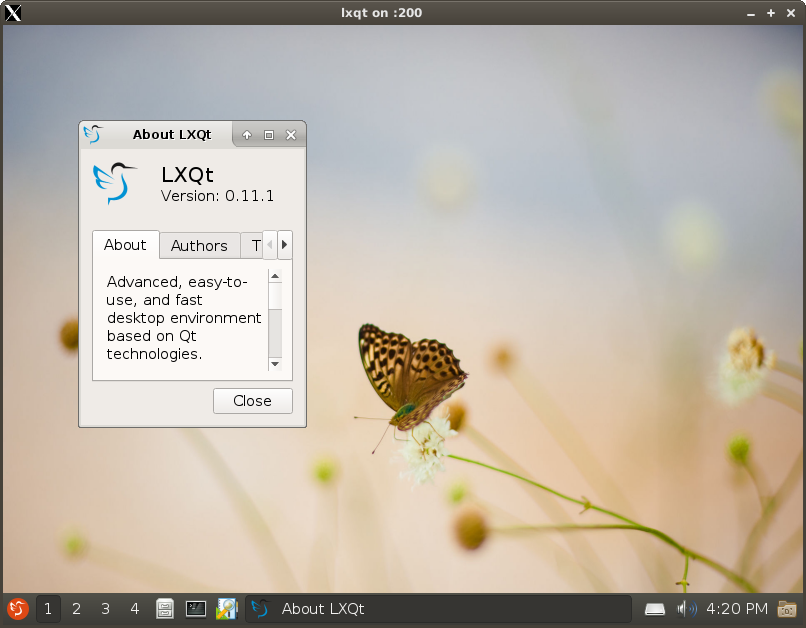
| LXQt | x11docker --desktop x11docker/lxqt |
| Xfce | x11docker --desktop x11docker/xfce |
| CDE Common Desktop Environment | x11docker --desktop --init=systemd --cap-default x11docker/cde |
| Mate | x11docker --desktop x11docker/mate |
| Enlightenment (based on Void Linux) | x11docker --desktop --gpu --runit x11docker/enlightenment |
| Trinity (successor of KDE 3) | x11docker --desktop x11docker/trinity |
| Cinnamon | x11docker --desktop --gpu --dbus-system x11docker/cinnamon |
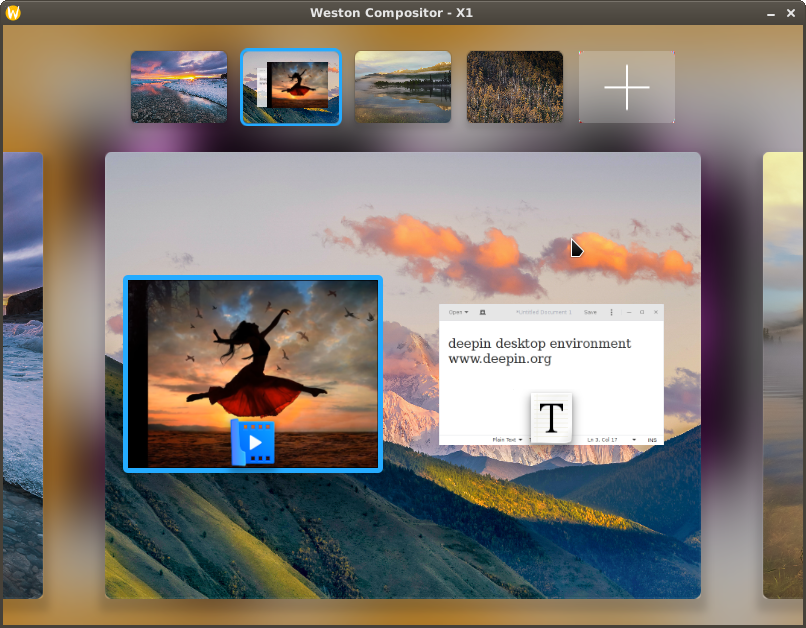
| deepin (3D desktop from China) | x11docker --desktop --gpu --init=systemd x11docker/deepin |
| LiriOS (needs at least docker 18.06 or this xcb bugfix.) (based on Fedora) |
x11docker --desktop --gpu lirios/unstable |
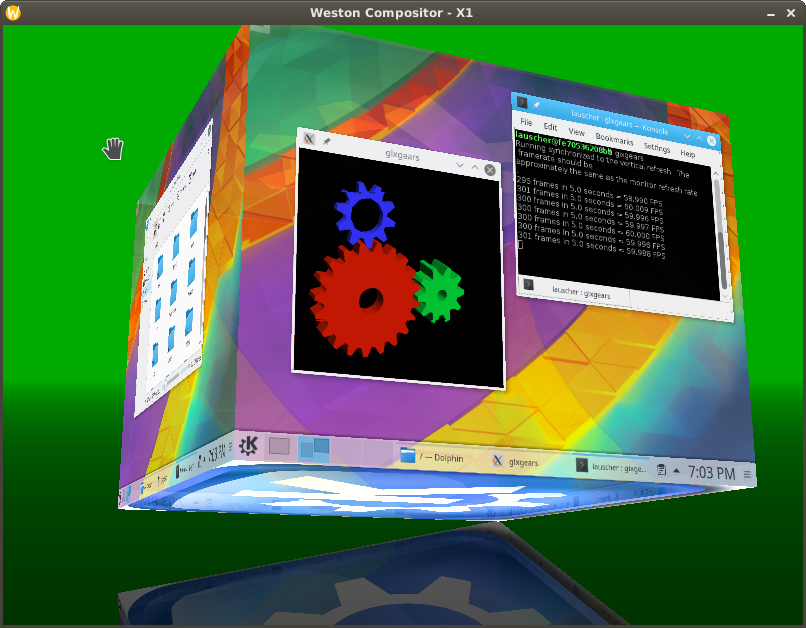
| KDE Plasma | x11docker --desktop --gpu x11docker/plasma |
| KDE Plasma as nested Wayland compositor | x11docker --gpu x11docker/plasma startplasmacompositor |
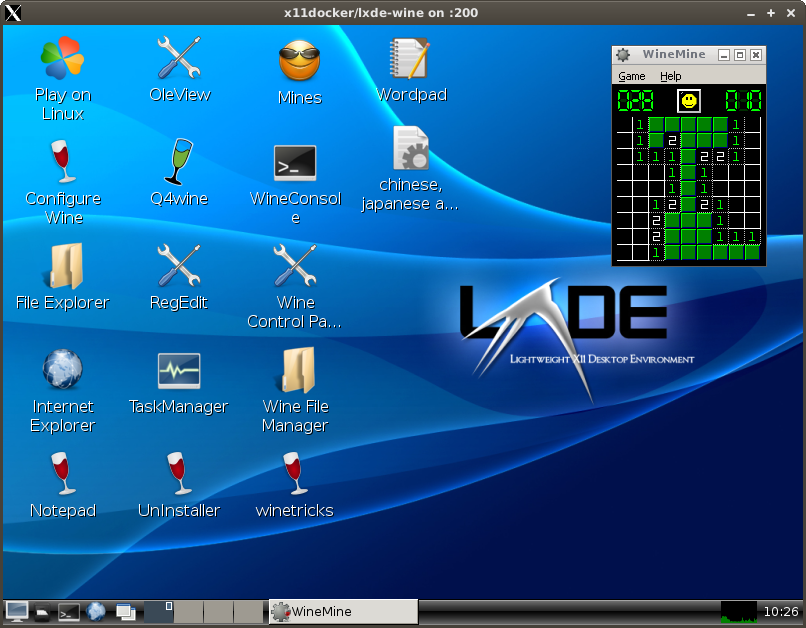
| LXDE with wine and PlayOnLinux and a persistent HOME folder to preserve installed Windows applications, and with Pulseaudio sound. |
x11docker --desktop --home --pulseaudio x11docker/lxde-wine |
For persistent changes of image system adjust Dockerfile and rebuild. To add custom applications to x11docker example images you can create a new Dockerfile based on them. Example:
# xfce desktop with VLC media player
FROM x11docker/xfce
RUN apt-get update && apt-get install -y vlc
Sample screenshots are stored in screenshot branch
x11docker --desktop x11docker/lxde-wine
x11docker --desktop --gpu x11docker/plasma
x11docker --desktop x11docker/lxqt
x11docker --desktop --init=systemd --gpu x11docker/deepin