This repo is maintained for the git & github workshop
And for introducing Github workflows
This project aims to simplify and guide the way beginners make their first contribution. If you are looking to make your first contribution, follow the steps below.
If you're not comfortable with command line, here are tutorials using GUI tools.
If you don't have git on your machine, install it.
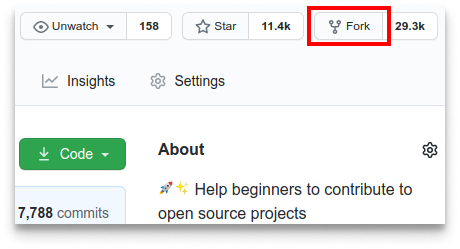
Fork this repository by clicking on the fork button on the top of this page. This will create a copy of this repository in your account.
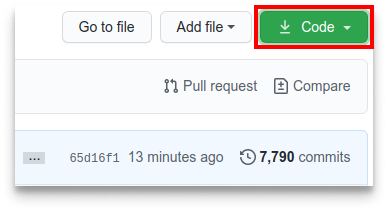
Now clone the forked repository to your machine. Go to your GitHub account, open the forked repository, click on the code button and then click the copy to clipboard icon.
Open a terminal and run the following git command:
git clone "url you just copied"
where "url you just copied" (without the quotation marks) is the url to this repository (your fork of this project). See the previous steps to obtain the url.
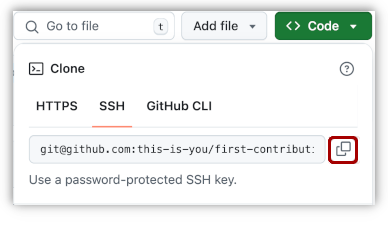
For example:
git clone https://github.com/GDSC-AJCE/first-contribution.git
where this-is-you is your GitHub username. Here you're copying the
contents of the first-contributions repository on GitHub to your computer.
By convention the url of the fork that you had created is called the origin and the url of the original repository is called the upstream
You need to add the origin url so that git knows where to push the changes you have made, something we will see on the later part of the tutorial.
And you need to add the upstream url so that everytime the original repository is updated you can sync the changes to your fork.
You can add the origin url using the git remote add origin command.
git remote add origin <the-url-of-your-fork>
For example:
git remote add origin https://github.com/<your-github-username>/Intro-to-github
Similarly you can add the upstream url using the git remote add upstream command.
git remote add upstream <the-url-of-the-original-repository>
For example:
git remote add upstream https://github.com/GDSC-AdtU/Intro-to-github
You can check if the URL are successfully added by using the git remote -v command.
git remote -v
The output should be:
Change to the repository directory on your computer (if you are not already there):
cd first-contributions
Now create a branch using the git branch command:
git branch <new-branch-name>
For example:
git branch alonzo-church
Now change the head to new branch from main branch using the git checkout command:
git checkout <new-branch-name>
For example:
git checkout alonzo-church
Now open Contributors.md file in a text editor, add your name to it.
Don't add it at the beginning or end of the file. Put it anywhere in
between. Now, save the file.
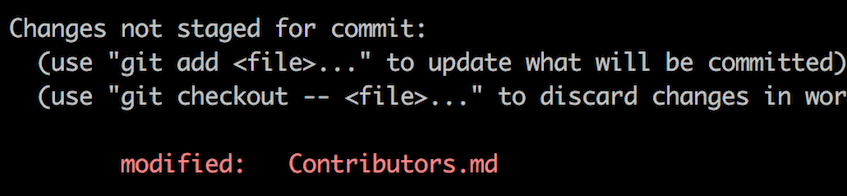
If you go to the project directory and execute the command git status,
you'll see there are changes.
Add those changes to the branch you just created using the git add
command:
git add Contributors.md
Now commit those changes using the git commit command:
git commit -m "Add your-name to Contributors list"
replacing your-name with your name.
Push your changes using the command git push:
git push origin -u your-branch-name
replacing your-branch-name with the name of the branch you created
earlier.
If you get any errors while pushing, click here:
-
August 13, 2021. Please use a personal access token instead. remote: Please see https://github.blog/2020-12-15-token-authentication-requirements-for-git-operations/ for more information. fatal: Authentication failed for 'https://github.com//first-contributions.git/' Go to GitHub's tutorial on generating and configuring an SSH key to your account.
<pre>remote: Support for password authentication was removed on
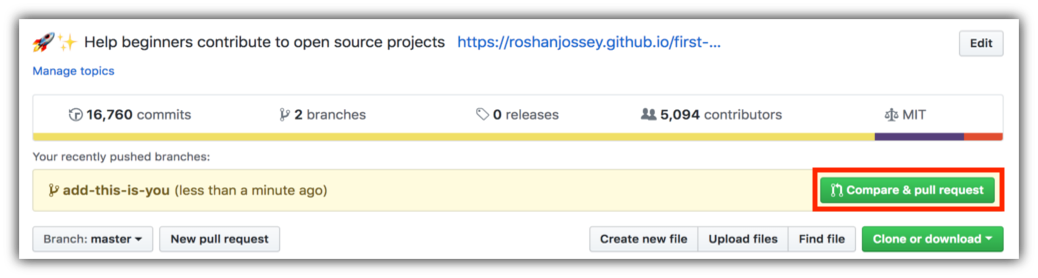
If you go to your repository on GitHub, you'll see a Compare & pull request button. Click on that button.
Now submit the pull request.
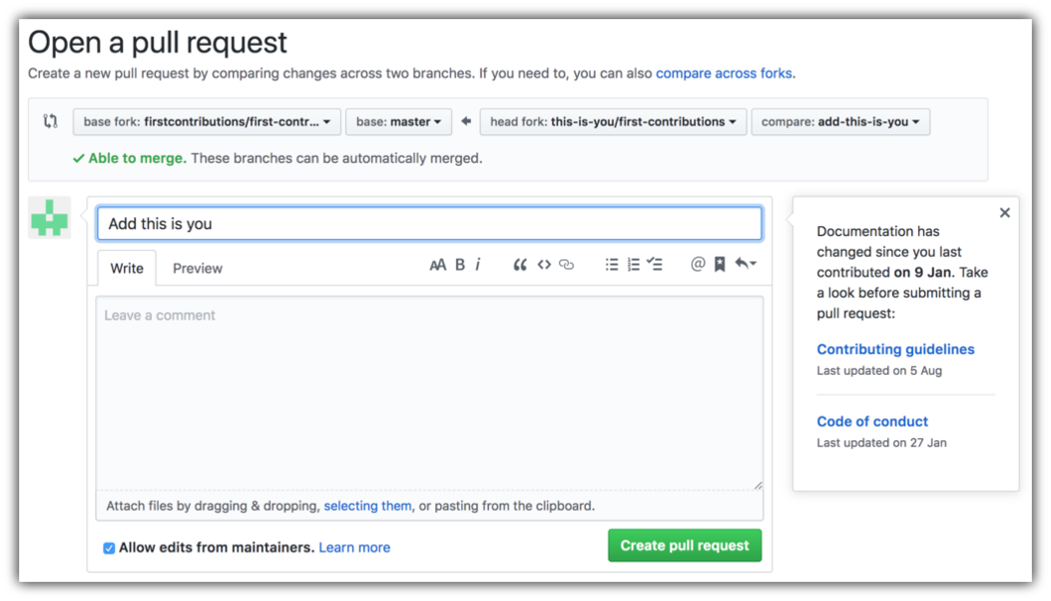
Soon we'll be merging all your changes into the main branch of this project. You will get a notification email once the changes have been merged.
Thank you to all the GDSC Members for their contribution (🤗):

Ayan Masood |

Kaustav Raj Kalita |

Krishna Moni Das |