Configure
The configure menu presents several options to configure the OPPRIM simulation tool and to add the required elements in order to run simulations, as presented in the following figure:

- The asset option lets the user to add an asset and its cost, in order to use it later on in an access request.
- The users option allows to create new users which will be doing access requests later on.
- The risk policies sub-menu presents the user with an interface to create new risk policies.
- The complex risk policies sub-menu provides an interface to create and afterwards evaluate complex policies.
- The clues option lets the user to add new clues to be used attached to an access request for simulation purposes.
- Finally the opportunities option allows to define new opportunities attached to a certain access request in the simulation.
Following we will explain the functionality of all these options in detail.

As can be seen in the previous image, the asset screen presents an interface in order to add a new asset, by specifying the name of it and its value. The asset type also needs to be selected and an outcome with a cost-benefit of the value of the asset is automatically created and linked to it.

In the users configuration screen, new users can be added by assigning a nickname, an initial trust level for the user and its hourly salary value.

The risk policies interface presents the user with the possibility of defining new risk policies to use in the simulation, which will affect the decision computation function for a given access request. A new policy should specify its name, and a risk threshold value that will be used in the decision function for computation purposes.
Many times, even with a configured corporate security rule stating that someone cannot access any corporate data outside of the company premises, it would be beneficial for the company to let the user work outside the premises as long as certain costs and probabilities are met. It is the reason that we introduce a higher-level policy called the RiskPolicy on top of fixed corporate security rules and policies.
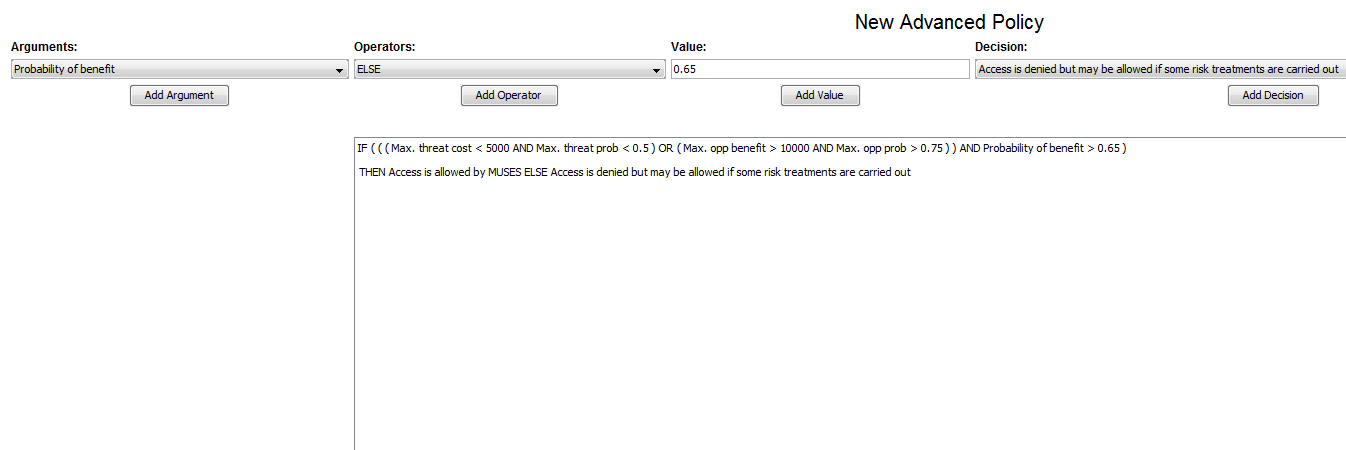
In order to be able to implement such Risk Policies and to evaluate them, we have implemented a GUI that allows for easy complex policy creation and edition and a policy evaluator that uses the library EvalEx in order to evaluate the logical expression derived from the policy against any given values for the variables present in it. We will use as example throughout the next sections the following textual policy:
"IF the cost of the threat is lower than 5000 AND the probability of the threat happening is lower than 0.5 OR the benefit from taking the opportunity is higher than 10000 AND the probability of that opportunity turning into benefit is higher than 0.75 AND the overall probability of having a benefit from performing the action is higher than 0.65, THEN access is allowed by MUSES ELSE the access is denied but may be allowed if some risk treatments are carried out"
Following, we present and explain both the policy editor and the policy evaluator functionalities.

The complex Risk Policy GUI is composed of different dropdown lists which display each of the elements required to formulate a complex risk policy. It allows for quick and easy element selection and edition, but it does not check the correctness of the expression automatically, which is left to the user to verify. In later stages we might add auto-correcting or error detection functionalities.
Using the GUI, our textual policy presented in the introduction section will be written like can be seen in the previous figure.

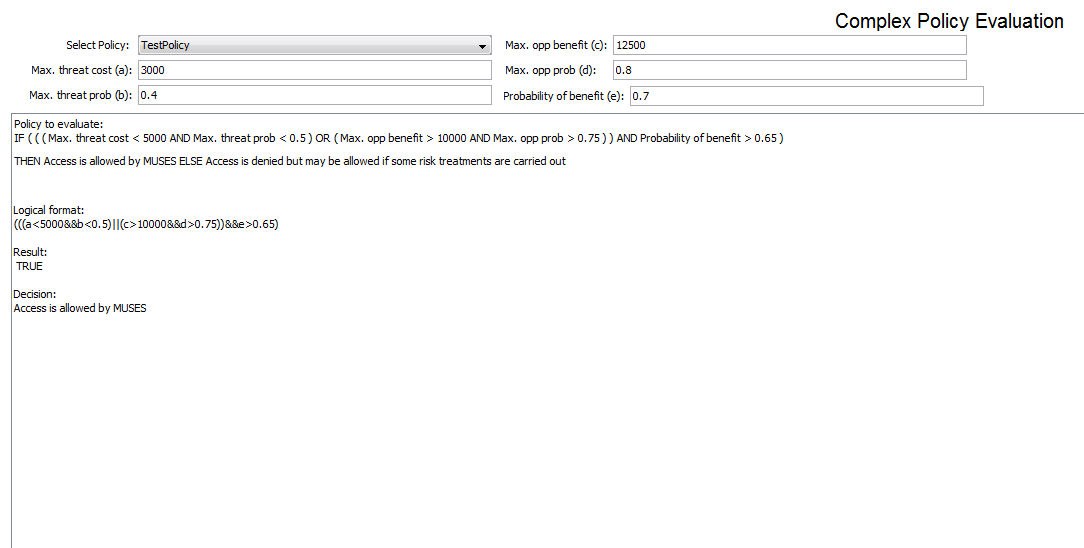
The policy evaluation GUI consists on a policy selector in order to choose the policy which is going to be evaluated and value assignment fields for each of the arguments that can be present in the complex policy.
After having selected the desired policy to evaluate and having filled in the required values, we transform the policy expression into its pure logical form, and proceed to evaluate it using EvalEx. We can at any given time change any value and reevaluate the policy in order to see if it fully complies with its original intention. The pure logical format and the policy evaluation result for our sample policy can be seen in the figure above.

The clues screen allows to add new clues with a given name, which are used in combination with a given user and an asset in order to define an specific situation for a given access request.

The opportunities configuration interface can be used to define extra opportunities different from those auto-generated by the asset creation process in order to link them to a given access request and to have an impact in the decision computation function.