Getting Started
- Install ActionbarPlus World of Warcraft Add-On via Curseforge app or manually download from https://www.curseforge.com/wow/addons/actionbarplus/files
- Launch (Or Reload) World of Warcraft and you should have 3 initial windows on the top left of the screen
Initially the drag panel is hidden.
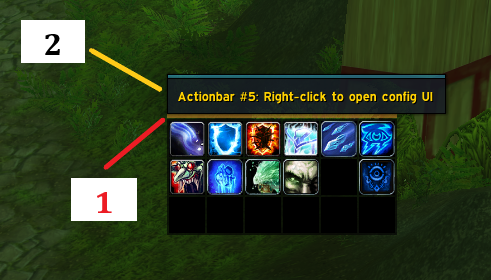
When the mouse is just above the action buttons, the actionbar drag header will appear. LEFT-CLICK to move the actionbar set. See (1) on the figure below.
Also see ActionbarPlus Options on the next section on how to configure the drag panel visibility behavior.
Figure 1. Actionbar Set with Drag Header Panel Showing on Mouse-Over
There are two ways to open the options window: Command-Line or Right-clicking the header frame.
Type the following to open the configuration.
/abp
The General tab should be selected as shown on the photo below
When putting your mouse over the actionbar header (Item #1 on the photo), a popup text will show "Right-click to open the config UI". See (2) on Figure 1.
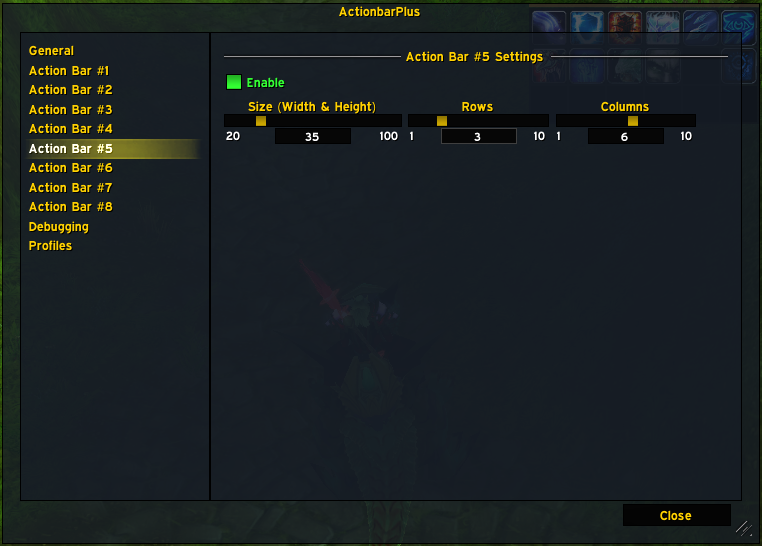
Right-clicking on the actionbar header will open the configuration for that actionbar. In this example, the Action Bar #5 tab should be selected as shown on the image below.
Figure 2. ActionbarPlus Options Panel

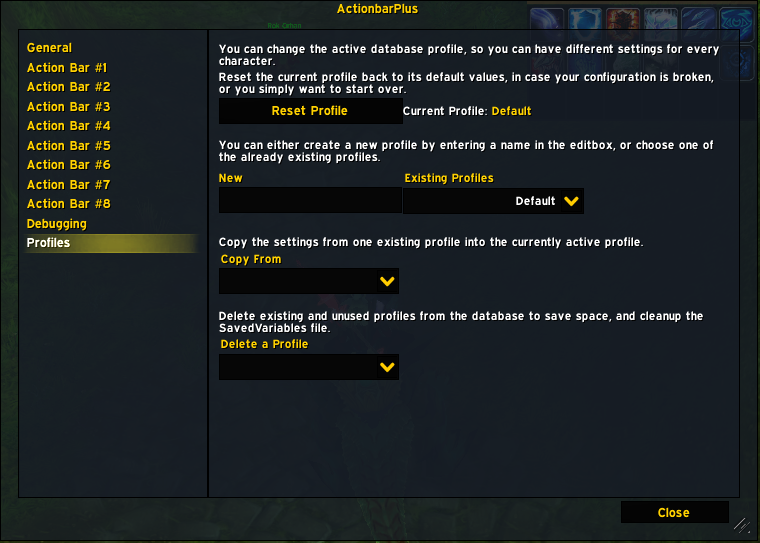
ActionbarPlus utilizes Ace3 libraries so it is easy to manage profiles for each character. In the ActionbarPlus options, the profiles tab is available. This is a standard Profiles UI used by many addons.