DO NOT MERGE Feat/billing day one #434
There are no files selected for viewing
| Original file line number | Diff line number | Diff line change |
|---|---|---|
| @@ -0,0 +1,43 @@ | ||
| --- | ||
| page_id: bd6757e3-81d5-48d6-89c8-dd4c222ac647 | ||
| title: About billing | ||
| sidebar: | ||
| order: 1 | ||
| relatedArticles: | ||
| - | ||
| app_context: | ||
| - | ||
| --- | ||
|
|
||
| Kinde billing gives you the ability to create plans that users can subscribe to, so you can get paid for your services and collect revenue. | ||
|
|
||
| This feature lets you: | ||
|
|
||
| - Create and manage plans, and make them visible to your customers | ||
| - Create and customize a pricing table for plan selection | ||
| - Implement specific pricing models to suit your product | ||
| - Use Stripe for secure handling of payments and invoicing | ||
| - Link organizations (B2B) and individual customers (B2C) to a plan | ||
| - Handle plan upgrade, downgrade, and cancellation | ||
| - Enable self-serve account management for customers | ||
| - Customize the pricing table to make the whole experience on-brand | ||
|
|
||
| Billing makes the Kinde platform *the* essential development infrastructure for managing the customer lifecycle across every part of your business. From registration to plan selection, authorization to provisioning, releases to upgrades. | ||
|
|
||
| ## This is our first billing release | ||
|
|
||
| Billing is a really complex area of app development, so while this release is tested and ready, we are still treating it like a beta to signal that we are actively working on improvements from day one. | ||
|
|
||
| ### How to send feedback | ||
|
|
||
| It would be amazing if you can send any feedback you have via [not sure where] so we can quickly collect and prioritize improvements. | ||
|
|
||
| ## Known limitations | ||
|
|
||
| These are current limitations that we are aware of and are working on adding. | ||
|
|
||
| - Support for plan models with free trial periods | ||
| - Annual subscriptions. Only monthly is available right now. | ||
| - Changes to the billing cycle (e.g. choose billing anniversaries, etc.) | ||
| - Add-ons and discounts that can be applied to individual subscriptions | ||
| - Plan versioning |
| Original file line number | Diff line number | Diff line change |
|---|---|---|
| @@ -0,0 +1,40 @@ | ||
| --- | ||
| page_id: 9d1daf85-1a2c-4cc5-879a-230c950bed12 | ||
| title: Billing concepts & terms | ||
| sidebar: | ||
| order: | ||
| relatedArticles: | ||
| - | ||
| app_context: | ||
| - | ||
| --- | ||
|
|
||
|
|
||
|
|
||
| Billing is the collective term we use to refer to the broad function of plans, pricing, payments, etc. The core concepts that you will come across in Kinde and in the docs might not be familiar to you. | ||
|
|
||
| ## Key concepts | ||
|
|
||
| - **Plans and plan groups** - Plans define the specific features, usage limits, and pricing tiers offered to customers in a SaaS product. Plan groups organize multiple plans under a common category, helping segment offerings by use case, customer size, or market. | ||
| - **Pricing models** - Pricing models are the different methods of charging customers, such as flat-rate, usage-based, tiered, per-seat pricing, etc. Your pricing model is determined by your product and customer needs. Consider scalability and longevity when deciding this. | ||
| - **Payments gateway** - A payments gateway is a service that securely processes customer payments via credit cards, ACH, or other methods - such as Stripe. | ||
| - **Pricing table** - A pricing table is a visual representation of your different subscription plans, showcasing features and prices to help users compare options. You can build one in Kinde and embed it on your site using a URL. | ||
| - **Self-serve account portal** - Kinde provides a self-serve portal. This allows customers to manage their subscriptions—such as upgrading plans, updating payment information, or cancelling. This reduces support overhead and improves user autonomy. In Kinde, you can decide what your customers can self-manage or remove the functionality completely. | ||
|
|
||
| ## Common billing terms | ||
|
|
||
| - **Base price** – The starting cost of a subscription plan, typically the cost for a core set of features or a minimum level of usage. | ||
| - **Chargeable / Non-chargeable feature** – | ||
| - **Chargeable feature**: Incurs an additional fee when used. Might be metered or per unit price. | ||
| - **Non-chargeable feature**: Included in the plan at no extra cost. Add non-chargeable features for anything included in all plans, and that needs to be provisioned. | ||
| - **Feature** – A specific function or capability of your SaaS product that you provision for app users. In context with a plan, these are chargeable or non-chargeable features that are provisioned to customers. | ||
| - **Fixed charge** – A recurring fee that does not change based on usage, often applied monthly or annually. Use this for a plan’s base price or other flat recurring fees. | ||
| - **Metered and unmetered feature** – Metered features are provisioned in units, often with pricing per unit, e.g. MAU. An unmetered feature is like a boolean, and is a basic feature with no pricing attached. | ||
| - **Multi-currency** – The ability to set plan prices in different currencies to support global customers. Kinde supports nearly all currencies, but you can currently only pick one as the default for all plans. | ||
| - **Plan** – A packaged offering of features, prices, and terms available for subscription, typically tiered across a group (e.g., Basic, Pro, Enterprise). | ||
| - **Plan group** – A collection of related plans, often grouped by customer type or usage level, allowing easier management and comparison. | ||
| - **Pricing model** – The structure used to determine how features in a plan are priced. E.g. fixed charge, tiered, per-user, or usage-based pricing. Kinde lets you use multiple pricing models within one plan. | ||
| - **Subscription** – The ongoing agreement where a customer pays for access to a SaaS product via a recurring plan. | ||
| - **Tiered pricing** – This refers to unit pricing that has different unit costs based on the volume of units purchased. E.g. $10 per unit for 1–10 units, $8 per unit for 11–50 units, $5 per unit over 51 units. | ||
| - **Unit price** – Where a price is set per unit of usage, e.g. a seat, or feature. Unit prices can also be applied to metered features, e.g. x per unit. Unit prices can also be tiered, e.g. x per unit up to 10 units, then y for 10+ units. | ||
| - **Usage-based** **price** – A billing method where charges vary based on the metered consumption of resources or services (e.g., API calls, storage). | ||
| Original file line number | Diff line number | Diff line change |
|---|---|---|
| @@ -0,0 +1,57 @@ | ||
| --- | ||
| page_id: e6dde80d-2977-419f-a05a-62ad0a7ac6de | ||
| title: The Kinde billing model | ||
| sidebar: | ||
| order: 2 | ||
| relatedArticles: | ||
| - | ||
| --- | ||
|
|
||
| In the Kinde model, we host everything except the payment processing part of billing. Kinde integrates with a third-party payment gateway (Stripe) for secure payment processing. | ||
|
|
||
| This involves a continuous sync between Kinde and Stripe, to ensure that products, prices, subscription information, invoice and payments, are accurate in both systems. | ||
|
|
||
| Kinde does not store payment details, such as credit card information. This is exclusively managed by Stripe. | ||
|
|
||
| ## Billing for B2B and B2C | ||
|
|
||
| Kinde supports billing models for both B2B and B2C. Depending which you are setting up, you may need to do a few extra tasks. Most of the setup is common to both. We will call out tasks that are only relevant to one or the other. | ||
|
|
||
| - B2B - your customers are companies, organizations, or groups. | ||
| - B2C - your customers are individual users. | ||
|
|
||
| ## Kinde and Stripe | ||
|
|
||
| Kinde integrates a single payment gateway (only Stripe for now) to handle the financial and payment management side of things. | ||
|
|
||
| Stripe uses the plan data + the customer info to create an agreement in Stripe. The customer is invoiced based on this agreement. Stripe securely stores your customer’s payment details and Kinde never sees credit card or other bank information. | ||
|
|
||
| Here’s what the billing feature looks like as a workflow. | ||
|
|
||
| [IMAGE PLACEHOLDER] | ||
|
|
||
| Stripe is currently the only payment provider supported with Kinde. But we plan to expand to other providers in the near future. | ||
|
|
||
| ## Multicurrency support | ||
|
|
||
| Kinde has customers everywhere and almost every global currency is supported. | ||
|
|
||
| ## Transaction data and Stripe region | ||
|
|
||
| - When you connect to Stripe in Kinde, we create a Stripe US account by default. We do this because Stripe US more widely supports global functionality. You can change the region during the Stripe connection setup flow. | ||
| - Regardless of Stripe account region, you can still select any currency for your plans in Kinde, and Stripe will do the hard part of exchange rate conversion, tax calculations, etc. | ||
| - Any fees you incur in Stripe for international transactions are your sole responsibility. | ||
|
|
||
| <Aside type="warning" title="Financial compliance"> | ||
|
|
||
| The region in Stripe indicates where the transaction information is held, so if all your business data must reside in one region, make sure you choose a Stripe region to meet your compliance needs. | ||
|
|
||
| </Aside> | ||
|
|
||
| ## Billing and invoice cycles | ||
|
|
||
| Default behavior for invoices and charging is as follows. This cannot currently be changed. | ||
|
|
||
| - Billing cycles are monthly and are processed on the sign up anniversary | ||
| - Invoices include fixed charges in advance, e.g. a monthly subscription is payable each month in advance. | ||
| - Invoices include metered charges in arrears, e.g. MAU is metered throughout a month and then charges for the previous month appear on the next invoice. |
| Original file line number | Diff line number | Diff line change | ||||||||||||||
|---|---|---|---|---|---|---|---|---|---|---|---|---|---|---|---|---|
| @@ -0,0 +1,113 @@ | ||||||||||||||||
| --- | ||||||||||||||||
| page_id: 37d5ae8e-cfd1-4e5d-8333-387b6967ec23 | ||||||||||||||||
| title: Build a pricing table | ||||||||||||||||
| sidebar: | ||||||||||||||||
| order: 1 | ||||||||||||||||
| relatedArticles: | ||||||||||||||||
| - 88e1773a-b681-441f-b4c7-d7d339116867 | ||||||||||||||||
| - e6dde80d-2977-419f-a05a-62ad0a7ac6de | ||||||||||||||||
| app_context: | ||||||||||||||||
| - | ||||||||||||||||
| --- | ||||||||||||||||
|
Comment on lines
+9
to
+11
Contributor
There was a problem hiding this comment. 🛠️ Refactor suggestion Fix empty app_context entry. The - app_context:
- -
+ app_context:
+ - m: billing
+ - s: pricing_tables📝 Committable suggestion
Suggested change
🤖 Prompt for AI Agents |
||||||||||||||||
|
|
||||||||||||||||
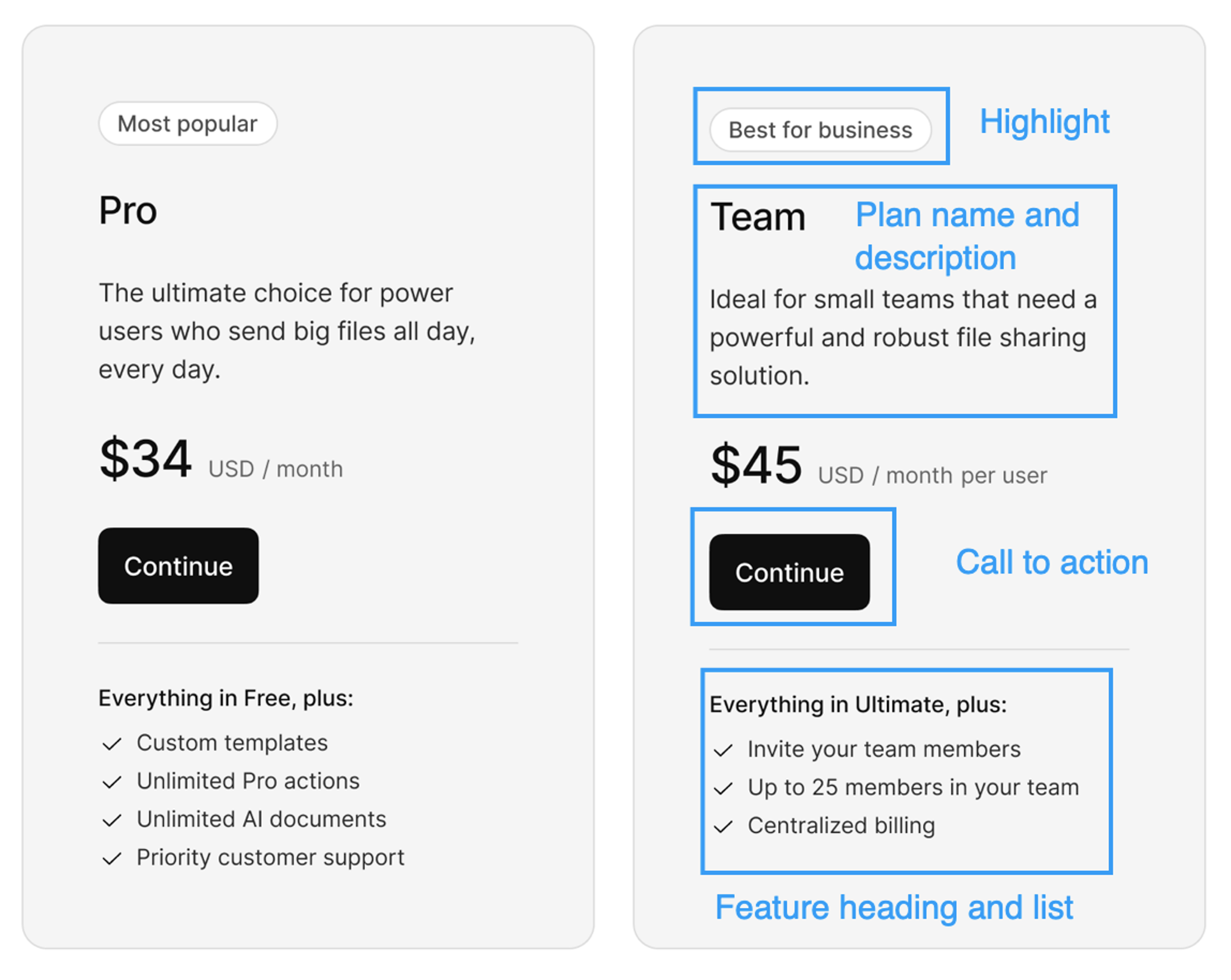
| You can build a pricing table to enable your customers to select plans and go through a payment flow as part signing up to your app or site. | ||||||||||||||||
|
|
||||||||||||||||
| Kinde's pricing table builder can generate a pricing table from published plans, or you can start with a blank one. | ||||||||||||||||
|
|
||||||||||||||||
| You can also add and edit information and content in your preferred languages. You can create as many pricing tables as you want. | ||||||||||||||||
|
|
||||||||||||||||
|  | ||||||||||||||||
|
|
||||||||||||||||
| ## Create a pricing table | ||||||||||||||||
|
|
||||||||||||||||
| A pricing table can only have 4 plans. If your plans group | ||||||||||||||||
|
|
||||||||||||||||
| 1. Go to **Billing > Pricing tables**. | ||||||||||||||||
| 2. Select **Add pricing table**. | ||||||||||||||||
| 3. Choose an option: | ||||||||||||||||
| 1. **Generate** a pricing table from a plan group - this pre-populates the pricing table with basic details and the plans based on the plan group you select. Up to 4 plans can be included on a pricing table. If your plan group contains more, you may want to create a new pricing table. | ||||||||||||||||
| 2. **Create new** pricing table. Manually build the pricing table and add plans from a plan group. This gives you a blank slate to start in. | ||||||||||||||||
| 4. Select **Next**. | ||||||||||||||||
| 1. **Generated** - select the group and then **Save**. | ||||||||||||||||
| 2. **New** - complete the details in the window and **Save**. | ||||||||||||||||
|
|
||||||||||||||||
| ## Edit the pricing table | ||||||||||||||||
|
|
||||||||||||||||
| You can edit a pricing table, but they are not versioned. Whatever content you override, it cannot be reverted or recovered. | ||||||||||||||||
|
|
||||||||||||||||
| You cannot edit a plan price. This is inherited from the plan itself. | ||||||||||||||||
|
|
||||||||||||||||
| ## Change what plans show on a pricing table | ||||||||||||||||
|
|
||||||||||||||||
| You can add and remove plans from the pricing table when it is being worked on. | ||||||||||||||||
|
|
||||||||||||||||
| 1. Open the pricing table. | ||||||||||||||||
| 2. Scroll to the **Plans** section. | ||||||||||||||||
| 3. To remove a plan: | ||||||||||||||||
| 1. Select the three dots on the plan card and select **Remove from pricing table**. | ||||||||||||||||
| 2. Confirm you want to remove the plan. This removes all custom content you have added, in all languages you have added content in, on the pricing table. The plan is removed. | ||||||||||||||||
| 3. Select **Save**. | ||||||||||||||||
| 4. To add a plan, select **Add plan**. | ||||||||||||||||
| 1. In the window that opens, select an available plan. Only plans from the same plan group are shown. | ||||||||||||||||
| 2. Complete the details in the window for this plan. At minimum, you must enter a **Display name** and the **CTA button** content. This will be displayed in the pricing table. | ||||||||||||||||
| 3. Select **Save**. The plan is added to the pricing table. | ||||||||||||||||
|
|
||||||||||||||||
| ## Change the order of plans on a pricing table | ||||||||||||||||
|
|
||||||||||||||||
| The display order of plans from left to right corresponds to the position listed in the **Plans** section of the pricing table. | ||||||||||||||||
|
|
||||||||||||||||
| 1. Open the pricing table. | ||||||||||||||||
| 2. Scroll to the **Plans** section. | ||||||||||||||||
| 3. Select the three dots menu on the plan you want to move. | ||||||||||||||||
| 4. Select **Move up** or **Move down**, depending on the plan position. | ||||||||||||||||
| 5. Select **Save**. | ||||||||||||||||
|
|
||||||||||||||||
| ## Add a features list to a plan on the pricing table | ||||||||||||||||
|
|
||||||||||||||||
| 1. Open the pricing table. | ||||||||||||||||
| 2. Scroll to the **Plans** section. | ||||||||||||||||
| 3. Select the three dots menu on the plan and select **Edit content**. | ||||||||||||||||
| 4. In the top of the window, select the language you want to add features in. | ||||||||||||||||
| 5. Add a **Features list heading**. This sits directly above the list. | ||||||||||||||||
| 6. Add a list of features in the large text **Features list** field. Features will appear in the order they are listed. | ||||||||||||||||
| 7. Select **Save**. | ||||||||||||||||
|
|
||||||||||||||||
| ## Highlight a plan on a pricing table | ||||||||||||||||
|
|
||||||||||||||||
| It’s common to want to call out or highlight something about a plan on the pricing table, for example, to highlight which plan is most popular. | ||||||||||||||||
|
|
||||||||||||||||
| 1. Open the pricing table. | ||||||||||||||||
| 2. Scroll to the **Plans** section. | ||||||||||||||||
| 3. Select the three dots menu on the plan and select **Edit content.** | ||||||||||||||||
| 4. In the top of the window, select the language you want to add highlight content. | ||||||||||||||||
| 5. Add a **Highlight label** and select **Save**. | ||||||||||||||||
|
|
||||||||||||||||
| ## Edit and translate pricing table content | ||||||||||||||||
|
|
||||||||||||||||
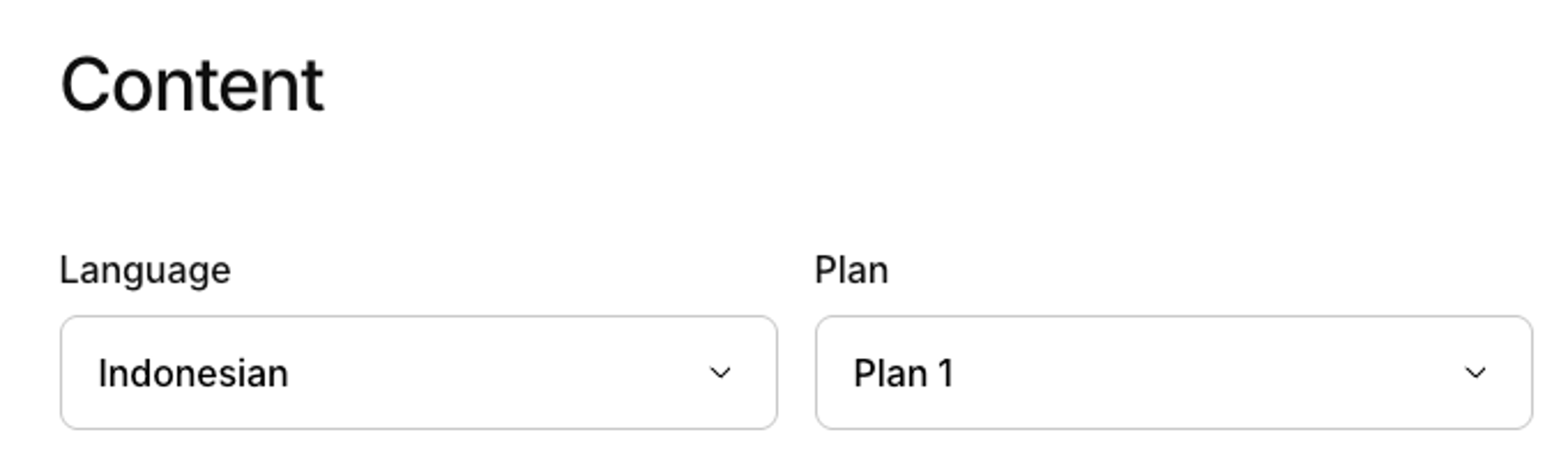
| If you want to display pricing tables in multiple languages, you can change add content translations to the plans on the pricing table. | ||||||||||||||||
|
|
||||||||||||||||
| 1. Open the pricing table. | ||||||||||||||||
| 2. Scroll to the **Plans** section. | ||||||||||||||||
| 3. Select the three dots menu on the plan and select **Edit content.** | ||||||||||||||||
| 4. In the top of the window, select the language you want to add or edit content for. | ||||||||||||||||
|
|
||||||||||||||||
|  | ||||||||||||||||
|
|
||||||||||||||||
| 5. Enter or edit all the content you want in the chosen language. | ||||||||||||||||
| 6. Select **Save**. | ||||||||||||||||
|
|
||||||||||||||||
| ## Make the pricing table live to customers | ||||||||||||||||
|
|
||||||||||||||||
| We recommend only doing this after your plans are finalized and published. | ||||||||||||||||
|
|
||||||||||||||||
| 1. Open the pricing table. | ||||||||||||||||
| 2. Select **Make live**. | ||||||||||||||||
| 3. Select **Save**. If a user passes the pricing table code in a URL, they will be able to sign up using it. | ||||||||||||||||
|
|
||||||||||||||||
| ## Set pricing table to show as default in register flow | ||||||||||||||||
|
|
||||||||||||||||
| You can set a pricing table to show by default, even if the code key is not passed in the URL during the normal sign up flow. | ||||||||||||||||
|
|
||||||||||||||||
| 1. Open the pricing table. | ||||||||||||||||
| 2. Select **Show by default**. | ||||||||||||||||
| 3. Select **Save**. If a user goes through the registration flow without a pricing table code key in the URL, this is the pricing table they will see. | ||||||||||||||||

| Original file line number | Diff line number | Diff line change |
|---|---|---|
| @@ -0,0 +1,27 @@ | ||
| --- | ||
| page_id: 53fd7d58-13ff-407d-99c2-99759c8a52b3 | ||
| title: Step 1 Add billing role (B2B) | ||
| sidebar: | ||
| order: 2 | ||
| relatedArticles: | ||
| - d2d64a2b-1fb7-4c18-88bc-2986723724cb | ||
| - 7e1082b4-2b78-4e76-92fd-ee25497a4e2b | ||
| --- | ||
|
|
||
| Skip this step if you sell your services to individuals (B2C). | ||
|
|
||
| If you are a B2B business, when someone signs up to your service via Kinde auth, an organization is created in your Kinde business. That someone also becomes the account creator, and they need permissions to buy plans and manage payments on behalf of their organization. | ||
|
|
||
| Before you start selling to your business customers, create a default billing role to assign to the account creator when they sign up. | ||
|
|
||
| 1. Go to **Settings > Roles** and select **Add role**. The **Add role** window opens. | ||
|
|
||
|  | ||
|
|
||
| 2. Name the role, for example, `Billing Admin` , and enter a description and **Key**. | ||
| 3. Select the **Assign to the creator** option. | ||
| 4. In the **System permissions** section, ensure the **org:write:billing** system permission is selected. | ||
|
|
||
| This role will now be automatically assigned to users who create an organization as part of the authentication flow. | ||
|
|
||
| **Next:** [Set the default billing currency](/billing/get-started/default-billing-currency/) |
| Original file line number | Diff line number | Diff line change |
|---|---|---|
| @@ -0,0 +1,21 @@ | ||
| --- | ||
| page_id: 6babd388-3f74-4e51-9d8e-5fd6f04b20e8 | ||
| title: Step 6 Create pricing table (optional) | ||
| sidebar: | ||
| order: 7 | ||
| relatedArticles: | ||
| - 37d5ae8e-cfd1-4e5d-8333-387b6967ec23 | ||
| app_context: | ||
| - m: billing | ||
| - s: pricing_tables | ||
| --- | ||
|
|
||
| Kinde lets you create pricing tables based on your plans. The tables can be integrated into the auth flow so that plan selection becomes part of registration. Pricing tables are also used in plan upgrade and downgrade flows. It might look something like this. | ||
|
|
||
|  | ||
|
|
||
| To create your own, go to [Build a pricing table](/billing/billing-user-experience/plan-selection/). | ||
|
|
||
| If you have your own screen flows for plan display and selection, you do not have to use Kinde’s pricing tables. Here's how to use your own, and not Kinde's [Link to topic] | ||
|
Contributor
There was a problem hiding this comment. Replace placeholder link with actual doc reference. The text at this line contains a placeholder 🤖 Prompt for AI Agents |
||
|
|
||
| **Next:** [Step 7 Set up self-serve portal (optional)](/billing/get-started/self-serve-portal-setup/) | ||
| Original file line number | Diff line number | Diff line change |
|---|---|---|
| @@ -0,0 +1,37 @@ | ||
| --- | ||
| page_id: c4526879-5580-4cd0-a881-91b512438fc0 | ||
| title: Step 4 Build plans | ||
| sidebar: | ||
| order: 5 | ||
| relatedArticles: | ||
| - fe9fea0c-274c-4d6b-9cc5-eccdbaad85b7 | ||
| - 88e1773a-b681-441f-b4c7-d7d339116867 | ||
| app_context: | ||
| - m: billing | ||
| - s: plans | ||
| --- | ||
|
|
||
| Whether you currently charge for services or are just starting out, building plans is the more complex part of the billing setup process. We recommend you define a strategy before adding plans in Kinde. | ||
|
|
||
| - [Learn more about how plans work in Kinde](/billing/manage-plans/about-plans/) | ||
| - [Skip to creating plans](/billing/manage-plans/create-plans) | ||
|
|
||
| ## Develop a plan strategy | ||
|
|
||
| If you have not created plans before, here’s a list of tasks to help you prepare. These will give you a strategy for creating the plans you need in Kinde. | ||
|
|
||
| 1. Are you creating B2B or B2C plans? B2B plan types are for business customers (organizations), and B2C plan types are for individual users. Kinde supports both plan types. | ||
| 2. Decide how many plans you want and the name of each plan. E.g. `Free, Pro, Plus` or `Solo, Team, Enterprise`. | ||
| 3. Make a list of each [plan’s features][link to doc]. For each feature, decide on: | ||
| - the [pricing model][link to doc] that applies | ||
| - limits and inclusions for a feature | ||
|
|
||
| Anything you ‘gate’ access to, or put limits on in your product, should be on this list. | ||
|
|
||
| Tip: Create a spreadsheet to keep track of everything. | ||
|
|
||
| [example spreadsheet for plan planning](https://imagedelivery.net/skPPZTHzSlcslvHjesZQcQ/401ff633-c6c8-45ba-9502-1a29274b4400/public) | ||
|
|
||
| 4. Identify which features are common across plans. You don’t need to add a new feature every time, you can [re-use features][link to doc] across plans and change the details. | ||
|
|
||
| **See [Create plans](/billing/manage-plans/create-plans)** for step-by-step instructions. |
There was a problem hiding this comment.
Choose a reason for hiding this comment
The reason will be displayed to describe this comment to others. Learn more.
Frontmatter incomplete
The
sidebar.order,relatedArticles, andapp_contextfields are empty. Populate or remove unused frontmatter keys so the page renders correctly in the sidebar and related-links sections.🤖 Prompt for AI Agents