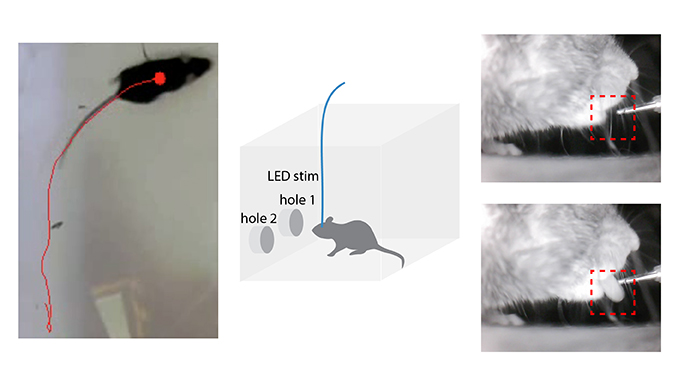
This python toolbox is for automatically detect rodent licking from video data.
- Software dependency: Python >= 3.0
- Operating System: Windows, Linux, MacOS
- Typical running time: 5min for 1h video
Required packages: numpy, cv2, tkinter, os (python3)
Processing pipeline:
- Select and Open the movie files
- Select the Region of Interest (ROI) interactively: areas contain tongue image (and trigger LED signal if needed)
- Average gray scale within ROI
- (Optional) Thresholding, Average, Standard-Deviation
- Save index to Excel file (real-time)
Capture mouse licking video using infrared camera (Demo at “demo/ Lick_demo.mp4”). Capture a infrared LED signal in the video as trigger if needed. No licking and Licking images are shown below:


Change configuration in python script: “Python_scripts/ Lick_cue_detection.py” Line 41-43:
cue_detect = 1
lick_detect = 1
use_red_ch = 0
if you have trigger signal to detect, please set cue_detect=1, otherwise, set cue_detect=0.
For lick detection, just leave lick_detect=1, otherwise, set lick_detect=0.
If video is captured as color mode (mouse tongue shows red), set use_red_ch = 1 to get better result, otherwise, use_red_ch = 0.
Run python code: “Python_scripts/ Lick_cue_detection.py”
If both cue_detect and lick_detect set to 1, select Cue ROI first, then Lick ROI. Otherwise, just select one ROI according to the parameters.

The detected lick_index is saved as “Lick_demo_lick.csv” (or cue_index saved as “Lick_demo_cue.csv” if cue_detect==1)
Open “matlab_scripts\lick_ana.m”, set configurations:
inv_lick=1; % 0: brighter for lick ; 1: darker for lick
smooth_lick=1; % smooth
smooth_range=51;
thre_percent = 80; % automatic thresholding
diff_lick = 1; % 1: difference signal; 0: absolute signal
Run the codes, get the lick timestamp (variable: lick_timestamp) and visualization as following:

see notebook
Metrics: Test Accuracy = 0.9883720874786377
| precision | recall | f1-score | |
|---|---|---|---|
| No Lick | 0.98 | 1.00 | 0.99 |
| Lick | 1 | 0.97 | 0.99 |
| accuracy | 0.99 | ||
| macro avg | 0.99 | 0.99 | 0.99 |
| weighted avg | 0.99 | 0.99 | 0.99 |
A behavior box for self-stimulation test: LED stimulation was triggered whenever the animal nose-poked the designated LED-on port, whereas nose-poking the other port did not trigger any photostimulation.
Details: Mice were placed in an operant box equipped with two ports for nose poke at symmetrical locations on one of the cage walls. The ports were connected to a photo-beam detection device allowing for measurements of responses. A valid nose poke at the LED-on port lasting for at least 500 ms triggered a 1 sec long 20 Hz (5-ms pulse duration) LED pulse train delivery controlled by an Arduino microcontroller. The LED-on port was randomly assigned and balanced within the group of tested animals. The test lasted for 40 mins. Video and time stamps associated with nose poke and laser events were saved in a computer file for post hoc analysis.
Procedure:
(1) Connect Arduino to computer and infrared beam to detect nosepoke with input pin (13 by default).
const int InputPin=13;  // pin connected to infrared beam to detect nosepoke
const int PowerPin=6; // pin connected to stimulation
const int DetectInt=500;  // interval for detection
const int RewardDur=1000; // reward duration
const int OnDur=20; // Stimulus On duration
const int OffDur=30; // Stimulus Off durationSet the correct serial port and output filename:
ser = serial.Serial('/dev/cu.usbmodem14201',9600) with open('nosepoking.csv','a') as f:Set up camera, record the video and run “Export_nosepoking.py”.
After experiment, align the first detected timestamp (shown as “1” in the output file) with the first nosepoke timestamp recorded in video.

Animal tracking from video is used for analyzing behavior data in Real-time place preference, spatial reward seeking, light/dark box test etc.
- Software dependency: Python >= 3.0
- Operating System: Windows, Linux, MacOS
- Typical running time: 5min for 1h video
Offine Procedure:
Open “Python_scripts\Batch_GeoTran.py”, set the geometry dimension (Line 170-171):
box_length = 480
box_width = 480
Run the script, select batch videos to be processed, select ROI by labeling the four points (top left, top right, bottom left and bottom right), then press “c” button. The output video will be named as _“(original movie filename)GeometricallyTransformed.mp4”
Run Mice_Tracking.py for general tracking purpose, or Batch_PlacePreference_Offline.py for Real-time Place Preference test, or Batch_Dark_light_box.py for Dark/Light Box test.
Get the coordinate of tracking position (x,y) and speed as three columns stored in _“(original movie filename)GeometricallyTransformed_trackTrace.csv” and trace imposed video as _“(original movie filename)GeometricallyTransformed_out.mp4” as shown in “demo/RTPP_demo.mp4”, “Reward_seeking_tracking_demo.mp4”.

Real-time place preference Test demo

Reward seeking demo
On-Line Real-Time experimental control
- Software dependency: Python >= 3.0, Arduino Software
- Operating System: Windows, Linux, MacOS + Arduino Board
Procedure:

Open “python_scripts/AutoPlacePreference.py”, set the serial port connecting to Arduino, root and filename of the output video, and total duration for the test (min):
arduinoData =serial.Serial('/dev/cu.usbmodem14201',9600)root = '/RTPP/'out = cv2.VideoWriter(root+'RTPP_test.mp4',fourcc,30,(width,height))totalduration = 21The photostimulation signal will output according to animal’s position. By default, when the animal enters the left half space, a stimulation will output, otherwise, no stimulation will output.
After the experiment, the percentage of time spent on the stimulation side (left) will be shown in console window, and the video will be saved. The coordinate of tracking position (x,y) and speed as three columns stored in _“(movie filename)trackTrace.csv”.
Paper: Guang-Wei Zhang, Li Shen, Zhong Li, Huizhong W. Tao, Li I. Zhang (2019). Track-Control, an automatic video-based real-time closed-loop behavioral control toolbox.bioRxiv. doi: https://doi.org/10.1101/2019.12.11.873372 https://github.com/GuangWei-Zhang/TraCon-Toolbox/