


Serve files or folders on local network with ease.
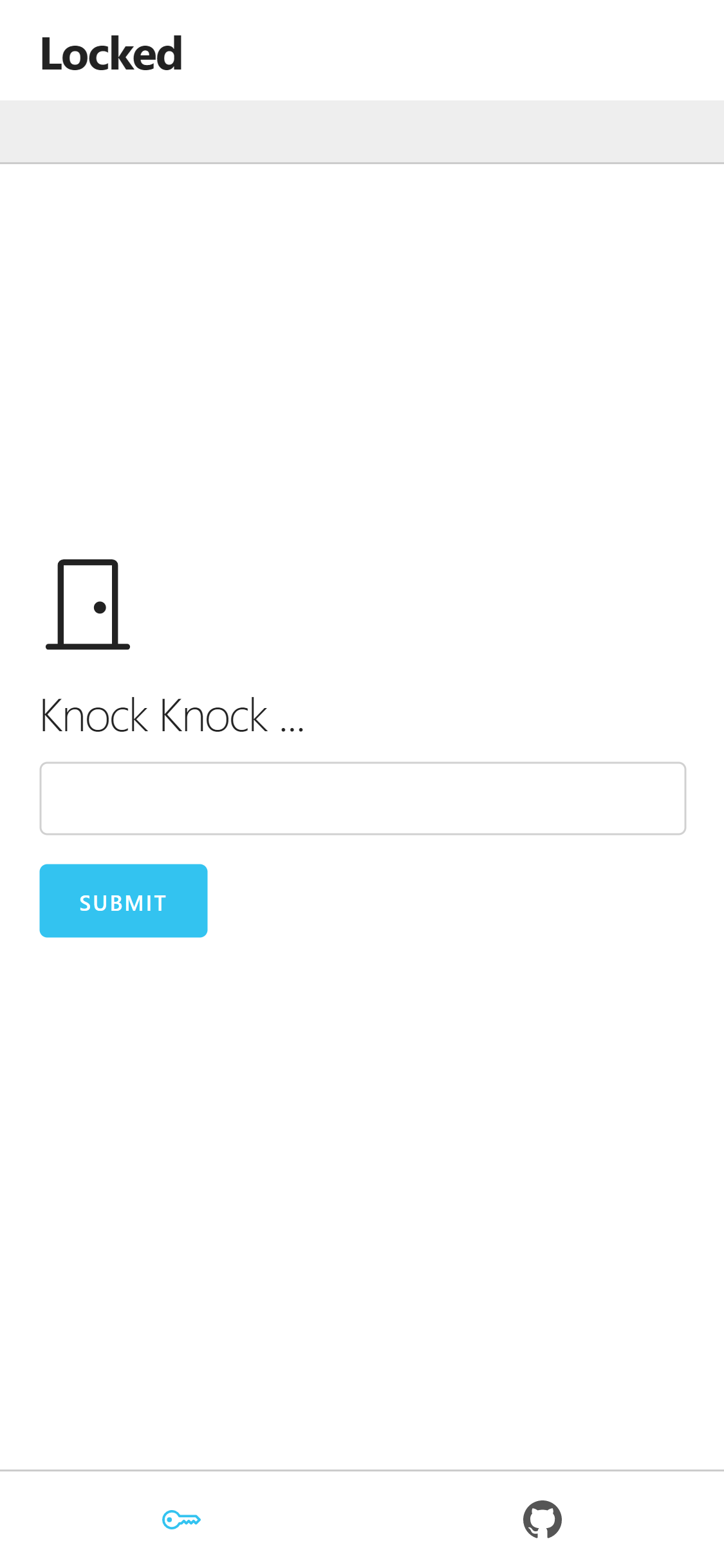
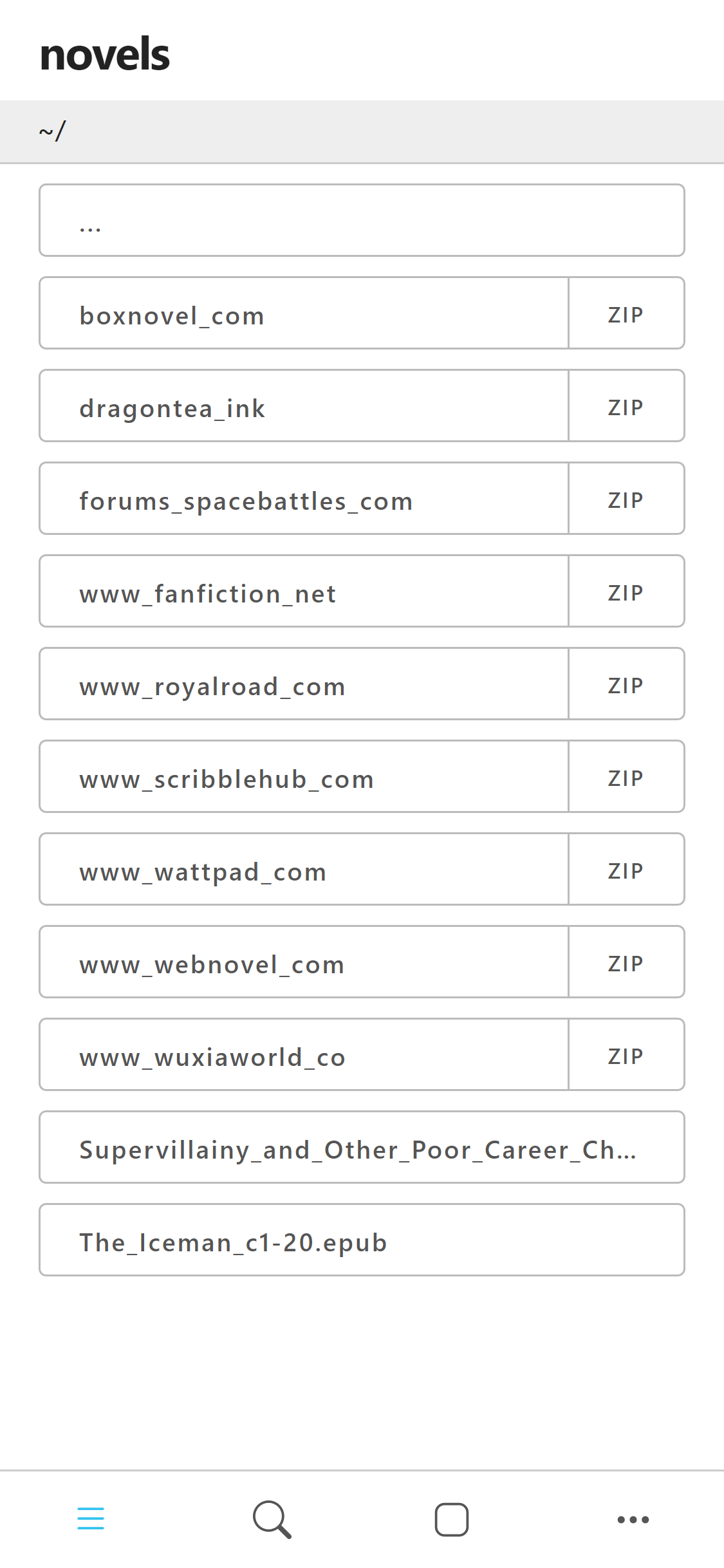
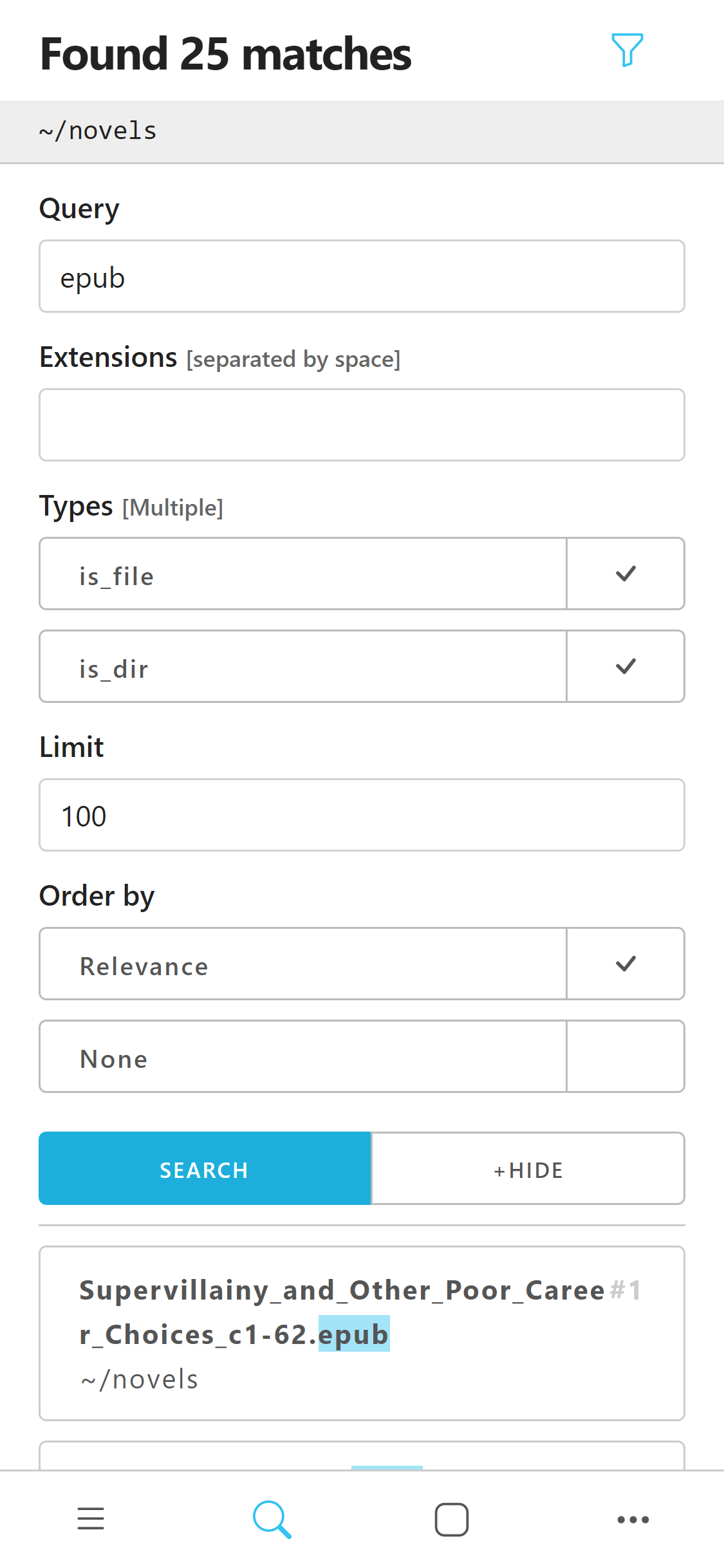
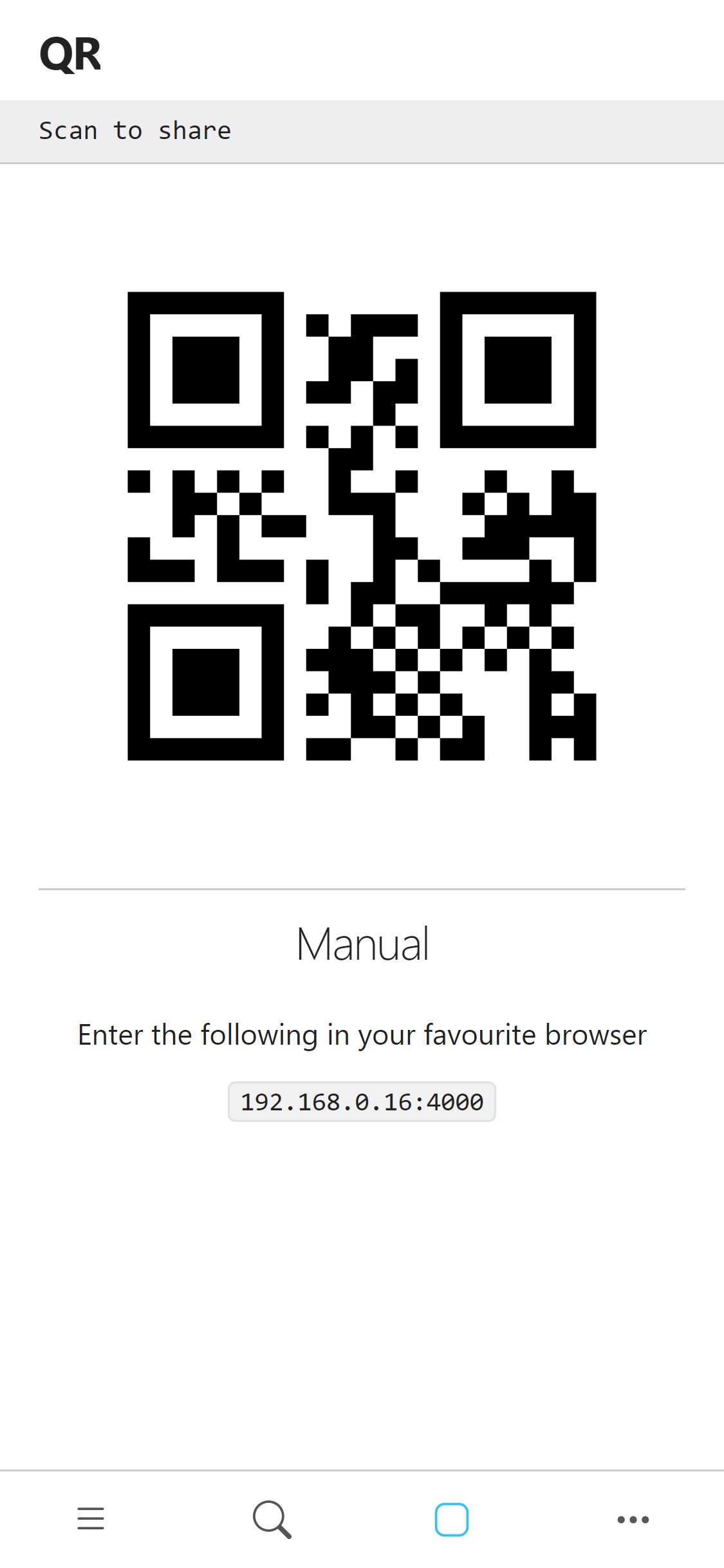
For extra security provide a password --password [password]
pip install qrshare-
Update packages:
apt update && apt upgrade -
Setup storage:
termux-setup-storage -
Install Python:
pkg install python -
Install qrshare:
pip install qrshare -
Use as described below in Terminal.
Serve a specific directory or file
qrshare serve path/to/shareServe the current directory
qrshare serve .Windows only
Creating a shortcut in shell:sendto provides for easier use of convenience
qrshare config --sendtoPress Windows + r and enter shell:sendto
%USERPROFILE%\AppData\Roaming\Microsoft\Windows\SendTo
Create shortcut with command qrshare serve in folder
now option qrshare should appear when you right click to a file or folder
Usage: __main__.py [OPTIONS] COMMAND [ARGS]...

Options:
  --help  Show this message and exit.

Commands:
  config  change user configurations
serve serve given list paths as per given optionsUsage: __main__.py serve [OPTIONS] PATHS...
serve given list paths as per given options
Options:
-p, --password TEXT when provided every device require authentication
--port INTEGER waitress server port
--help Show this message and exit.passwordis given preference over global password
Usage: __main__.py config [OPTIONS]

  change user configurations

Options:
  -p, --password TEXT  set a global password
  --remove-password    remove currently set global password
  --sendto             reset windows 'Send To' shortcut
  --open               open config directory
  --help               Show this message and exit.
global passwordcan be removed by setting it an empty string ("")
from qrshare import App

app = App(paths, debug=True)
app.serve()