08: Console
You can start the console GUI like:
- javaw -cp Jvakt.jar Jvakt.console
- javaw -cp c:\JavaSrc;c:\JavaSrc\postgresql.jar Jvakt.console
This depends on where you have stored the classes.
I.e. the Jvakt.jar contains the content of the postgresql.jar in additions of the Jvakt classes.
N.B. The console must also find the file console.properties in the 'current' directory.
The console.properties file must contain these rows:
## This file is used by the console GUI.
# PostgreSQL DB name
database = Jvakt
# PostgreSQL user name and pw. read only access
dbuser = console
dbpassword = pw
# host name and port of PostgreSQL server
dbhost = jvaktserver.domain.com
dbport = 5432
# host name and port of Jvakt server process
jvhost = jvaktserver.domain.com
jvport = 1956
# The commands to start the history and status app, which runs in completely separate processes. (Note the front slash! Don't use backslash.)
cmdHst = javaw -cp jvakt.jar Jvakt.consoleHst
cmdSts = javaw -cp jvakt.jar Jvakt.consoleSts
cmdStat = javaw -cp jvakt.jar Jvakt.StatisticsChartLauncher
cmdStats = javaw -cp Jvakt.jar Jvakt.StatisticsChart
statsDir = //ubuntu1/jvStats
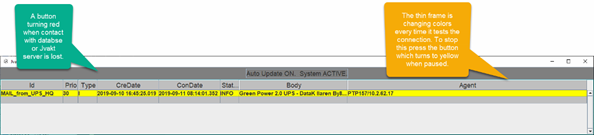
Press the button to toggle the automatic update. This is needed to stop the automatic update in the status table screen to be able to update the fields.
Remember to use the F1 key to see the help screen.
Note the text in the button. The regular text is "Autoupdate ON. System ACTIVE". It might say "Autoupdate ON. System DORMANT".
DORMANT means Jvakt won't send any mail or SMS, only the console is updated.
The server is in DORMANT mode about 30 minutes after start to give time to agents to report in. It's also in DORMANT mode during the service windows and during the summer and winter clock re-set.
You can use the F8 key to toggle DORMANT off/on.
Use F5 in the Console-windows to start the History app.
Here you can see the history of the rows previously present in the Console.
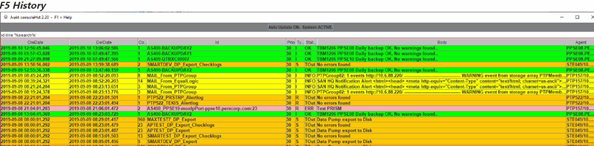
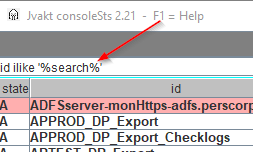
The SEARCH field is a SQL where statement. It is active when an ending space is present!
Examples:
id ilike '%SAP_PROD%'
body ilike '%msgw%'
id ilike '%checklogs%' and body ilike '%ora-%'
Use F6 in the console screen to launch the status-window. From here you can change the most common values.
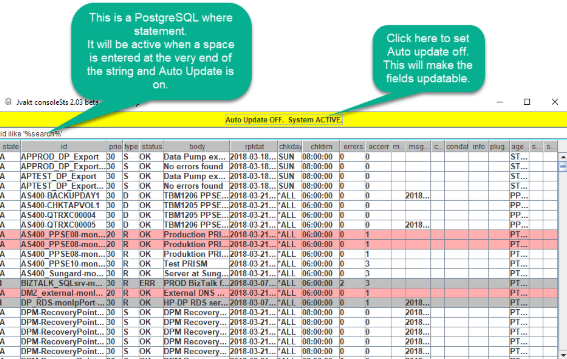
**Typical tasks are: ** Set the State field to A, I or D. (A=Active I=Inactive D=Dormant). Dormant is used on a row with prio below 30 when you will inhibit warnings via mail or SMS-texts.
Set the Prio field to below 30 to make it a candidate to the error mail or SMS.
Set the Accerr field to allow for more errors before a warning is issued.
This is typical for rows where the Type is 'R'. Else the Accerr field normally is to be zero.
Types can be R, I, S or T.
S: Set the Type field to S and Chkday , Chktim and Chktimto to a suitable time.
This creates a check once a day at the specific time (chktim) each day of chkday (*ALL MON TUE WED THU FRI SAT SUN) that the row is updated and OK.
This is mainly used to check daily jobs like backups and similar.
R: Set the Type field to R and Chkday , Chktim and Chktimto to a suitable time.
This creates a check every minute each Chkday after Chktim has passed, expecting the rptdate to be updated within the last 20 minutes.
T: Set the Type field to T and Chkday , Chktim and Chktimto to a suitable time. No time-out warning will be issued with type T.
This is used by agents reposting at irregular intervals, like the Diesel power generator and UPS.
I: There is little need to set a row with type I.
The type I is automatically created by the agent as they send an immediate message and will be purged by the housekeeping routine.
**Plugin field DEPRECATED do not use **
It's possible to trigger a cmd file when an error occur. Enter the name in the plugin field.

Use F10 in the Console-windows to start the StatisticsChartLauncher app.
Here you can make a selection of the statistical files collectd by the monitorin files.
Don't forget to enter statsDir = "statitics mapp" in the console.properties file to show the luncher where the stats files are.