

Display the selected keyboard layer layout on screen to assist you in memorizing the keymaps.

- USB and Bluetooth support — Works with QMK/Vial keyboards via USB, and ZMK keyboards via USB or Bluetooth
- Local desktop display — Show layers directly on your main screen using a native GUI
- Remote web display — View layers on any device with a web browser (tablet, phone, etc.)
- Remote desktop client — Auto-discovers the server on your local network via Zeroconf
- Customizable layouts — Use the included Miryoku examples or create your own layer images
- Cross-platform — Runs on Windows, macOS, and Linux
It supports displaying the layout on a remote screen, so you can use a tablet or similar to save space on your main screen. You can use a web browser or a desktop application for that.
It requires some changes to your keyboard firmware to notify the host of the layer changes (see below).
The example layouts shipped with this repo are based on Miryoku QMK and you can easily define your own.
Demonstration video:
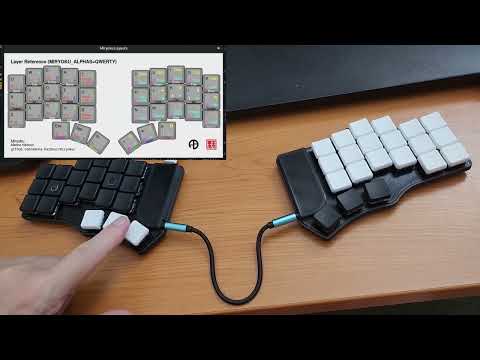
- Features
- Overview
- Quick Start
- Installation
- Configuration
- How to Run
- Firmware Setup
- Define your own layout images
- Troubleshooting
- Install the application (see Installation)
- Edit
config.inito match your keyboard's USB/BLE details and layer images - Run the application:
- Windows: Run
Keyboard Companion.exe - macOS/Linux: Run
pipenv run python main.py
- Windows: Run
This application should work on all OSes compatible with HIDAPI.
Release packages are available with all dependencies included, so you don't need to install anything else.
Download the latest release from the Releases page, unzip it and run Keyboard Companion.exe.
First install HIDAPI on your system. E.g. on Fedora:
dnf install hidapi
First install HIDAPI on your system. E.g.:
brew install hidapi
Make sure you have Python 3.7 or higher installed, 3.13 is recommended. Pip is also required.
Clone this repo and via terminal, cd to it. Then install the required Python packages:
pip install pipenv
pipenv install
The Configuration is done via the config.ini file.
- KEYBOARD_USB_HID details: for QMK/ZMK keyboards using USB.
- KEYBOARD_BLE_HID details: only required for ZMK keyboards using Bluetooth.
- Layer image files: the example files are for Miryoku QMK, but you can define your own (see below). Layers that are not used might define a fallback image.
Example config.ini:
[KEYBOARD_USB_HID]
usage_page = 0xFF60
usage = 0x61

[KEYBOARD_BLE_HID]
vendor_id = 0x1D50
product_id = 0x615E

[LAYER_IMAGES]
layer_0 = base.png
layer_1 = virtual_keyboard.png
layer_2 = virtual_keyboard.png
layer_3 = virtual_keyboard.png
layer_4 = nav.png
layer_5 = mouse.png
layer_6 = media.png
layer_7 = num.png
layer_8 = sym.png
layer_9 = fun.png There are three ways to run the application: locally on the computer connected to the keyboard, remotely using a web browser, or remotely using the desktop application. Choose the one that best fits your needs.
Review and edit the config.ini file to match your keyboard's USB details and the layout image files before running the application.
| Flag | Short | Description | Notes |
|---|---|---|---|
--server |
-s |
Run as TCP server for remote desktop clients | Cannot combine with --client or --web |
--client |
-c |
Run as TCP client (remote display) | Cannot combine with --server or --web |
--web |
-w |
Start web server for browser-based display | Cannot combine with --server or --client |
--ble |
-b |
Use Bluetooth connection (ZMK only) | Requires root/sudo on macOS |
--server_ip |
-i |
Specify server IP address | Only valid with --client |
--server_port |
-p |
Specify server port (default: 1977) |
Scenario: you have enough space on your main screen or external monitor to display the layout.
Advantage: layout is displayed with minimum latency.
- Windows: just run
Keyboard Companion.exefrom the release package. - macOS/Linux: run the following command from the repo folder:
pipenv run python main.pyPair your ZMK keyboard via Bluetooth. Refer to the ZMK Firmware section below for instructions on how to build your firmware.
Due to system restrictions on macOS, root privileges are required to access Bluetooth HID devices.
sudo pipenv run python main.py --ble
The BLE option can be combined with other options, for example:
# BLE + web server
sudo pipenv run python main.py --ble --web

# BLE + remote server
sudo pipenv run python main.py --ble --serverScenario: you have a second device that is only capable of running a web browser (Android, iOS, Kindle, etc) and want to save space on your main screen.
Disadvantage: layout changes might be slightly delayed due to network latency or device limitations.
- Windows: run
Keyboard Companion.exe --webfrom the command line. - macOS/Linux: run the following command from the repo folder:
pipenv run python main.py --web [--server_ip] [--server_port]
Run the server on the computer connected to the keyboard and open a browser on the remote device (tablet, mobile, desktop) to display the layout.
The default server port for both HTTP and WebSocket is 1977, but it can be changed using the --server_port option.
The IP address that the server binds to can be changed using the --server_ip option.
Scenario: you have a second computer that can run the desktop application and want to save space on your main screen.
Advantage: layout changes are more responsive than using a web browser.
Disadvantage: requires Python installation on the remote host.
Run the server on the computer connected to the keyboard and the client on the remote host.
If no server IP or port is specified, the client will try to discover the server automatically. The default server port is 1977.
The IP address that the server binds to can be changed using the --server_ip option.
On Windows, change pipenv run python to Keyboard Companion.exe in the commands below.
Host:
pipenv run python main.py --server [--server_ip] [--server_port]
Client:
pipenv run python main.py --client [--server_ip] [--server_port]
For ZMK keyboards, follow the zmk-feature-appcompanion module instructions to build your firmware. This repo includes all the required changes and can be used as a reference.
Both USB and Bluetooth are supported, although root privileges are required for Bluetooth.
The application works by receiving data sent to the computer by the keyboard when it switches between layers, using raw HID.
It requires the following to be added to your QMK/Vial firmware (reference):
Note: With these changes, the Vial's Matrix Tester (a graphical tool) will stop working.
File: keyboards/<your_keyboard>/rules.mk
// Not required for Vial
RAW_ENABLE = yesFile: keyboards/<your_keyboard>/keymaps/<default|yours>/keymap.c
#include "raw_hid.h"

...

// Notifies the host of the layer change
layer_state_t layer_state_set_user(layer_state_t state) {
    uint8_t hi_layer = get_highest_layer(state);
    uint8_t response[RAW_EPSIZE];
    memset(response, 0x00, RAW_EPSIZE);
    response[PAYLOAD_BEGIN] = PAYLOAD_MARK;
    response[PAYLOAD_BEGIN + 1] = hi_layer;
    raw_hid_send(response, RAW_EPSIZE);
    return state;
}
Note: The function layer_state_set_user might already be 'present' but only conditionally declared (by #ifdef blocks) so review your existing code properly.
File: keyboards/<your_keyboard>/keymaps/<default|yours>/config.h
#define RAW_EPSIZE 32
#define PAYLOAD_MARK 0x90
#define PAYLOAD_BEGIN 24

// Not required for Vial
#define RAW_USAGE_PAGE 0xFF60
#define RAW_USAGE 0x61You can use any tool you like to create the layout images and multiple formats are supported (png, jpg, bmp).
You can also build your layouts using KLE or KLE NG - you can find JSON examples on the Miryoku QMK repo or use mine.
KLE NG is recommended, as it has more features and is actively maintained. It also allows you to export the layout in a higher resolution: change the Zoom to 200% and export the PNG.
At KLE, use the "Upload JSON" button in the "Raw data" tab to upload the examples.
Once you are done editing, download the PNG files, copy it to the assets folder, rename it properly and update the config file.
- Verify the
usage_pageandusagevalues inconfig.inimatch your keyboard's firmware configuration - Ensure your keyboard is connected and recognized by your operating system
- On Linux, you may need to configure udev rules to access HID devices without root
- On macOS,
rootprivileges are required to access Bluetooth HID devices — usesudo - Make sure your keyboard firmware was built with the zmk-feature-appcompanion module
- Verify the
vendor_idandproduct_idinconfig.inimatch your keyboard
This is expected behavior. The firmware changes required for this application conflict with Vial's Matrix Tester functionality.
- Ensure the server and client are on the same network
- Check that port 1977 (or your custom port) is not blocked by a firewall
- Verify the correct IP address is being used in the browser URL
- Make sure image files exist in the
assetsfolder - Check that the filenames in
config.inimatch the actual file names (case-sensitive on Linux/macOS) - Supported formats: PNG, JPG, BMP
