- Automatically detects the user's location using device GPS.
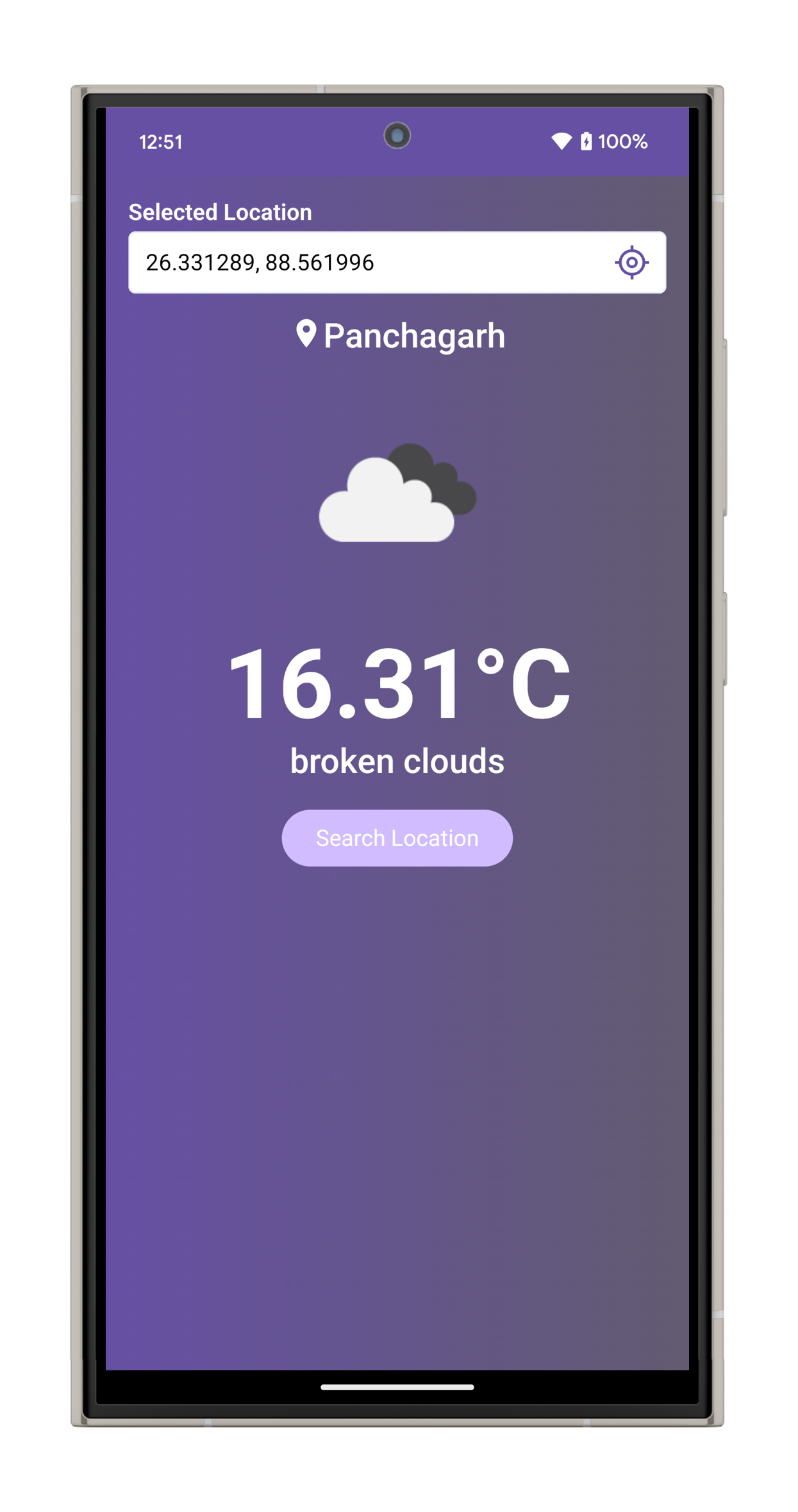
- Fetches real-time weather data for the current location.
- Displays:
- Temperature
- Location
- Icon
- Weather conditions (e.g., sunny, cloudy, rainy)
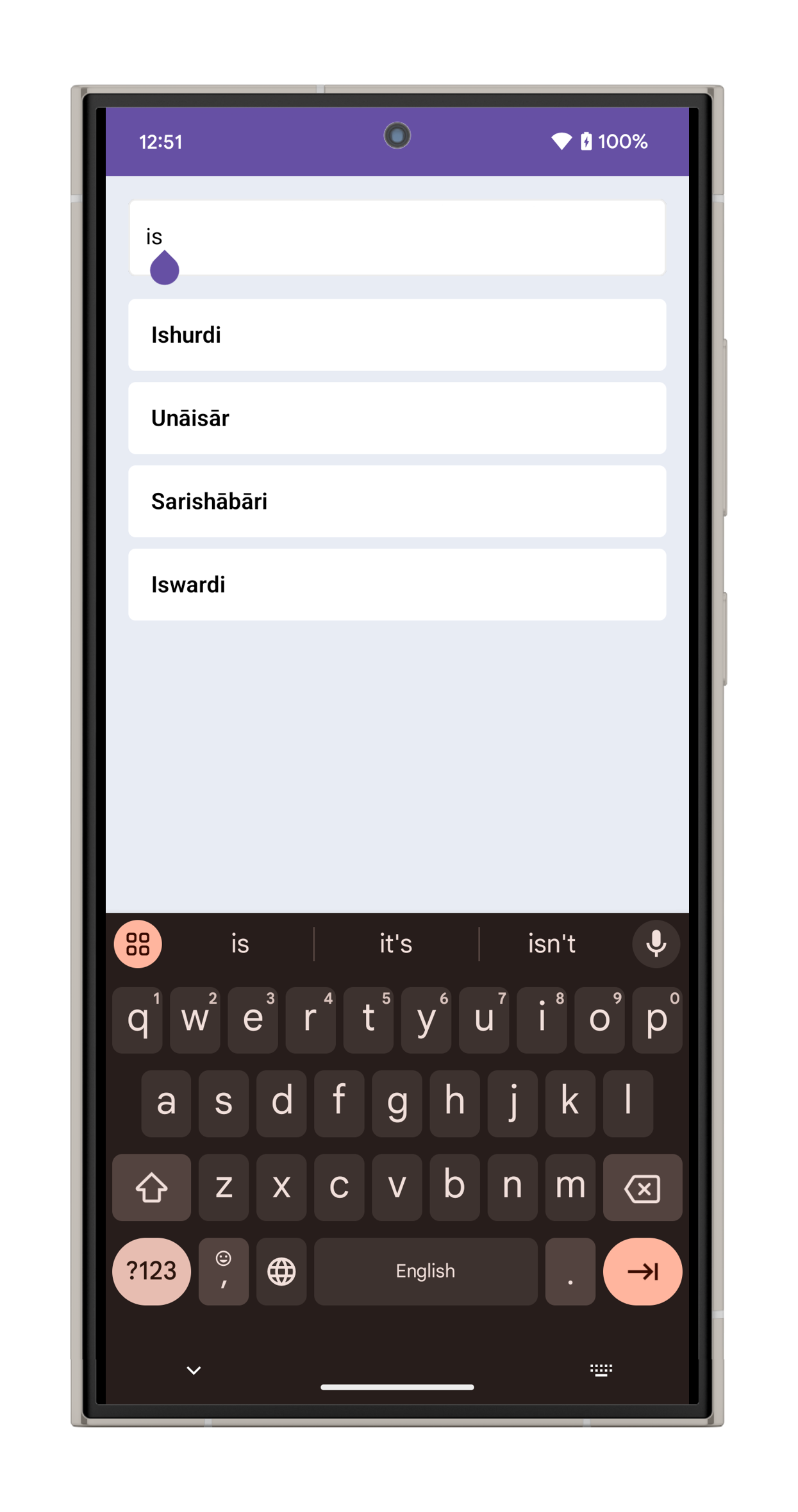
- Location List: Provides a preloaded list of districts (zilla list) for easy location search.
- Search Functionality: Allows users to search for weather details by district name.
- Real-time search to narrow down district names as the user types.
- Efficient backstack management:
- Users can navigate back to the main weather screen from the search screen.
- Preserves the selected location and displays the weather for that location.
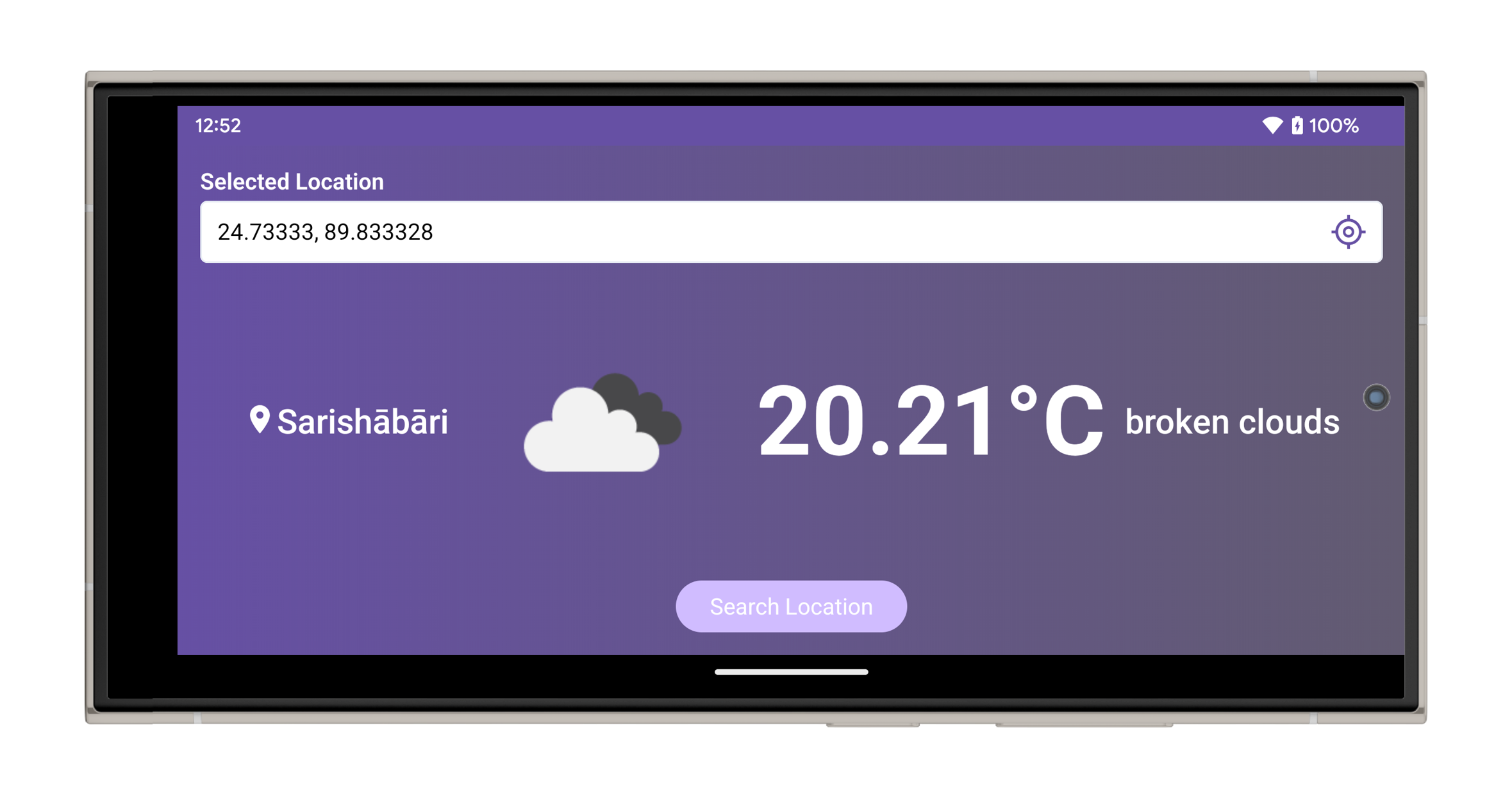
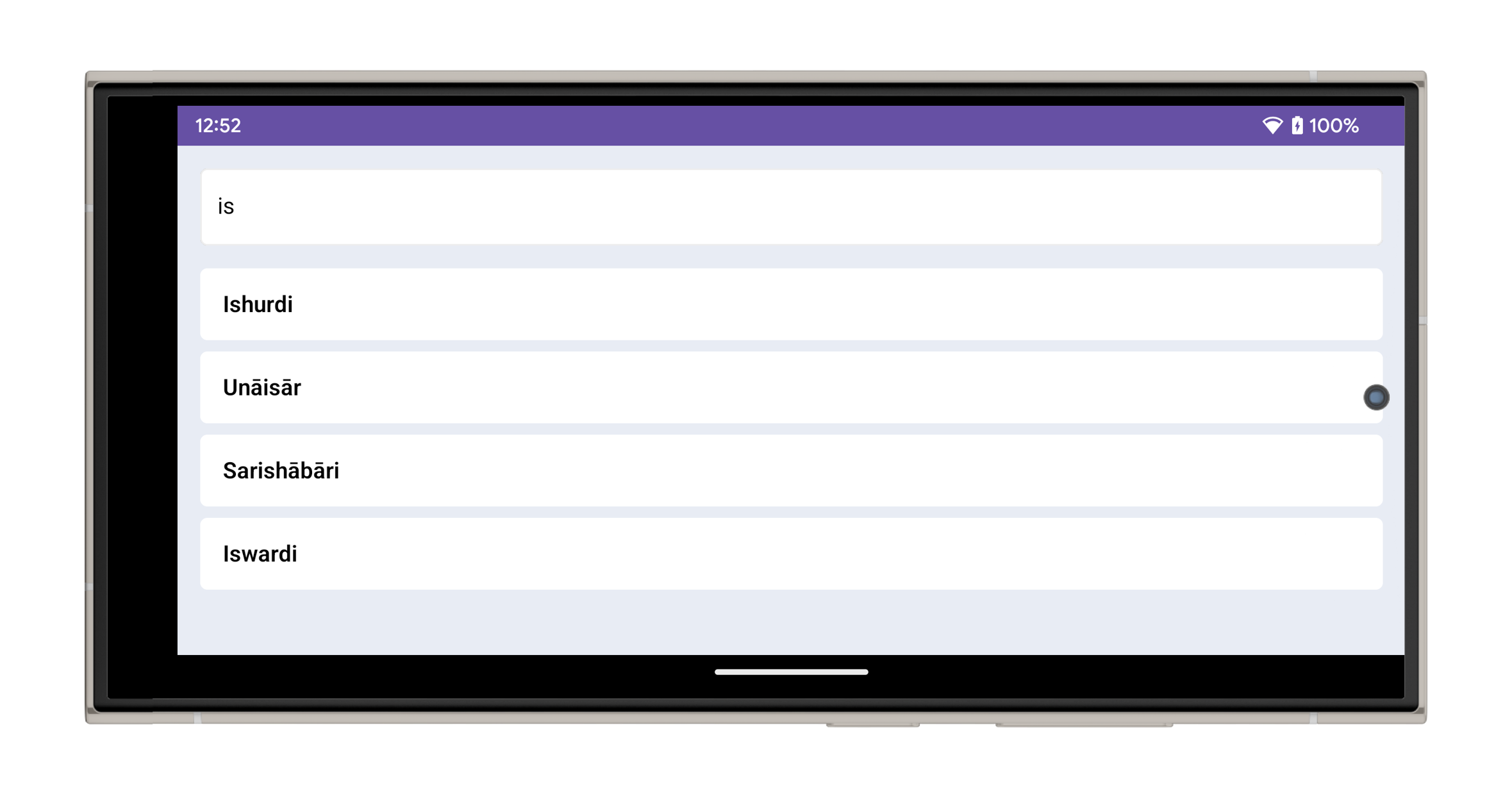
- Handles configuration changes, such as screen rotation, without losing data or state.
- Uses ViewModel to retain UI-related data across configuration changes.
- Leverages Jetpack Compose's declarative UI to automatically recompose views as needed.
This app is built using modern Android development tools and practices:
- Jetpack Compose: For building declarative and responsive UI.
- ViewModel: To manage UI-related data in a lifecycle-aware way.
- MVVM Architecture: For separating concerns and ensuring maintainability.
- Koin: A lightweight dependency injection framework for managing app dependencies.
- Ktor: For making efficient and structured API calls.
- Coroutines: For managing asynchronous tasks smoothly and ensuring responsiveness.
- Visit the website of the weather API provider (e.g., OpenWeatherMap).
- Sign up for an account and obtain your API key.
- Keep the API key secure as it is required to make API requests.
- Open the
local.propertiesfile in your project (located in the root directory). - Add the following entries:
weather_api_key=your_api_key_here
base_url=https://api.openweathermap.org/data/2.5/
- Replace
your_api_key_herewith the API key you obtained. - Clean and build the project.
Watch the demonstration video of the Weather App in action:
