Home
Tweetz requires Windows 7 or later and an Internet connection
- Download the latest version and install it.
- The first time the program is started it will present a
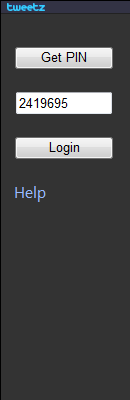
login page. Click the Get PIN button. Tweetz uses an advanced version of
authentication that does not use or store your password.
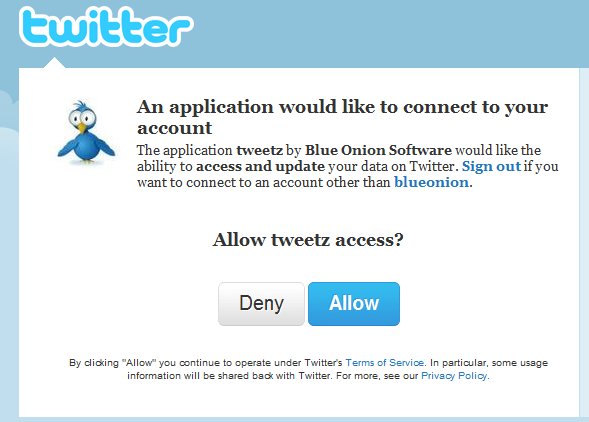
- Your browser should appear. If you're already logged into twitter, you'll
see a page asking for your permission to access your twitter account. Click
""Allow""
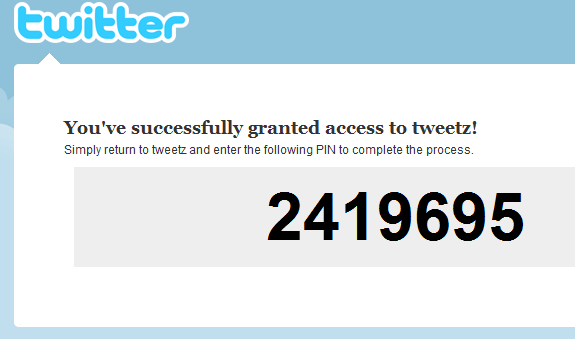
- Next you'll see a PIN number. Copy it (Ctrl+C)
- ... and paste it into Tweetz
- Click the login button (Note: PIN numbers can only be used once. If you close the gadget, you'll have to get a new PIN)

You can get a list of shortcuts by pressing ? in the main window.
Tweetz comes with 2 built-in themes. You can select the next theme settings menu.
Tweetz has been translated into many languages. Language selection is detected automatically based on your computer's settings.