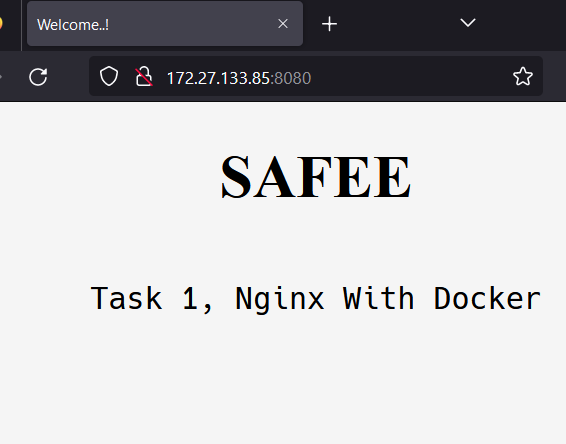
2. Nginx and Docker
Check the requirements
   sudo apt-get update

   sudo apt-get install \

       ca-certificates \

       curl \

       gnupg \

       lsb-release
Add The official Docker GPG key:
  sudo mkdir -p /etc/apt/keyrings
  curl -fsSL https://download.docker.com/linux/ubuntu/gpg | sudo gpg --dearmor -o /etc/apt/keyrings/docker.gpg
Save the definition:
  echo \ "deb [arch=$(dpkg --print-architecture) signed-by=/etc/apt/keyrings/docker.gpg] https://download.docker.com/linux/ubuntu \
  $(lsb_release -cs) stable" | sudo tee /etc/apt/sources.list.d/docker.list > /dev/null`
Update the packages:
  sudo chmod a+r /etc/apt/keyrings/docker.gpg
  sudo apt-get update
Install Docker:
sudo apt-get install docker-ce docker-ce-cli containerd.io docker-compose-plugin
we will write a Dockerfile, which contain the next:
  FROM nginx

  RUN apt-get update

  COPY index.html /usr/share/nginx/html

  EXPOSE 8080

  CMD ["nginx", "-g", "daemon off;"]
next step is to prepare the index.html.
now we can build the image
docker build -t nginx_edited .
use docker image ls to check the image after building
now, we can run a container using our custom image
docker run -d --name nginx_new -p 8080:80 nginx_edited