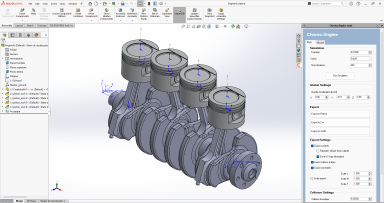
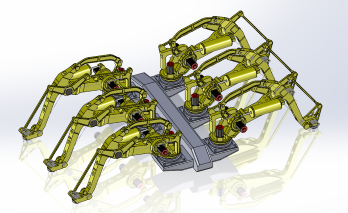
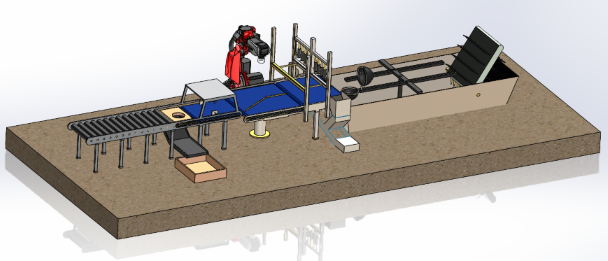
Chrono::SolidWorks is an add-in for SolidWorks that allows the user to simulate complex CAD models by leveraging the capabilities of the Chrono multibody library.
The created models can be also exported for further processing in Chrono either as Python, C++, or JSON files.
Chrono::SolidWorks is part of Project Chrono.
- seamless integration in SolidWorks as custom add-in
- export complex mechanical systems, including:
- Parts, as rigid bodies; mass and inertial properties are preserved
- Assemblies, as rigid bodies for Rigid Assemblies, or articulated for Flexible Assemblies
- Mates, either Standard or Mechanical
- custom motors
- custom spring-damper-actuators
- export visualization shapes as Wavefront .OBJ meshes, to be later edited/optimized/rendered
- add and export advanced collision features either as Primitives, Convex Hulls or Concave Triangle Meshes
- export coordinate frames of interest as chrono::ChMarker
For more informations: Chrono::Solidworks User Manual
Visit the ProjectChrono website for the pre-compiled binary webpage and look for the Chrono::Solidworks section. Dependencies will be installed together with the add-in.
Note: there is no need to build the add-in from source unless you are interested in expanding/customizing/fixing the add-in.
Prerequisites:
- the project is written in C#, so you must use Microsoft Visual Studio with the C# development module enabled
- double-check the availability of the proper .NET Framework version on your computer
- you must have a SolidWorks license installed on your computer
- a build or install distribution of Chrono is required
Build procedure:
- clone this repository to any given folder (always suggested to avoid spaces and special characters in the path)
- run Visual Studio as Administrator
- load the ChronoSolidworks.sln solution located in the main directory
- set build configuration to Release
- right-click on the ChronoSolidworksAddIn C# project, click on Manage NuGet Packages and install the Newtonsoft.JSON package
- you may need to modify some settings of this solution, in order to reference the .COM assemblies of your SolidWorks.
In the Solution Explorer panel, expand ChronoSolidworksAddIn>References and make sure that the four references called "SolidWorks...." are properly set. If not:
- right click on References>Add Reference...
- go to the Browse tab and navigate to the SolidWorks installation folder
(typically C:\Program Files\SolidWorks 20XX\SolidWorks) and add the following files (names might change depending on Solidworks version):
- solidworkstools.dll
- SolidWorks.Interop.sldworks.dll
- SolidWorks.Interop.swcommands.dll
- SolidWorks.Interop.swconst.dll
- SolidWorks.Interop.swpublished.dll
- right-click on ChronoSolidworksAddIn project, click on Properties, Reference Paths and add the Solidworks installation folder (e.g., "C:\Program Files\SOLIDWORKS Corp\SOLIDWORKS")
- in ChronoSolidworksAddIn>Properties>Build panel, an optional flag
HAS_CHRONO_CSHARPis currently set by default under Conditional Compilation Symbols. In case you dont't have a Chrono distribution with CSharp module enabled, remove this flag; this will disable the Export to JSON, Run Simulation and Convex Decomposition options - in case you decided to use Chrono CSharp
- right-click on the ChronoSolidworksAddIn project, then Add>Existing Item, go to your Chrono build/install folder, navigate into the binary Release folder and select Chrono_core.dll, Chrono_irrlicht.dll, ChronoSolidworks_csharp_core.dll, ChronoSolidworks_csharp_irrlicht.dll, and Irrlicht.dll. In the selection dialog it is recommended to select Add as Link instead of a simple Add; please mind that the selection dialog has some selection filter that, in this case, should be set to show also .dll files. You should now see the picked libraries into the Visual Studio solution
- in the Solution Explorer, select all the libraries added in the previous step, right-click on them and then in Properties set the Copy to Output Directory option to Copy always
- it is now necessary to add all the Chrono CSharp wrapped source files into the add-in solution. In Visual Studio, right-click on the ChronoSolidworksAddIn project and create a convenience folder Chrono through Add>New Folder; right-click on this folder and select Add>Existing Item
- if you have a Chrono install distribution, use the dialog and navigate to its include/chrono_csharp subfolder; select all .cs files, and hit Add as Link
- if, instead, you have a Chrono build distribution, you have to manually collect all required files into a single folder, beforehand; to do so, go to the Chrono build folder and into chrono_csharp; inside this, create a convenience folder, e.g. core_irrlicht_mix; copy all the source files from chrono_csharp/core and chrono_csharp/irrlicht into core_irrlicht_mix, in this order; unfortunately, Chrono CSharp modules re-export some classes, thus creating duplicated items: let the copy-paste overwrite all potential duplicates; finally, select all the files in core_irrlicht_mix and use Add as Link to add them to the ChronoSolidworksAddIn/Chrono convenience folder
- build the solution; it will generate the ChronoSolidworksAddIn.dll into the chrono-solidworks_install folder, together with all its dependencies; the DLLs are automatically registered by the post-build events
- start SolidWorks; you should find the Chrono::Solidworks panel in the Task Pane to the right; note that add-ins can be enabled/disabled with the Options>Tools>Adds-In menu in the upper toolbar
If you find problems to build the add-in, look at this tutorial for instructions about how to build add-ins for SolidWorks.
In the ChronoSolidworksImportTemplate a CMake solution offers a set of projects to test all the export options: CPP, JSON, Python parsing and PyChrono. CMake will setup a solution according to your IDE including to test the first three types of export, plus it will create a dedicate PyChrono source file that can be run indipendently (it will be created in the ${PROJECT_BINARY_DIR}/pychrono).
The ChronoSolidworksImportTemplate is available in the install folder or inside the to_put_in_app_ir folder in the sources.
See the tutorials for examples of C++ code and Python code that load systems exported with this add-in.
A place for discussions can be the projectchrono group.