Creating a new stand off entry
Once you have opened one or more XML files and have set up your stand-off elements, you can start creating stand-off entries. As you select elements, the entry will appear in the current entry panel.
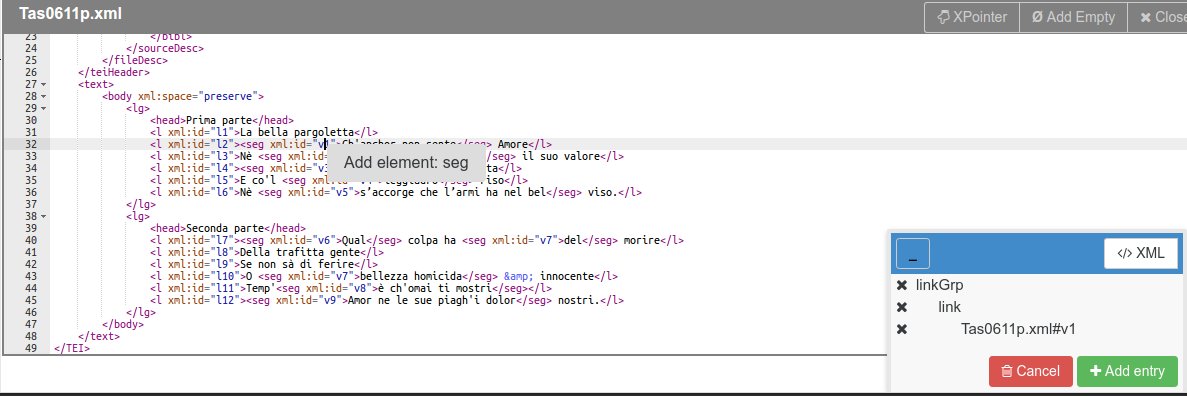
Click on @xml:id attributes to add the id to the entry. The reference will be added to the current entry based on the set behavior.
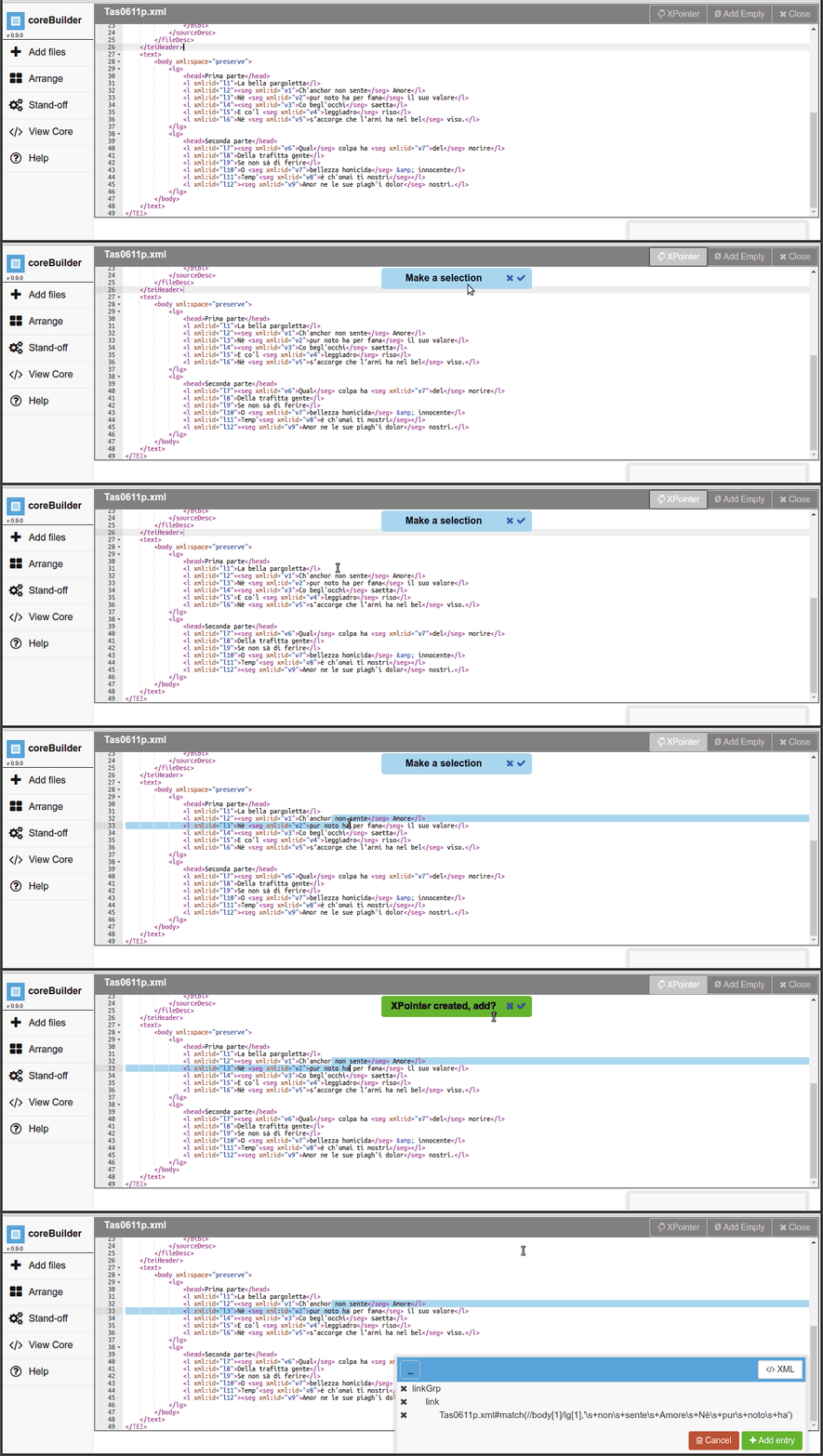
Click on the XPointer button on the top right of an XML file viewer. This will allow you to create an XPointer expression by selecting text. The XPointer scheme implemented is defined in the TEI Guidelines. The code that computes the selection is adapted from @hcayless's tei-xpointer.js.
You can either position the cursor within a text node, or make a selection that spans from a text node to another text node. If the expression can be generated, you'll be prompted to add it to the current entry.
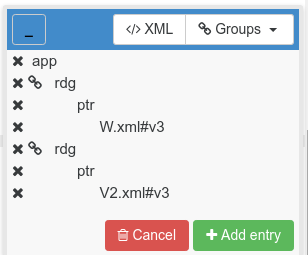
XML files can be recorded as "empty" references in the current entry. This is useful when recording the lack of a reference is as meaningful as recording the presence of a reference. For example, when building a stand-off critical apparatus, you may need to enter an empty reading:
<app>
  <rdg wit="#A" />
  <rdg wit="#B">
     <ptr target="F1.xml#ID" />
  </rdg>
</app>
To add a file as an "empty" reference, click the "Add Empty" button on the top right corner of the XML file viewer to toggle the reference. Please note that adding an "empty" reference may not be meaningful in all stand-off setups, in which case the button will do nothing.
As you select elements and create XPointer expressions, the references will be added to the current entry panel.
You can minimize the panel temporarily to get it out of the way and new references will be added even while it is hidden.
You can preview the entry as XML by clicking the XML button.
You can remove references by clicking on the cross (x) buttons. Removing an element will remove all elements contained within.
Finally, you can cancel the current entry to start over, or add it to the "core" stand-off file by clicking the "Add Entry" button.
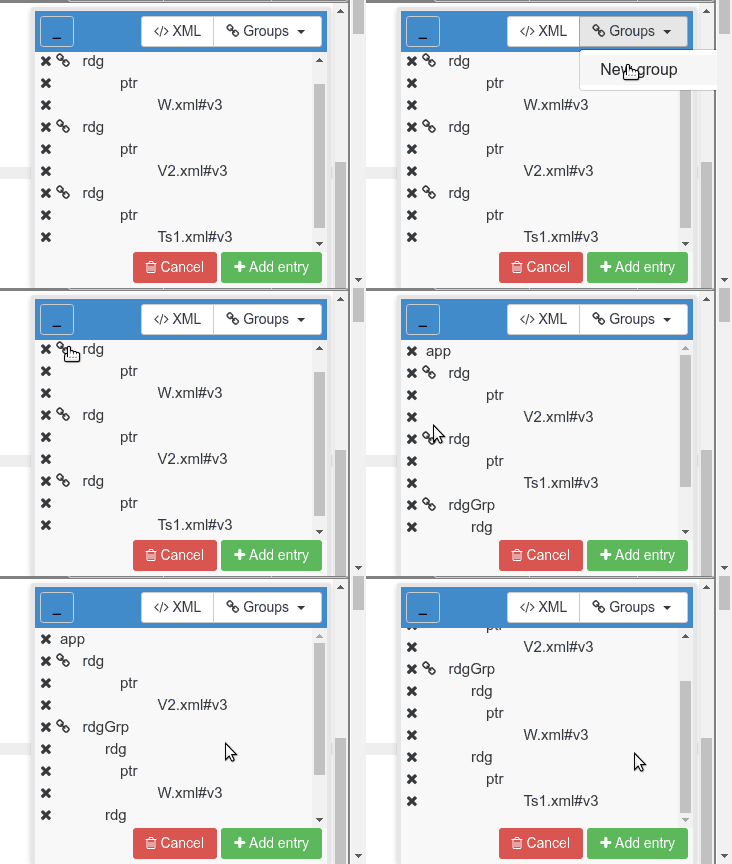
When a grouping element has been set up, chain icons will appear next to either container elements or pointer elements depending on the stand-off behavior.
To organize these elements in groups, first create a new group using the dropdown menu, then click on the chain icons.
In the example below, the readings from the sources called "W" and "Ts1" agree, so they get grouped.