Filters
All versions of Preview HTML since 1.3 can generate HTML from other file types using custom filters.
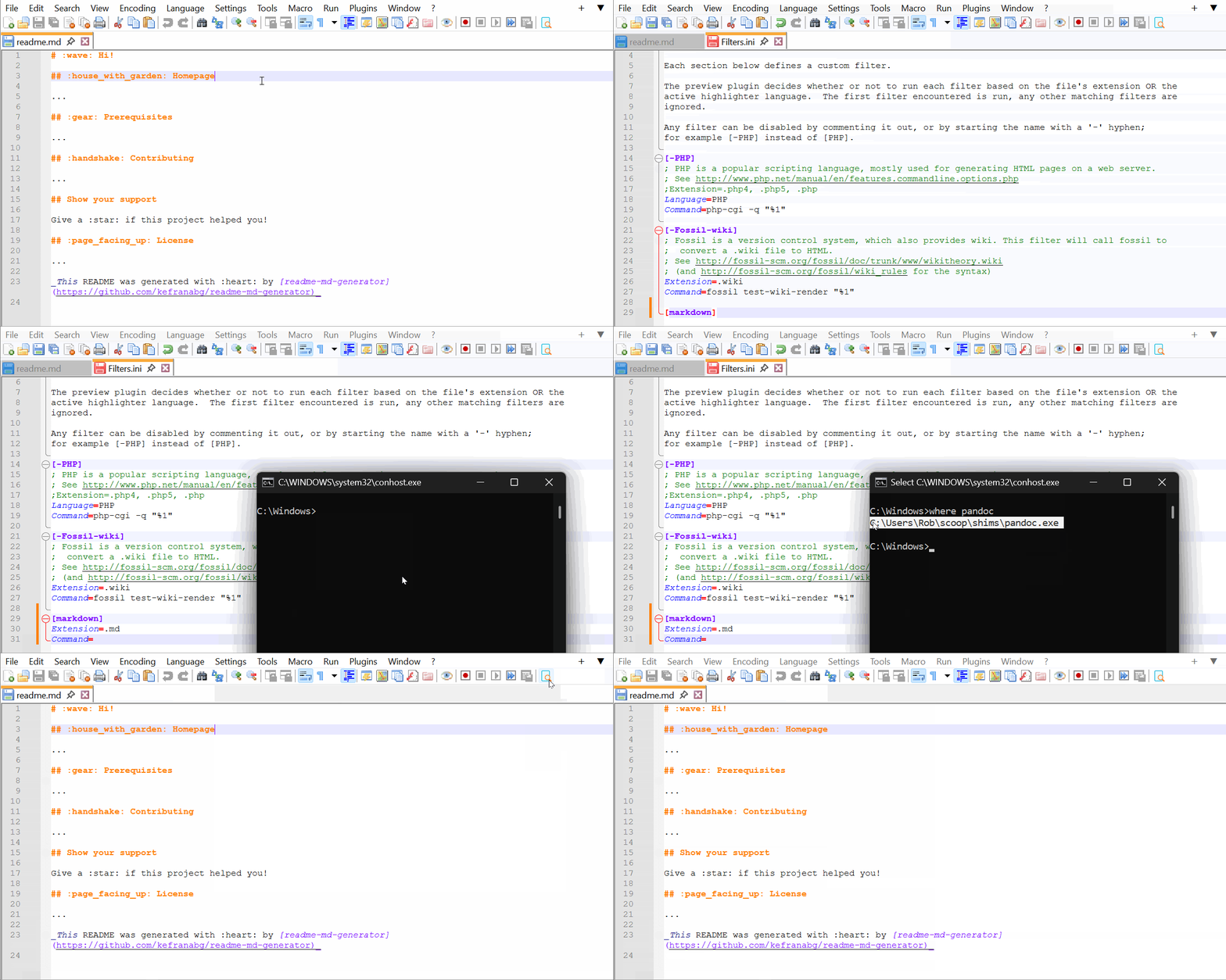
The format of a filter definition is illustrated here.
A sample configuration can also be found in the plugin's installation folder:
Fully installed Notepad++ editions
(64-bit)
%ProgramFiles%\Notepad++\plugins\PreviewHTML\filters.sample.ini
(32-bit)
%ProgramFiles(x86)%\Notepad++\plugins\PreviewHTML\filters.sample.ini
Portable Notepad++ editions
$(PORTABLE_NPP_DIR)\plugins\PreviewHTML\filters.sample.ini
Important
The generator program must:
- be usable from a command line such as the Command Prompt or PowerShell;
- print an HTML string to standard output — your filter definition should not redirect output to a file on disk
For example, this filter will be activated by opening any file with the extension .md, .mkd or .markdown:
[markdown]
Extension=.md,.mkd,.markdown
Command=pandoc -t html -f gfm "%1"
Note
The above example assumes that pandoc is already visible to the system's %PATH%.
For programs not in the %PATH%, you must provide the program's complete file name in your Command key, for example:
; ...
Command="C:\Notepad++\tools\comrak\comrak.exe" "%1"Save your filter definitions in the plugin's configuration folder with the file name Filters.ini.
The path to the configuration folder depends on how Notepad++ was installed:
Fully installed Notepad++ editions
%AppData%\Notepad++\plugins\Config\PreviewHTML\Filters.ini
Portable Notepad++ editions
$(PORTABLE_NPP_DIR)\plugins\Config\PreviewHTML\Filters.ini
To make sure you are editing the correct file, do the following:
-
Install the plugin and (re)start Notepad++
-
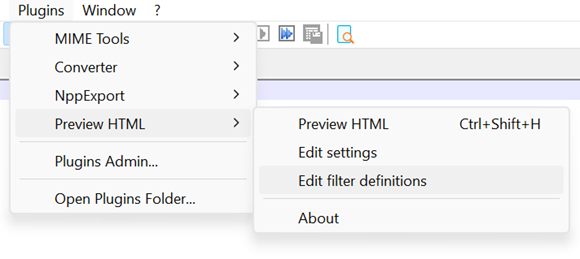
From the toolbar menu, select
Plugins > Preview HTML > Edit filter definitions
Note
Changes to Filters.ini are applied immediately — there is no need to restart the application.