

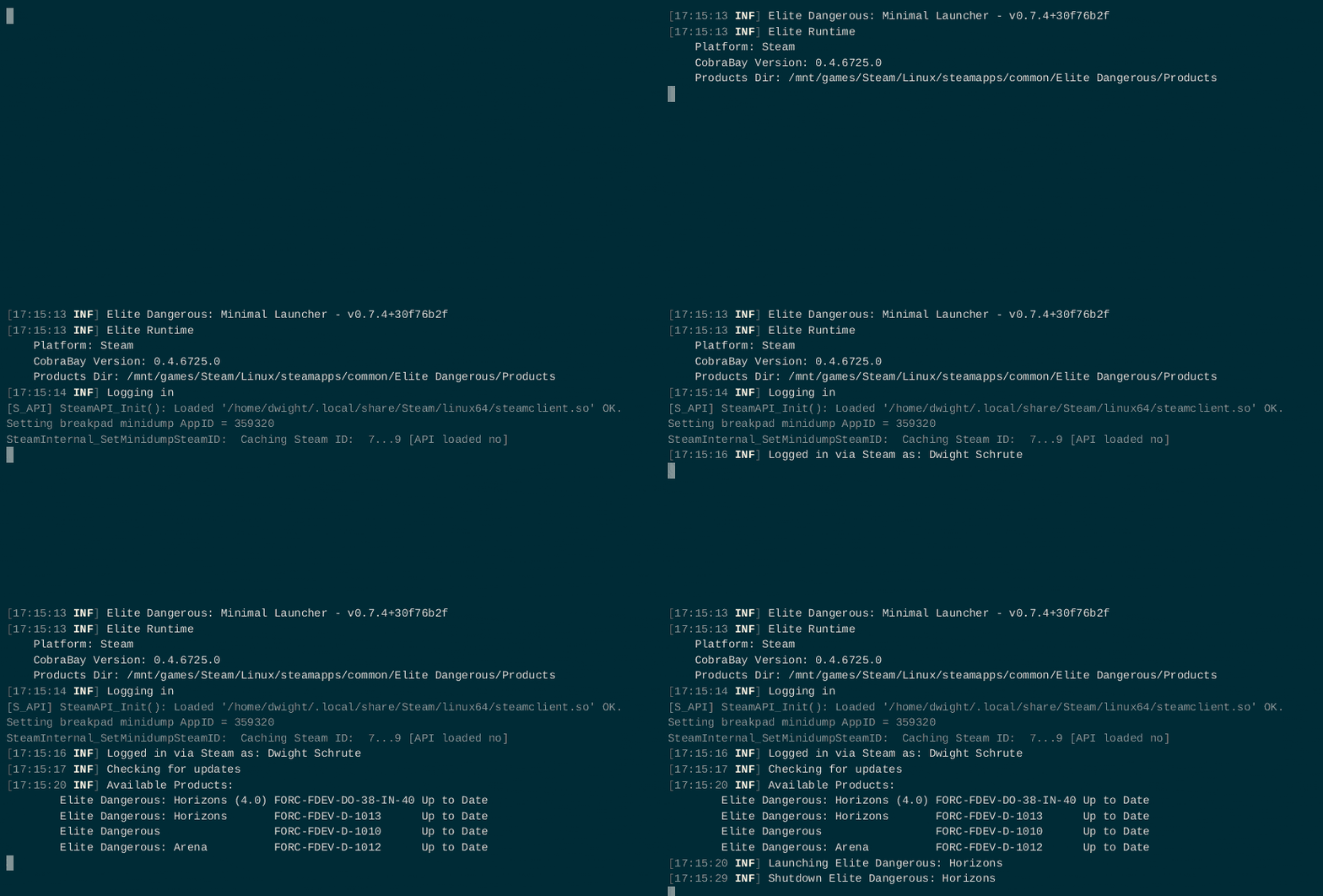
Cross-platform launcher for the game Elite Dangerous. Created mainly to avoid the long startup time of the default launcher when running on Linux. Can be used with Steam, Epic and Frontier accounts on both Windows and Linux.
-
Minimal Interface
No waiting for a GUI to load. No waiting for the embedded web browser to load. No waiting for remote logs to be sent to FDev. For those that play on Linux, no waiting for the Wine environment.
-
Auto-run
Automatically starts the game instead of you having to click the Play button. The default launcher also supports this by using the
/autorunflag. -
Auto-launch Processes
Via the Settings file, you can specify additional programs to launch automatically. This includes things like Elite Log Agent and VoiceAttack. Processes are automatically closed when the game closes. This means you don't have to run the programs on computer startup or have to remember to start them before you launch the game.
-
Auto-quit
Automatically close the launcher when you close your game. The default launcher also supports this by using the
/autoquitflag. -
Auto-restart
Automatically restart your game. This can be useful if you're grinding for manufactured engineering materials. Off by default. For the Epic platform, this feature requires either Legendary or Heroic. See the Epic accounts and the /restart feature section for more details.
-
Multi-Account
Supports running your Steam, Epic and Frontier Store accounts with one game installation. See details for how this works.
This launcher doesn't setup/link new accounts. You'll need to either launch Elite Dangerous at least once with the default launcher or manually create and link your account(s) via the Linked Thirdparty Accounts section of Frontier's website. Linking is only required if you purchased the game via Steam or Epic.
- Download the latest release for your operating system
- Extract executable from the zip/tar archive
- Place
MinEdLauncherin your Elite Dangerous install location so that it's in the same folder asEDLaunch.exe.MinEdLauncher.Bootstrapis for Epic only and may be ignored. To find your install directory:- Right click Elite Dangerous in your Steam library
- Select properties
- In the Local Files tab, click Browse Local Files...
- Update your launch options to point to
MinEdLauncher.-
Right click Elite Dangerous in your Steam library
-
Select properties
-
In the general tab, click Set Launch Options
-
Windows users - Set the value to
cmd /c "MinEdLauncher.exe %command% /autorun /autoquit"Linux users - The command will depend on which terminal emulator you use. Examples for alacritty, gnome-terminal (Gnome), konsole (KDE/Steam Deck) and Ptyxis (Bazzite) are below.
alacritty -e ./MinEdLauncher %command% /autorun /autoquit
gnome-terminal -- ./MinEdLauncher %command% /autorun /autoquit
LD_LIBRARY_PATH="" konsole -e env LD_LIBRARY_PATH="$LD_LIBRARY_PATH" ./MinEdLauncher %command% /autorun /autoquit
LD_LIBRARY_PATH="" ptyxis -- env LD_LIBRARY_PATH="$LD_LIBRARY_PATH" ./MinEdLauncher %command% /autorun /autoquit
[!NOTE]
Konsole and Ptyxis don't launch when started from the Steam runtime environment. Unsetting LD_LIBRARY_PATH allows them to launch but also causes Proton to run using system libraries causing undefined behavior. Resetting LD_LIBRARY_PATH inside the terminal emulator window solves this.
-
- Launch your game as you normally would in Steam
- Download the latest release for your operating system
- Extract executable from the zip/tar archive
- Place
MinEdLauncherin your Elite Dangerous install location so that it's in the same folder asEDLaunch.exe.
Either configure the Epic client and use the provided Bootstrap exe or use legendary to launch the game
-
Epic Client
- Delete or rename
EDLaunch.exe(e.g.EDLaunch.exe.bak) - Copy and rename
MinEdLauncher.Bootstrap.exetoEDLaunch.exe. This step is required because Epic doesn't allow changing the game's startup application. If someone knows how to modify the game's manifest file (EliteDangerous/.egstore/*.manifest), this could be avoided. Please open a new issue if you can help with this. This also means any time the game updates or you verify your game files, you'll have to replaceEDLaunch.exewithMinEdLauncher.Bootstrap.exe. - Update your launch options to auto start your preferred product
- Click Settings in the Epic Games Launcher
- Scroll down to the Manage Games section and click Elite Dangerous
- Check Additional Command Line Arguments
- Set the value to
/autorun /autoquit
- Launch your game as you normally would in Epic
- Delete or rename
-
Legendary
Use legendary's
override-exeargument via windows terminallegendary.exe launch 9c203b6ed35846e8a4a9ff1e314f6593 --override-exe MinEdLauncher.exe /autorun /autoquit
This method utilizes Legendary.
- Ensure you've authenticated, installed Elite Dangerous via legendary and setup your wine prefix
- Pass an exchange code to the launcher by either
- Using the
--dry-runflag and passing the arguments directly toMinEdLaunchervia command substitutionWINEPREFIX=/your/wine/prefix /path/to/MinEdLauncher $(legendary launch --dry-run 9c203b6ed35846e8a4a9ff1e314f6593 2>&1 | grep "Launch parameters" | cut -d':' -f 3-) /autorun /autoquit - Using the
get-tokencommand and passing it toMinEdLaunchervia Steam and command substitutionsteam -gameidlaunch 359320 -auth_password=$(legendary get-token 2>&1 | cut -d':' -f 3- | xargs)
- Using the
- Download the latest release for Windows
- Extract executables from the zip archive
- Place
MinEdLauncher.exein your Elite Dangerous install location so that it's in the same folder asEDLaunch.exe.MinEdLauncher.Bootstrapis for Epic only and may be ignored. - Create a shortcut to
MinEdLauncher.exeby right-clicking it and selecting create shortcut - Right-click the newly made shortcut and select properties
- Add the
/frontier profile-nameargument + your other desired arguments to the end of the Target textbox (e.g.C:\path\to\MinEdLauncher.exe /frontier profile-name /autorun /autoquit) - Click Ok
You can place this shortcut anywhere. It doesn't have to live in the Elite Dangerous install folder.
The following arguments are understood by both the vanilla launcher and the minimal launcher. Note that specifying a product flag will override whatever option you select when Steam prompts you to select a version of the game.
| Argument | Effect |
|---|---|
| /autoquit | Automatically close the launcher when the game starts |
| /autorun | Automatically start selected product when launcher starts |
| /ed | Select Legacy Elite Dangerous as the startup product |
| /edh | Select Legacy Horizons as the startup product |
| /eda | Select Elite Dangerous Arena as the startup product |
| /vr | Tell the game that you want to play in VR mode |
| -auth_password | Epic exchange code. Used for authenticating with Epic |
The following arguments are in addition to the above:
| Argument | Effect |
|---|---|
| /autoquit waitForExit | Automatically close the launcher when the game closes |
| /edo | Select Elite Dangerous Odyssey as the startup product |
| /edh4 | Select Elite Dangerous Horizons as the startup product |
| /frontier profile-name | Use this argument to login with a Frontier Store account. profile-name can be any name you want. Keep it to letters, numbers, dashes and underscores. See more details in the multi-account section |
| /restart delay | Restart the game after it has closed with delay being the number of seconds given to cancel the restart (i.e /restart 3) |
| /dryrun | Prints output without launching any processes |
| /skipInstallPrompt | Skips the prompt to install uninstalled products when /autorun is not specified |
| /settingsOverlay path | Load a partial settings overlay file on top of the default settings.json. See Settings Overlay below |
The restart feature requires either Legendary or Heroic to work with Epic accounts.
After Elite launches, it invalidates the launcher's initial Epic auth token and doesn't communicate the new token which then prevents the ability to login with FDev servers a second time. To work around this, min-ed-launcher can use a more privileged Epic token (created by Legendary/Heroic) to generate the needed auth tokens. Simply logging in with Legendary or Heroic will allow min-ed-launcher to restart without re-launching.
Once you've logged in with either, you can go back to using the normal Epic launcher if you wish. It will require re-logging in every few days though, so it may be preferable to just stick with the alternate launchers.
The settings file controls additional settings for the launcher that go beyond what the default launcher supports. The location of this file is in the standard config location for your operating system. If this file doesn't exist, it will be created on launcher startup.
Windows: %LOCALAPPDATA%\min-ed-launcher\settings.json
Linux: $XDG_CONFIG_HOME/min-ed-launcher/settings.json (~/.config if $XDG_CONFIG_HOME isn't set)
| Key | Type | Default | Description |
|---|---|---|---|
apiUri |
string | "https://api.zaonce.net" |
FDev API base URI |
watchForCrashes |
bool | false |
Launch game via WatchDog64.exe |
gameLocation |
string | null | Path to game install folder. Auto-detected if omitted |
language |
string | null | Game language (en, or a language folder name) |
autoUpdate |
bool | true |
Auto-update out-of-date games |
checkForLauncherUpdates |
bool | true |
Check for new min-ed-launcher versions |
maxConcurrentDownloads |
int | 4 |
Max simultaneous update downloads |
forceUpdate |
array | [] |
SKUs to force-update via FDev servers |
processes |
array | [] |
Programs to launch before the game. See process fields below |
shutdownProcesses |
array | [] |
Programs to launch after game shutdown. Same fields as processes |
shutdownTimeout |
int | 10 |
Seconds to wait before force-killing processes |
filterOverrides |
array | [] |
Override product filters for launch flags (e.g. /edo, /edh) |
additionalProducts |
array | [] |
Extra products for the authorized list |
cacheDir |
string | (OS default) | Directory for update downloads. See cache section for default location |
gameStartDelay |
int | 0 |
Seconds to wait after starting processes but before launching the game |
shutdownDelay |
int | 0 |
Seconds to wait before closing processes |
| Field | Type | Default | Description |
|---|---|---|---|
fileName |
string | (required) | Path to executable |
arguments |
string | null | Command-line arguments |
restartOnRelaunch |
bool | false |
Restart the process when the game restarts via /restart |
keepOpen |
bool | false |
Don't stop this process when the launcher exits |
Note
When specifying a path for gameLocation, cacheDir or processes.fileName on Windows, it's required to escape backslashes. Make sure to use a
double backslash (\\) instead of a single backslash (\).
Note
Launching Flatpaks via processes through Steam requires resetting the LD_LIBRARY_PATH env var and setting
MEL_LD_LIBRARY_PATH to the host's LD_LIBRARY_PATH.
LD_LIBRARY_PATH="" konsole -e env MEL_LD_LIBRARY_PATH="$LD_LIBRARY_PATH" ./MinEdLauncher %command% /autorun /autoquit{
"apiUri": "https://api.zaonce.net",
"watchForCrashes": false,
"gameLocation": null,
"language": "en",
"autoUpdate": true,
"checkForLauncherUpdates": true,
"maxConcurrentDownloads": 4,
"forceUpdate": ["PUBLIC_TEST_SERVER_OD"],
"cacheDir": "C:\\path\\to\\dir",
"gameStartDelay": 0,
"shutdownDelay": 0,
"processes": [
{
"fileName": "C:\\path\\to\\app.exe"
},
{
"fileName": "C:\\path\\to\\app2.exe",
"arguments": "--arg1 --arg2",
"restartOnRelaunch": true,
"keepOpen": true
}
],
"shutdownProcesses": [
{
"fileName": "C:\\path\\to\\app.exe",
"arguments": "--arg1 --arg2"
}
],
"shutdownTimeout": 10,
"filterOverrides": [
{ "sku": "FORC-FDEV-DO-1000", "filter": "edo" },
{ "sku": "FORC-FDEV-DO-38-IN-40", "filter": "edh4" }
],
"additionalProducts": [{
"filter": "edh4",
"directory": "elite-dangerous-odyssey-64",
"serverargs": "",
"gameargs": "SeasonTwo",
"sortkey": "04",
"product_name": "Elite Dangerous: Horizons (4.0)",
"product_sku": "FORC-FDEV-DO-38-IN-40"
}]
}The /settingsOverlay <path> flag loads a partial JSON file on top of the default settings.json. The overlay only needs to contain the keys you want to override — all other settings are inherited from the base file.
For example, to suppress all auto-launched processes for a specific profile, create a file like:
{
  "processes": []
}
Then use it with: ./MinEdLauncher /frontier alice /settingsOverlay ~/.config/min-ed-launcher/alice.json /autorun
Merge rules:
- Scalar values (bool, int, string) — overlay wins if the key is present
- Lists (processes, shutdownProcesses, etc.) — overlay replaces the base list if the key is present, even if empty
- Keys not present in the overlay inherit their value from the base
settings.json
By using the /frontier profile-name argument, you can login with any number of Frontier accounts with a
single game installation. Your launch command might look like the following
Windows: cmd /c "MinEdLauncher.exe %command% /frontier profile-name /autorun /autoquit"
Linux: alacritty -e ./MinEdLauncher %command% /frontier profile-name /autorun /autoquit
See the setup section above for how you might run this on your platform.
If you have multiple frontier accounts, use a different profile name for each of them. After successfully
logging in, there will be a .cred file created in either %LOCALAPPDATA%\min-ed-launcher\ or
$XDG_CONFIG_DIR/min-ed-launcher/ (depending on OS). This file stores your username, password and machine
token. On Windows, the password and machine token are encrypted via DPAPI (same as the vanilla launcher).
On Linux, no encryption happens but the file permissions are set to 600. If you login once and then decide
you want to login again (refresh machine token), you can delete the appropriate .cred file.
There is rudimentary support for running your Epic account via Steam.
In order to authenticate with an Epic account:
-
Get an Epic exchange code. This part is really clunky and will need to be done for every launch as the exchange code expires after one use. Get a code via Legendary.
legendary get-token
-
Add the
-auth_password=codeargument to your launch options.cmd /c "MinEdLauncher.exe %command% /autoquit -auth_password=code"You can also create a separate shortcut. Right click game in your Steam library and create desktop shortcut. Edit the properties of the shortcut to include the
-auth_password=codeargument."C:\Program Files (x86)\Steam\Steam.exe" -gameidlaunch 359320 -auth_password=code. Then just edit this shortcut with the new exchange code each time instead of changing your Steam launch options.
Note
If you want to use Steam's installation, you'll need to set gameLocation in your settings file. For example
"gameLocation": "C:\\Program Files (x86)\\Steam\\steamapps\\common\\Elite Dangerous",Tip
If you're just looking to run an Epic account with Steam's game files, you can set the gameLocation as noted
above, use legendary as outlined in the legendary section of the Epic setup and include the
--skip-version-check argument.
legendary.exe launch 9c203b6ed35846e8a4a9ff1e314f6593 --skip-version-check --override-exe MinEdLauncher.exe /autorun /autoquitYou can create multiple shortcuts with different launch parameters. Prefer avoiding the steam protocol handler as it has some quirks that make it more of a pain to use.
Example Target field for a shortcut that launches Odyssey:
"C:\Program Files (x86)\Steam\Steam.exe" -gameidlaunch 359320 /edo
-
Copy the included
min-ed-launcher.svgfile to your environment's default icon locationCommon icon locations are
~/.local/share/icons/hicolor/scalable/appsand/usr/share/icons/hicolor/scalable/apps. -
Copy the included
min-ed-launcher.desktopfile to your environment's default application launcher locationCommon locations are
~/.local/share/applicationsand/usr/share/applicationsYou may need to update your cache by running
update-desktop-databasepointed at whereever you copied the desktop file. e.g.update-desktop-database ~/.local/share/applications/ -
Set the WM_CLASS/Application Id property in your launch options. How you do this will depend on your terminal emulator. Examples are below:
- Alacritty -
alacritty --class min-ed-launcher -e ./MinEdLauncher %command% /autorun /autoquit - kitty -
kitty --class min-ed-launcher ./MinEdLauncher %command% /autorun /autoquit
- Alacritty -
Debug logging is placed in the standard log location for your operating system:
- Windows -
%LOCALAPPDATA%\min-ed-launcher\min-ed-launcher.log - Linux -
$XDG_STATE_HOME/min-ed-launcher/min-ed-launcher.log(~/.local/stateif$XDG_STATE_HOMEisn't set)
When updating your game files, the launcher downloads updates into a temporary directory. You may delete these files at any time. The location of these files are in the standard cache location for your operating system.
Windows: %LOCALAPPDATA%\min-ed-launcher\cache
Linux: $XDG_CACHE_HOME/min-ed-launcher (~/.cache if $XDG_CACHE_HOME isn't set)
You can override the default location by specifying the cacheDir property in your settings.
Two different toolchains are needed to build the entire project. .NET is used for the launcher itself and Rust is used for the bootstrapper. Since the bootstrapper is only used for users playing via Epic, you may not need to setup both.
-
Install the .Net SDK
At least version 8. In general, min-ed-launcher follows the latest version of the SDK.
-
Clone repository and build
$ git clone https://github.com/rfvgyhn/min-ed-launcher
$ cd min-ed-launcher
$ dotnet build -c Release
$ dotnet run -c Release --project src/MinEdLauncher/MinEdLauncher.fsproj
If you'd prefer a single, self-contained binary, use
publishinstead ofbuild. See publish.sh or publish.ps1 for more details.
This project is Windows specific and won't compile on other operating systems.
-
In general, min-ed-launcher follows the latest stable version of the compiler.
-
After cloning the repo (mentioned above), compile via cargo:
$ cargo build --release
$ .\target\release\bootstrap.exe
Run either publish.sh or publish.ps1 depending on your OS. These scripts make use of dotnet publish. Artifacts will end up in the artifactsfolder.
Note that the bootstrap project specifically targets Windows and won't publish on a non-Windows machine.


