A SwiftUI iOS app with share extension for saving images and URLs to Pinry instances.

- Modern UI: Clean, minimalist design with vibrant magenta branding and striped logo
- Main App: Settings screen to configure Pinry Base URL, API Token, and Default Board ID
- Share Extension: Appears in iOS share sheets for images (
public.image) and URLs (public.url) - Secure Storage: API token stored in shared Keychain between app and extension
- Shared Settings: Uses App Group UserDefaults to share settings between targets
- Image Processing: Automatic HEIC to JPEG conversion before upload
- Server Validation: Built-in validation checks your Pinry server connection on first setup
- Smart Onboarding: API token is optional for browsing public pins (only required for saving)

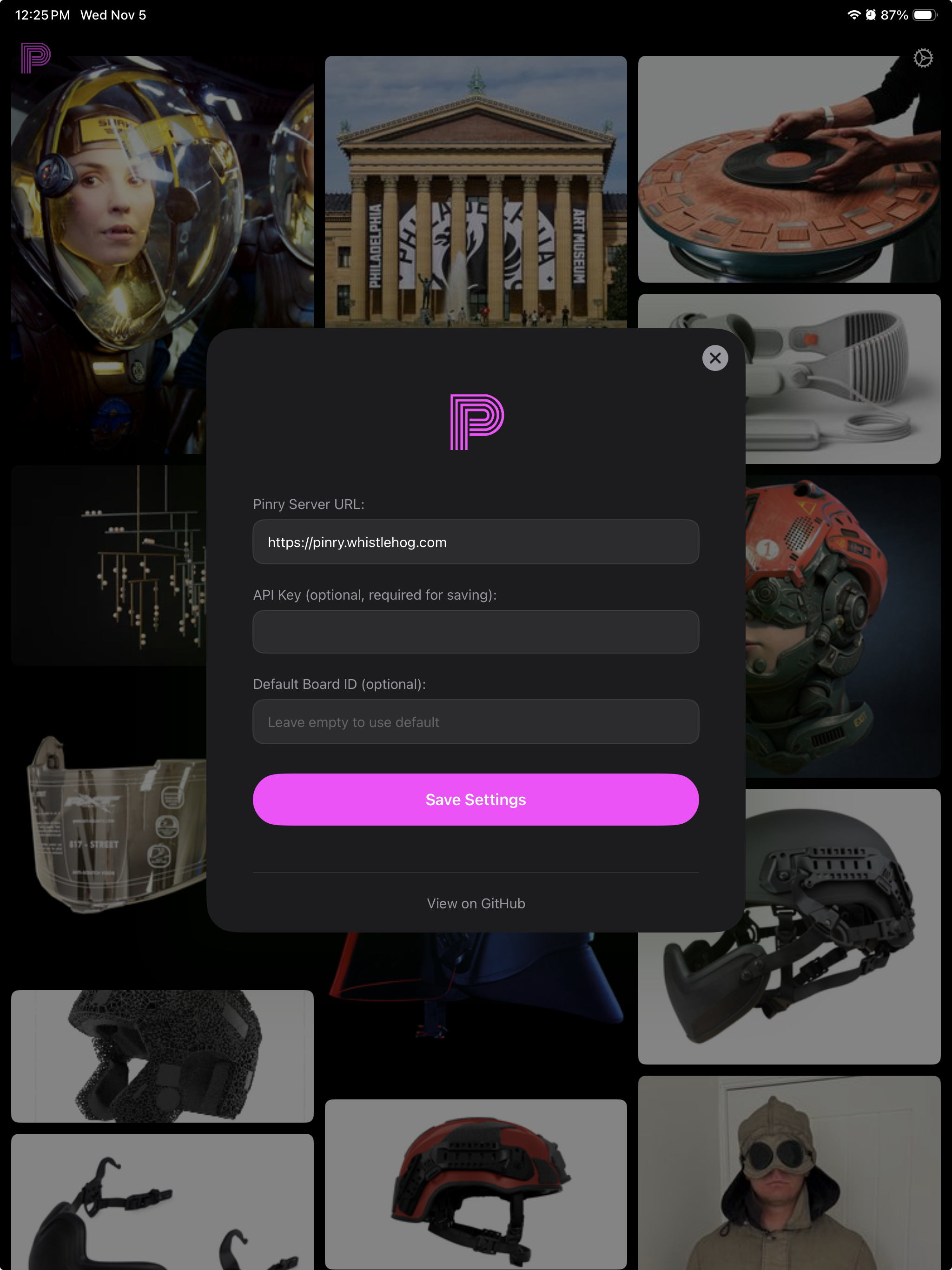
This iOS app connects to a self-hosted Pinry server. You'll need to set up your own Pinry instance first.
The easiest way to get Pinry running is with Docker. From the Pinry project:
# Clone the Pinry repository
git clone https://github.com/pinry/pinry.git
cd pinry

# Start with docker-compose
docker-compose -f docker-compose.example.yml up -d
Your Pinry server will be available at http://localhost (or your server's IP).
- Access your Pinry web interface
- Create an account or log in
- Go to your account settings
- Generate an API token
- Copy this token for use in the iOS app
- Public Pins: If your Pinry instance allows public viewing, you can browse pins without an API token
- Saving Pins: API token is required to save new images/URLs to your Pinry
- HTTPS Recommended: Use HTTPS in production for secure API token transmission
For detailed Pinry server setup, visit the official documentation.
PinrySaver/
├── PinryShared/                # Shared code between app and extension
│   ├── PinrySettings.swift     # Settings management with App Group UserDefaults
│   ├── KeychainStore.swift     # Secure API token storage
│   └── PinryUploader.swift     # Pinry API upload logic
├── PinrySaver/                 # Main app target
│   └── ContentView.swift       # Settings UI (SwiftUI)
└── PinryShareExtension/        # Share extension target
    ├── ShareViewController.swift # Share extension logic
    └── Info.plist             # Extension configuration
- Open
PinrySaver.xcodeprojin Xcode - Select the project in the navigator
- For the main app target:
- Set Bundle Identifier to:
com.example.pinrysaver
- Set Bundle Identifier to:
- For the Share Extension target:
- Set Bundle Identifier to:
com.example.pinrysaver.shareextension
- Set Bundle Identifier to:
- Add Capabilities:
- Main App: Add "App Groups" capability
- Add group:
group.com.example.pinry
- Add group:
- Share Extension: Add "App Groups" capability
- Add same group:
group.com.example.pinry
- Add same group:
- Main App: Add "App Groups" capability
- Add Capabilities:
- Main App: Add "Keychain Sharing" capability
- Add keychain group:
$(AppIdentifierPrefix)com.example.pinryshared
- Add keychain group:
- Share Extension: Add "Keychain Sharing" capability
- Add same keychain group:
$(AppIdentifierPrefix)com.example.pinryshared
- Add same keychain group:
- Main App: Add "Keychain Sharing" capability
- Add
PinrySharedfolder to both targets:- Right-click on project > Add Files to "Pinry Saver"
- Select the
PinrySharedfolder - Ensure both targets (main app and share extension) are checked
- Ensure iOS Deployment Target is set to iOS 14.0 or later (for
async/awaitsupport)
- Launch the Pinstle app
- Go to Settings tab
- Enter your Pinry configuration:
- Pinry Base URL: Your Pinry instance URL (e.g.,
https://your-pinry.com) - API Token: Your Pinry API token
- Default Board ID: Optional board ID for pins
- Pinry Base URL: Your Pinry instance URL (e.g.,
- Tap "Save Settings"
- Open any app with images or URLs (Photos, Safari, etc.)
- Tap the share button
- Select "Pinstle" from the share sheet
- The extension will automatically upload the content to your configured Pinry instance
The app communicates with Pinry API at <base_url>/api/pins/ endpoint using:
- Method: POST
- Authentication:
Authorization: Token <api_token> - Content-Type:
multipart/form-data - Fields:
image: Image file data (JPEG)description: Generated descriptionsource: Source URL or appboard: Board ID for the pin
- API tokens are stored securely in the Keychain using iOS Keychain Services
- Settings are shared between app and extension via App Groups
- All network requests use URLSession with proper error handling
- Share extension extracts domain names from URLs for source attribution
- Images are automatically converted from HEIC to JPEG for broader compatibility
- Multiple image sharing is supported (up to 10 images)
- URL sharing creates placeholder images with domain names for Pinry upload
- Ensure App Groups and Keychain Sharing are properly configured in both targets
- Verify Bundle Identifiers are unique and correctly formatted
- Check that the Pinry Base URL includes protocol (http/https)
- API tokens should be valid Pinry authentication tokens