
NETGEAR Devices Hidden Page List
Did you know that Netgear routers, WiFi Access Points, Switches, etc all have hidden pages that the developers left in the production images? Was it intentional? Who knows these days. Why hidden? Ask Netgear. Is it awesome and filled with cool functionality you never knew existed on your Netgear: Almost certainly, yes.
Here's the list of currently known, hidden pages contained within NETGEAR routers, switches, and other networking equipment. If you know of similar pages for Netgear or another brand, let me know! If you know about other Netgear hidden pages, or want to submit an update for the pages listed below that aren't filled out, that'd be cool! I only have so many devices that I can test myself ;)
I sorted these in order of usefulness and awesomeness, as well as likelyhood to work on almost all routers vs. only a few models. In order to use these pages, just login to your router at 192.168.0.1 or whatever the address is and then just paste the page - Examples: http://192.168.0.1/debug.htm or http://192.168.0.1/WiFi_HiddenPage.htm ... no, I'm not joking. Crazy huh? Remember, not all of these will work on your device, but at least a few will work, that's pretty much guarenteed.
SO FAR, TESTED ON MULTIPLE NETGEAR DEVICES. THIS DOCUMENTATION WAS WRITTEN USING A RAX43 (Broadcom) FOR REFERENCE. The reality of these pages might be totally different for you, etc etc. Another thing to keep remembering: These are HIDDEN menus which means the devs likely don't do upkeep on them or even know they still exist anymore (knowing how "Tech" operates..) So I guess I'm saying: Don't be shocked if the settings randomly don't work or worse, brick your router somehow. I haven't had any issues but you might be the lucky one! Who knows..
Here's a screenshot of what's inside debug.htm - without even explaining any of the options you can already tell this page is probably the best one with the most badass capabilities.
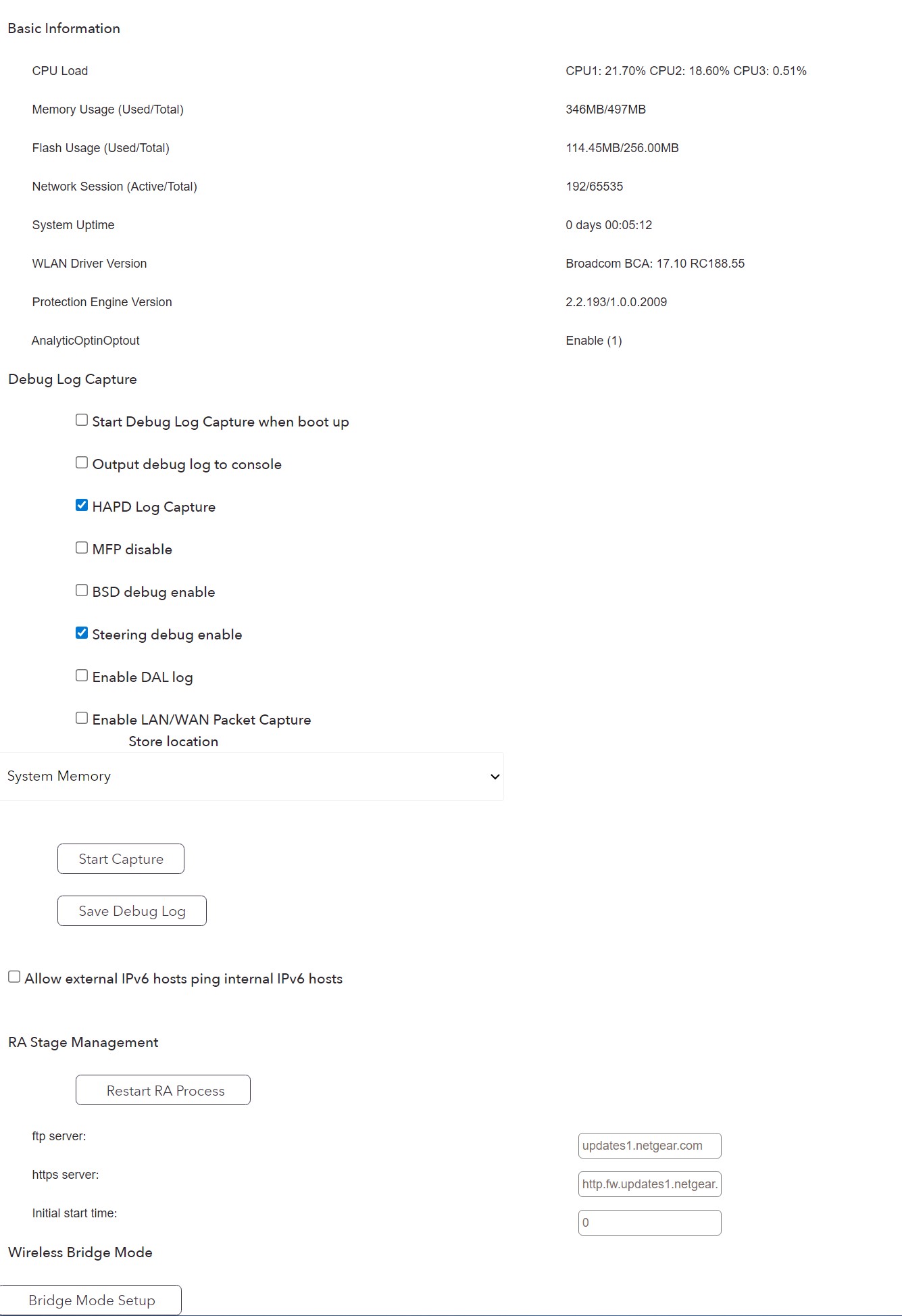
[ Breakdown of all features to be added shortly. ]
CVE-2022-38452 - A command execution vulnerability exists in the hidden telnet service functionality of Netgear Orbi Router RBR750 4.6.8.5. A specially-crafted network request can lead to arbitrary command execution. An attacker can send a network request to trigger this vulnerability.
WiFi_HiddenPage.htm
*NOTE: Only for Broadcom chipset based devices, but it's pretty badass for saving battery life on your phones and other connected devices. RAX200 / RAX80 / R8500 / R8000 / R7000 / D8500 / D7000
Lets you change the default of 100ms per beacon to anything you want. This setting is also broken out into 2.4GHz and 5GHz so that you can raise the Beacon Interval for 2.4GHz and decongest some of the airwaves vs. 5GHz where thats not usually as big of a problem. Check out this page for more in depth info https://routerguide.net/beacon-interval-best-optimal-setting-improve-wireless-speed/ -- Just keep in mind when they say stuff like "Oh just use the highest number it'll let you use!" they aren't thinking about a secret debug/technician menu that's not designed for the public and likely can be set to 65535 as the form for the field allows a 5 digit number... Use realistic and non-dumb numbers for this setting. I'd recommend bumping 100ms per reboot and test at a time.
The DTIM Interval basically determines how often the router sends a message to wake devices in power-saving mode to receive buffered broadcast or multicast data. Since Netgear has this interval maxed out by default to 1, I've found moving it to 3 has increased battery life on almost all phones using the WiFi by a pretty significant amount with almost no data or latency issues. In other words, It’s directly tied to the routers Beacon Interval (A DTIM of 3 means a DTIM message every 3rd beacon instead of every beacon).. and so, obviously a lower DTIM interval will mean more frequent wake-ups, which means more battery SUCK, so setting it to 3 will improve your battery life across the board, but in theory cause "delayed data delivery". Since Beacon intervals are 100ms by default, this means instead of 100ms it might take 300ms (at most) to wake up a device instead of 100ms.
Check this page out for way more detail https://www.snbforums.com/threads/optimize-ampdu-aggregation-tested-and-results.90968/ Differences between the two? A-MPDU (Aggregate MAC Protocol Data Unit): Combines multiple data frames into a single transmission, reducing overhead and improving throughput, especially for high-bandwidth tasks like streaming or file transfers. It’s more faster than A-MSDU. A-MSDU (Aggregate MAC Service Data Unit): Combines smaller frames into a single larger frame before transmission, reducing header overhead. It’s less great to use vs. A-MPDU especially in noisy environments, but might cause more faster results for stuff using smaller packets or UDP like SIP, etc etc. Haven't tested personally, so YMMV. What I CAN tell you, is that pretty much everyone is in agreement that these settings can cause major network suckage, especially A-MSDU since it only takes one subframe to fuck up an entire glibglob of aggregate packets, causing a retransmission and then why the hell are you even bothering at this point? I'd say set it to OFF for both 2.4G and 5G unless you're in a super clean RF environment. For A-MPDU, seems like it should be ok to leave it to ON for both 2.4G and 5G because it'll usually boost performance and stuff.... buuuuuut, on the other hand if you have old equipment like say an old Nest Gen 1 camera that can barely connect to a 2.4Ghz WiFi.. you might find that keeping A-MPDU OFF on 2.4Ghz suddenly makes your trashy old gear start working again! Since I personally suffer from Crappy, Old Gear Syndrome myself, I have it set to ON for 5GHz and OFF for 2.4GHz. Play around with the settings and do testing is kinda the answer for all of these, spoiler.
Oh yeah, Frameburst! For both 2.4GHz and 5GHz seperately!
Question: Who DOESN'T love Frameburst?!?
Answer: Everyone. Because nobody knows wtf it is, for the most part.
More detailed book learnin' stuff here https://routerguide.net/tx-burst-on-or-off-frame-burst-packet-burst/
The TL;DR is that it allows the router/AP/whatever to send multiple frames in a single "transmission opportunity" aka TX slot, TX window.. kinda like a frame, but not, since you can stuff more than 1 frame in a TX window and also it's called Frameburst so there's another clue it's not just a frame. ANYWAYS, Framebursting pumps up the jam on your WiFi by increasing throughput and gets you ever closer to setting your router radios on fire and going sterile from the ionizing radiation coursing through your soft tissue with every packet you transmit.. BUT DON'T WORRY, FRIEND!! That new Paramount torrent you're going to be downloading to ensure their demise will TOTALLY DOWNLOAD 20 SECONDS FASTER!! And, therefore, it's all worth it in the end. This setting is most useful for high-bandwidth stuff like downloading torrents, seeding torrents, and other torrent stuff.. but just like medications and drugs, there's a side-effect like hair loss or homicial rage, but for Frameburst, it's just a little bit of latency. Worse, you can end up causing other clients on the network to see increased latency if you're shitting up the WiFi with your horrible uh I mean wicked cool new anime torrent that just came out! Especially true on busier networks, with multiple weeaboos.
CHEATSHEET:
| SETTING | 2.4GHz | 5GHz | Comments |
|---|---|---|---|
| Beacon Interval | 100ms | 100ms | Defaults here seem pretty not-terrible! |
| DTIM Setting | 3-5 | 2-3 | 1 is just not needed & kills bandwidth |
| A-MPDU Aggregate | ON | ON | I leave it on "Auto" for 2.4G, experiment.. |
| A-MSDU Aggregate | Auto | Auto | OFF Would be gr8, but Netgear doesnt allow. |
| Frameburst | Off | Off | I just dont like these settings. Experiment |
hidden_POT.htm Sorry but my routers don't have any of these pages, so please feel free to add to this list if they work on your device!
hidden_channel_wifi_coexist.htm Sorry but my routers don't have any of these pages, so please feel free to add to this list if they work on your device!
hidden_channel_wifi_test.htm Sorry but my routers don't have any of these pages, so please feel free to add to this list if they work on your device!
hidden_info.htm (QUALCOMM chipset based routers/modems only??? (RAX120 / R7800 / D7800 etc & earlier models?) Sorry but my routers don't have any of these pages, so please feel free to add to this list if they work on your device!
hidden_manual_set_ant.html Sorry but my routers don't have any of these pages, so please feel free to add to this list if they work on your device!
hidden_11ad_setting.htm (R9000) Sorry but my routers don't have any of these pages, so please feel free to add to this list if they work on your device!
hidden_cpu.htm Sorry but my routers don't have any of these pages, so please feel free to add to this list if they work on your device!
Thermal_FAN.htm Sorry but my routers don't have any of these pages, so please feel free to add to this list if they work on your device!
QOS_prru_main.htm Sorry but my routers don't have any of these pages, so please feel free to add to this list if they work on your device!
UPG_check_version_hidden.htm